
Having PUBG Latency Issues? We Tested Speedify’s Streaming Mode to See How It Helps
PUBG is one of the most popular online games nowadays, still gathering over 500,000 active users on its servers only from Steam. Whether you’re going at it for the kills or for that chicken dinner, you still need fast and reliable connectivity.
Unfortunately the Internet is not always as you’d like it to be: fast and stable. This causes serious problems in the gameplay, such as player being temporary uncontrollable, repositioning, a poor image quality, etc. That’s definitely not the way to get a seat for that chicken dinner, right? So what can you do about it?
Well, we created the Streaming Mode for Speedify. It recognizes audio and video streams (such as the ones from PUBG), and:
- prioritizes those streams over other network traffic, and
- dynamically changes traffic patterns between bonding (dividing network packets among multiple connections) and redundant (sending the same network packets through multiple connections).
This results in the best quality of service you can get for PUBG with the Internet connections you have available. All, of course, while minimizing PUBG latency numbers.
But exactly how good is Streaming Mode? Is Speedify the answer to the question of how to eliminate PUBG latency issues? We decided to put it to test – and this article will show exactly what we got.
<1 sec
With Speedify, your internet stays on when one connection fails.
When one of your internet connections drops, Speedify shifts your traffic to your remaining connections in under a second — so calls don’t cut out and downloads don’t stall.
Should you have a backup 4G, 5G, Starlink, or cable internet connection?
Yes — every internet connection goes down, including Starlink, which drops for ~34 minutes a day on average. A backup connection from a different provider means one outage never takes you fully offline. The most common options are a 4G/5G cellular hotspot, a cable or DSL line, or a second satellite dish.
4G/5G cellular
Works anywhere. Just a SIM or hotspot — no installation needed.
Learn more →Cable / DSL
Best for fixed locations. Different network, so outages rarely overlap.
Learn more →Second Starlink
Adds redundancy and throughput for remote sites or heavy usage.
Learn more →Speedify bonds any two connections into one — automatic failover, more speed, no dropped calls.
Try Speedify free →

Testing to Fix PUBG Latency Issues. Is Speedify’s Streaming Mode Up for the Job?
Unless they’re having issues, we all know PUBG performs well when you’re backed by a fast and stable Internet. But what about the real world, where most likely you don’t get that luxury?
The testing procedure consists of 2 series of tests for playing PUBG:
- Without Speedify;
- Speedify on with Streaming Mode enabled.
In terms of devices and operating systems, we tested it on an Android smartphone. We combined Wi-Fi and cellular on that.
The evaluation is done both subjectively and objectively as follows:
- We screen capture and analyze the PUBG gameplay from the latency and video quality point of view;
- We walk towards the edge of the Wi-Fi network. This helps us simulate:
- insufficient bandwidth conditions, as we get away from the Wi-Fi router;
- unreliable connectivity at the edge of Wi-Fi with dead spots and packet loss;
- disconnecting Wi-Fi internet and how quick it switches to cellular.
We looked at the latency and packet loss. And, of course, how they are affected by our “course” away from Wi-Fi.
Playing PUBG on Unstable Wi-Fi Networks? There’s No Such Thing
First off – we have the test with no Speedify running. Once we parachuted down, started running around. When Wi-Fi was flaky, we got that “loading” image in the center of our screen. Oh, and yes – we couldn’t stop our character running.
Once the phone switched to cellular, the character was repositioned on the map to an earlier position. Luckily we didn’t meet any other players during these precious seconds. In the end, we were #5 of 97, if anyone cares.
Here’s how the latency looks like:
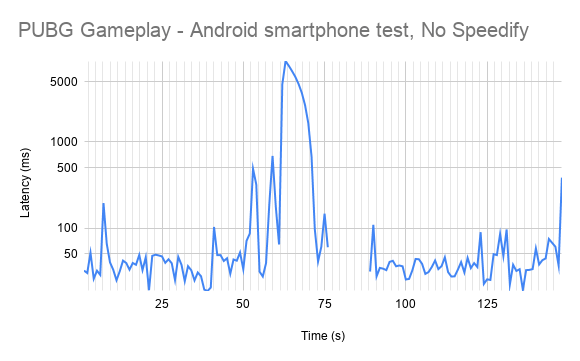
As you can see, there was a huge latency for about 25 seconds (timestamp 50 to 75). Plus a lot of packet loss – check out from timestamp 75 to around 90. That is definitely not good if you want to survive, not to mention scoring some game kills.
Playing PUBG on Unstable Wi-Fi Networks? There’s No Such Thing
Now – it’s not that we’re bragging or anything, but… the PUBG on Android gameplay test with Speedity Streaming Mode running was almost perfect. As you can see in the latency graph below, the latency was slightly higher (over 50 ms) for about 20 seconds after the Wi-Fi connection went bad.
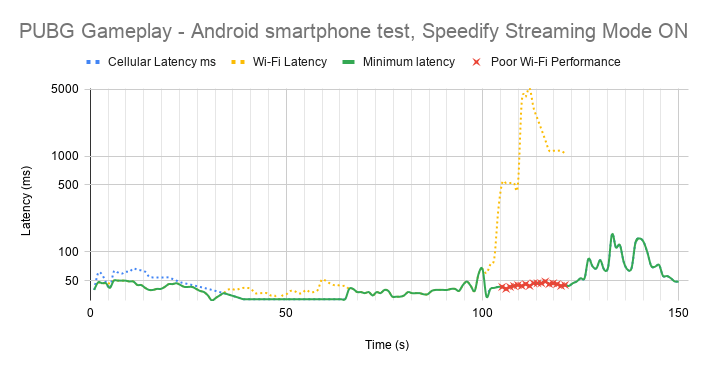
Other than that,please notice the pretty constant low latency Speedify offers by combining Wi-Fi and cellular on your Android smartphone. For each network packet, Speedify basically delivers the lowest latency among your Wi-Fi and cellular connections. This helps your gameplay and eliminates the PUBG latency issues.
Interested in the raw latency data? Here you go:
|
No Speedify * |
Spedify Streaming Mode |
|||||
|
Latency (ms) |
Average |
Minimum |
Maximum |
Average |
Minimum |
Maximum |
|
Overall |
398 |
19 |
8661 |
47 |
31 |
153 |
* The numbers for the test without Speedify do not include the packet loss values.
A few conclusions after looking at this table:
- The maximum and average latency were lower when using Speedify Streaming Mode. This is normal, as there was an almost seamless transition between Wi-Fi and cellular.
- The minimum latency was lower without running Speedify. Which is also understandable, as Speedify uses cloud servers for bonding. That, however, can be tweaked if you test and see which Speedify server provides lower ping for your PUBG game.
Test Conclusion: Speedify Streaming Mode Solves PUBG Latency Issues
There you have it – when looking at how to improve PUBG gameplay in terms of Internet connectivity, one of the must-haves is to use Speedify. Speedify’s Streaming Mode makes a huge difference.
To put it in context, here’s what happens under the hood of Streaming Mode. Speedify monitors statistics in real-time about how each of your Internet connections is performing. As connections change, and other apps start or stop sending data, Speedify adjusts its strategies on the fly. So, if you’re IRL streaming, you’re no longer chained around your router. Or that good public Wi-Fi hotspot you know in the city. You can walk around without dropping the stream. You don’t need to worry about it. Just start streaming: Speedify will make it happen.
To learn more about Streaming Mode and how to enable it check out the Speedify Knowledge Base article.
If you’re still wondering how to minimize PUBG latency – get Speedify!
Alex and the Speedify team are always exploring the latest in networking and security technology—like 5G, 6G, WiFi 7, laser and satellite internet—and sharing it in new discussion content across YouTube, TikTok, Instagram, and LinkedIn every week.
Got a tech question? Let's go deeper! Pop into Speedify Office Hours live every Wednesday at 10 AM Eastern. Speedify CEO Alex Gizis and our network engineers are standing by to break down your questions about networks, tech updates, and Speedify features.

Speedify
Get started with Speedify today.
Combine Wi-Fi, 4G/5G cellular, Ethernet, Starlink, and more into one faster, steadier connection. Free to try — no credit card required.
🚀 Speed
Faster uploads and downloads by bonding all your connections at once.
📶 Stability
Automatic failover in under a second when any connection drops.
🔒 Security
AES-256 encryption on every connection, on every network you join.



15M+ downloads worldwide. 75K+ five-star reviews on iOS and Android.