
Speedify Helps Mac Wi-Fi Work Faster by Combining Wi-Fi and 4G/5G Cellular at Once
Slow Wi-Fi on a MacBook is a common problem, and plenty of Mac owners see it while a phone on the same network runs fine. The usual causes are distance from the router, a crowded Wi-Fi channel, or macOS picking the slower 2.4 GHz band, and the fixes below cover each one. When those fixes are not enough, run Wi-Fi and a second internet connection at the same time. Windows users can follow speeding up Wi-Fi on a Windows PC.
Speedify is an app that combines two or more internet connections at once, such as Wi-Fi and a tethered phone’s 4G/5G cellular or wired Ethernet, so you get faster downloads and uploads and stay online if one connection drops out. This guide covers macOS settings fixes, router fixes, and how to combine internet connections with Speedify.
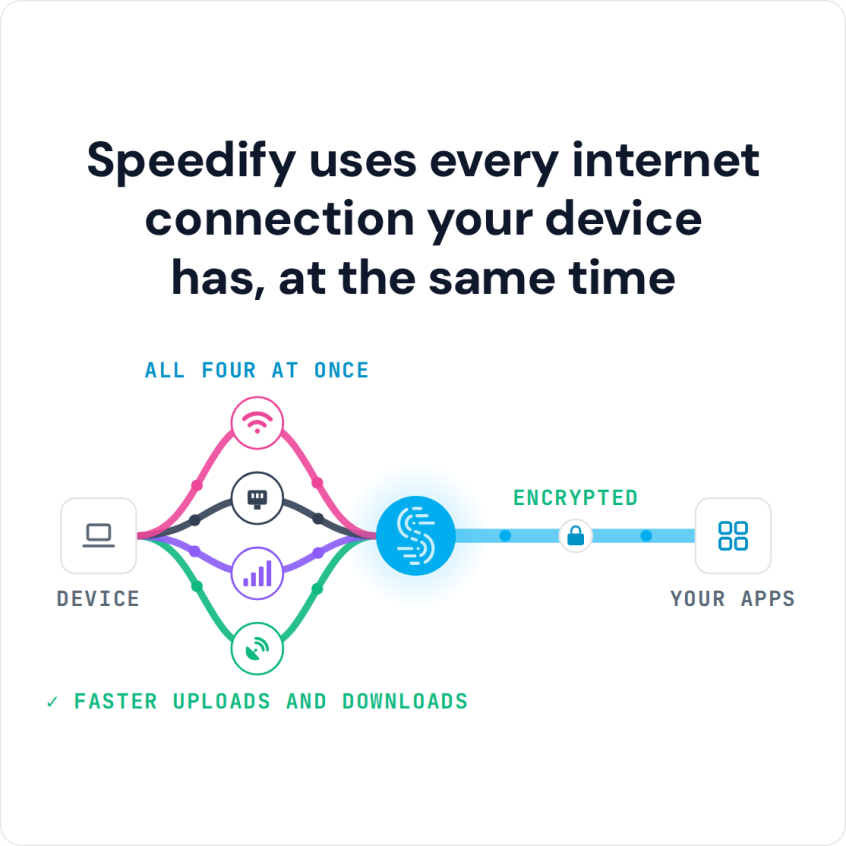
Speedify uses every internet connection your device has, at the same time
How do I use WiFi and 4G/5G cellular at the same time with Speedify?
Pick your two internet connections and your device below and we'll take you to the step-by-step setup guide.


Why Wi-Fi on a Mac Is Slow: The Most Common Causes
Before applying fixes, identifying the actual cause of slow Mac Wi-Fi produces faster results. These are the most common causes:
- Router distance and physical obstructions: Wi-Fi signal strength drops quickly with distance. Walls, floors, large appliances, and furniture between a Mac and the router reduce signal strength and throughput. A Mac one room away from a router often gets a fraction of the speed a Mac next to the router receives.
- Wi-Fi channel congestion: In apartments, offices, and dense residential areas, neighboring Wi-Fi networks compete for the same radio channels. Channel congestion causes interference that reduces the effective speed every device on the network receives.
- 2.4 GHz vs. 5 GHz band selection: macOS sometimes connects a Mac to the 2.4 GHz band instead of the faster 5 GHz band, particularly when the Mac is at the edge of 5 GHz range. The 2.4 GHz band is slower and more congested than the 5 GHz or 6 GHz bands.
- Outdated router firmware: Router manufacturers release firmware updates that improve Wi-Fi performance, fix bugs, and patch security vulnerabilities. Routers running outdated firmware often underperform.
- macOS background processes consuming bandwidth: iCloud sync, Time Machine backups, macOS software updates, and app updates all consume Wi-Fi bandwidth in the background, and can sometimes use up the whole connection while you are working.
- DNS server performance: macOS uses the DNS server assigned by the router by default. ISP-provided DNS servers are often slower than third-party alternatives, adding latency to every website request.
- Single connection dependency: Every Mac running on Wi-Fi alone is fully dependent on that one connection. When Wi-Fi slows down or drops, every application on the Mac is affected with no alternative path for traffic.
How to Make Wi-Fi on a Mac Faster: macOS Settings Fixes
Fix 1: Forget and Rejoin the Wi-Fi Network
macOS stores Wi-Fi network profiles that can become outdated or corrupted. Forgetting a network and rejoining forces macOS to establish a clean connection with fresh DHCP settings and channel selection.
- Open System Settings → Wi-Fi.
- Click the information icon next to the current Wi-Fi network.
- Click Forget This Network and confirm.
- Reconnect to the Wi-Fi network by selecting it from the list and entering the password.
Fix 2: Renew the DHCP Lease
A stale DHCP lease can cause routing issues that slow down Wi-Fi performance on a Mac without producing any visible error. Renewing the lease forces the router to assign a fresh IP address and network configuration.
- Open System Settings → Network → Wi-Fi → Details.
- Select the TCP/IP tab.
- Click Renew DHCP Lease.
Fix 3: Switch to a Faster DNS Server
Replacing the ISP-assigned DNS server with a faster third-party alternative reduces the time macOS takes to resolve domain names, which makes every website and cloud service the Mac connects to start loading sooner.
- Open System Settings → Network → Wi-Fi → Details → DNS.
- Click the + button and add 1.1.1.1 (Cloudflare) and 1.0.0.1 as DNS servers.
- Remove the existing ISP DNS entries and click OK.
Fix 4: Force the Mac to Connect to the 5 GHz or 6 GHz Band
If the router broadcasts separate network names for 2.4 GHz and 5 GHz bands, connect the Mac explicitly to the 5 GHz network. Within range, the 5 GHz band is often 2 to 5 times faster than 2.4 GHz. If the router uses a single network name for all bands (band steering), position the Mac closer to the router to ensure macOS selects the faster band automatically.
Fix 5: Flush the macOS DNS Cache
A corrupted DNS cache causes slow or failed domain resolution on a Mac. Flushing the cache forces macOS to perform fresh DNS lookups for all domains.
- Open Terminal (Applications → Utilities → Terminal).
- Type:
sudo dscacheutil -flushcache; sudo killall -HUP mDNSResponder - Press Return and enter the administrator password when prompted.
Fix 6: Disable Wi-Fi Features That Reduce Throughput
macOS includes Wi-Fi features designed to improve battery life or manage connections automatically that can reduce throughput in some environments. In System Settings → Network → Wi-Fi → Details, review the following options and disable any that are not required:
- Ask to join networks: Disabling this prevents macOS from scanning for new networks continuously, reducing background radio activity.
- Low Data Mode: If enabled, Low Data Mode reduces background network activity. Turn it off when maximum throughput is the priority.
How to Make Wi-Fi on a Mac Faster: Router and Hardware Fixes
Fix 7: Move the Router or the Mac
Position the router in a central, elevated location with clear line of sight to the areas where the Mac is used most frequently. Every wall, floor, and large object the Wi-Fi signal passes through reduces signal strength. Moving the router even a few meters can raise the speed a Mac receives.
Fix 8: Change the Router’s Wi-Fi Channel
Most routers select a Wi-Fi channel automatically, but automatic channel selection often results in the router using the same channel as several neighboring networks. Log into the router’s admin interface and manually select a less congested channel. For 2.4 GHz networks, channels 1, 6, and 11 are the only non-overlapping options. For 5 GHz networks, more non-overlapping channels are available, and interference is usually lower.
Fix 9: Update Router Firmware
Check the router manufacturer’s website or the router’s admin interface for available firmware updates. Firmware updates frequently include Wi-Fi performance improvements, bug fixes for connection stability issues, and security patches.
Fix 10: Use a Wi-Fi Analyzer to Identify Interference
macOS includes a built-in Wi-Fi diagnostic tool that shows signal strength, channel utilization, and neighboring network information. Hold the Option key and click the Wi-Fi icon in the menu bar, then select Open Wireless Diagnostics. Use the Scan window to identify the least congested channels in the local environment and configure the router accordingly.
Which Mac Wi-Fi Fixes Help Most: Typical Impact of Each Fix
| Fix | What It Improves | Typical Impact |
|---|---|---|
| Switch to 5 GHz or 6 GHz band | Download and upload throughput | High (often 2 to 5 times faster than 2.4 GHz) |
| Switch to Cloudflare DNS (1.1.1.1) | Page load times, app response speed | Medium (20 to 50 ms less DNS lookup time) |
| Change Wi-Fi channel | Throughput, connection stability | Medium to High in congested environments |
| Move router closer / reposition | Signal strength, throughput | High (signal strength drops sharply with distance) |
| Renew DHCP lease / forget and rejoin network | Connection stability, routing | Low to Medium (fixes specific software-layer issues) |
| Flush DNS cache | Domain resolution speed | Low (fixes corrupted cache issues only) |
Combine Wi-Fi and 4G/5G Cellular on a Mac with Speedify for Faster Downloads
All of the fixes above improve a single Wi-Fi connection, and none of them remove its basic limit: when Wi-Fi slows down during peak hours, the router drops briefly, or the Mac moves to the edge of Wi-Fi range, the Mac has no other connection to fall back on.
Speedify solves this by using Wi-Fi and 4G/5G cellular on a Mac at the same time. Both connections carry traffic together, so the Mac gets the combined download and upload speeds of both, plus automatic failover if either one slows down or drops.
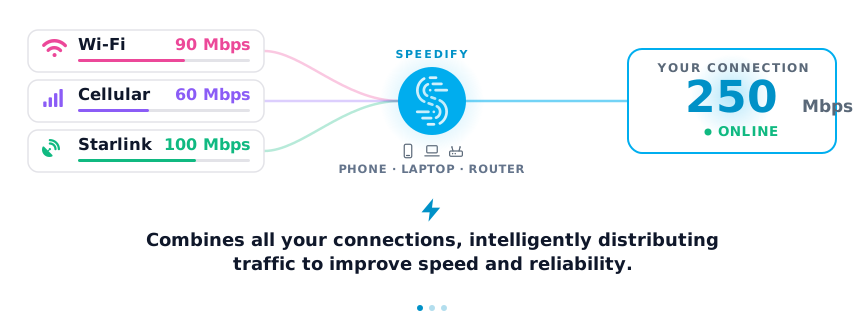
Speedify Combines Wi-Fi and 4G/5G Cellular Download and Upload Speeds: For example, a Mac running Speedify with a 100 Mbps Wi-Fi connection and a 60 Mbps 4G/5G cellular hotspot can get close to 160 Mbps of combined throughput, for faster downloads and uploads. Wi-Fi and 4G/5G cellular are used together, not switched between.
Speedify Provides Automatic Failover When Wi-Fi Slows Down or Drops: When the Wi-Fi connection on a Mac slows during peak hours or drops during a router restart, Speedify’s automatic failover technology moves all traffic to the 4G/5G cellular connection without dropping a Zoom call, interrupting a file upload, or pausing a download. You do not have to switch anything by hand.
Speedify Distributes Traffic Across Wi-Fi and 4G/5G Cellular in Real Time: Speedify continuously monitors the speed and latency of both the Wi-Fi and 4G/5G cellular connections and distributes traffic accordingly using Speedify’s proprietary protocol. When Wi-Fi is fast, Speedify uses more of it. When 4G/5G cellular is faster, Speedify shifts traffic there. The Mac always uses the best available path for every packet.
Speedify Encrypts All Wi-Fi Traffic: Speedify also encrypts all traffic on both the Wi-Fi and 4G/5G cellular connections, like a VPN. Public Wi-Fi networks at airports, hotels, cafés, and co-working spaces are often unencrypted, and Speedify’s encryption protects passwords, banking sessions, and other sensitive data on every network the Mac connects to.
How to Set Up Speedify to Make Wi-Fi on a Mac Faster
- Connect the Mac to Wi-Fi as normal.
- Add a 4G/5G cellular connection. On an iPhone, turn on Personal Hotspot and connect the iPhone to the Mac with a USB cable; USB tethering creates a separate network interface alongside Wi-Fi that Speedify can combine. Many Android phones USB-tether to a Mac the same way with no extra driver, but not all; if yours does not show up in the Mac’s Network settings, install Speedify on the phone and use Speedify’s cellular sharing feature, which shares the phone’s 4G/5G cellular with the Mac over Wi-Fi. A USB cellular modem also works.
- Download and install Speedify on the Mac (available for macOS, Windows, iOS, Android, Linux, and OpenWrt).
- Open Speedify and connect. Speedify automatically detects the Wi-Fi connection and the 4G/5G cellular connection and starts combining both. Both connections appear in the Speedify dashboard with real-time download speed, upload speed, and latency data for each.
- Optionally, open Speedify settings: Streaming mode, the default, suits video calls and live streaming, and Redundant mode sends duplicate packets over both connections for extra reliability. You can also set per-connection data limits to manage how much of your cellular data plan Speedify uses.
Speedify vs. macOS Wi-Fi Fixes: What Each Approach Achieves
| Approach | Faster Downloads and Uploads? | Works When Wi-Fi Slows Down? | Automatic Failover? | Encrypted Traffic? | Requires Hardware Changes? |
|---|---|---|---|---|---|
| Speedify (Wi-Fi + 4G/5G Cellular Combined) | ✅ Yes (combined throughput) | ✅ Yes (shifts to 4G/5G cellular) | ✅ Yes | ✅ Yes | ✅ No (software only) |
| Switch to 5 GHz / 6 GHz band | ✅ Yes (within Wi-Fi range) | ❌ No | ❌ No | ❌ No | ❌ No |
| Switch to Cloudflare DNS | ⚠️ Partial (page loads only) | ❌ No | ❌ No | ❌ No | ❌ No |
| Change Wi-Fi channel | ✅ Yes (in congested environments) | ❌ No | ❌ No | ❌ No | ❌ No |
| Move router / reposition Mac | ✅ Yes (improves signal strength) | ❌ No | ❌ No | ❌ No | ✅ Yes (physical move required) |
| Other VPNs | ❌ No (often slower) | ❌ No | ❌ No | ✅ Yes | ❌ No |
Frequently Asked Questions About Making Wi-Fi on Mac Faster
Why is Wi-Fi slow on a Mac but fast on other devices?
If Wi-Fi is slow on a Mac but fast on other devices connected to the same network, the issue is likely specific to the Mac’s Wi-Fi settings, a stale DHCP lease, or macOS connecting to the 2.4 GHz band instead of 5 GHz. Try forgetting and rejoining the network, renewing the DHCP lease, and confirming the Mac is connected to the 5 GHz band.
Does Speedify make Wi-Fi faster on a Mac without a second internet connection?
No. Speedify needs at least two active connections to combine. With only Wi-Fi active, Speedify still encrypts traffic like a VPN, but faster downloads and uploads require a second internet connection, such as a tethered iPhone’s 4G/5G cellular.
Does using Speedify drain iPhone battery when tethering?
When an iPhone is tethered to a Mac with a USB cable, the Mac charges the iPhone while the iPhone shares its 4G/5G cellular connection, so battery drain is not an issue. Bluetooth tethering uses minimal power on both devices but delivers lower speeds than USB tethering.
Can Speedify combine Wi-Fi with Starlink or a second Wi-Fi network on a Mac?
Yes. Speedify combines any mix of available connections on a Mac: Wi-Fi and 4G/5G cellular, Wi-Fi and Starlink, Wi-Fi and wired Ethernet through a USB-C to Ethernet adapter, or two Wi-Fi networks. A second Wi-Fi network needs a USB Wi-Fi adapter, which works only on Intel Macs running macOS 11 Big Sur (Speedify needs macOS 11.5 or later). Speedify combines every connection type the same way.
Does Speedify work on all Mac models?
Yes. Speedify runs on Macs with macOS 11.5 or later, including MacBook Air, MacBook Pro, Mac mini, Mac Studio, and Mac Pro, on both Apple Silicon and Intel processors.
The macOS settings fixes in this guide get more out of a single Wi-Fi connection. Speedify goes further by combining Wi-Fi and 4G/5G cellular at the same time, for faster downloads and uploads and a connection that keeps working when Wi-Fi slows down or drops.
Download Speedify and make Wi-Fi on a Mac faster today.
Speedify
Get started with Speedify today.
Speedify combines Wi-Fi, 4G/5G cellular, Ethernet, Starlink and satellite into one faster, more reliable internet connection. Free to try: 5 GB a month with a free account. No credit card required.
🚀 Speed
Faster uploads and downloads, because Speedify uses all your internet connections at once.
📶 Stability
If one internet connection drops, Speedify moves your traffic to the others in milliseconds.
🔒 Security
AES-256 encryption on every internet connection, on any network you join.



15M+ downloads worldwide. 75K+ five-star reviews on iOS and Android.