
How Do I Stream Live StreamYard to YouTube?
StreamYard makes going live to YouTube easy from a browser, so when an IRL walk-and-talk freezes, the software is rarely at fault – your upload is riding one cellular signal that dipped for a few seconds.
Speedify is an app that sends your outgoing video over two or more internet connections at once – Wi-Fi, 4G/5G cellular data, wired Ethernet, Starlink and others – so one weak cellular signal no longer stops the broadcast. This guide lists the gear a YouTube IRL stream needs and walks through four steps for going live with StreamYard, with Speedify holding your upload steady while you move.
With Speedify, your internet stays on when one connection fails.
When one of your connections drops, Speedify automatically routes your traffic to your remaining connections — so calls don't cut out and downloads don't stall.
Requirements for IRL Live Streaming on YouTube Using StreamYard Studio
The essential IRL live streaming equipment includes 4 must-have elements:
- the camera(s) – dedicated (like a GoPro, for example), computer webcam(s), your smartphone’s camera
- the streaming device – smartphone, laptop, desktop computer
- the software to live stream IRL with – StreamYard, in this case
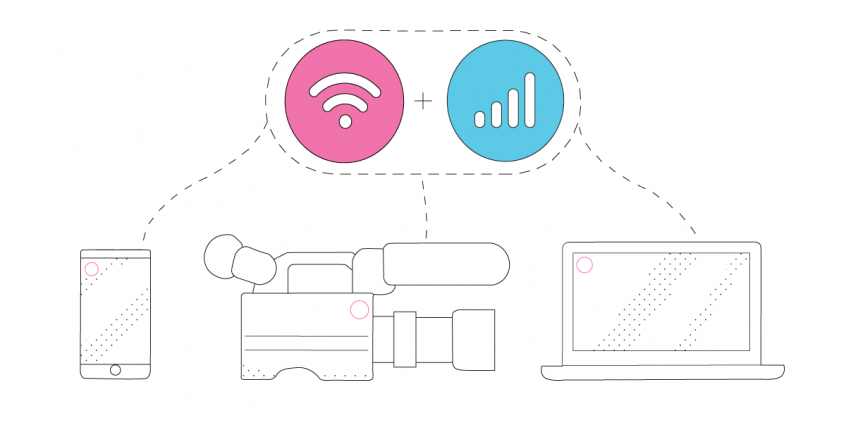
- the stable Internet connection – we recommend using an additional smartphone with a cellular data plan. You will be able to use two connections together at once with Speedify to hit your target bitrate and avoid flaky Internet problems.
Depending on what and where you’re live streaming IRL on YouTube from, you will need additional accessories, such as external battery packs, dedicated microphone, waterproof case / lenses for the camera, extra lighting, etc.
Four Steps to Stream Live IRL with StreamYard to YouTube
Here’s what you need to do in order to start live streaming IRL on YouTube with StreamYard:
STEP 1 – CONNECT ALL AVAILABLE INTERNET SOURCES TO YOUR STREAMING DEVICE
Internet connectivity is what makes or breaks a successful IRL live stream. That’s why it’s important to get it right and use all available connections at once – it will help you avoid issues if one of your connections becomes unstable or even drops.
So, if you’re streaming from your smartphone or tablet:
- connect to a Wi-Fi network or to a Wi-Fi hotspot you create on your second smartphone
- also connect to your own cellular data connection
If you’re streaming from your computer, use one or multiple of the following:
- wired Ethernet connection
- Wi-Fi hotspot
- tethered smartphone
- external USB 5G / 4G LTE cellular adapter
STEP 2 – GET STABLE INTERNET BY BONDING YOUR CONNECTIONS WITH SPEEDIFY
If you don’t have a Speedify subscription yet, you can get it from our website store, the Apple App Store or the Google Play Store.
Run Speedify and log into your account. All the active Internet sources you connected at step 1 should be recognized by Speedify. All you have to do now is choose a server to connect to.
STEP 3 – CONFIGURE STREAMYARD
Follow the instructions on the StreamYard website to get started for your IRL live streaming session on YouTube.
Among other things, you will need to link the YouTube account you want to live stream to with StreamYard.
STEP 4 – FINAL CHECK, GO LIVE
Before going live with your stream, make sure:
- you are in the StreamYard Studio in your browser and are able to see the video you want to broadcast in the preview window
- audio is working
- Speedify is running, and it combines the Internet sources you’re connected to.
Whenever you’re ready, just start the IRL live stream and broadcast to your YouTube audience.
You will get the best Internet connectivity by running Speedify, which prioritizes your IRL live stream over other Internet traffic. Thus, you are avoiding issues such as low quality, choppy and laggy videos, buffering and even disconnects from the streaming server.
Speedify Is an Essential Part of Any YouTube IRL Live Streaming Tech Stack
Live streaming IRL to YouTube using StreamYard should be all about focusing on what you stream. You shouldn’t have to worry whether you’ll get in an area where your Internet connection will drop. Unfortunately, this is the case for most live streamers out there.
This is where Speedify comes to the rescue. It is the only app that can combine multiple internet sources into one bonded super-connection for more stable and secure live streaming, video calling, online gaming and web browsing.
With Speedify, your IRL live streams will be prioritized over other types of traffic on your streaming device. You can be sure your YouTube live streams get the bandwidth and stability they need to provide the best video quality even if your computer or phone decides it’s time to update its apps or run a backup job.
Now you know how to stream live IRL with StreamYard to YouTube successfully! Next steps: put that into practice and ping us on Twitter, Facebook or Instagram with your latest IRL streams!
Speedify
Get started with Speedify today.
Combine Wi-Fi, 4G/5G cellular, Ethernet, Starlink, and more into one faster, steadier connection. Free to try — no credit card required.
🚀 Speed
Faster uploads and downloads by bonding all your connections at once.
📶 Stability
Automatic failover in under a second when any connection drops.
🔒 Security
AES-256 encryption on every connection, on every network you join.



15M+ downloads worldwide. 75K+ five-star reviews on iOS and Android.