
A More Reliable Alternative to the iPhone Hotspot
To share hotspot on iPhone, open Settings > Personal Hotspot, turn on Allow Others to Join, then pick your iPhone from the Wi-Fi list on your laptop, tablet or other phone and enter the password shown on that screen. Personal Hotspot helps when Wi-Fi is unreliable, but it has real limits: carrier throttling, hotspot data caps, and a single carrier to lean on. This guide covers how to set up and troubleshoot the built-in hotspot, then shows how Speedify’s cellular sharing feature goes further by pooling several phones’ 4G/5G cellular into one faster, steadier connection on the device running Speedify.What iPhone Personal Hotspot Does
iPhone’s Personal Hotspot feature transforms your device into a portable Wi-Fi router, allowing you to share your cellular data connection with laptops, tablets, gaming consoles, and other devices. This feature is particularly valuable when you’re in locations with poor or no Wi-Fi coverage.
How do I use WiFi and 4G/5G cellular at the same time with Speedify?

Pick your two internet connections and your device below and we'll take you to the step-by-step setup guide.

Use iPhone as a Mobile Hotspot: Setup in Three Steps
Step 1: Check Your Carrier Plan
Before enabling hotspot, ensure your cellular plan includes tethering/hotspot data. Most major carriers in the US, UK, Canada, and Australia include hotspot functionality, but some budget plans may restrict it.
Step 2: Enable Personal Hotspot
- Open Settings on your iPhone
- Tap Personal Hotspot (or navigate to Settings > Cellular > Personal Hotspot on some iOS versions)
- Toggle Allow Others to Join to enable the feature
- Set a strong Wi-Fi password when prompted


Step 3: Connect Your Devices
You can share your connection through three methods:
Wi-Fi Connection (Recommended):
- On your other device, look for your iPhone’s name in available Wi-Fi networks
- Enter the password you set up
- Your iPhone will show a blue bar indicating active hotspot connections.
Bluetooth Connection:
- Pair your Mac and third-party devices via Bluetooth in Settings
- Select your iPhone as an internet source on the Mac or other connected device.
USB Connection:
- Connect to the computer via Lightning or USB-C cable
- Trust the computer when prompted on your iPhone
- Select your iPhone as the network source on the computer.
How to Turn Off iPhone Mobile Hotspot
Disabling hotspot is straightforward and helps preserve battery life:
- Go to Settings > Personal Hotspot
- Toggle Allow Others to Join off
Quick tip: You can also disable hotspot from Control Center by long-pressing the connectivity section and tapping the hotspot icon.
Common iPhone Hotspot Issues and Solutions
Issue 1: Personal Hotspot Option Missing
Symptoms: Can’t find Personal Hotspot in Settings.
Solutions:
- Contact your carrier to verify hotspot is included in your plan
- Update carrier settings: Settings > General > About
- Reset network settings: Settings > General > Transfer or Reset iPhone > Reset > Reset Network Settings
Issue 2: Other Devices Can’t See iPhone Hotspot
Symptoms: iPhone hotspot doesn’t appear in Wi-Fi list.
Solutions:
- Toggle Airplane Mode on/off
- Restart both iPhone and connecting device
- Ensure devices are within 30 feet of each other
- Check if iPhone name contains special characters (rename if needed)
Also keep Settings > Personal Hotspot open on the iPhone while the other device searches for it, and turn on Maximize Compatibility on that screen if an older device still cannot see it.
Issue 3: Slow Hotspot Speeds
Symptoms: Internet browsing is sluggish when connected to iPhone hotspot.
Solutions:
- Move to an area with better cellular reception
- Limit the number of connected devices: every device shares the same cellular connection
- Close unnecessary apps on connected devices
- Check for iOS updates that might improve performance
Issue 4: Frequent Disconnections
Symptoms: Devices keep losing connection to iPhone hotspot.
Solutions:
- Disable Low Power Mode on your iPhone
- Keep iPhone plugged in while using hotspot
- Reduce distance between iPhone and connected devices
- Reset network settings if problem persists
Issue 5: Hotspot Not Working After iOS Update
Symptoms: Hotspot stops functioning after updating iOS.
Solutions:
- Force restart your iPhone
- Update to the latest iOS version (Apple often releases quick fixes)
- Reset all settings: Settings > General > Transfer or Reset iPhone
How Many Devices Can Connect to an iPhone Hotspot
The number of devices you can connect depends on your iPhone model and your carrier plan. Every connected device shares one cellular connection, so each one gets a smaller slice of the speed as you add more.
Why Consider Speedify’s Cellular Sharing as an Alternative to iPhone’s Personal Hotspot
iPhone’s native hotspot works well for basic needs, but it shares one phone’s cellular connection. Speedify’s cellular sharing feature lets several phones running Speedify add their 4G/5G cellular to a computer, tablet or another phone that also runs Speedify. With a single connection, Speedify works as an encrypted VPN and cannot make that connection faster.
What Speedify’s Cellular Sharing Feature Does
Speedify’s cellular sharing feature (Pair & Share in the app) lets your iPhone share its 4G/5G cellular connection with other devices running Speedify over the Wi-Fi network they are all on. It follows your carrier plan: sharing works on plans that allow tethering, and shared data counts as hotspot data. If the Personal Hotspot option is missing, here is how to fix an iPhone hotspot not showing.
Key Benefits of Speedify Cellular Sharing Over Native iPhone Hotspot
1. Works Over the Wi-Fi Network You Already Have
- Phones and computers on the same Wi-Fi network pair directly, so no phone needs Personal Hotspot turned on
- With no Wi-Fi around, turn on Personal Hotspot on one phone and connect the other devices to it
2. Gets You Faster and More Reliable Connectivity
- Combines connections: use your iPhone’s 4G/5G cellular connection alongside Wi-Fi or Ethernet
- Intelligently distributes traffic across all available connections
- Combines the bandwidth of every shared connection for faster downloads and uploads than one phone’s hotspot
3. Superior Reliability
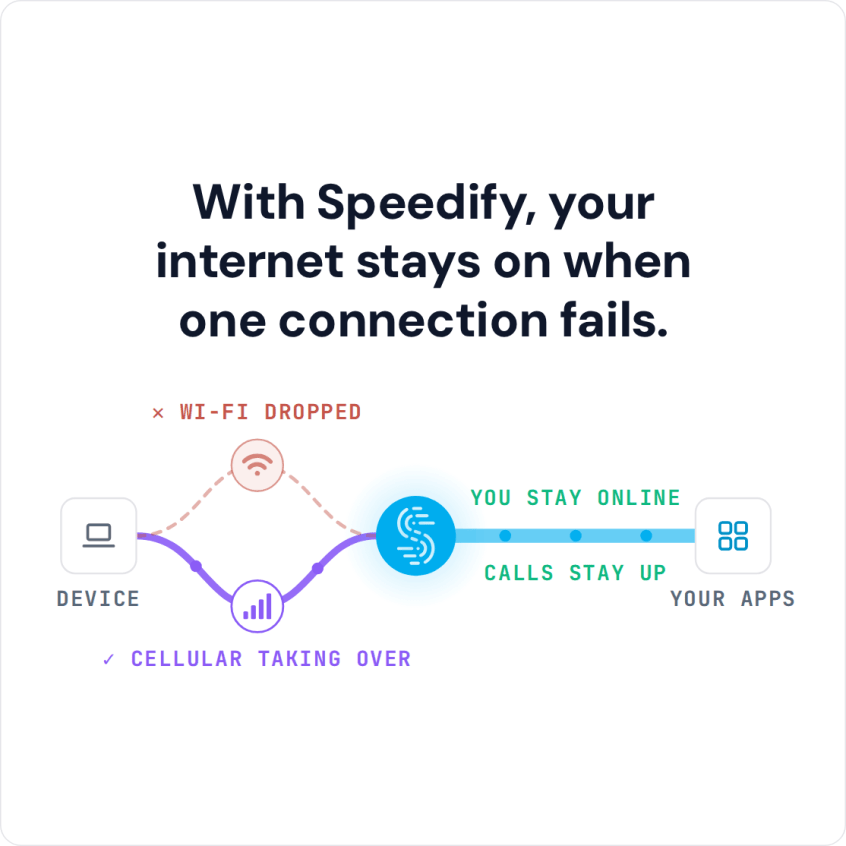
- Automatic failover moves traffic to another connection when one drops
- Continues working even if one connection becomes unstable
- Smart traffic distribution optimizes performance
4. Enhanced Security
- Built-in encryption protects your shared connection
- Secure tunneling prevents data interception
- Privacy protection for every device running Speedify
5. Control Over Each Connection
- Each phone shares up to 10 Mbps by default, and you can change that limit
- Set a shared connection to Backup priority so it is used only when the others are not available
- Switch sharing off at any time
How to Start Sharing Cellular with Speedify’s Cellular Sharing Feature
- Download Speedify from the App Store on your iPhone
- Install Speedify on your Mac, PC, or other devices
- Open Speedify on each device and create a free account (the free tier includes 5 GB per month), or sign in
- In Speedify, open Settings > Pair & Share, turn on Sharing on the iPhone and Receiving on the other device, then tap Start by Pairing a Device and accept the request on the other device
Both devices need to be on the same Wi-Fi network or router for pairing; with no Wi-Fi, turn on Personal Hotspot on one phone and connect the other device to it. After that, Speedify runs in the background and uses every shared connection at once.
Best Practices for iPhone Personal Hotspot Usage
- Monitor Data Usage: hotspot use adds up quickly, so track it in Settings > Cellular
- Manage Connected Devices: Limit connections to essential devices to maintain good speeds
- Keep iPhone Charged: Hotspot functionality drains battery quickly
- Use Strong Passwords: Protect your connection with complex passwords
- Regular Updates: Keep iOS updated for the latest hotspot improvements
iPhone’s mobile hotspot feature provides essential connectivity when you need it most. The native feature works well for basic sharing; if you need more than one phone’s connection, add Speedify’s cellular sharing feature.
For users who rely on mobile internet sharing every day, Speedify’s cellular sharing feature adds a second or third phone’s connection, so a call or download keeps going when one phone’s signal drops.
Speedify
Get started with Speedify today.
Speedify combines Wi-Fi, 4G/5G cellular, Ethernet, Starlink and satellite into one faster, more reliable internet connection. Free to try: 5 GB a month with a free account. No credit card required.
🚀 Speed
Faster uploads and downloads, because Speedify uses all your internet connections at once.
📶 Stability
If one internet connection drops, Speedify moves your traffic to the others in milliseconds.
🔒 Security
AES-256 encryption on every internet connection, on any network you join.



15M+ downloads worldwide. 75K+ five-star reviews on iOS and Android.