

Speedify Pulls Each Starlink Dish’s Obstruction Map Into One View
A Starlink obstruction map shows the patch of sky your Starlink dish can see, and marks the trees, roofs or poles that block it and cause dropouts. Reading the map correctly is the first step to fixing those dropouts.
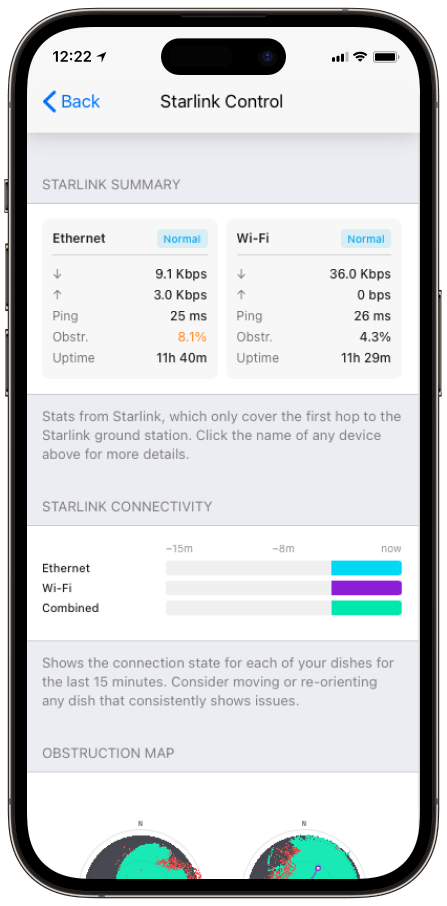
You can see the map in the Starlink app, and Speedify shows it too, live, for every Starlink dish you use with Speedify, in its Starlink Control Center. Speedify is an app that uses all of your internet connections at the same time, including one or more Starlink dishes. Below: how to read the map, what the colors mean, and how to clear what’s blocking your Starlink dish.
Monitor your Starlink dish performance inside Speedify.
Starlink Internet Connection Dropouts Happen to Everyone
Speedify measures thousands of Starlink users in more than 150 countries. From 29 September to 12 October 2026, fixed Starlink dishes went offline for about 37 minutes a day on average, and Starlink dishes on RVs and boats for about 61 minutes a day.
Starlink also switches each dish to a new satellite every 15 seconds, and a switch can cause a short dropout. Even a perfectly installed Starlink dish goes offline, and about 7 in 10 Starlink users on Speedify use Starlink together with a second internet connection, like 4G/5G cellular.
What the Colors and the Dot Mean on a Starlink Obstruction Map
The map is a round view of the sky above your Starlink dish, as if you were lying next to it and looking straight up.
- Green. Clear sky, with a clear path to the satellites passing overhead.
- Red. Sky where a tree, a pole, a roofline or another structure has blocked your Starlink dish’s signal.
- Gray. Sky your Starlink dish hasn’t mapped yet. A newly installed Starlink dish needs several hours to fill this in.
- The dot. Where your Starlink dish is pointed right now, so you can see its aim against what’s blocking it.
Starlink explains the same map from its side in its Obstructions Explained and how to check for obstructions articles.
How to Clear the Red Areas on Your Starlink Obstruction Map
A red patch clustered in one direction usually means one fixed obstruction, like a tree or a building. When the red area points clearly in one direction, Speedify suggests a specific turn to reduce it, for example: “most of the obstruction is to the south, try rotating the dish 30° north.”
Following that suggestion is faster than guessing. If turning the Starlink dish doesn’t clear the red area, Starlink’s own fix is to raise or move the Starlink dish, as explained in how to fix obstructions. Across thousands of Starlink dishes on Speedify, most Starlink dishes have less than 1% of the sky blocked. To see where your Starlink dish sits, read Starlink obstruction percentages compared across 4,263 dishes.
How to Compare the Obstruction Maps of Two Starlink Dishes
With two Starlink dishes, the two maps side by side answer one question fast: do your Starlink dishes see the same sky, or different sky? If both maps show red in the same spot, the same obstacle blocks both Starlink dishes, and a dropout hits both at once. Turn one of them, using the Dish Orientation card in Speedify, so the two Starlink dishes see different sky. Speedify can then use both Starlink internet connections more of the time.
Who Gets the Most from Speedify’s Starlink Obstruction Map
- Anyone with Starlink dropouts they can’t explain. The map shows the cause of a stutter that repeats, which speed tests alone won’t show.
- Anyone choosing where to mount a Starlink dish. Before the mount goes up, use Check for Obstructions in the Starlink app, which scans the sky from where you stand with your phone. Once the Starlink dish has run for a few hours, the obstruction map confirms whether the spot is clear.
- People with two or more Starlink dishes. Comparing the maps shows at a glance whether both Starlink dishes are blocked by the same thing.
Clear Your Starlink Dish’s View, Then Use More Than One Internet Connection with Speedify
The Starlink obstruction map in Speedify’s Starlink Control Center shows you what’s blocking each Starlink dish and where to point it. Once your Starlink dishes see different parts of the sky, Speedify uses them together as one internet connection, and moves your traffic to the other Starlink dish the moment one gets blocked again. The map can’t stop the short dropouts every Starlink dish has when it switches satellites, and a second Starlink dish can’t either, because every Starlink dish switches satellites on the same 15-second schedule. For those, Speedify needs a second internet connection like 4G/5G cellular or a wired line. For where to put your Starlink dish, see Starlink antenna placement with Speedify, or see how Speedify combines internet connections. Download Speedify to see your Starlink obstruction map in the Starlink Control Center.
Speedify
Get started with Speedify today.
Speedify combines Wi-Fi, 4G/5G cellular, Ethernet, Starlink and satellite into one faster, more reliable internet connection. Free to try: 5 GB a month with a free account. No credit card required.
🚀 Speed
Faster uploads and downloads, because Speedify uses all your internet connections at once.
📶 Stability
If one internet connection drops, Speedify moves your traffic to the others in milliseconds.
🔒 Security
AES-256 encryption on every internet connection, on any network you join.



15M+ downloads worldwide. 75K+ five-star reviews on iOS and Android.