

Can You Link Two Starlinks Together? Yes, with the Speedify app
Yes, you can link two Starlinks together on one computer. Connect the computer to both Starlink routers, one with an Ethernet cable and one over Wi-Fi, then run the Speedify app. Speedify uses both Starlink internet connections at the same time, so you get nearly the full speed of both Starlink dishes, and you stay online when one dish is blocked or fails. Both dishes switch satellites on the same 15-second schedule, though, so for those short dropouts you need 4G/5G cellular as well.
Without Speedify, a computer connected to two Starlink routers still uses only one of them. With a single Starlink dish, Speedify has nothing to combine it with: it works as an encrypted VPN and can’t add speed. Speedify works on Windows, macOS and Linux computers, and on routers that run Speedify, if you want the whole house to use both Starlink dishes. For the Windows setup, here is how to use two Starlink dishes on one Windows PC.
Starlink Internet Connection Dropouts Happen to Everyone
Speedify measures thousands of Starlink users in more than 150 countries. From 29 September to 12 October 2026, fixed Starlink dishes went offline for about 37 minutes a day on average, and Starlink dishes on RVs and boats for about 61 minutes a day.
Starlink also switches each dish to a new satellite every 15 seconds, and a switch can cause a short dropout. Even a perfectly installed Starlink dish goes offline, and about 7 in 10 Starlink users on Speedify use Starlink together with a second internet connection, like 4G/5G cellular.
Why One Starlink Dish Isn’t Always Fast Enough
When your Starlink internet connection is slow, videos buffer, VPNs crawl, and large downloads stall. You can move the Starlink dish or restart it, but you can’t push one Starlink dish past its own top speed, or stop the slowdowns when the Starlink network near you is busy in the evening.
A second Starlink dish used together with the first adds its speed to yours. Speedify is the app that uses both at the same time.
How to Link Two Starlinks Together on One Computer with Speedify
- Download Speedify. Download the Speedify app for Windows, macOS or Linux. Speedify is also available for Android, iOS and OpenWrt routers. Linux users can follow the guide to combining two Starlink dishes on Ubuntu.
- Connect your computer to the first Starlink router with an Ethernet cable. If your computer has no Ethernet port, use a USB to Ethernet adapter.
- Connect your computer to the second Starlink router. Most computers have one Wi-Fi card and at most one Ethernet port, so the easiest way is to join the second Starlink router’s Wi-Fi network. You can also use a second Ethernet cable through a USB to Ethernet adapter.
- Open Speedify. Speedify finds both Starlink internet connections and combines them into one faster internet connection. Streaming, music, video calls and large downloads now use both Starlink dishes.
To link two Starlinks for every device in the house, run Speedify on your router. Here’s how to combine internet connections on an OpenWrt router. If you’d rather not set anything up, the Miri X510 is a router that comes with Speedify already on it.
Stay Online When One Starlink Dish Drops
Speedify uses all your internet connections at the same time, so both Starlink dishes carry your traffic. Speedify’s own technology is built for streaming, video calls and other apps that need a steady internet connection. Speedify also encrypts everything you send over both Starlink dishes.
If one Starlink dish becomes unreliable, Speedify moves all your traffic to the other Starlink dish until the first one comes back. You don’t have to do anything: once Speedify is running, it happens automatically in the background.
Both Starlink dishes use the same Starlink network, so an outage of the whole Starlink network still takes both down. Adding 4G/5G cellular covers that. With Speedify’s cellular sharing, phones on the same Wi-Fi share their 4G/5G cellular connections, so everyone gets a faster, more reliable internet connection.
With Speedify, your Starlink internet connection gets faster downloads and uploads and fewer dropouts, and stays encrypted, even in the most remote places.
Speedify
Get started with Speedify today.
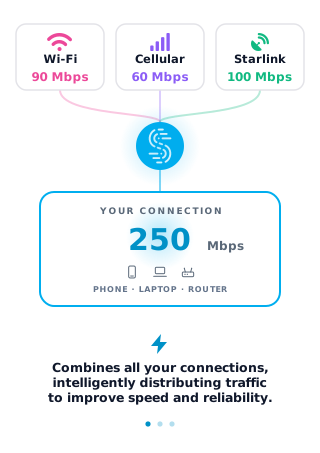
Speedify combines Wi-Fi, 4G/5G cellular, Ethernet, Starlink and satellite into one faster, more reliable internet connection. Free to try: 5 GB a month with a free account. No credit card required.
🚀 Speed
Faster uploads and downloads, because Speedify uses all your internet connections at once.
📶 Stability
If one internet connection drops, Speedify moves your traffic to the others in milliseconds.
🔒 Security
AES-256 encryption on every internet connection, on any network you join.


15M+ downloads worldwide. 75K+ five-star reviews on iOS and Android.