
Complete Guide on iPhone Tethering via Bluetooth to a Mac

Bluetooth Tethering on iPhone Made Easy: Share the Internet with a Mac

Tethering your iPhone to your Mac using Bluetooth is easy. However, while Bluetooth is a convenient and wireless way to get internet from your iPhone to your Mac, it is limited to 1 Mbps (Bluetooth 4) or 2 Mbps (Bluetooth 5). If you have fast LTE speeds on your phone, you might get better results with USB or Wi-Fi tethering.

You will be able to use this tethered iPhone connection on your Mac to access the Internet. You can also combine it with a Wi-Fi, wired Ethernet or cellular 4G LTE / 5G dongle connection using the Speedify app. This will get you faster, more stable and secure Internet.

With that said, in this article, we are going to walk you through the steps for tethering your iPhone using Bluetooth.

Fix slow internet on Mac with Speedify: The powerful MacOS network tool

Need a stronger Internet connection on your Mac for your live streams, gaming, browsing, video calls like Meet, Teams or Zoom, or anything else you do online?

In this video, learn how to use Speedify to combine multiple Internet connections like 4G, 5G, DSL, Starlink, Wifi and Ethernet to get faster, more stable and reliable Internet on your MacOS device.

Use Speedify to increase your bandwidth: Combine internet connection sources like WiFi, 4G, 5G, & Starlink together

Image

Combine multiple internet connections to fix slow Internet

Speedify is the only app that seamlessly combines all of your connections, including WiFi, 4G, 5G, Ethernet, and Starlink, into one stronger connection to keep you online and secure.

In most cases, Speedify will automatically detect and start using any available Internet connections on your device while intelligently distributing your online traffic between them for optimal performance. If you need help we have quick start guides available for most common set ups.

Image

Combine personal hotspots for better bandwidth and signal strength

Speedify's Pair & Share is a feature that enables you to connect to multiple hotspots at the same time and wirelessly share LTE, 4G, and 5G cellular connections back and forth between multiple Speedify users on the same local network to create a faster, more reliable connection for everyone.

For the first time, it's possible to share cellular data between multiple devices, including PCs, Macs, iPhones and Androids. Use multiple phones as hotspots for internet access and get increased bandwidth and mobile failover for all paired devices.

I want to combine...

How to Tether your iPhone to a Mac using Bluetooth

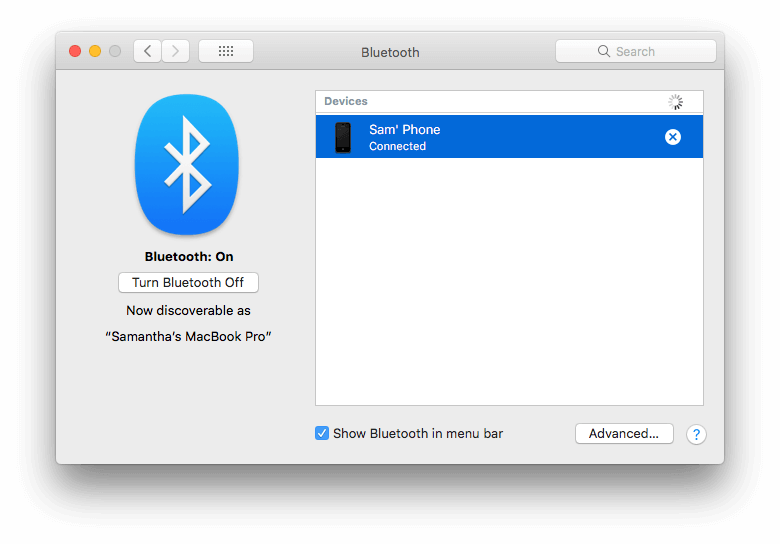
Step 1: First, ensure that your iPhone is paired with your Mac via Bluetooth. You can do this by going to System Preferences > Bluetooth. Then, select your iPhone from the pane that appears. Also take this opportunity to ensure that your Mac’s Bluetooth is turned on.
Image

Step 2: Turn on your iPhone’s Personal Hotspot. To do this, open the Settings app and tap Personal Hotspot. Then toggle the switch on.

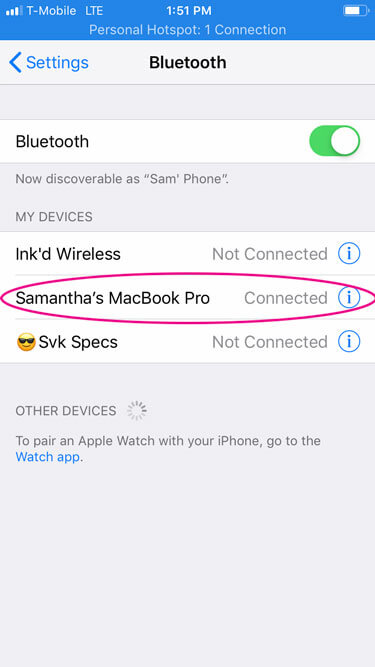
Step 3: While you’re in the Settings app, tap Bluetooth from the main menu and toggle the switch on if it isn’t already. You should see your Mac appearing under “My Devices.”
Image

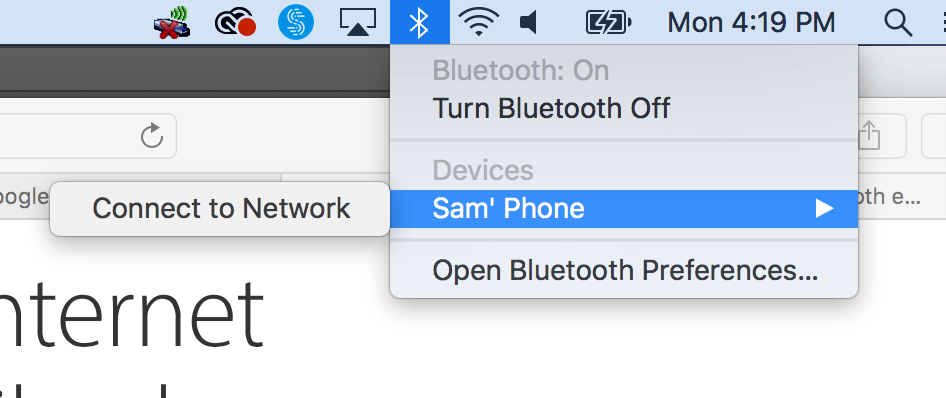
Step 4: Now it’s time to connect your Mac to your iPhone’s network. You can do this one of two ways:

The first method is the simplest: navigate to the upper right-hand corner of the menu bar and click on the Bluetooth icon. (If this icon is not currently displayed, you can activate it by going to System Preferences > Bluetooth.) When you click the icon, a menu will appear. Mouse-over your paired device (iPhone) and click Connect.
Image

Alternatively, you can navigate to System Preferences > Network. Click Bluetooth PAN on the left-hand side. If Bluetooth PAN isn’t visible, click the + button, and select Bluetooth PAN from the interface popup menu.

Finally, select your iPhone from the device popup menu and click Connect.

And that’s all there is to tethering your iPhone to your Mac using Bluetooth!

Now – feel free to toss this tethered iPhone connection into any existing combination of active Internet connections on your Mac. Use Speedify for macOS to combine them.

Image

Get started today!

With Speedify you can combine multiple internet sources into one bonded super-connection to improve livestreaming, video calling, gaming, web browsing, and everything else you do online.

Download Speedify
     

Speed

Combine Wi-Fi, cellular, ethernet, satellite, and more to maximize performance

Stability

Avoid buffering and disconnects while streaming, gaming, and browsing.

Security

Keep your personal data safe from hackers, snoops and cyber criminals

We love talking about connectivity!

On our social channels, Alex Gizis and the engineers from Speedify discuss and explain interesting connectivity technology including Starlink satellites, Wi-Fi 7 routers, Apple networking features, Fiber optics, broadband internet, 5G mobile networks, AI, networking protocols, and much more.

Alex and the Speedify team are always exploring the latest in networking and security technology—like 5G, 6G, WiFi 7, laser and satellite internet—and sharing it in new discussion content across YouTube, TikTok, Instagram, and LinkedIn every week.

Got a tech question? Let's go deeper! Pop into Speedify Office Hours live every Wednesday at 10 AM Eastern. Speedify CEO Alex Gizis and our network engineers are standing by to break down your questions about networks, tech updates, and Speedify features.

Image

