
How to Tether an iPhone to a PC via Bluetooth
Windows laptop, no Wi-Fi in reach, an iPhone in your pocket and no cable on you. Bluetooth tethering solves that in three taps – and then caps your speed at roughly 1 Mbps, which you notice the moment you send anything larger than an email.
Speedify is an app for your PC, phone or tablet that uses more than one internet connection at once, so a Bluetooth tether becomes one lane of traffic rather than your only one. We talk about how to pair an iPhone with Windows 10 and 11, the three steps that actually matter, and how to get past the Bluetooth speed limit.
Three Steps for iPhone Bluetooth Tethering on Windows 10
First of all, make sure your Windows 10 PC has an internal Bluetooth adapter or get an external Bluetooth USB adapter, if not.
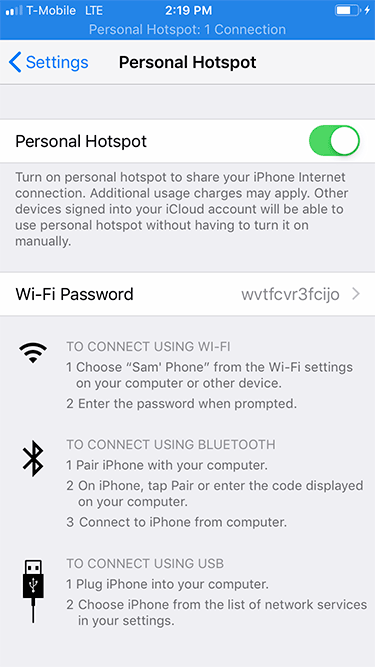
Step 1: Turn on the Personal Hotspot feature on your iPhone.
To do this, tap Settings from your home screen and go to Personal Hotspot.
Step 2: Connect (or “tether”) your iPhone to your PC using Bluetooth.
If you’re using an external Bluetooth USB adapter, make sure you install it following the instructions you got with the device. You may need to restart your PC before being able to use it.
On your iPhone, make sure Bluetooth is enabled (Settings > Bluetooth).

On your PC, go to Bluetooth Settings (either from the lower right corner of the taskbar – systray – or by searching for “bluetooth”). Slide the Bluetooth toggle on – this will make your computer visible to other devices.
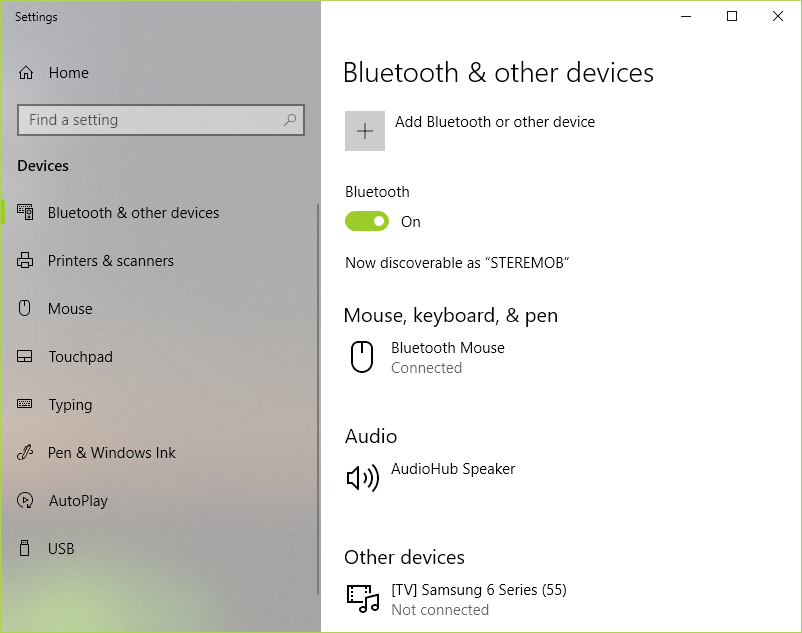
Click on the “Add Bluetooth of other device” and let your PC detect the iPhone. This may take a while, so give it a couple of minutes. Finish the pairing process following the instructions both on you PC and on your iPhone.
Step 3: Connect your PC to the Internet using the Bluetooth tethered iPhone.
Go to Network Connections (Windows key + X – choose “Network Connections”) and on the right side click on “Change adapter options”.
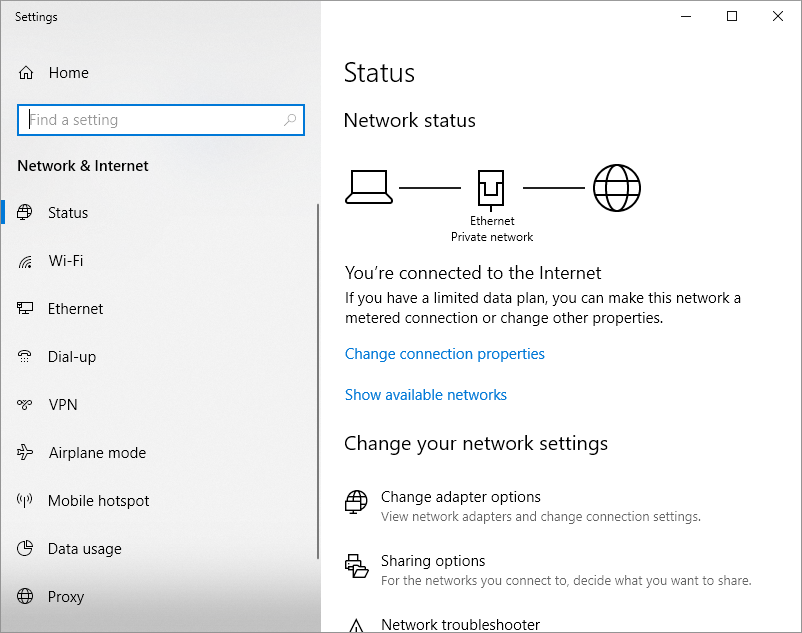
Look for the “Bluetooth Network Connection”.

If it’s connected – you’re good to go. If it’s not, double click to view Bluetooth devices. If your iPhone doesn’t automatically show up here, click on “Add a device” and add it.
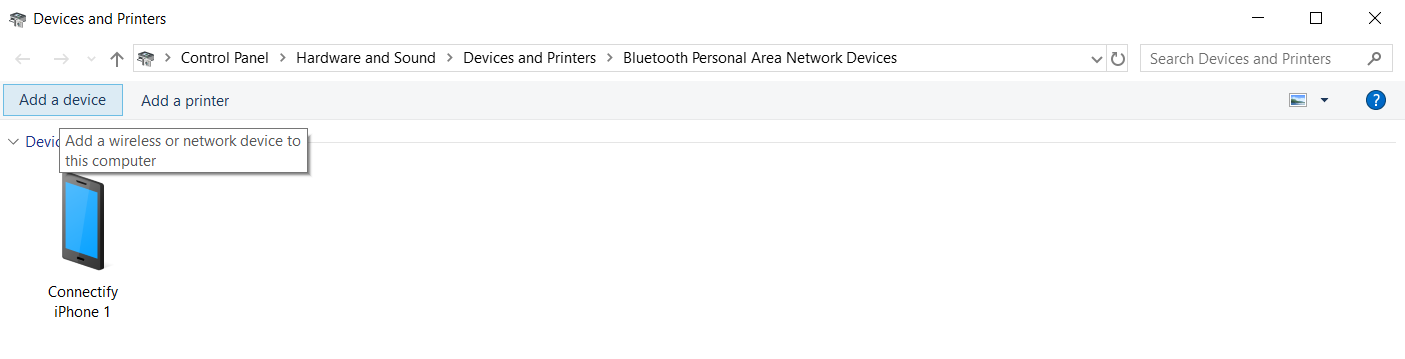
Click on the “Connect using” button above and choose “Access point”. Windows will set up the connection as “Network X” and you will be able to enjoy Internet connectivity.
And that’s all there is to iPhone Bluetooth tethering a Windows 10 PC!
Now – feel free to toss this tethered iPhone connection into any existing combination of active Internet connections on your PC. Use Speedify for Windows to combine them.
Speedify
Get started with Speedify today.
Combine Wi-Fi, 4G/5G cellular, Ethernet, Starlink, and more into one faster, steadier connection. Free to try — no credit card required.
🚀 Speed
Faster uploads and downloads by bonding all your connections at once.
📶 Stability
Automatic failover in under a second when any connection drops.
🔒 Security
AES-256 encryption on every connection, on every network you join.



15M+ downloads worldwide. 75K+ five-star reviews on iOS and Android.