

What’s Behind Wi-Fi Dropouts on MacBook Pro?
If your MacBook Pro keeps dropping its Wi-Fi connection, it’s more than a minor annoyance—it can disrupt file syncs, remote development sessions, or time-sensitive uploads. While it’s tempting to blame your ISP, the real cause may lie within macOS networking behavior or hardware interactions. Common triggers include:
- Flaky Wi-Fi drivers in macOS updates
- Crowded 2.4GHz spectrum or DFS channel interference
- IP conflicts due to DHCP mismanagement
- Background services or launch daemons that reset network states
- Third-party apps that improperly handle network tunnels or proxies
This isn’t just a casual glitch—it’s a fixable stack-level issue, and we’re here to tackle it.
Should you have a backup 4G, 5G, Starlink, or cable internet connection?
Yes — every internet connection goes down, including Starlink, which drops for ~34 minutes a day on average. A backup connection from a different provider means one outage never takes you fully offline. The most common options are a 4G/5G cellular hotspot, a cable or DSL line, or a second satellite dish.
4G/5G cellular
Works anywhere. Just a SIM or hotspot — no installation needed.
Learn more →Cable / DSL
Best for fixed locations. Different network, so outages rarely overlap.
Learn more →Second Starlink
Adds redundancy and throughput for remote sites or heavy usage.
Learn more →Speedify bonds any two connections into one — automatic failover, more speed, no dropped calls.
Try free →Speedify Feature · Pair & Share
Cellular sharing that works better than a mobile hotspot.

Speedify Feature · Pair & Share
Speedify Pair & Share: share cellular between your devices, both ways
Most hotspots give. Speedify's Pair & Share gives and takes. Two devices running Speedify pair up and each uses the other's cellular connection simultaneously, so you both get faster uploads, faster downloads, and a steadier connection. No extra hardware, no new data plans, no setup beyond a tap.
Learn how Speedify's Pair & Share works ›More speed
Every device you pair with adds its cellular to yours, and yours to theirs.
Stays connected
If a paired device drops out, Speedify keeps you online on the remaining links.
Always private
Every shared connection runs through AES-256 encryption. Your traffic is yours.
No new gear
Runs on devices already running Speedify, over your local network. Pair once, reconnects automatically.


Proven Fixes for Wi-Fi Instability on MacBook Pro
- Start With the Network Stack
- Use Terminal to manually reset your Wi-Fi service:
-
- Follow up with a networksetup -setairportpower en0 off && on cycle.
- Control for Interference and Congestion
- Use Wireless Diagnostics > Scan to analyze nearby networks.
- Shift to a cleaner 5GHz channel manually via router settings (avoid DFS zones for best results).
- Avoid placing your MacBook near USB 3.0 hubs or external drives that can emit interference.
- Rebuild Configuration Files
- Delete stale configuration files in /Library/Preferences/SystemConfiguration/, including:
- com.apple.airport.preferences.plist
- NetworkInterfaces.plist
- preferences.plist
- This can resolve priority misalignments or incorrect remembered networks.
- Delete stale configuration files in /Library/Preferences/SystemConfiguration/, including:
- Handle Sleep/Wake Network Drops
- macOS may drop interfaces to conserve battery. Disable Wake for network access if you’re on battery:
- System Settings > Energy Saver > Uncheck related options.
- Use pmset -g in Terminal to audit sleep policies and logs.
- macOS may drop interfaces to conserve battery. Disable Wake for network access if you’re on battery:
- Make Use of Apple’s Built-in Diagnostics
- Hold Option and click the Wi-Fi icon > “Wireless Diagnostics.”
sudo ifconfig en0 down && sudo ifconfig en0 up
(Replace en0 with your active interface if different.)
Let it run passively for several minutes; it can detect momentary drops or renegotiation attempts.
Next-Level Stability: Use Speedify to Combine Connections
If you rely on persistent connectivity—say, during remote screen sessions or uploading code to servers—look into Speedify. This software blends multiple network sources (Wi-Fi + Ethernet + Cellular) to create a resilient connection. If your MacBook Pro’s Wi-Fi drops momentarily, Speedify fails over without interrupting your session.
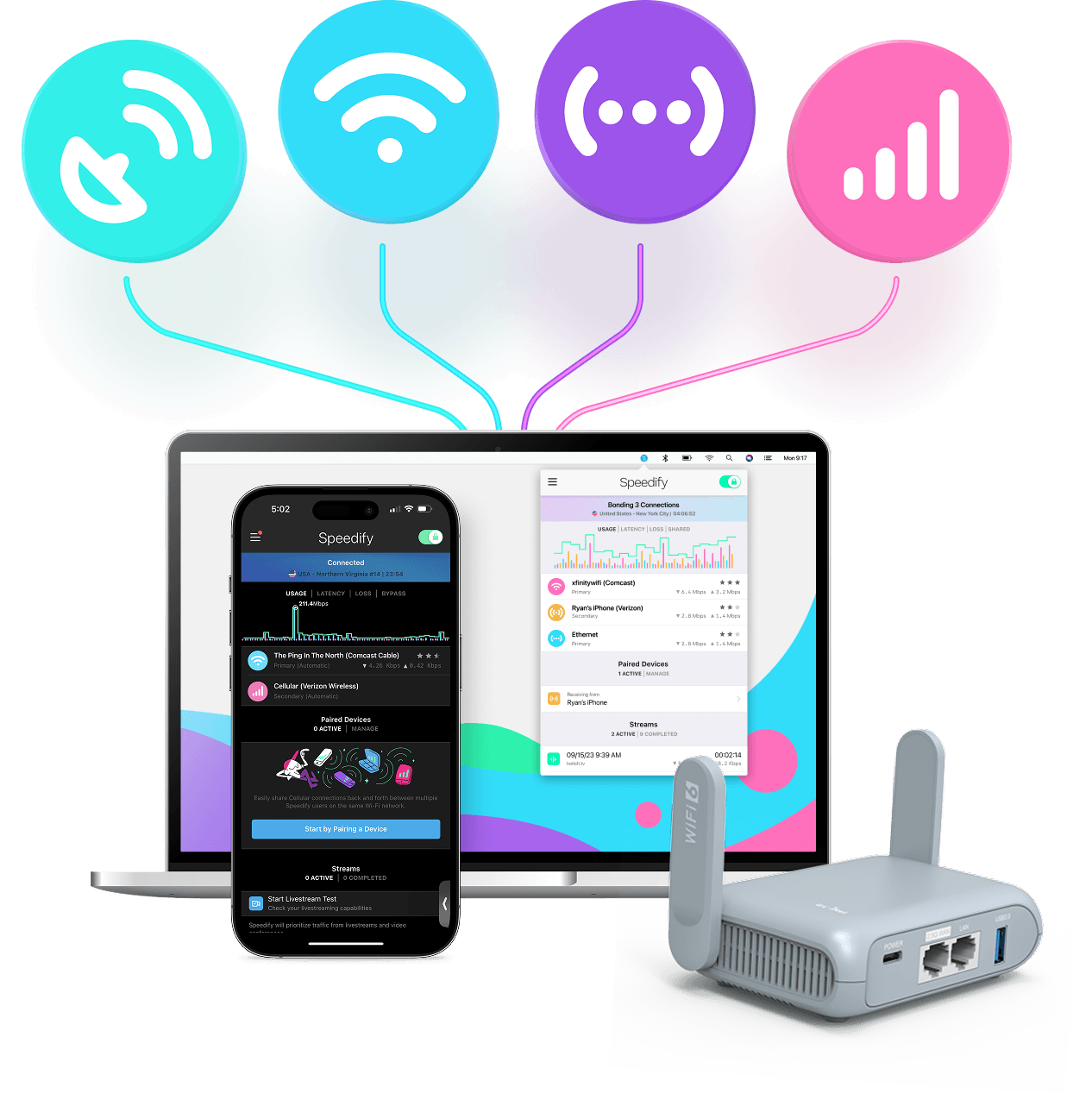
For users requiring uninterrupted internet access, especially during high-stakes activities like live streaming or remote work, consider using Speedify. This tool combines multiple internet connections—Wi-Fi, Ethernet, 4G, 5G cellular, and even Starlink—into a single, robust connection. It intelligently manages traffic, providing failover protection and bandwidth aggregation, ensuring that a drop in one connection doesn’t interrupt your workflow.
What you get is increased bandwidth, which allows all of your apps to run faster. Speedify runs in the background of your Mac proactively monitoring the quality of your connections. It is equipped with auto failover so if your Mac keeps disconnecting from Wi-Fi, it routes all the data through the wired Ethernet and the cellular connection (if available) until the Wi-Fi connection is restored. All of this activity is automated. You don’t have to do anything, and you most likely won’t even notice anything different is happening.
Speedify works on all macOS devices starting with macOS 10.12 and later. This includes all Intel and ARM based Mac computers (such as those with the new M1 processor) including Macbook, Macbook Air, and Macbook Pro, iMac and iMac Pro, Mac Mini, and Mac Pro. You can download Speedify for Mac on the download page or the Mac App Store.
Final Thoughts: Keeping Your MacBook Pro Connected
When your MacBook Pro keeps disconnecting from Wi-Fi, it’s often a result of compounded network and system behaviors—not just one weak signal. With the right diagnostics and tweaks, you can bring consistency back to your wireless experience. For heavy users in the Apple ecosystem, tackling these issues head-on with proactive configuration and smart tools ensures your workflows stay uninterrupted.
Get started with Speedify today!
With Speedify you can combine Wi-Fi, 4G / 5G cellular, Ethernet, Starlink and other satellites into one bonded super-connection to improve livestreaming, video calling, gaming, web browsing, and everything else you do online.




Speed
Stability
Security
Speedify engineers love talking tech on YouTube, Tiktok, and Instagram!
Alex Gizis and the Speedify engineers discuss and explain technology including Starlink satellites, Wi-Fi 7 routers, Apple networking features, fiber optics, broadband internet, 5G mobile networks, AI, networking protocols, and much more. Follow Speedify on YouTube, TikTok, Instagram, and LinkedIn!
Alex and the Speedify team are always exploring the latest in networking and security technology—like 5G, 6G, WiFi 7, laser and satellite internet—and sharing it in new discussion content across YouTube, TikTok, Instagram, and LinkedIn every week.
Got a tech question? Let's go deeper! Pop into Speedify Office Hours live every Wednesday at 10 AM Eastern. Speedify CEO Alex Gizis and our network engineers are standing by to break down your questions about networks, tech updates, and Speedify features.
