
Combine 2 Wireless Cellular Adapters on macOS for Increased Reliability and Speed
Want faster upload and download speeds and more reliable internet on your Mac? Run two 4G/5G cellular adapters at the same time, each on a different carrier.
Speedify is an app that combines two or more internet connections at once – such as two cellular adapters – so you get faster uploads and downloads and stay online if one connection drops out.
Speedify uses every internet connection your device has, at the same time
How do I use WiFi and 4G/5G cellular at the same time with Speedify?

Pick your two internet connections and your device below and we'll take you to the step-by-step setup guide.

What Does Speedify Do to Help Use Two Wireless Adapters Simultaneously?
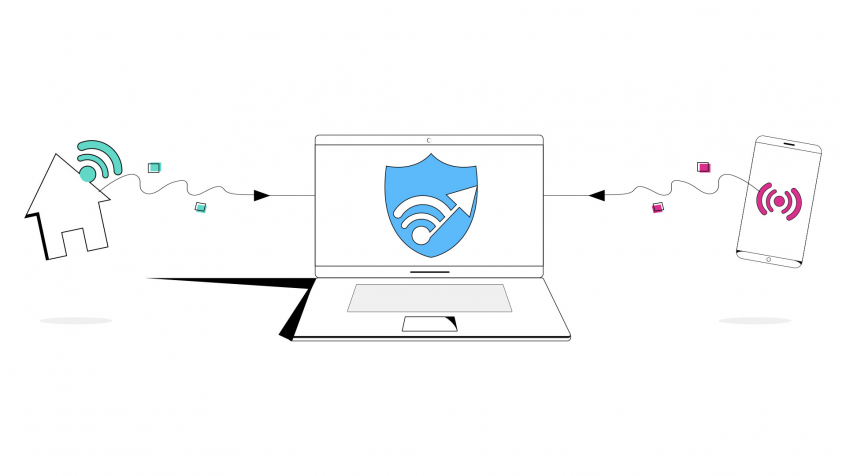
Speedify is a fast bonding VPN that gets you a fast, stable and secure Internet connection on your Mac. It achieves this with channel bonding technology that uses all of your available connections in macOS instead of switching between them. In this case, it will allow you to use 2 cellular adapters at the same time on your Mac.
You get more bandwidth, which allows all of your apps to run faster. Speedify runs in the background, proactively monitoring the quality of your connections. It is equipped with auto failover so when one of your cellular connection drops or has a poor signal strength, it routes all the data through the other one, if available, until the connection is restored. All of this activity is automated. You don’t have to do anything, and you most likely won’t even notice anything different is happening.
Speedify also provides advanced encryption, without forcing you to sacrifice speed or reliability, as a VPN. Speedify works on all Mac computers running macOS 10.12 and later. That includes macOS Sierra, macOS High Sierra, macOS Mojave, macOS Catalina, and macOS Big Sur.
Please check the updated system requirements on our download page.
4 Steps to Use 2 Wireless Cellular NICs at the Same time on Mac
Here’s what you have to do in order to combine two LTE / 5G cellular dongles on your macOS computer or laptop. You can also use tethered Android smartphones / iPhones directly instead of cellular adapters – the idea is to use two cellular networks at the same time.
- Connect the first USB cellular adapter to a USB port on your Mac – here’s how. Some cellular adapters require the use of proprietary dialer software to connect to the Internet. Be sure to follow the manufacturers installation and operating instructions closely.
- Connect the second USB cellular dongle to your Mac.
- Confirm your connection status – visit System Preferences, click Network, and look for your new adapters in the list on the left.
- Get Speedify from the App Store. Once running, Speedify will automatically detect any available Internet connections and combine them for increased speed, security, and stability.
Speedify
Get started with Speedify today.
Combine Wi-Fi, 4G/5G cellular, Ethernet, Starlink, and more into one faster, steadier connection. Free to try — no credit card required.
🚀 Speed
Faster uploads and downloads by bonding all your connections at once.
📶 Stability
Automatic failover in under a second when any connection drops.
🔒 Security
AES-256 encryption on every connection, on every network you join.



15M+ downloads worldwide. 75K+ five-star reviews on iOS and Android.