

How to Live Stream to YouTube, Facebook, Twitter and Other Platforms with Castr
Castr does not capture your video. Your streaming software (the encoder) does that, and Castr relays the finished feed out to YouTube, Facebook, X and other platforms, so everything rests on the upload from your own internet connection. When that upload dips, the software abandons frames and viewers see stutter.
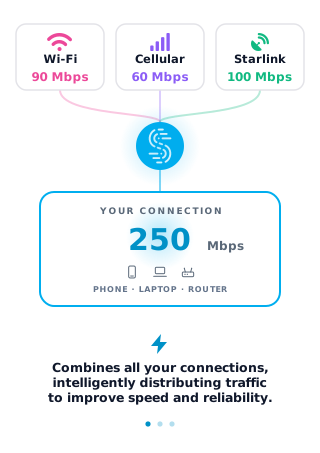
Speedify is an app that sends a stream over two or more internet connections at the same time (Wi-Fi, 4G/5G cellular, Ethernet, Starlink and satellite), so one sagging connection is covered by the rest. Speedify needs at least two connections for that; with one, Speedify works as an encrypted VPN and cannot stop that connection from dropping. This guide walks through the Castr requirements and the four steps to going live, with Speedify holding your upload steady throughout.
Fast and Stable Internet: a Must for Successful Live Streams with Castr
The internet connection makes or breaks a live broadcast, whichever live streaming software you use, Castr, OBS or another one.
Having an extra internet source while live streaming helps, but switching between the 2 connections takes time, for you or for your streaming device (camera, computer, mobile device), and the stream stalls or drops while it happens.
That’s why you need to use all available internet connections at once instead of keeping one on standby and switching between them. This is called combining internet connections. Speedify can combine multiple internet sources into one connection for more stable and secure live streaming, video calling, online gaming and web browsing.
Requirements for Live Streaming to Multiple Platforms with Castr
This guide uses Castr to relay a feed from an encoder, so alongside Castr you’ll also need encoder software for your live stream, like OBS. If you produce from an iPhone or iPad, see how to go live with Switcher Studio.
Here’s what you need in order to engage in Castr live streaming on your computer (Windows, macOS or Linux; Speedify on Linux needs a paid plan):
- a camera: dedicated (like a GoPro, for example), the computer webcam or your smartphone’s camera (via Camo)
- a Castr account
- the OBS Studio software
- a Speedify account: for a stable internet connection.
If you’ll be live streaming with Castr from your iPhone, iPad or Android mobile device, you’ll need the following:
- your mobile device (smartphone, tablet)
- a Castr account
- the Larix Broadcaster app on your mobile device
- a Speedify account: for a stable internet connection.
For all the above setups, the idea with Speedify is to use two or more connections together at once, in order to hit your target bitrate and keep the stream going when one connection drops while simulcasting with Castr.
Additional accessories, such as an external battery pack, dedicated microphones or extra lighting, may be required especially if you’re doing IRL streaming.
4 Steps for Castr Live Streaming to Multiple Platforms while Avoiding Issues
1. CONNECT ALL AVAILABLE INTERNET SOURCES TO YOUR COMPUTER OR MOBILE DEVICE
Use one or multiple of the following on the computer you’ll be live streaming using Castr and OBS Studio from:
- wired Ethernet connection
- external USB 5G / 4G LTE cellular adapter
- Wi-Fi network / additional USB Wi-Fi adapters
- tethered smartphone
If you’re live streaming using a mobile device with Larix, the easiest way is to carry two cellular phones. One can be your streaming device running Larix and the other one would just be used for its 4G/5G cellular: you would create a Wi-Fi hotspot to connect the streaming device to it. That way you would combine 4G/5G cellular with Wi-Fi from the second phone on the streaming device.
2. GET STABLE INTERNET BY COMBINING YOUR CONNECTIONS WITH SPEEDIFY
If you don’t have a Speedify subscription yet, you can get it from the Speedify website store, the Apple App Store or the Google Play Store. You can also start with a free Speedify account, which includes 5 GB per month.
Run Speedify and log into your account. All the active internet sources you connected at step 1 should be recognized by Speedify. All you have to do now is choose a server to connect to; the fastest server option usually works best.
3. CONFIGURE THE LIVE STREAMING SOFTWARE: CASTR AND OBS STUDIO / LARIX
If streaming from a computer, you’ll need to:
- Get started with Castr.
- Set up OBS with Castr.
- Configure Castr for simulcasting (multiple platform streaming): link to the platforms you wish to live stream to.
If streaming from a mobile device, things are simpler:
4. FINAL CHECK, GO LIVE
Before going live with your stream, make sure:
- you are able to see the video you want to broadcast in the preview window
- audio is working
- Speedify is running, and it combines the internet sources you’re connected to.
When everything checks out, press Go Live.
The good thing about Speedify is that it prioritizes your live streams over other internet traffic, which cuts down on low quality and choppy video, buffering and, with two or more connections, disconnects from the streaming server.
Speedify
Get started with Speedify today.
Speedify combines Wi-Fi, 4G/5G cellular, Ethernet, Starlink and satellite into one faster, more reliable internet connection. Free to try: 5 GB a month with a free account. No credit card required.
🚀 Speed
Faster uploads and downloads, because Speedify uses all your internet connections at once.
📶 Stability
If one internet connection drops, Speedify moves your traffic to the others in milliseconds.
🔒 Security
AES-256 encryption on every internet connection, on any network you join.


15M+ downloads worldwide. 75K+ five-star reviews on iOS and Android.