
Speedify Lets You Use 2 Personal Hotspots on a Mac for Faster Uploads and Downloads
Want faster upload and download speeds from two phones at once on your Mac? Run both personal hotspots at the same time.
Speedify is an app that combines two or more internet connections at once, such as the 4G/5G cellular from two different phones or carriers, so you get faster uploads and downloads and stay online if one hotspot drops out.
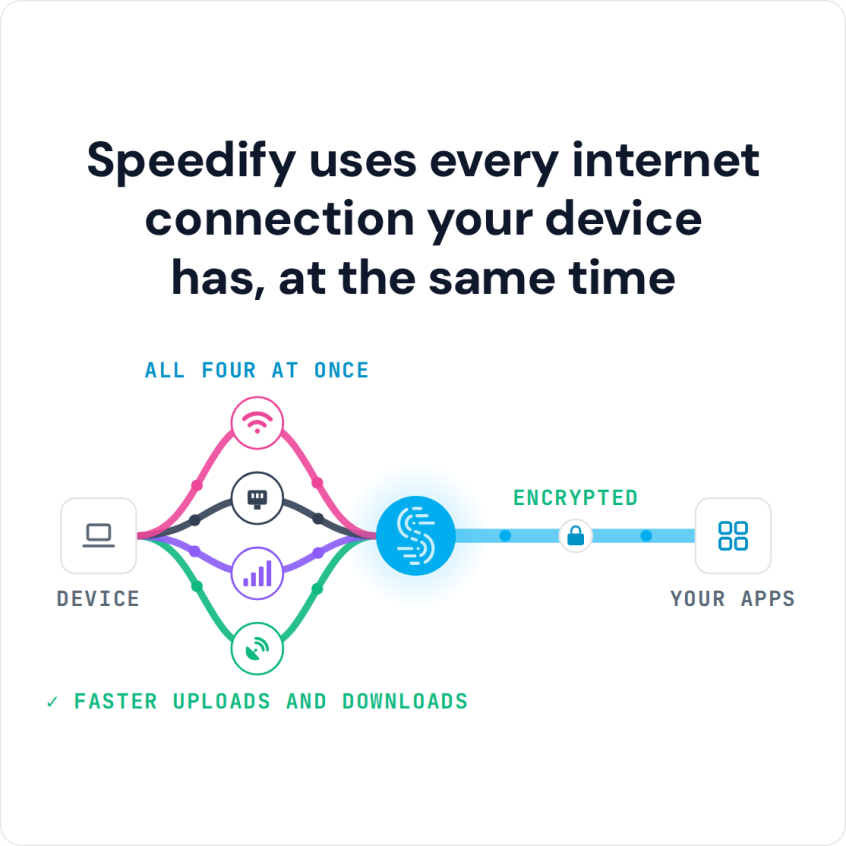
Speedify uses every internet connection your device has, at the same time
How do I use WiFi and 4G/5G cellular at the same time with Speedify?
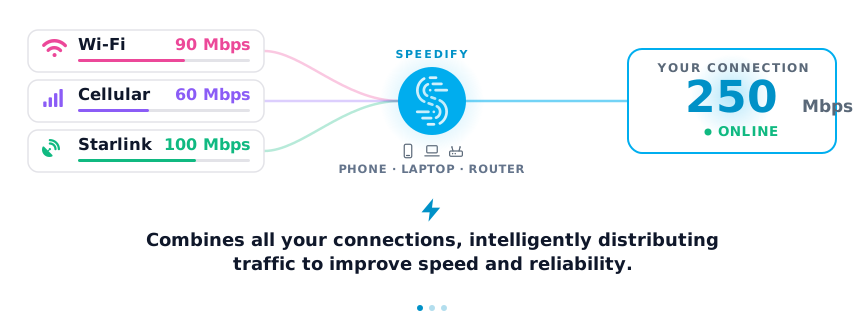
Pick your two internet connections and your device below and we'll take you to the step-by-step setup guide.


Why macOS Cannot Use Two Personal Hotspots at Once Natively
macOS manages multiple network interfaces through a priority list in System Settings → Network. When two personal hotspots are both active and visible to a Mac, macOS connects to one and ignores the other. The second hotspot carries zero traffic until the first one fails or is manually switched.
Single-connection routing is a basic limit of macOS. The operating system was not designed to split traffic across two separate connections with different IP addresses at the same time. The result: a Mac with two phones tethered is no faster than a Mac with one.
Common workarounds that also fall short:
- Switching between hotspots manually: Requires disconnecting from one network and connecting to another, which drops the connection every time. Not a solution for active video calls or uploads.
- Using one hotspot via Wi-Fi and one via USB tethering: macOS still routes all traffic through whichever interface has higher priority. The second interface sits idle.
- macOS Network Service Order: Sets a preference for which connection macOS uses first, but does not combine two connections; it only switches between them when one fails.
How Speedify Combines Two Personal Hotspots on a Mac
Speedify combines two personal hotspots, or any mix of personal hotspots, Wi-Fi, Starlink and wired Ethernet, into a single faster and more reliable connection on a Mac. Speedify’s technology for combining connections distributes traffic across both hotspots at the packet level, so both phones carry data at the same time.
Speedify Combines the Download and Upload Speeds of Both Personal Hotspots: Instead of being capped by one phone’s 4G/5G connection, a Mac running Speedify gets the combined throughput of both hotspots. For example, a 40 Mbps hotspot from one carrier and a 50 Mbps hotspot from a second carrier can deliver up to about 90 Mbps of download speed, depending on signal. Upload speeds, the bottleneck for video calls, live streaming, and large file transfers, see the same improvement.
Speedify Provides Automatic Failover Between Two Personal Hotspots: Cellular coverage varies by location. One carrier may have strong signal while another drops to one bar. With two hotspots combined by Speedify, if one personal hotspot loses signal or drops out, Speedify’s automatic failover technology shifts all traffic to the second hotspot instantly, without dropping a Zoom call, interrupting a file upload, or pausing a download.
Speedify Balances Traffic Across Carriers in Real Time: Speedify continuously monitors the speed and latency of each personal hotspot and distributes traffic accordingly. If one carrier slows down during peak hours, Speedify automatically sends more traffic through the faster hotspot. Speedify’s proprietary protocol handles this dynamically, with no manual configuration required.
Speedify Encrypts All Traffic Across Both Personal Hotspots: Speedify also encrypts all traffic flowing across both personal hotspot connections, like a VPN. Public and shared cellular networks carry risks, and encrypting all traffic protects passwords, banking sessions, and sensitive communications regardless of which carrier is active.
Real-World Download and Upload Speeds: What to Expect with Two Personal Hotspots on a Mac
Speed improvements depend on each carrier’s local coverage, but here are realistic scenarios for Mac users:
| Scenario | Without Speedify | With Speedify (Two Hotspots Combined) |
|---|---|---|
| iPhone 5G hotspot (80 Mbps) + Android 5G hotspot (60 Mbps) | 80 Mbps max (one hotspot active) | About 130 to 140 Mbps combined |
| Two 4G LTE hotspots (30 Mbps up each) | 30 Mbps upload max | About 55 to 60 Mbps upload combined |
| One hotspot loses cellular signal mid-video call | Call drops or freezes | Call continues on the second hotspot without interruption |
| Two hotspots from different carriers in a low-coverage area | Dependent on whichever carrier has better signal | Combined speed of both carriers simultaneously |
How to Use Two Personal Hotspots on a Mac with Speedify
Setting up Speedify to combine two personal hotspots on a Mac takes less than five minutes:
- Enable Personal Hotspot on the first phone: on iPhone, go to Settings → Personal Hotspot; on Android, go to Settings → Hotspot & Tethering.
- Connect the Mac to the first hotspot over Wi-Fi as usual. If one of your phones is an Android phone, use it for this Wi-Fi hotspot.
- Connect the second phone to the Mac with a USB cable for USB tethering. macOS recognizes the tethered phone as a separate network interface. Use an iPhone for this step: iPhone USB tethering works on a Mac, while Android USB tethering on a Mac needs the HoRNDIS driver and works only up to macOS 10.14 Mojave, older than Speedify supports.
- Download and install Speedify on the Mac (available for macOS, Windows, iOS, Android, Linux, and OpenWrt).
- Open Speedify and connect. Speedify automatically detects both active hotspot interfaces and starts combining them. Both connections appear in the Speedify dashboard with real-time speed and status for each.
Who Benefits from Combining Two Personal Hotspots on a Mac
Remote Workers and Freelancers Without Fixed Broadband: Some Mac users work only on cellular, with no office and no home broadband. Combining two personal hotspots from different carriers with Speedify gives remote workers a faster connection with failover for Zoom, Teams, Google Meet, and cloud applications, without depending on a single carrier.
Content Creators Uploading Large Files: Upload speed is the limiting factor when sending 4K video files, raw photo libraries, or large project files to cloud storage or clients. Combining two personal hotspots can nearly double the available upload bandwidth. Speedify’s Streaming Mode further optimizes upload performance for live video broadcasting.
Mac Users in Areas with Weak Single-Carrier Coverage: In rural areas, stadiums, conference venues, or anywhere one carrier has weak signal, combining two hotspots from different carriers means a Mac is not stuck with one weak carrier. Speedify routes more traffic through whichever carrier is performing better at any given moment.
Digital Nomads and Frequent Travelers: Travelers who carry multiple SIM cards or international data eSIMs can combine two hotspots from local carriers for fast, reliable internet in hotels, airports, cafés, and co-working spaces, without relying on shared Wi-Fi networks that may be slow or insecure.
Live Event Coverage and Field Journalism: Reporters, photographers, and video teams covering events from the field need reliable upload connections. Combining two personal hotspots on a Mac with Speedify provides the upload bandwidth and carrier redundancy needed to send high-resolution photos and live video from the field.
Speedify vs. Other Options for Using Two Personal Hotspots on a Mac
| Solution | Combines Two Personal Hotspots? | Works on Mac Natively? | Automatic Failover? | Faster Downloads and Uploads? | Encrypted Traffic? |
|---|---|---|---|---|---|
| Speedify | ✅ Yes | ✅ Yes | ✅ Yes | ✅ Yes | ✅ Yes |
| macOS Network Service Order | ❌ No (switches only) | ✅ Yes | ❌ No (manual) | ❌ No | ❌ No |
| Manual hotspot switching | ❌ No | ✅ Yes | ❌ No | ❌ No | ❌ No |
| Other VPNs | ❌ No | ✅ Yes | ❌ No | ❌ No (often slower) | ✅ Yes |
Frequently Asked Questions About Using Two Personal Hotspots on a Mac
Can a Mac connect to two personal hotspots at the same time without Speedify?
No. macOS connects to one hotspot at a time. Without Speedify, a second hotspot connected via USB tethering or a second Wi-Fi adapter sits idle and carries no active traffic.
Does combining two personal hotspots on a Mac require special hardware?
No. You need two phones with active hotspot data plans and two separate network interfaces on the Mac, for example Wi-Fi for the first hotspot and USB tethering with an iPhone for the second. The only extra item is the iPhone’s USB cable.
Can two hotspots from the same carrier be combined with Speedify?
Yes. Speedify combines any two available connections regardless of carrier. Using two hotspots from the same carrier still provides increased download and upload speeds, though using two different carriers also adds geographic coverage redundancy.
Can Speedify combine a personal hotspot with Wi-Fi or Starlink at the same time?
Yes. Speedify combines any mix of available connections on a Mac: two personal hotspots, one hotspot and one Wi-Fi network, a hotspot and a Starlink connection, or any other combination. The technology works the same way regardless of connection type.
Does Speedify work on all Mac models?
Speedify runs on any Mac with macOS 11.5 or later, including MacBook Air, MacBook Pro, Mac mini, Mac Studio, and Mac Pro, on both Apple Silicon and Intel processors.
Two phones, two carriers, one Mac: Speedify combines both personal hotspots into a single faster and more reliable connection, with encrypted traffic and automatic failover running quietly in the background.
Download Speedify and start using two personal hotspots on a Mac today.
Speedify
Get started with Speedify today.
Speedify combines Wi-Fi, 4G/5G cellular, Ethernet, Starlink and satellite into one faster, more reliable internet connection. Free to try: 5 GB a month with a free account. No credit card required.
🚀 Speed
Faster uploads and downloads, because Speedify uses all your internet connections at once.
📶 Stability
If one internet connection drops, Speedify moves your traffic to the others in milliseconds.
🔒 Security
AES-256 encryption on every internet connection, on any network you join.



15M+ downloads worldwide. 75K+ five-star reviews on iOS and Android.