

Starlink drops for a moment about every 15 seconds, because your Starlink dish switches from one satellite to the next. Those short drops are enough to freeze a video call, stall a live stream or cause lag in an online game.
Speedify uses two or more internet connections at the same time, like Starlink plus a phone hotspot, so your internet traffic keeps moving on the others whenever Starlink drops. With Starlink as your only internet connection, Speedify works as an encrypted VPN and cannot stop these drops. Below: why Starlink drops every 15 seconds, what it breaks, and how Speedify keeps you online through it.
Starlink Internet Connection Dropouts Happen to Everyone
Speedify measures thousands of Starlink users in more than 150 countries. From 29 September to 12 October 2026, fixed Starlink dishes went offline for about 37 minutes a day on average, and Starlink dishes on RVs and boats for about 61 minutes a day.
Starlink also switches each dish to a new satellite every 15 seconds, and a switch can cause a short dropout. Even a perfectly installed Starlink dish goes offline, and about 7 in 10 Starlink users on Speedify use Starlink together with a second internet connection, like 4G/5G cellular.
Why Your Starlink Dish Switches Satellites Every 15 Seconds
Starlink satellites fly close to Earth and move fast: each one crosses your sky in a few minutes. Your Starlink dish follows the satellites and moves your Starlink internet connection from one to the next as they come and go, about every 15 seconds.
During each switch there is a split second when data gets lost or delayed. For most web browsing you won’t notice. Websites recover quickly. But anything that needs a steady, nonstop flow of data notices every switch:
- Video calls on Zoom, Teams or Google Meet freeze or lose frames
- Live streams to Twitch or YouTube drop frames or disconnect
- VPN connections drop and have to reconnect
- Online games lag or disconnect during the switch
- Remote desktop sessions, like Windows Remote Desktop or TeamViewer, stutter or drop
Starlink’s speeds are usually good. The problem is how steady they stay from second to second, and it comes with how Starlink works. Satellites that close to Earth move too fast to stay overhead, so the switches are built in. A software update won’t remove them.
Cable, fiber and DSL internet don’t have this problem: a fixed line doesn’t switch between satellites. Older satellite internet like HughesNet or Viasat doesn’t either, because its satellites sit much farther from Earth and stay over one spot. Starlink’s closer satellites are what give it its short delay, and the same thing is what causes the switches.
Stay Online Through Starlink Satellite Switches with a Second Connection and Speedify
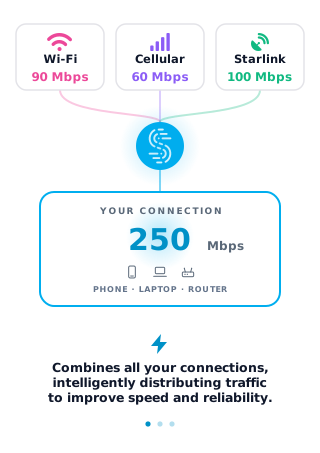
Instead of sending everything over Starlink alone, Speedify sends your internet traffic over Starlink and your other internet connections at the same time: Wi-Fi, 4G/5G cellular or a wired line. Your traffic leaves through the same Speedify server either way, so calls, games and logged-in sessions keep the same public IP address when Starlink drops.
When Starlink drops during a satellite switch, Speedify moves your traffic to your other internet connections on its own, fast enough that video calls, internet phone calls and streams keep going. Speedify needs that second internet connection: with Starlink alone, it can’t cover the switches.
For traffic that can’t wait, Speedify can also send the same data over two internet connections at once and use whichever copy arrives first. That works best for live video, voice calls and anything where even a split-second gap is noticeable.
For Starlink users, the Speedify app also has a Starlink Control Center, a page for watching your Starlink dishes, with a setting called “Bonding Alignment” that aims two or more Starlink dishes at different parts of the sky. Aiming dishes apart helps with obstructions, not with satellite switches, which hit every Starlink dish at the same moment.
What You Need to Combine Starlink with a Second Internet Connection
- A Starlink internet connection (Starlink dish and Starlink router)
- A second internet connection: a 4G/5G cellular router or hotspot, a cable or fiber line from another internet provider, or a second satellite service
- Speedify installed on your device, or Speedify for Routers on a compatible router, to cover your whole network
Speedify runs on Windows, macOS, iOS, Android and Linux. For your whole network, Speedify runs on a range of compatible routers, with setup steps for each router model.
How Much Cellular Data the Second Connection Uses Next to Starlink
A basic data plan from a mobile carrier is enough for the second internet connection. How much cellular data Speedify uses depends on one setting, the connection’s priority. With your cellular connection set to “Primary”, Speedify uses it together with Starlink all the time: you get the fastest downloads and uploads and the smoothest calls, and use more cellular data. Set to “Backup”, Speedify uses cellular only when Starlink drops, which saves data. Businesses usually add a 4G/5G cellular router and a business data plan.
How to Set Up Speedify with Starlink
- Connect your Starlink dish and check that your Starlink internet connection works in the Starlink app.
- Connect your second internet connection: plug in a 4G/5G cellular router, connect a hotspot, or join a second Wi-Fi network.
- Download and install Speedify from speedify.com/download/.
- Open Speedify. It finds both internet connections on its own.
- Leave Speedify in Streaming Mode, the default, which puts video calls and live streams first. To use both internet connections for faster uploads and downloads, choose Speed Mode. To send all your traffic over both at once, choose Redundant Mode.
Why Starlink’s Short Drops Hurt Businesses, and How to Cover Them
For businesses, Starlink’s short drops are more than annoying. Office phone systems drop calls. Card readers lose their connection in the middle of a sale. Remote employees on company VPNs get cut off. Anything that has to stay connected all the time, like a remote desktop or a live data feed, is exposed to the drops.
On a router, Speedify covers the whole network. Instead of depending on one Starlink internet connection, Speedify uses Starlink together with Wi-Fi, 4G/5G cellular, a wired line or a second satellite service, and switches between them on its own, so staff and apps stay connected through the satellite switches.
For businesses that must keep data on their own servers, Speedify Self-Hosted Servers run Speedify on your own servers, so your traffic stays in your own environment. For your own server capacity without running it yourself, Speedify Dedicated Servers give you a private server that nobody else shares.
For businesses: Contact Us to plan a Starlink setup for your office, vehicles or sites with the Speedify team, or see Speedify for business.
For home users: download Speedify and use Starlink together with your phone’s 4G/5G cellular connection.
Speedify
Get started with Speedify today.
Speedify combines Wi-Fi, 4G/5G cellular, Ethernet, Starlink and satellite into one faster, more reliable internet connection. Free to try: 5 GB a month with a free account. No credit card required.
🚀 Speed
Faster uploads and downloads, because Speedify uses all your internet connections at once.
📶 Stability
If one internet connection drops, Speedify moves your traffic to the others in milliseconds.
🔒 Security
AES-256 encryption on every internet connection, on any network you join.


15M+ downloads worldwide. 75K+ five-star reviews on iOS and Android.