
Stream GTA 6 on Twitch from a PS5 or Xbox and Keep the Stream Live
To stream GTA 6 on Twitch from a PS5 or Xbox with your own scenes, alerts and webcam, run the console’s HDMI into a capture card, connect the card to a PC running OBS Studio, and stream from OBS at 1080p and 30 frames per second at about 4,500 kbps, Twitch’s recommended bitrate for 1080p30. GTA 6 runs at 30 fps on PS5 and Xbox Series X|S, so a 60 fps stream adds bitrate without adding smoothness. On a PS5, turn off HDCP first, or the capture card shows a black screen.
You are not the only one setting this up: GTA 6 has been one of the most watched games on Twitch since its launch on 19 November 2026. This guide covers the console’s built-in streaming, the capture card setup, the bitrate and upload speed GTA 6 needs, and how Speedify keeps the stream live on the OBS PC. Speedify is an app that uses two internet connections at the same time, like home Wi-Fi and a phone’s 4G/5G, so the stream keeps going if one drops. On a single internet connection, Speedify works as an encrypted VPN and does not add speed or prevent drops.
Stream GTA 6 on Twitch Straight from the PS5 or Xbox
Both consoles can go live on Twitch without a PC. That is the quickest way to start, with fewer controls.
- PS5: press the Create button, select Broadcast, choose Twitch (link your account the first time), enter a title and select Go Live. Quality settings sit under Settings > Captures and Broadcasts > Broadcasts. Viewers see the game screen only, not other screens or apps, and Sony notes that some game scenes may not appear.
- Xbox Series X|S: open the guide, go to the Capture and Share tab, choose Live streaming, link Twitch by scanning the QR code with your phone, then select Go live now. You can set the resolution and bitrate in the options panel.
The trade-off: no OBS scenes, limited overlays, and the stream leaves through the console’s own internet connection. Speedify cannot be installed on a PS5 or Xbox, so a console streaming on its own gets no second internet connection. The rest of this guide moves the stream to a PC, where you get full control and where Speedify runs.
What You Need to Stream GTA 6 from a PS5 or Xbox to a PC
- The console with GTA 6 installed. You do not need a PC copy of the game, and there is none: GTA 6 is out on PS5 and Xbox Series X|S only.
- A capture card with HDMI in and HDMI out (passthrough), so you play on your TV with no delay while the PC records. GTA 6 at 30 fps does not need a 4K60 card, though one does no harm.
- Two HDMI cables: console to capture card, capture card to TV or monitor.
- A PC or Mac running OBS Studio (free), connected to the capture card over USB.
- An Ethernet cable to the PC if you can run one. The upload from this PC is your stream.
- Optional: a microphone and a webcam for your face cam.
How to Stream GTA 6 on Twitch with a Capture Card
- PS5 only: turn off HDCP first. With the PS5 connected straight to the TV (not through the capture card), go to Settings > System > HDMI and turn off Enable HDCP. HDCP is copy protection, and with it on, the capture card shows a black screen. Video apps such as Netflix use HDCP, so turn it back on when you finish streaming.
- Xbox: Elgato notes that Xbox does not apply HDCP to games. If the capture card stays black after you used a video app, restart the console.
- Connect the cables. Console HDMI OUT to the capture card’s HDMI IN, then the capture card’s HDMI OUT to your TV or monitor.
- Connect the capture card to the PC with its USB cable.
- Add the console to OBS. In Sources, add a Video Capture Device and pick the capture card. If you see the picture but hear no game sound, check the audio setting of that source.
- Set the video. In OBS Settings > Video, set the output resolution to 1920×1080 and the frame rate to 30.
- Set the bitrate. In Settings > Output, set the video bitrate to 4,500 kbps. In Advanced output mode, also set Rate Control to CBR. The table below has lower settings for slower uploads.
- Link Twitch. In Settings > Stream, choose Twitch and connect your account.
- Go live and watch the dropped frames. Start Streaming, then keep an eye on the Stats dock. Frames dropped “due to network” mean the upload cannot keep up.
For the rest of the OBS and Twitch setup (scenes, alerts, audio), the Twitch streaming setup and upload speed guide goes step by step.
GTA 6 Twitch Bitrate and Upload Speed
Upload speed, not download speed, decides whether your GTA 6 stream holds. Twitch’s broadcasting guidelines give these bitrates. The data column is simple arithmetic, so you can check a mobile data allowance.
| Setting | Twitch recommended bitrate | Data per hour | For GTA 6 |
|---|---|---|---|
| 1080p, 60 fps | 6,000 kbps | about 2.7 GB | No gain: the game runs at 30 fps |
| 1080p, 30 fps | 4,500 kbps | about 2 GB | The setting to use |
| 720p, 60 fps | 4,500 kbps | about 2 GB | No gain over 1080p30 |
| 720p, 30 fps | 3,000 kbps | about 1.35 GB | For a slow or shared upload |
The bitrate is not the upload you need: leave room for the audio track, Twitch chat and everyone else on the network. The Speedify guide to upload speed for 1080p live streams puts the target at 10 Mbps. Run a speed test on the OBS PC at the hour you plan to stream, with everyone else at home online as usual.
Why a GTA 6 Stream Drops Frames or Ends Mid-Session
When the upload dips below the bitrate, OBS drops frames and viewers see the picture skip. When the upload stops altogether, OBS disconnects from Twitch and the stream goes offline. The usual causes at home:
- Wi-Fi between the OBS PC and the router. An Ethernet cable removes that link from the problem.
- Other uploads on the network: cloud photo backups, video calls, security cameras.
- The home internet itself, which can slow down or drop for a few seconds with nobody touching it.
Lowering the bitrate cuts dropped frames but softens the picture, and it does nothing when the home internet drops out completely. The guide to fixing OBS dropped frames on Twitch walks through each cause.
Use Speedify on the OBS PC to Keep a GTA 6 Twitch Stream Live
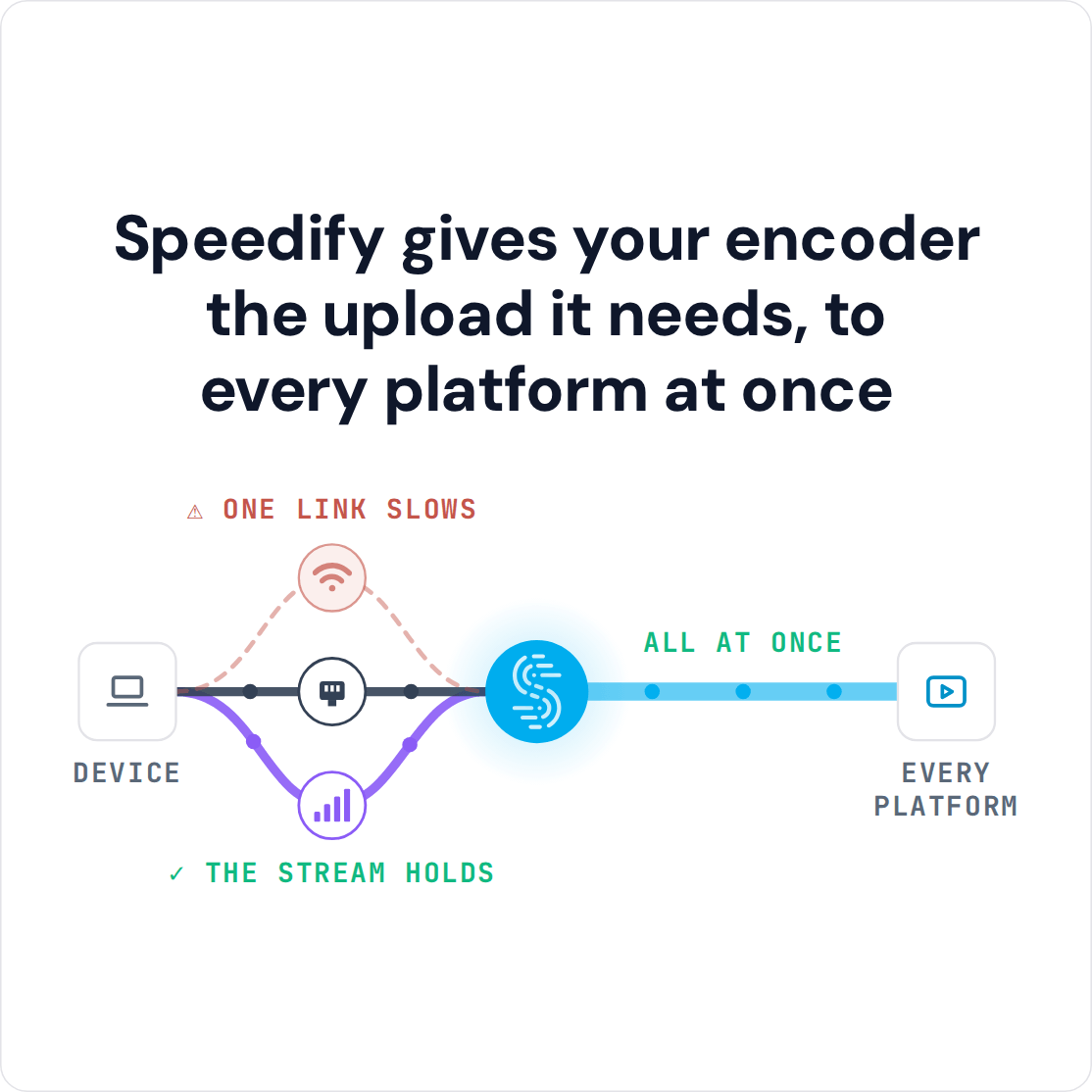
Speedify runs on the Windows PC or Mac that runs OBS, so the console needs no changes. Speedify combines the PC’s internet connections, for example home Ethernet or Wi-Fi and a phone’s 4G/5G cellular, into one internet connection for OBS; Speedify says it reaches up to 95% of their combined speed. If one internet connection drops, Speedify moves the stream to the other in milliseconds, so the stream keeps going instead of ending. Speedify’s default mode gives live streams priority over background downloads and updates. Speedify’s Redundant Mode sends every packet over both internet connections at once, for streams you cannot afford to lose, and uses more data.
- Install Speedify on the OBS PC: Windows 10 or later, or macOS 11.5 or later.
- Create a free account or sign in. The free plan includes 5 GB a month. A 1080p30 stream at 4,500 kbps uses about 2 GB an hour, so the free plan covers about two and a half hours of streaming a month; regular streams need a paid plan ($89.99 a year).
- Add a second internet connection. Keep the PC on Ethernet or Wi-Fi and connect your phone with a USB cable for tethering (on a Mac: an iPhone, or an Android phone that supports USB tethering to a Mac). A computer’s built-in Wi-Fi joins one network at a time, so a cable is the simple way to add the phone.
- Connect Speedify and check the combined upload. In Speedify, go to Settings > Performance Tests and run the Total Livestream Test. The test uses data, so run it once, not before every stream.
- Go live in OBS as usual. For a stream that must not drop, open the menu (☰, top left) and change the mode to Redundant, and keep an eye on your cellular data.
Any stream data that travels over 4G/5G counts against your mobile plan, so check its allowance before a long session. The guide to streaming with OBS Studio and Speedify shows the OBS side in more detail, and Speedify for Twitch streamers explains how Speedify handles packet loss and failover during a Twitch stream.
To keep your GTA 6 stream live when the home internet drops, Download Speedify on the OBS PC and add your phone’s 4G/5G as a second internet connection.
Speedify
Get started with Speedify today.
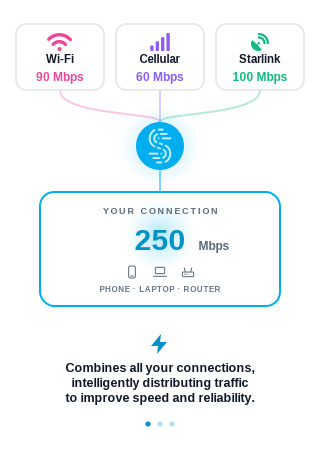
Speedify combines Wi-Fi, 4G/5G cellular, Ethernet, Starlink and satellite into one faster, more reliable internet connection. Free to try: 5 GB a month with a free account. No credit card required.
🚀 Speed
Faster uploads and downloads, because Speedify uses all your internet connections at once.
📶 Stability
If one internet connection drops, Speedify moves your traffic to the others in milliseconds.
🔒 Security
AES-256 encryption on every internet connection, on any network you join.


15M+ downloads worldwide. 75K+ five-star reviews on iOS and Android.