
Hassle-Free Live Streaming with Lightstream
Lightstream Studio is a great tool to broadcast live on the internet on Facebook, YouTube, Twitch or to a custom RTMP destination. Everything is done through your browser, so it's very simple to get started.
Creators and gamers are the main targeted live streamers by Lightstream, as they offer two plans adapted to their needs. They even have mobile apps for iOS and Android to send the mobile gameplay wirelessly into Lighstream Studio.
Unfortunately Lightstream doesn't natively allow live streaming to multiple destinations. However, you can use a multi streaming solution, as they recommend themselves, to broadcast to multiple platforms.
This article explains how to go live on Lightstream and make sure you don't run into any live streaming issues, especially those pesky ones related to Internet connectivity.
Use Speedify to increase your bandwidth: Combine internet connection sources like WiFi, 4G, 5G, & Starlink together

Combine multiple internet connections to fix slow Internet
Speedify is the only app that seamlessly combines all of your connections, including WiFi, 4G, 5G, Ethernet, and Starlink, into one stronger connection to keep you online and secure.
In most cases, Speedify will automatically detect and start using any available Internet connections on your device while intelligently distributing your online traffic between them for optimal performance. If you need help we have quick start guides available for most common set ups.

Combine personal hotspots for better bandwidth and signal strength
Speedify's Pair & Share is a feature that enables you to connect to multiple hotspots at the same time and wirelessly share LTE, 4G, and 5G cellular connections back and forth between multiple Speedify users on the same local network to create a faster, more reliable connection for everyone.
For the first time, it's possible to share cellular data between multiple devices, including PCs, Macs, iPhones and Androids. Use multiple phones as hotspots for internet access and get increased bandwidth and mobile failover for all paired devices.
Live Streaming Essentials: Good Internet Connectivity
Internet is what makes or breaks a successful live broadcast, no matter what live streaming software you're using, be it Lightstream or another one. That's why you should definitely think this through.
Having an extra Internet source while live streaming helps, but you have to think how long it takes for you and/or your streaming device (camera, computer, mobile device) to switch between the 2 connections. It's usually a minimum of 10-20 seconds - and that's an optimistic estimate.
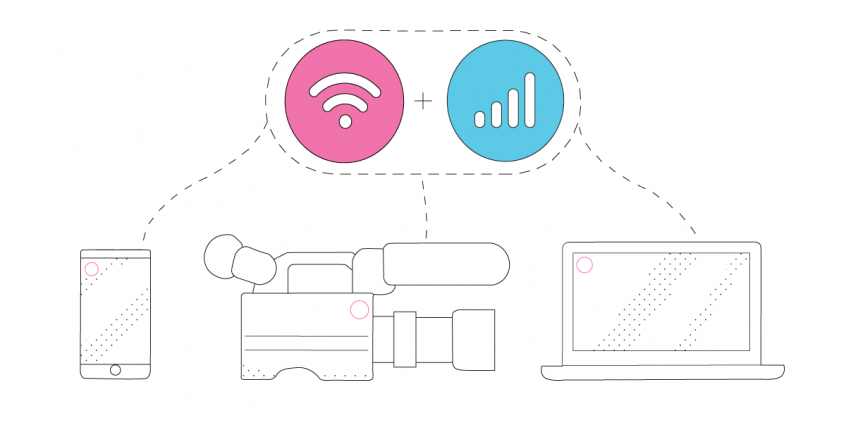
That's why you need to use all available Internet connections at once instead of keeping them as a backup and switching between them. That is called Internet bonding (a.k.a. channel bonding, link aggregation, etc.). Speedify is the only app that can combine multiple internet sources into one bonded super-connection for more stable and secure live streaming, video calling, online gaming and web browsing.
Checklist Before You Go Live on Lightstream to Twitch, YouTube or Facebook
To get started with live broadcasting with Lightstream, just make sure you have the essentials:
- camera - dedicated (like a GoPro, for example), the computer webcam, or your smartphone's camera.
- streaming device - computer or smartphone
- Lightstream account. Take a look at Rainmaker.gg as well, as it can improve the live streaming experience for your audience and you can use it for free.
- Speedify account - for stable Internet connection. The idea is to use two or more connections together at once with Speedify to hit your target bitrate and avoid flaky Internet problems while live streaming to Facebook, Twitch, YouTube, etc. with Lightstream.
Additional accessories - such as an external battery pack, dedicated microphones, extra lighting, etc. - may be required especially if you're doing IRL streaming. Also, as mentioned above, Lightstream does not natively allow multi streaming. You can do that with the help of other live streaming software, such as Restream or Switchboard.live.
4 Steps to Go Live on Lightstream
1. CONNECT ALL AVAILABLE INTERNET SOURCES TO YOUR STREAMING DEVICE
Use one or multiple of the following on your streaming device:
- wired Ethernet connection - computer only
- external USB 5G / 4G LTE cellular adapter - computer only
- Wi-Fi hotspot
- cellular data
- tethered smartphone
Real world example: If you're live streaming IRL outside your home / studio, the easiest way is to carry two cellular phones. One can be your streaming device and the other one would just be used for its cellular data - you would create a Wi-Fi hotspot to connect the streaming device to it. That way you would combine cellular data with Wi-Fi from the second phone on the streaming device.
2. GET STABLE INTERNET BY BONDING YOUR CONNECTIONS WITH SPEEDIFY
If you don't have a Speedify subscription yet, you can get it from our website store, the Apple App Store or the Google Play Store.
Run Speedify and log into your account. All the active Internet sources you connected at step 1 should be recognized by Speedify. All you have to do now is choose a server to connect to - the fastest server options usually works best.
3. CONFIGURE LIGHTSTREAM
Follow the instructions on the Lightstream website to get started with live streaming to YouTube, Twitch, Facebook Live or a custom RTMP destination.
4. FINAL CHECK, GO LIVE
Before going live with your stream, make sure:
- you are in the Lightstream Studio and are able to see the video you want to broadcast in the preview window
- audio is working
- Speedify is running, and it combines the Internet sources you're connected to.
Ready to go? Just hit the button and make it big!
The good thing about Speedify is that it prioritizes your live streams over other Internet traffic. Thus, you are avoiding issues such as low quality, choppy and laggy videos, buffering and even disconnects from the streaming server.

Get started today!
With Speedify you can combine multiple internet sources into one bonded super-connection to improve livestreaming, video calling, gaming, web browsing, and everything else you do online.
Speed
Stability
Security
We love talking about connectivity!
Alex and the Speedify team are always exploring the latest in networking and security technology—like 5G, 6G, WiFi 7, laser and satellite internet—and sharing it in new discussion content across YouTube, TikTok, Instagram, and LinkedIn every week.
Got a tech question? Let's go deeper! Pop into Speedify Office Hours live every Wednesday at 10 AM Eastern. Speedify CEO Alex Gizis and our network engineers are standing by to break down your questions about networks, tech updates, and Speedify features.
