
Speedify Helps Combine Wi-Fi and Mobile Data for Faster, More Reliable Internet
iPhone won’t connect to Wi-Fi? You are not alone: a changed password, an iOS bug, an old router or a crowded network can all stop an iPhone from joining. The six fixes below cover each cause. To stay online in the meantime, run Wi-Fi and 4G/5G cellular at the same time.
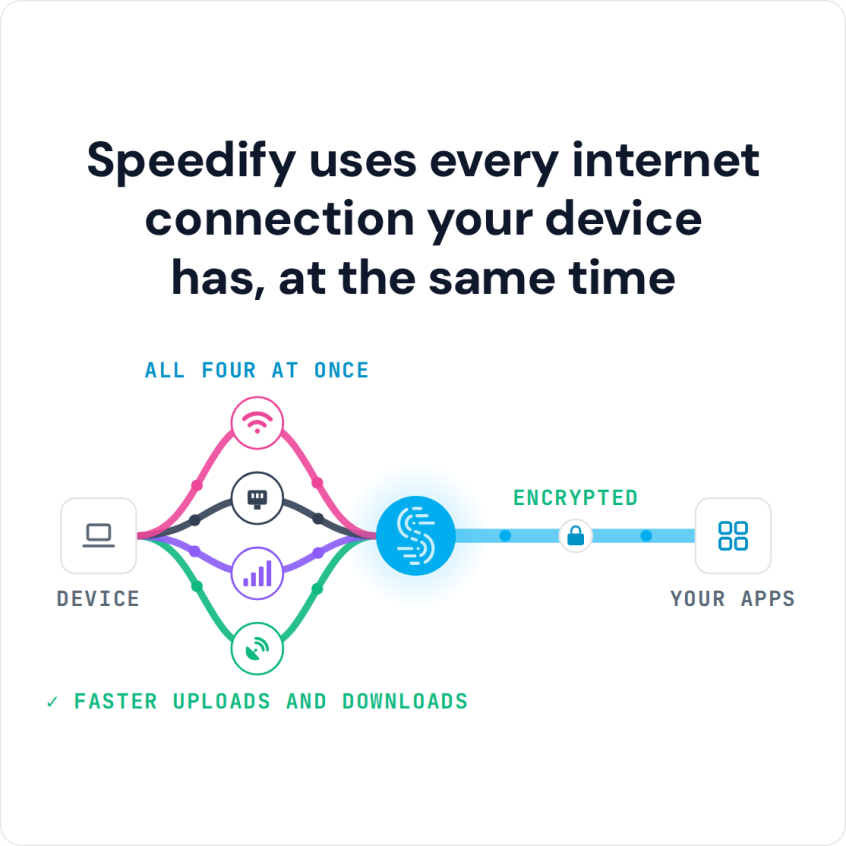
Speedify is an app that combines two or more internet connections at once, such as Wi-Fi and your iPhone’s 4G/5G cellular, so you get faster, more reliable internet and stay online even when Wi-Fi won’t connect. This guide covers why an iPhone won’t connect to Wi-Fi and how to fix it. If 4G/5G cellular is down too, see the fixes for an iPhone with no Wi-Fi or cellular connection.
Speedify uses every internet connection your device has, at the same time
How do I use WiFi and 4G/5G cellular at the same time with Speedify?
Pick your two internet connections and your device below and we'll take you to the step-by-step setup guide.


Why an iPhone Won’t Connect to Wi-Fi: Four Common Causes
Network Authentication Problems
Authentication failures are one of the most common reasons an iPhone won’t connect to Wi-Fi. They usually happen when your iPhone still has an old Wi-Fi password saved after the router’s password or settings changed.
iOS Software Bugs
Apple’s iOS updates sometimes introduce temporary Wi-Fi connectivity bugs that can prevent your iPhone from properly connecting to networks. These issues often manifest as connection timeouts or repeated password prompts even when entering correct credentials.
Router Compatibility Issues
Older routers may struggle with newer iPhone models due to outdated security protocols or firmware. Similarly, some enterprise networks use authentication methods that aren’t fully compatible with iOS devices.
Network Congestion
In crowded areas like airports, hotels, or office buildings, Wi-Fi networks become oversaturated, making it difficult for your iPhone to establish and maintain stable connections.
Six Fixes for an iPhone That Won’t Connect to Wi-Fi
Here are the most common troubleshooting steps for an iPhone that won’t connect to Wi-Fi:
Get Closer to the Wi-Fi Router
If possible, move closer to the Wi-Fi router. At home, go into the room where the router is. In public spaces the router is harder to find, but the Wi-Fi list on your iPhone shows each network’s signal strength before you connect.
Reset Network Settings
Resetting network settings fixes many cases where an iPhone won’t connect to Wi-Fi. Go to Settings > General > Transfer or Reset iPhone > Reset > Reset Network Settings. The reset clears all saved Wi-Fi passwords, VPN configurations and cellular settings, so your iPhone starts fresh. If you use Speedify, tap Allow again when it asks to add its VPN configuration.
Forget and Reconnect to Networks
For specific network issues, go to Settings > Wi-Fi, tap the “i” icon next to the problematic network, and select “Forget This Network.” Then reconnect by selecting the network and entering your password again.
Update iOS and Router Firmware
Ensure your iPhone runs the latest iOS version through Settings > General > Software Update. Additionally, check if your router needs firmware updates, as manufacturers regularly release patches for connectivity improvements.
Toggle Airplane Mode
A quick airplane mode toggle can resolve temporary connectivity glitches. Enable airplane mode for 30 seconds, then disable it to reset your device’s wireless connections.
Restart Your iPhone and Router
Sometimes the simplest solutions work best. Restart both your iPhone and Wi-Fi router to clear temporary software conflicts that might prevent proper authentication. If that only helps for a while, see why iPhone Wi-Fi needs turning off and on.
Improve Your iPhone’s Wi-Fi Internet with Speedify
Fixing the Wi-Fi problem gets your iPhone back online, but the next weak or dropped Wi-Fi network causes the same trouble. Speedify avoids that with its technology for combining internet connections: your iPhone uses Wi-Fi and 4G/5G cellular at the same time.
Combine Wi-Fi and 4G/5G Cellular to Stay Online When Wi-Fi Fails
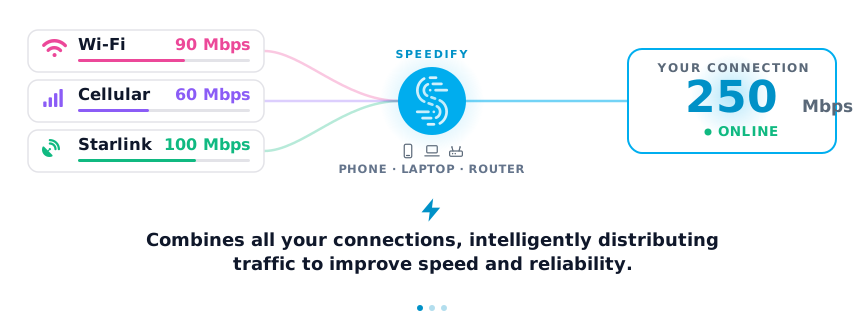
Instead of choosing between Wi-Fi and 4G/5G cellular, Speedify lets your iPhone use both connections simultaneously for faster downloads and uploads.
If your Wi-Fi drops or slows down, your calls, streams and downloads continue over 4G/5G cellular without interruption. When the Wi-Fi works well, Speedify adds it to your 4G/5G cellular connection for faster overall speeds.
Cellular Sharing for Group Travel
Speedify’s cellular sharing feature helps iPhone users who travel in groups. Unlike a traditional hotspot, which is a one-way connection, cellular sharing lets devices share their 4G/5G cellular connections with each other.
When you pair your iPhone with friends’ or colleagues’ devices, everyone can use the combined 4G/5G cellular connections in the group. For example, if you are on Verizon and your travel companion uses AT&T, both of you get the combined coverage and speed of both networks at the same time.
This helps most where a single network struggles: international travel, remote locations and crowded venues.
Real-World Benefits for iPhone Users
Fixing the Wi-Fi problem and running Speedify cover different needs. The fixes get Wi-Fi working again; Speedify keeps you online when a Wi-Fi network fails anyway. You get faster downloads, less buffering during video calls and internet access that does not depend on one network.
For business travelers, content creators and anyone who depends on reliable internet, the result is work that is not interrupted when an iPhone won’t connect to Wi-Fi or a network is slow.
Speedify
Get started with Speedify today.
Speedify combines Wi-Fi, 4G/5G cellular, Ethernet, Starlink and satellite into one faster, more reliable internet connection. Free to try: 5 GB a month with a free account. No credit card required.
🚀 Speed
Faster uploads and downloads, because Speedify uses all your internet connections at once.
📶 Stability
If one internet connection drops, Speedify moves your traffic to the others in milliseconds.
🔒 Security
AES-256 encryption on every internet connection, on any network you join.



15M+ downloads worldwide. 75K+ five-star reviews on iOS and Android.