
Fix iPhone Internet Issues with Speedify by Combining Wi-Fi with 4G / 5G Cellular
When an iPhone won’t connect to Wi-Fi or data at all, start with what the two share: Airplane Mode left on, a VPN or content-filter profile that blocks traffic, a carrier settings update or SIM problem, or network settings that need a reset. When only one of them fails, or the iPhone says it is online while nothing arrives, the usual cause is a failed switch between Wi-Fi and 4G/5G cellular mid download, or a router that never gave the iPhone a valid address.
Speedify is an app for iPhone that uses Wi-Fi and 4G/5G cellular at the same time as one internet connection your apps share. You will find the iPhone and router causes explained below, the fix for each, and where Speedify helps: traffic moves to whichever internet connection is still working. Speedify needs at least one working connection, and two to keep you online through a drop; with one, Speedify works as an encrypted VPN. If you own an iPhone 16, also check Wi-Fi 7 problems on the iPhone 16.
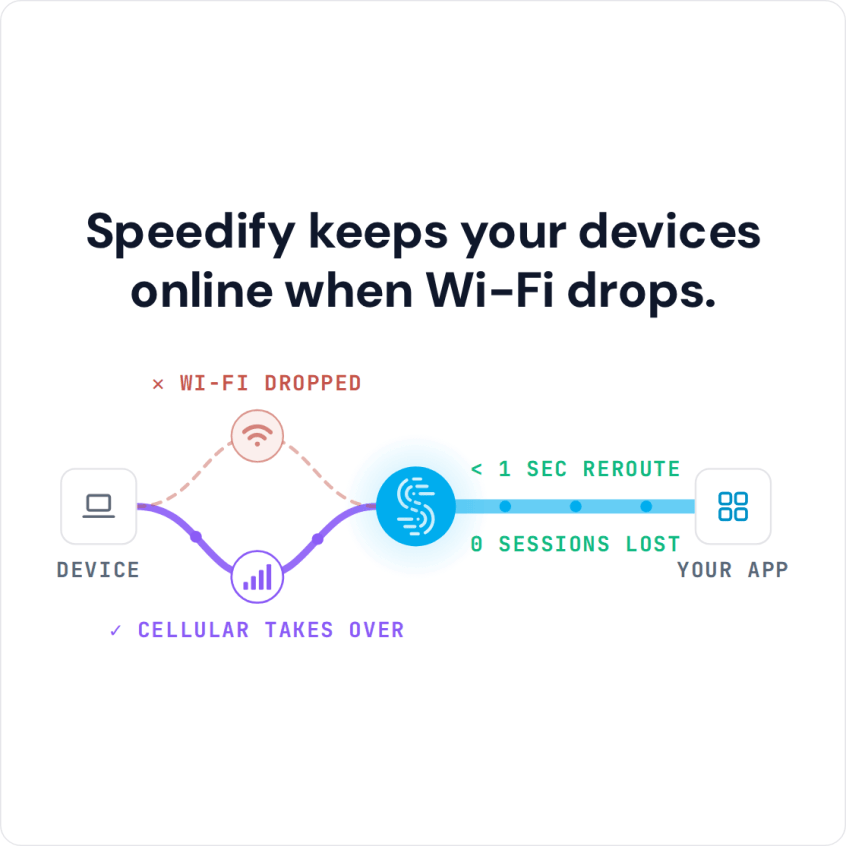
Speedify keeps your devices online when Wi-Fi drops.
How to Keep an iPhone Online When Wi-Fi or Data Drops
- Download Speedify from the App Store on your iPhone (iOS 17 or later).
- Open Speedify and create a free account (the free tier includes 5 GB per month), or sign in.
- Keep Wi-Fi on and turn on cellular data as well.
- Connect. Speedify uses both connections at once and moves your traffic to the working one when one drops.
- Use your iPhone as usual.
Why iPhone Internet Is Not Working or Keeps Dropping
An iPhone loses its internet connection for a handful of technical reasons. iPhones switch between Wi-Fi and cellular networks constantly, and the switch sometimes fails without any message. Knowing the cause helps you fix it faster.
The most common culprits involve network handoff failures, outdated iOS versions, misconfigured network settings, and physical interference. Each requires a different approach to resolve permanently.
Common Reasons iPhone Has No Internet Connection
Wi-Fi Router Configuration Issues
Your iPhone might connect to Wi-Fi without actually receiving internet access. This happens when your router’s DHCP server stops assigning IP addresses correctly, or when the Wi-Fi password is cached but the network credentials have changed. Check your router’s admin panel to verify the DHCP pool has available addresses and restart the device.
Cellular Data Settings Misconfiguration
iOS has separate toggles for LTE, 5G, and older cellular technologies. If you disabled LTE in Settings > Cellular > Cellular Data Options, your iPhone might not access modern networks. Similarly, if your mobile carrier’s APN (Access Point Name) settings became corrupted, data won’t flow even though you appear connected.


Network Switching Delays
When moving between Wi-Fi and 4G/5G cellular networks, your iPhone is meant to hand off without a gap. The handoff fails when the phone switches while actively using data: the connection looks active but nothing loads, which resembles a complete outage.
DNS Resolution Failures
Your iPhone needs to translate website addresses into IP addresses through DNS servers. If your router’s DNS is unreachable or configured incorrectly, websites won’t load despite appearing connected.
iOS Software Bugs
Occasionally, iOS updates introduce connectivity bugs affecting specific iPhone models or carrier networks. These are usually fixed in a minor update; until then, a restart or Reset Network Settings is the workaround.
How to Fix an iPhone That Won’t Connect to Wi-Fi or Data
Force Restart the Device
Press and quickly release the Volume Up button, then immediately press and quickly release the Volume Down button. Press and hold the side Power button until the Apple logo shows. This forces iOS to reinitialize all network drivers and often resolves transient issues.
Forget and Rejoin Wi-Fi Networks
Navigate to Settings > Wi-Fi, tap the information icon next to your network, and select “Forget This Network.” Reconnect by selecting the network and entering the password fresh. This clears corrupted connection cache data.
Reset Network Settings
Go to Settings > General > Transfer or Reset iPhone > Reset > Reset Network Settings. This removes all saved Wi-Fi passwords, VPN configurations and cellular settings, forcing your iPhone to set everything up from scratch. You need your device passcode to complete this action.
Update iOS to the Latest Version
Connectivity bugs often ship with iOS releases. Check Settings > General > Software Update regularly. Staying current ensures you benefit from network stability patches released by Apple.
Change DNS Servers
In Settings > Wi-Fi, tap the info button next to your network, tap Configure DNS, choose Manual and replace the servers with 8.8.8.8 and 8.8.4.4 (Google DNS) or 1.1.1.1 (Cloudflare). Some routers and ISP configurations have slow or broken DNS that new servers get around.
When an iPhone Won’t Connect to Wi-Fi or Data at All
If Wi-Fi and cellular data fail at the same time, look at what they share. Check that Airplane Mode is off. Check Settings > General > About, which offers a carrier settings update when one is waiting, and Settings > Cellular, which shows whether your SIM or eSIM line is turned on. Remove VPN or content-filter profiles you no longer use in Settings > General > VPN & Device Management; a VPN with a kill switch that is disconnected (Speedify’s Internet Kill Switch included) blocks all traffic until you reconnect it or turn the kill switch off. If nothing works after a restart, contact your carrier.
Staying Online on iPhone with Speedify
These manual fixes address one outage at a time but do not stop the next one. Speedify works differently: Speedify combines multiple internet connections (Wi-Fi, 4G/5G cellular and Ethernet through an adapter) on your iPhone for more stability, speed and security.
How Speedify Keeps iPhone Internet Working When One Connection Drops
Speedify combines your Wi-Fi and 4G/5G cellular connections into one connection. Instead of switching between internet connections, Speedify uses both simultaneously, splitting traffic across Wi-Fi and cellular. If Wi-Fi drops during a video call, 4G/5G cellular carries the call on, with the same public IP address. If both connections fail at once, Speedify cannot keep you online.
Speedify Technical Implementation
Speedify creates an encrypted tunnel to a Speedify server and spreads packets across the available connections. Speedify monitors the quality of each connection in real time and sends traffic over the paths with lower latency and packet loss. When one connection drops, Speedify moves its traffic to the other (Speedify says in milliseconds) without dropping active connections.
Speedify Installation and Configuration
Download Speedify from the App Store and follow the setup steps at the top of this page if you have not already. Open the app to see real-time speeds on both connections; in settings you can choose which connection to prioritize when both are available.
Real-World Benefits of Speedify
With both connections combined, an HD video call can carry on while you move between Wi-Fi and cellular, streams keep playing on a commute, and downloads use both network paths at once.
Extending Reliability with Speedify’s Cellular Sharing Feature
Beyond your own iPhone, Speedify’s cellular sharing feature lets nearby phones share their 4G/5G cellular connections with each other and with computers running Speedify, so one device can combine several phones’ connections.
How Speedify’s Cellular Sharing Feature Works
Instead of one phone sharing its connection as a personal hotspot, devices paired with cellular sharing can share and receive each other’s cellular connections at the same time. Sharing works between PCs, Macs, iPhones and Android phones that run Speedify and are on the same local network (the same Wi-Fi network; with no Wi-Fi, one phone’s Personal Hotspot). A receiving device combines the shared connections with its own for more bandwidth and failover.
Who Benefits Most from Speedify’s Cellular Sharing Feature
For teams traveling together, cellular sharing means each device does not need its own reliable connection. A journalist’s laptop can combine the phones of everyone on the team, or a consultant can keep a video call steady on a laptop using two phones on different carriers.
Cellular sharing helps most where coverage is inconsistent and no single carrier gives steady speeds, because the devices draw on several networks at once.
Speedify
Get started with Speedify today.
Speedify combines Wi-Fi, 4G/5G cellular, Ethernet, Starlink and satellite into one faster, more reliable internet connection. Free to try: 5 GB a month with a free account. No credit card required.
🚀 Speed
Faster uploads and downloads, because Speedify uses all your internet connections at once.
📶 Stability
If one internet connection drops, Speedify moves your traffic to the others in milliseconds.
🔒 Security
AES-256 encryption on every internet connection, on any network you join.



15M+ downloads worldwide. 75K+ five-star reviews on iOS and Android.