
Connect to Multiple Wi-Fi Networks Simultaneously and Join Them for Better Internet
Want faster upload and download speeds and more reliable internet on your Mac? Run two Wi-Fi networks at the same time.
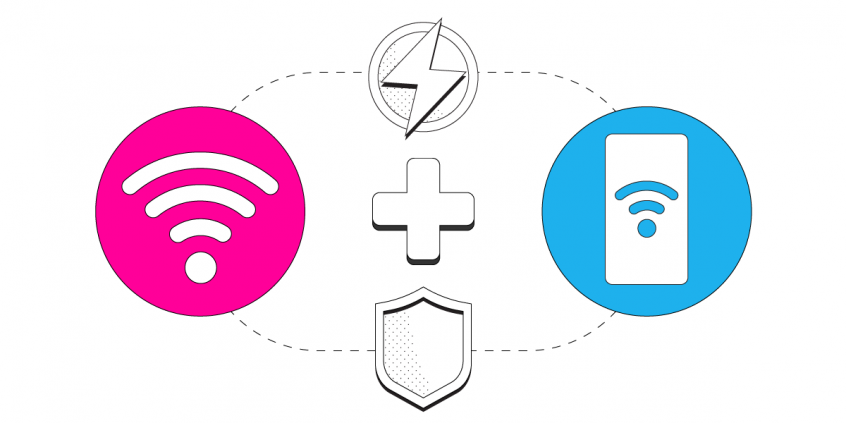
Speedify is an app that combines two or more internet connections at once – such as two different Wi-Fi networks, using your built-in and a USB Wi-Fi adapter – so you get faster uploads and downloads and stay online if one connection drops out.
<1 sec
With Speedify, your internet stays on when one connection fails.
When one of your internet connections drops, Speedify shifts your traffic to your remaining connections in under a second — so calls don’t cut out and downloads don’t stall.
Speedify is the only app that joins together your Starlink, Wi-Fi, 4G / 5G cellular, wired, and even your friend’s phone signals – and turns them into one ultra-fast and super secure link that keeps you all connected for the best possible live streaming, video calling, or just posting to your favorite app.
Speedify can join any number or combination of Internet connections and will intelligently distribute your online traffic among them for optimal performance. Plus, if you get disconnected from one of your connections in the middle of an important video call or file transfer, Speedify will seamlessly failover to your other working Internet connection(s) without skipping a beat.
NOTE: For best results, use Internet connections from different sources. In general, joining the same upstream network multiple times (such as the same router via Ethernet and Wi-Fi) will not improve performance.
Should you have a backup 4G, 5G, Starlink, or cable internet connection?
Yes — every internet connection goes down, including Starlink, which drops for ~34 minutes a day on average. A backup connection from a different provider means one outage never takes you fully offline. The most common options are a 4G/5G cellular hotspot, a cable or DSL line, or a second satellite dish.
4G/5G cellular
Works anywhere. Just a SIM or hotspot — no installation needed.
Learn more →Cable / DSL
Best for fixed locations. Different network, so outages rarely overlap.
Learn more →Second Starlink
Adds redundancy and throughput for remote sites or heavy usage.
Learn more →Speedify bonds any two connections into one — automatic failover, more speed, no dropped calls.
Try Speedify free →

3 Steps to Join Two Wi-Fi Connections on a Mac Using Speedify
Step 1: Connect to a Wi-Fi Network
Click the Wi-Fi icon in the menu bar. (If Wi-Fi is off, choose "Turn Wi-Fi on.") Select a nearby Wi-Fi network from the list. Keep in mind, private networks may require you to enter a password before connecting.
Step 2: Configure and Connect your USB Wi-Fi Adapter
You can use a secondary Wi-Fi connection on your Mac computer if it's running MacOS version 11 (Big Sur) or older. You’ll need a compatible USB Wi-Fi adapter and any corresponding software or drivers from the device manufacturer. Instructions may vary for your specific make or model.
Connect your USB Wi-Fi Adapter to a USB port on your Mac. Install the necessary drivers and Wireless Utility for your USB Wi-Fi network adapter. Once complete, you may be required to restart your Mac.
Turn On the Wireless Utility of your USB Wi-Fi Network Adapter.
Next, open the Wireless Utility and select and connect to a network from the list that appears. Be aware that you usually have to enter a password for private networks.
You should now be connected to a Wi-Fi network via your USB Wi-Fi Adapter. To confirm your connection status, visit System Preferences, click Network, and look for your new adapter in the list on the left.
Step 3: Download and Install Speedify
Last but certainly not least, download and install Speedify. Once running, Speedify will automatically detect any available Internet connections and join them together for increased speed, security, and stability.
Need to keep several devices connected in areas with limited or spotty network coverage, like event venues, remote locations or when traveling? Get consistent and uninterrupted online activity for all your devices using Speedify's Pair & Share functionality, which allows you to share cellular data between multiple devices wirelessly.
By pairing devices, you can effectively distribute your cellular connection across them, improving overall performance, especially when other network options like Wi-Fi may be slow or unstable.
You can manage settings, view statistics, and even apply limits to individual connections by either clicking/tapping on them from the Dashboard or by navigating to the desired connection through the main Settings menu.
Speedify will work quietly in the background to optimize performance including prioritizing streaming web traffic to avoid stuttering, buffering and disconnects.
Whether at home, work, or on-the-go, Speedify is the only VPN that makes your online experiences faster, more reliable, and more secure.
Alex and the Speedify team are always exploring the latest in networking and security technology—like 5G, 6G, WiFi 7, laser and satellite internet—and sharing it in new discussion content across YouTube, TikTok, Instagram, and LinkedIn every week.
Got a tech question? Let's go deeper! Pop into Speedify Office Hours live every Wednesday at 10 AM Eastern. Speedify CEO Alex Gizis and our network engineers are standing by to break down your questions about networks, tech updates, and Speedify features.

Speedify
Get started with Speedify today.
Combine Wi-Fi, 4G/5G cellular, Ethernet, Starlink, and more into one faster, steadier connection. Free to try — no credit card required.
🚀 Speed
Faster uploads and downloads by bonding all your connections at once.
📶 Stability
Automatic failover in under a second when any connection drops.
🔒 Security
AES-256 encryption on every connection, on every network you join.



15M+ downloads worldwide. 75K+ five-star reviews on iOS and Android.