

The Ultimate Guide to Remote Work Tools You Need
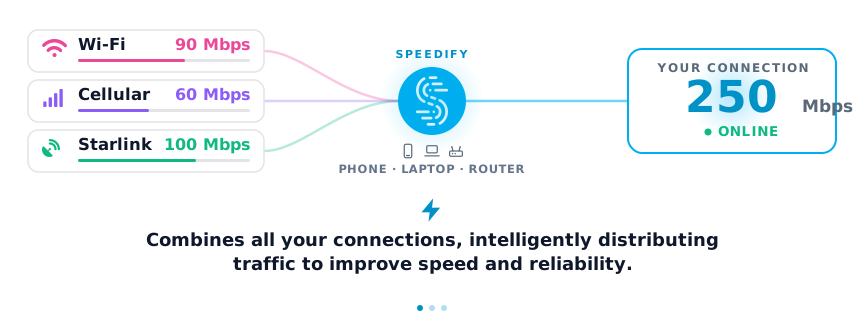
The remote work tools worth having fall into 12 categories: internet connectivity, remote access, communication and collaboration, video conferencing, task management, cloud file sharing, decision-making, internal documentation, time tracking, encryption, file backup and password management. Every one of them depends on the internet connection behind it. Speedify is an app that combines Wi-Fi, 4G/5G cellular, Ethernet, Starlink and satellite internet connections into one faster, more reliable connection, and encrypts your traffic like a VPN, so a video call or file upload keeps going even if one connection fails. This guide covers each category, starting with the connection that makes all of them work.
How do I use WiFi and 4G/5G cellular at the same time with Speedify?
Pick your two internet connections and your device below and we'll take you to the step-by-step setup guide.


1. Remote Worker’s Toolkit Essential: Connectivity to Make Your Internet Better
Remote work connectivity is the starting point because it makes every other tool work better.
If your internet stops working, you stop working when you’re not at the office. If your job is OK with you binging a Schitt’s Creek marathon on TV for 8 hours a day, congrats! No need for a connectivity tool. If you’re like everyone else, though, you’ll quickly find yourself up a creek if a connection issue causes you to be unproductive.
With Speedify you use all your internet connections at once, for faster downloads and uploads, fewer dropouts and encrypted traffic. If your home internet goes down, your phone’s 4G/5G cellular connection carries the traffic, and the other way around, so you stay on Zoom, in your company’s cloud software or anywhere else online you need to be. Your public IP address stays the same through the switch, so remote desktop and other logged-in sessions do not disconnect. These gains need two or more connections; on one, Speedify works as an encrypted VPN and cannot stop that connection from dropping. Speedify runs on Windows, macOS, iOS, Android and Linux, and a free account includes 5 GB per month on every platform except Linux, which needs a paid plan.
For more ways to improve the quality of your internet connection, see 7 ways to get faster remote work connectivity.
2. Remote Desktop and Remote Access Tools to Get Your Files
When it comes to remote work tools, remote desktop apps enable you to securely connect your computer to one at another location. You can access the information on it and even work on it virtually as if it’s in front of you. It can be a lifesaver if you need to access files on a computer that lives at the office or with a coworker.
If your company provides access to you, Citrix offers a best-in-class remote access solution that combines remote desktop with cloud services. Other competing solutions also work well, such as LogMeIn, ConnectWise, Zoho and Parallels. Your IT department should be able to help you set it up. If Citrix stops connecting later, see how to fix Citrix Workspace not working.
On the other hand, if you need to set up remote desktop for yourself, you should consider TeamViewer or Splashtop. These apps are free for personal use and available for all the major operating systems, although the latter charges a nominal fee for iOS users. Chrome Remote Desktop is useful for anyone who uses Chrome as it runs in the browser. Microsoft and Apple both also offer remote desktop solutions for their respective operating systems and are worth considering.
3. Remote Work Communication Tools for Chat, Calls and Shared Documents
Collaboration tools come next. The best ones let you chat with coworkers, share files and work on documents together.
To collaborate and share documents with your team, two solutions stand out: Google Workspace (formerly G Suite) and Microsoft 365.

Google Workspace gives you access to all of the office tools you need entirely online. You can use Gmail, Docs, Sheets, Drive, Calendar and more, so you can open and edit any file from anywhere, and more than one person can work on a document at once. Microsoft 365 gives you access to the whole Microsoft Office suite, so you can download Word, PowerPoint, Excel and more, and save documents in the cloud.
For general communication with other team members, Slack is hands down the best solution for real-time team chat. You can quickly create a group, connect with each team member, set up an audio or video call, share your screen and more. Microsoft Teams is a strong contender as well and offers all of the same features with a few slight differences.
Slack has integrations with other collaboration and productivity tools such as Google Docs and Dropbox, whereas Teams connects directly with other Microsoft products such as the Microsoft Office and 365 apps.
Another useful app within the Microsoft ecosystem is Viva Engage, formerly called Yammer. Viva Engage offers some of the same features as Slack or Microsoft Teams, but works more like a private social network or message board for internal communications than a real-time messaging tool.
4. Video Conferencing Tools for Remote Workers
Video conferencing keeps remote teams in face-to-face contact. The top tools hold no surprises, but each one meets a different need.
All of the major video conferencing tools for remote work let you create a meeting and invite others to it. Each has a free version, so if your meeting is short and has few attendees, you don’t need to pay a monthly or annual fee to get started.
Zoom has exploded in popularity for a reason. It has pushed the industry forward in terms of video quality, particularly when it’s paired with a connectivity tool like Speedify that optimizes video streaming. You just download the app or use the web version, sign up for an account and you’re ready to go. Its free version is limited to 100 participants and a time limit of 40 minutes, so do keep that in mind.
Google Meet has many of the same features as Zoom, and if you already have a Google account, it can be easier for beginners because it runs entirely in the browser. You can use it without downloading anything, as long as you’re signed into your Google account. Its free version is limited to 100 people but allows group meetings 20 minutes longer than Zoom’s free version.
Microsoft Teams is similar to Zoom, with comparable features and controls, and it adds the collaboration features mentioned above without leaving the app. The free version limits group meetings to 60 minutes and leaves out some features, such as meeting recording.
For other options and a more in-depth analysis of the best video conferencing tools for you, check out this blog post.
5. Project Management Tools That Keep Remote Teams on the Same Page
Collaborating remotely is hard, especially when you don’t have a chance to walk over to a coworker to ask them what they’re owning. Project management tools offer a way to keep everyone on track when working from home.
As remote work tools, Asana, Basecamp, Trello and Monday are the most popular project management solutions. All work well, but each has its own advantages.
Asana is a project management tool that lets you create and delegate tasks, organize them and chat within each task. Asana excels at workflow management, and teams can customize it to their own needs. That flexibility, and the number of integrations Asana offers, gives it a steeper learning curve than other solutions. One integration worth checking out is Instagantt, which adds a visual layer on top of Asana to plan, control and schedule projects, if you’re more of a visual person or a Gantt chart fan.
Trello, on the other hand, is both simple to use and powerful. It’s built around arranging tasks into boards, with lists and cards within each board that tasks are fed into and assigned to team members.
Basecamp’s strengths are task management, messaging and collaboration, file sharing, scheduling and reporting, with a helpful universal search function to find the information you need. It offers a wider range of features than other platforms, however depending on how you use Slack and other collaboration tools, those extra features may not be necessary. Monday.com is similar, but has a slicker interface and is geared toward smaller teams, with a clearer view of who is doing what at any given moment.
Teamwork combines strengths of the four tools above, such as task management and note taking, and goes further on collaboration for remote teams: Teamwork adds instant chat and a document management tool called Spaces for storing documents such as standard operating procedures.
If you’re a developer, you may use GitHub and Jira to manage tasks. GitHub allows teams to do code reviews virtually and manage both open source and private projects, with a number of add-ons available via the GitHub Marketplace. Jira is more of a tool for agile development, allowing you to assign and track work and solve issues.
6. Remote Work Tools for Information Sharing in the Cloud
You may have a corporate server to connect to, but many of those weren’t built to be flexible for people to access and share files when they’re remote. You need software that lets you save data in the cloud.
Google Drive is a tried and true tool with a powerful free version where you can store and organize all of the information you might need, and collaborate with others using the rest of Google Workspace. The first 15 GB of storage is free, and after that, you need to upgrade to a paid Google Workspace or Google One plan. Big folders take a while to sync; here is how to speed up Google Drive uploads.
Dropbox is a way to easily store and share files that are too large to send in an email. While Google Drive has the familiar Google look-and-feel, Dropbox is designed to function like your desktop file structure. Once you download it, Dropbox even joins your desktop and you can drag files over. Sharing files and folders on it is easier compared to Google Drive and you don’t need to worry as much about giving someone permission, whether they have a Google account, etc.
WeTransfer is for those times when you just need to send a big file fast and don’t want to bother with anything else. The free plan sends up to 10 transfers, or 3 GB in total, in any 30 days, and your recipient doesn’t need an account. Just upload the file, enter the recipient’s email and you’re done.
7. Polling and Decision-Making Tools for Remote Teams
When you’re remote, it’s hard to make a group decision. With a polling or decision-making tool, it doesn’t have to be.
You can do that informally using Slack or Teams, but for a more formal poll, you can either use Google Forms to create a free online survey or use Doodle to make a quick poll.
Want to keep your survey within your Slack or Teams environment but go beyond their native capabilities? Then Polly.ai may be the right remote work tool for decision making for you. It integrates with both of them to survey others without leaving your favorite communication app.
8. Internal Documentation for Remote Teams to Have a Shared Vision
You need to document best practices and share updates internally, and it becomes even more critical for distributed teams because institutional knowledge is harder to share. For that, you’re going to need a remote work tool suited for announcements and internal documentation.
Confluence enables you to create an internal wiki or blog for your team. It’s a remote-friendly workspace where you can keep documents, plans, notes and requirements all in one organized place. It features best practice templates to get you started on the most common use cases.
GitHub Wikis are an option if you just need a simple wiki for onboarding new team members or sharing processes.
Evernote is a popular tool for taking notes, keeping them organized and automatically syncing them across your devices. To share with your team or outside of your organization, Evernote also offers a team plan with more collaboration and sharing features.
Loom, on the other hand, enables you to document your work using a more personal touch. You can record your presentations, demos, team updates or anything else you want to share. Then you can send around the link to the video to anyone who needs to see it.
9. Remote Work Tools for Time Tracking
A simple but necessary remote work tool is one that can track your time, so you and your managers know what you’re spending your time on. You need to not only keep yourself on track, but demonstrate you’re staying on task.
Harvest is a simple app for keeping track of time and expenses. You can quickly set up projects, add items from your to-do list and then start tracking them when you begin working on a task. Its analytics will give you a high-level look at how you’re spending your time, and it integrates with many of the other tools mentioned on this list. It has a free version if you just need to track your own time and a 30-day free trial if you need to go beyond the free version’s limitations.
Time Doctor is another time tracking app built for teams. It keeps track of how you’re managing time and keeps you and everyone else on track. The app can even help you avoid distractions for extra productivity through alerting and reports that help you analyze how you’ve been spending your day compared to what you need to work on. It has a desktop, mobile and Chrome apps and a 14-day free trial.
10. Encryption Tools That Keep Work Files and Traffic Private
As malware and data breaches continue to proliferate, your data isn’t completely safe unless it’s encrypted.
A VPN such as Speedify keeps your data safe by encrypting it while it is in transit, so cybercriminals on the same network cannot read it. Speedify encrypts your traffic while combining your internet connections, so the encrypted connection stays up when one of those connections drops. Your most important files on your computer need their own protection as well.
Encryption software scrambles data so anyone without an encryption key or password can’t read it. To encrypt your whole hard drive, you may already have access to tools like Windows’ BitLocker (available in the Pro and Enterprise versions) or macOS’ FileVault (which is a feature of every Mac).
Or you can manually encrypt only the specific folders or files that have sensitive information in them. You can use tools like 7Zip, which adds encryption as a setting when you compress a file, or macOS’ Disk Utility which is basically a folder with password protection.
11. File Backup Software for Remote Workers
Even with all the protection in the world, a software or hardware failure can spell the end of your device being usable for work. That’s why you need backup software.
Backblaze is a cheap and unlimited online service you can set-and-forget, but iDrive, Acronis True Image and StorageCraft ShadowProtect are other solid options if you need to back up multiple computers, your mobile devices or your entire system and applications.
Regardless of the backup software you use as a remote work tool, when a catastrophic failure occurs, it’ll only be a minor setback as long as you regularly back up your data. Which is where the set it and forget it part really comes in handy.
12. Use a Password Manager to Protect Your Logins
Most people reuse the same passwords over and over again, while knowing in the back of their minds that it’s not safe. A password manager can make you more secure online while keeping track of all of the passwords you use.
At least once a week right now, a major data breach occurs. That compromises the passwords and other personally identifiable information of anyone who is a customer or user of the company that was attacked. You don’t want the one password you use for every site to get compromised. And you also don’t want to spend time remembering unique passwords.
1Password is perhaps the most popular tool in this category and is quick to get started with. LastPass, Dashlane and oneSafe are comparable options. All of them have apps for Mac, iOS, Windows and Android and let you sync passwords across devices.
Building a Remote Work Toolkit That Fits the Way You Work
As remote work becomes the norm, tools will continue to grow and evolve to meet the needs of the remote workforce.
Everyone works differently, and each person’s individual tech stack will be somewhat different. As the number of tools increases, so too will the possibility you will find solutions that are perfect for you.
Use these tools as a starting point for building your own work-from-home setup, and start with a reliable internet connection, because every other tool depends on it.
Speedify
Get started with Speedify today.
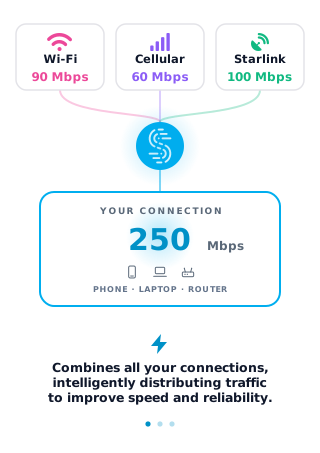
Speedify combines Wi-Fi, 4G/5G cellular, Ethernet, Starlink and satellite into one faster, more reliable internet connection. Free to try: 5 GB a month with a free account. No credit card required.
🚀 Speed
Faster uploads and downloads, because Speedify uses all your internet connections at once.
📶 Stability
If one internet connection drops, Speedify moves your traffic to the others in milliseconds.
🔒 Security
AES-256 encryption on every internet connection, on any network you join.


15M+ downloads worldwide. 75K+ five-star reviews on iOS and Android.