

Zoom Connection Unstable? Fix It: Join Multiple Internet Connections Together - Like Starlink, Wi-Fi, 4G, 5G, and DSL - with Speedify
Zoom is currently the most popular video conferencing software, along with GoToWebinar and Cisto WebEx. From remote work to remote learning and just virtual happy hours, Zoom brings people together.
If your Zoom connection is unstable, this is most likely a poor connection to the Internet. You can fix Zoom issues by joining your main Internet connection with another Internet source like a Starlink or DSL, 4G, 5G. Whether at home, work, or on-the-go, Speedify works with all live streaming software and social platforms to get you faster, more reliable and secure Internet.
In this article we'll show you how you can solve Zoom connection unstable issues to get better video calls.
Use Speedify to increase your upload and download speeds: combine internet connection sources like Wi-Fi, 4G, 5G, Starlink and wired broadband

Combine Wi-Fi, 4G, 5G, Starlink and wired broadband to fix slow upload and download speeds
Speedify is the only app that seamlessly combines all of your connections, including Wi-Fi, 4G, 5G, Ethernet, and Starlink, into one stronger connection to keep you online and secure.
In most cases, Speedify will automatically detect and start using any available Internet connections on your device while intelligently distributing your online traffic between them for optimal performance. If you need help we have quick start guides available for most common set ups.

Combine personal hotspots for better upload and download speeds
Speedify's Pair & Share feature enables you to connect to multiple hotspots at the same time and wirelessly share LTE, 4G, and 5G cellular connections back and forth between multiple Speedify users on the same local network to create a faster, more reliable connection for everyone.
For the first time, it's possible to share cellular data between multiple devices, including PCs, Macs, iPhones and Androids. Use multiple phones as hotspots for internet access and get increased bandwidth and mobile failover for all paired devices.
Use Speedify to combine...
Combine these connections on:



Zoom Connection Unstable – What Are the Causes?
First of all – the symptoms of an unstable connection in the context of using Zoom include one or more of the following:
- latency
- frozen screen
- poor quality audio and video
- meeting getting disconnected
If you’re connecting to Zoom from work on an enterprise Internet connection, most probably the tech support team is already scrambling to fix it. It doesn’t hurt to give them a nudge anyway.
When you get an unstable connection on Zoom while at home or on the go, then you’ll have to refer to your Internet infrastructure and your ISP. Here are the most popular causes:
- You’re too far away from the Wi-Fi router
- You have poor / slow cellular coverage
- Your network hardware needs an update or a restart
- There are temporary ISP infrastructure issues
- There are peering issues with Zoom servers
How to Fix and Avoid Zoom Connection Unstable Errors
First – is Zoom fully functional? Check out their service status page to confirm.
Then, test your online speed. Is it fast enough for Zoom video conferencing? You’ll need at least 2 Mbps upload and 2 Mbps download.
Assuming that nothing is wrong with the Zoom service itself, here’s the quickest way to troubleshoot and fix Zoom connection unstable errors:
- Move closer to the Wi-Fi router or, better yet, use a wired Ethernet connection if possible.
- Move around till you get better cellular coverage, if no other connections are available.
- Restart your modem, router and device you’re running Zoom on – computer, smartphone. You may also update your router’s firmware, if that’s available.
- Check if your ISP is having temporary issues. They should have a status page or at least a social media account to communicate that.
- If you have 2 or more Internet connections available around – use them at once. Most likely, you have cellular data available on your smartphone, so you can combine that with your home Internet. You’ll need a channel bonding app like Speedify for that. Speedify is the only app that can combine multiple internet sources into one bonded super-connection for more stable and secure live streaming, video calling, and web browsing.
Proven Fact: Speedify Makes Zoom Meetings Better
We recently tested Zoom on a laptop and on a smartphone while running Speedify, simulating bad Internet conditions. The results showed that Speedify was able to keep the average Zoom video call bandwidth on both devices in good range around the target bandwidth. And this happened both in situations where the connections were good and when one of them went bad.
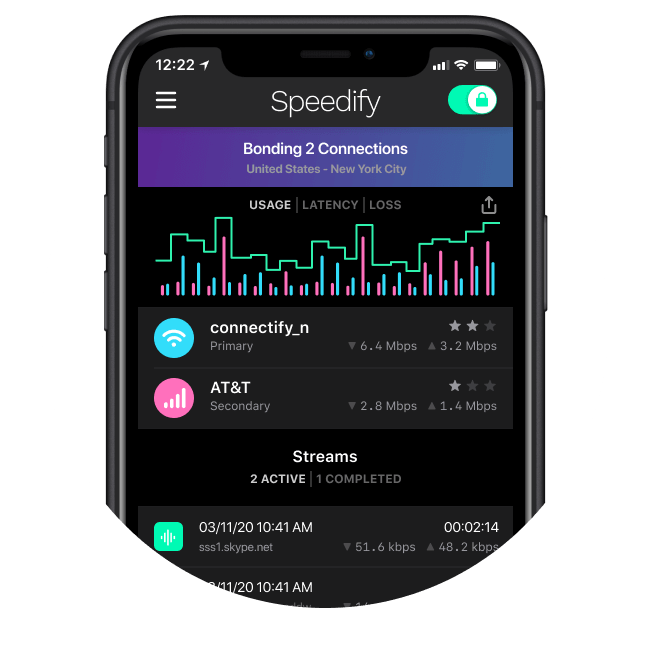
So how does Speedify achieve that? Well, it uses a technology called channel bonding that allows your to use multiple Internet connections at once. On your smartphone – it’s the Wi-Fi and cellular data that can be bonded. On a computer, there’s more flexibility about the number and type of connections.
Speedify also routes data when something happens to one of your connections. When you stumble upon a bad Wi-Fi hotspot, or your connection suddenly goes out, you will stay connected. Speedify intelligently and automatically reroutes your data through the other available connection(s) until you are connected again to both networks. Best of all, you don’t notice anything because Speedify works seamlessly.
The beauty of it is that Speedify does more than just manage your Internet connections. It is also a fast bonding VPN. It encrypts all of the data you send and receive from your device. This helps keep your private information and conversations secure from digital eavesdroppers and cyber thieves.
Speedify doesn’t just make your Zoom connection unstable issues dissapear. It also makes the Zoom app more stable and secure, and improves your overall Internet experience.
Connectivity is the key to productive remote work
If you want to be more productive, start considering how you will achieve blazing fast internet connections with superb network quality, and find the right devices, equipment and tools that will help you collaborate, video conference and take work anywhere.
Our Next Normal blog series will help you do that, by providing you with the tips, tricks and technologies that will help you optimize your remote work experience to become a WFH Superstar.
Together, we can make the Next Normal better than the old.
Combine connections
Browse, stream, watch, and play at the speed of all your Internet connections combined.
Enhanced streaming
Speedify automatically prioritizes real-time streaming traffic such as video calls and VoIP calls, live streaming, and gaming.
Extreme encryption
Speedify uses the latest encryption standards to secure your data. Stay safe when browsing on any network including public Wi-Fi hotspots.
Use on all your devices
We have apps for all major platforms including Windows, macOS, Linux, iOS, and Android.
Access the global internet
We have servers in more than 50 locations around the globe to mask your IP address and protect your browsing activities.
Ultimate privacy
We don’t record, monitor, store, log, or share anything you do.


Speed
Stability
Security
Speedify devs love talking tech on YouTube, Tiktok, and Instagram!
Alex Gizis and the Speedify devs discuss and explain technology including Starlink satellites, Wi-Fi 7 routers, Apple networking features, fiber optics, broadband internet, 5G mobile networks, AI, networking protocols, and much more. Follow Speedify on YouTube, TikTok, Instagram, and LinkedIn!
Alex and the Speedify team are always exploring the latest in networking and security technology—like 5G, 6G, WiFi 7, laser and satellite internet—and sharing it in new discussion content across YouTube, TikTok, Instagram, and LinkedIn every week.
Got a tech question? Let's go deeper! Pop into Speedify Office Hours live every Wednesday at 10 AM Eastern. Speedify CEO Alex Gizis and our network engineers are standing by to break down your questions about networks, tech updates, and Speedify features.
