
Use Wi-Fi and 4G LTE / 5G Mobile Data Together at Once with Speedify
Wi-Fi that worked fine last week and crawls since the iOS 27 update is a common report, and it rarely means the phone is broken. Something in how the device picks and holds a connection has changed underneath you.
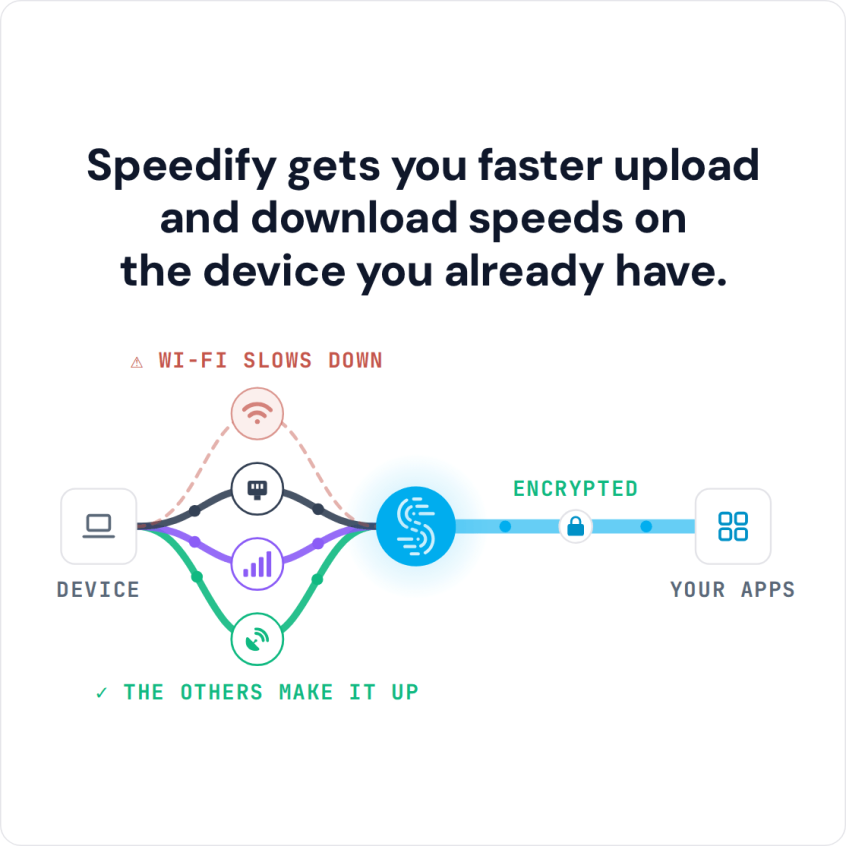
Speedify is an app that sidesteps that choice: it runs your iPhone or iPad on Wi-Fi and 4G/5G cellular at once, so a struggling Wi-Fi network is no longer the only thing carrying your traffic. The speed gain needs both connections: on Wi-Fi alone, Speedify works as an encrypted VPN and can be a little slower.
Speedify gets you faster upload and download speeds on the device you already have.
This guide covers the common causes of slow internet on iOS 27, the troubleshooting steps worth trying, and how to set Speedify up on the device.
5 Common Causes of iOS 27 Wi-Fi Issues and Slow Cellular
Several factors can contribute to iOS 27 slow internet speeds:
- System Optimization Issues: New iOS updates often require time to optimize, which can temporarily affect performance.
- Background Processes: Each major iOS release changes how apps behave in the background, which can consume more bandwidth than previous versions.
- Network Setting Conflicts: The update might have changed your network configurations or introduced compatibility issues with certain routers.
- Software Bugs: Early builds of any major iOS release can carry connectivity bugs affecting some users, as documented in Apple Support Community threads. Users there report that iOS 27.0.1 drops Wi-Fi a few minutes after the phone locks.
- Carrier Settings Mismatches: Outdated carrier settings can create conflicts with iOS 27’s networking protocols.
5 Troubleshooting Steps for iOS 27 Slow Internet
Before trying more advanced solutions, start with these basic troubleshooting steps recommended by Apple’s official support documentation:
1. Restart Your Device
A simple restart for your iPhone or iPad can resolve temporary system glitches:
- Press and hold the side button and either volume button until the power off slider appears
- Drag the slider and wait 30 seconds
- Turn your device back on by holding the side button
2. Check for iOS Updates
Apple regularly releases patches for iOS 27 slow internet issues:
- Go to Settings > General > Software Update
- Install any available updates
3. Reset Network Settings
This will clear potentially corrupted network configurations:
- Navigate to Settings > General > Transfer or Reset iPhone > Reset
- Tap “Reset Network Settings”
- Note: You’ll need to reconnect to Wi-Fi networks afterward
4. Update Carrier Settings
Carrier updates often contain fixes for connectivity issues:
- Connect to Wi-Fi
- Go to Settings > General > About
- If an update is available, you’ll be prompted to update
5. Disable Potential Interference
Some iOS 27 features might affect internet speed:
- Turn off Background App Refresh (Settings > General > Background App Refresh)
- Disable iCloud sync temporarily (Settings > [your name] > iCloud)
- Turn off Low Data Mode if enabled (Settings > Cellular > Cellular Data Options)
Fix Slow Wi-Fi or 4G/5G Cellular on iOS 27: Combine Connections with Speedify
If the steps above do not help, the problem is usually the Wi-Fi network itself, and the fix is a second internet connection used at the same time: Speedify runs Wi-Fi and 4G/5G cellular together on your iPhone or iPad.
How Speedify Helps with iOS 27 Slow Internet on Wi-Fi and Cellular
Here is how Speedify helps with slow internet on iOS 27 once Wi-Fi and 4G/5G cellular are both turned on:
Combining Connections: Speedify uses your Wi-Fi and 4G/5G cellular connections at the same time on your iPhone or iPad, so you get their combined speed for downloads and uploads and a more stable connection.
Automatic Failover: if your Wi-Fi becomes unstable, a common complaint after iOS updates, Speedify moves your traffic to 4G/5G cellular without interrupting what you are doing. Here is what to do about dead Wi-Fi on iOS 27.
Protocol Optimization: Speedify uses advanced protocols built for sending traffic over several internet connections at once, on iOS 27 as on any other system.
Fewer Lag Spikes: when one connection stalls or loses packets, Speedify sends the traffic over the other one and recovers lost packets, so pages and apps stall less often. With two or more connections in Redundant Mode, Speedify sends each packet over every connection and uses the copy that arrives first, so your ping follows whichever connection is faster at that moment.
Cellular Sharing: Speedify’s cellular sharing feature lets you connect to multiple hotspots at the same time. Phones running Speedify on the same Wi-Fi network (or on one phone’s Personal Hotspot) share their 4G/5G cellular connections with each other.
How to Set Up Speedify on Your iOS 27 Device
- Get Speedify from the App Store.
- Make sure you’re connected to a Wi-Fi network and have Cellular Data turned on.
- Open Speedify. Speedify detects the available connections automatically.
- Tap Connect. Speedify combines Wi-Fi and 4G/5G cellular and moves traffic to the working connection when one weakens.
If friends or family are nearby with their phones, you can also share 4G/5G cellular between several devices with Speedify, which helps with slow iOS 27 internet too. Follow the guides here to get started.

Speedify
Get started with Speedify today.
Speedify combines Wi-Fi, 4G/5G cellular, Ethernet, Starlink and satellite into one faster, more reliable internet connection. Free to try: 5 GB a month with a free account. No credit card required.
🚀 Speed
Faster uploads and downloads, because Speedify uses all your internet connections at once.
📶 Stability
If one internet connection drops, Speedify moves your traffic to the others in milliseconds.
🔒 Security
AES-256 encryption on every internet connection, on any network you join.



15M+ downloads worldwide. 75K+ five-star reviews on iOS and Android.