
USB Mobile Broadband Dongles for Laptops – a Real Help for Being Always Online
When there’s no Wi-Fi around, using a 4G LTE / 5G cellular USB dongle for laptop to access the Internet from your PC is a good solution. The connection speeds mobile network providers offer nowadays are more than enough for you to even enjoy video streaming. Actually, many times a 4G / 5G mobile broadband connection is faster than some Wi-Fi hotspots!
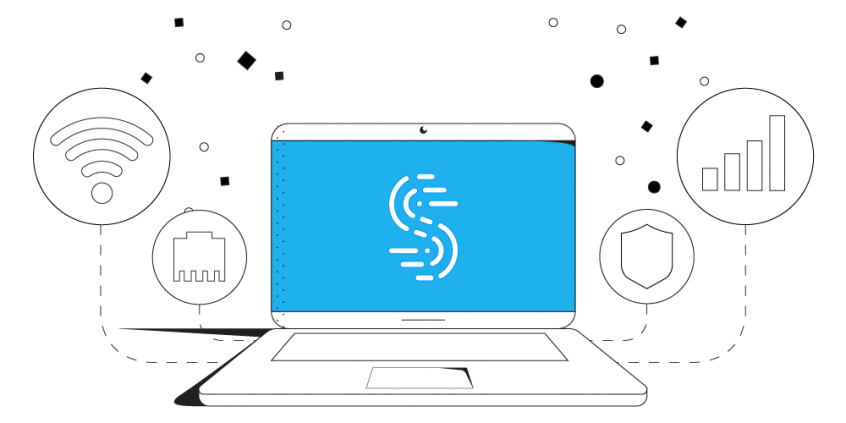
You will be able to use this cellular data connection via the USB dongle on your Windows laptop to access the Internet. You can also combine it with a Wi-Fi, wired Ethernet or tethered phone connection using the Speedify app. Speedify is the only app that can combine multiple internet sources into one bonded super-connection for more stable and secure live streaming, video calling, and web browsing.
With that said, in this article, we are going to walk you through the steps to access the Internet through a 4G / 5G USB dongle from your Windows laptop.
<1 sec
With Speedify, your internet stays on when one connection fails.
When one of your internet connections drops, Speedify shifts your traffic to your remaining connections in under a second — so calls don’t cut out and downloads don’t stall.
Should you have a backup 4G, 5G, Starlink, or cable internet connection?
Yes — every internet connection goes down, including Starlink, which drops for ~34 minutes a day on average. A backup connection from a different provider means one outage never takes you fully offline. The most common options are a 4G/5G cellular hotspot, a cable or DSL line, or a second satellite dish.
4G/5G cellular
Works anywhere. Just a SIM or hotspot — no installation needed.
Learn more →Cable / DSL
Best for fixed locations. Different network, so outages rarely overlap.
Learn more →Second Starlink
Adds redundancy and throughput for remote sites or heavy usage.
Learn more →Speedify bonds any two connections into one — automatic failover, more speed, no dropped calls.
Try Speedify free →

Guide to Setup Your 4G LTE / 5G Cellular Dongle for Laptop PC to Access the Internet
Step 1: Install your 4G / 5G USB dongle on your laptop PC.
Connect the dongle through a USB port to your PC. If running Windows 10, it’s highly possible it will automatically set up the connection for you. In order to confirm this, click on the computer / Wi-Fi icon in the lower right area of the taskbar (systray) and check if a “Cellular” tile shows up.

If this doesn’t happen, make sure you run the installer program provided to you along with the 4G / 5G USB dongle. This may be directly on the dongle – check out “My Computer” / “This PC” for any CD / removable drives and run the setup program. You may be required to restart your PC after setting this up.

Step 2: Connect to the Internet using the 4G / 5G USB dongle.
Make sure you run the proprietary software to connect to the Internet on your Windows laptop, if that exists. Usually it will be detected by your PC as a cellular connection or a Wi-Fi connection.
If you can’t connect, check to see if Windows installed a cellular adapter. Go to Network Connections (Windows key + X – “Network Connections”) and click on “Change adapter options” on the right. The 4G / 5G USB dongle should be listed there. If it’s not connected, click on “Diagnose this connection”.

If you still can’t connect to the Internet after troubleshooting this, contact your ISP / network provider.
That’s all there is on setting up your 4G LTE / 5G cellular dongle for laptop to go online!
Now – feel free to toss this cellular connection into any existing combination of active Internet connections on your PC. Use Speedify for Windows to combine them.
Alex and the Speedify team are always exploring the latest in networking and security technology—like 5G, 6G, WiFi 7, laser and satellite internet—and sharing it in new discussion content across YouTube, TikTok, Instagram, and LinkedIn every week.
Got a tech question? Let's go deeper! Pop into Speedify Office Hours live every Wednesday at 10 AM Eastern. Speedify CEO Alex Gizis and our network engineers are standing by to break down your questions about networks, tech updates, and Speedify features.

Speedify
Get started with Speedify today.
Combine Wi-Fi, 4G/5G cellular, Ethernet, Starlink, and more into one faster, steadier connection. Free to try — no credit card required.
🚀 Speed
Faster uploads and downloads by bonding all your connections at once.
📶 Stability
Automatic failover in under a second when any connection drops.
🔒 Security
AES-256 encryption on every connection, on every network you join.



15M+ downloads worldwide. 75K+ five-star reviews on iOS and Android.