
Speedify Helps You Assist Your Wi-Fi Connection on Your iPhone / iPad with 4G/5G Mobile Data
Want faster, more reliable internet on your iPhone or iPad without wasting mobile data? Instead of letting Wi-Fi Assist switch you to cellular, use Wi-Fi and 4G/5G at the same time.
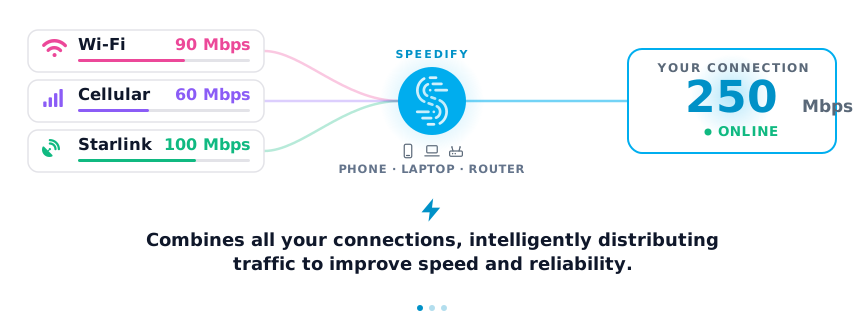
Speedify is an app that combines two or more internet connections at once – such as Wi-Fi and mobile data – so you get faster uploads and downloads and stay online if one connection drops out. It is a smarter alternative to Apple’s Wi-Fi Assist.
With Speedify, your internet stays on when one connection fails.
When one of your connections drops, Speedify automatically routes your traffic to your remaining connections — so calls don't cut out and downloads don't stall.
How do I use WiFi and 4G/5G cellular at the same time with Speedify?
Pick your two internet connections and your device below and we'll take you to the step-by-step setup guide.


Speedify Feature · Pair & Share
Cellular sharing that works better than a mobile hotspot.
Speedify Pair & Share: share cellular between your devices, both ways
Most hotspots give. Speedify's Pair & Share gives and takes. Two devices running Speedify pair up and each uses the other's cellular connection simultaneously, so you both get faster uploads, faster downloads, and a steadier connection. No extra hardware, no new data plans, no setup beyond a tap.
Learn how Speedify's Pair & Share works ›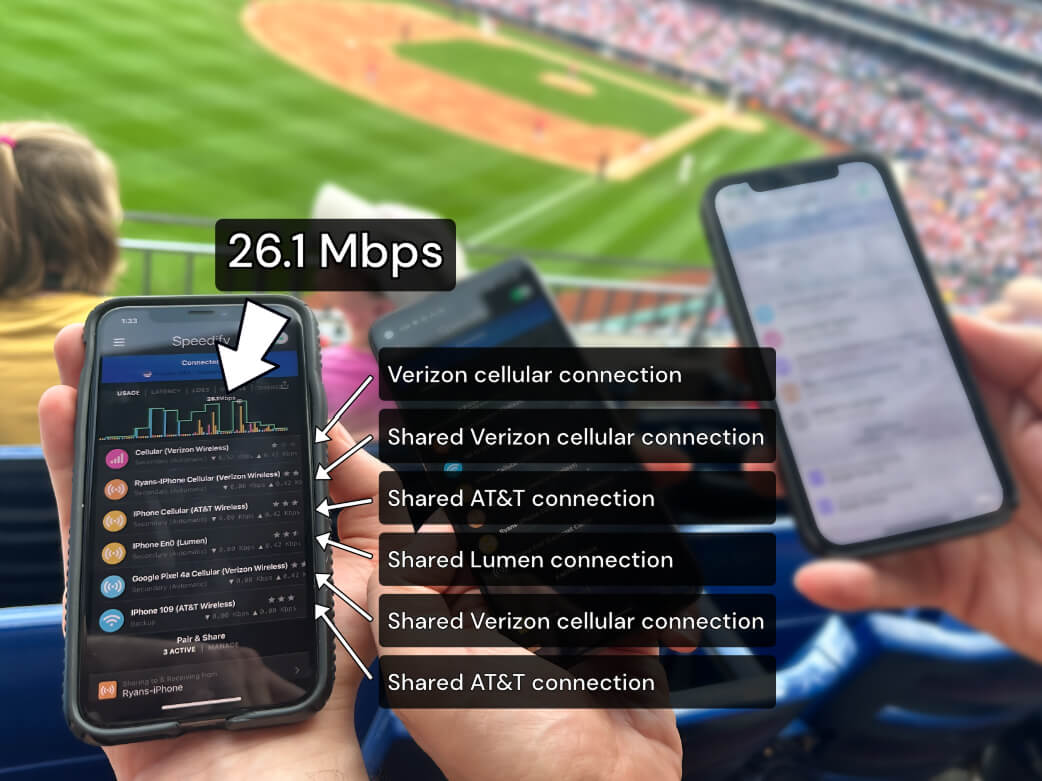
More speed
Every device you pair with adds its cellular to yours, and yours to theirs.
Stays connected
If a paired device drops out, Speedify keeps you online on the remaining links.
Always private
Every shared connection runs through AES-256 encryption. Your traffic is yours.
No new gear
Runs on devices already running Speedify, over your local network. Pair once, reconnects automatically.
How Wi-Fi Assist Works
While connected to a WiFi network, if the performance becomes poor, WiFi Assist will activate and automatically switch to cellular. As Apple clearly states, because you’ll stay connected to the Internet over cellular when you have a poor WiFi connection, you might use more cellular data.
Why Wi-Fi Assist Uses Too Much Data
The WiFi Assist isn’t smart enough. It only focuses on giving you a faster Internet connection at any given moment. It does not take into considerations your data caps, how data intensive your current Internet use is, or any other factors. You also have little control over WiFi Assist settings.
This means that you end up using a lot more data than is necessary to deliver the same Internet experience. If there is a heavy load on the WiFi you could be using your data for 100% of the time you thought you were on WiFi.
How to Disable Wi-Fi Assist on Your iPhone
Fortunately, disabling WiFi Assist can be done directly from your iOS device. It is on by default, so, to disable that:
- Go to Settings – Cellular. Then scroll down to the WiFi Assist slider.
- Tap the slider to disable WiFi Assist.
If you want to re-enable this functionality at a later date, just tap the slider again.
Use Speedify to Manage Wi-Fi and 4G/5G Mobile Data on Your iPhone
The idea behind WiFi Assit is a good one. It is nice to not have your Internet connection interrupted or performing poorly just because of a brief WiFi issue. But, the WiFi Assist just isn’t smart enough. What you need is the Speedify app.
Speedify can be downloaded on Android and iOS devices. It works in the background of your phone constantly monitoring the quality of your connections. It uses channel bonding technology to create a unified connection with your cell signal and your WiFi. But, you can tell Speedify to prioritize WiFi. Speedify will then use WiFi as much as possible, keeping your data costs low. It will only use data as a bridge or backup to keep you connected when WiFi fails or you are changing WiFi networks. When a WiFi network does fail, Speedify automatically reconnects as soon as it is back online.
Speedify is the smart way to stay connected and manage your data use. Download Speedify today and experience a safer, faster, and less data-intensive way to stay connected to the internet.
Speedify
Get started with Speedify today.
Combine Wi-Fi, 4G/5G cellular, Ethernet, Starlink, and more into one faster, steadier connection. Free to try — no credit card required.
🚀 Speed
Faster uploads and downloads by bonding all your connections at once.
📶 Stability
Automatic failover in under a second when any connection drops.
🔒 Security
AES-256 encryption on every connection, on every network you join.



15M+ downloads worldwide. 75K+ five-star reviews on iOS and Android.