
Speedify’s Starlink Control Center Lets You See How Both Starlink Dishes Are Doing at Once
If you add a second Starlink dish and the Starlink app only shows one, nothing is broken: every Starlink dish uses the same address on your network, 192.168.100.1, so the Starlink app can only reach one of them at a time. The second Starlink dish shows no status, no speed and no obstruction map.
Speedify, an app that uses all of your internet connections at the same time, including two or more Starlink dishes, reads each Starlink dish separately, so both show their own live stats side by side. Below: why the Starlink app shows only one Starlink dish, the usual workarounds, and how to check your second Starlink dish in Speedify.
Monitor your Starlink dish performance inside Speedify.
Starlink Internet Connection Dropouts Happen to Everyone
Speedify measures thousands of Starlink users in more than 150 countries. From 29 September to 12 October 2026, fixed Starlink dishes went offline for about 37 minutes a day on average, and Starlink dishes on RVs and boats for about 61 minutes a day.
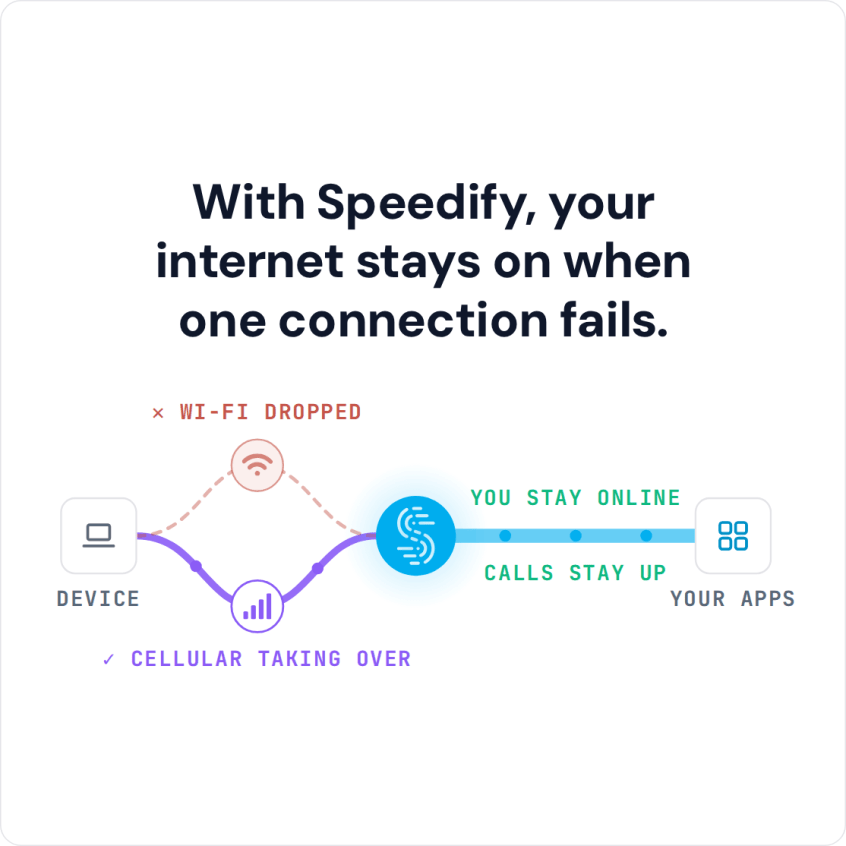
Starlink also switches each dish to a new satellite every 15 seconds, and a switch can cause a short dropout. Even a perfectly installed Starlink dish goes offline, and about 7 in 10 Starlink users on Speedify use Starlink together with a second internet connection, like 4G/5G cellular.
Why the Starlink App Only Shows One Starlink Dish
Every Starlink dish comes set to the same local address: 192.168.100.1. The Starlink app gets all of its stats by talking to the Starlink dish at that address.
With one Starlink dish, that works fine. Add a second one, and both answer at 192.168.100.1. The Starlink app can only talk to one device at that address, so it shows whichever Starlink dish it reaches first and acts as if the other isn’t there. For the second Starlink dish, you get no status, no speed, no ping, no obstruction map and no aiming tools.
Two Starlink dishes on one network used to be rare. Today anyone running two Starlink dishes on a boat, a broadcast truck, an RV or a remote work site runs into the clash.
The Usual Workarounds for Checking a Second Starlink Dish, and Their Downsides
A short Speedify video explains why two dishes confuse the Starlink app. You can reach a second Starlink dish without Speedify, but every method is fiddly, and none of them shows both Starlink dishes together:
- Switching networks. Put each Starlink dish on its own network, then leave one network and join the other every time you want to check the other Starlink dish. You see one Starlink dish at a time, and you keep switching.
- Adding a route on your router. A network route to 192.168.100.1 lets your router reach one Starlink dish’s stats page, but no simple route can point at two Starlink dishes that share the same address. For where those stats come from, watch the Speedify video on what’s inside Starlink’s gRPC API.
- Unplugging one Starlink dish. Disconnect the first Starlink dish so the Starlink app finds the second. It works, but you only ever see one, and you take a Starlink dish offline to do it.
- Building your own dashboard. Advanced users read each Starlink dish’s data with scripts and chart it in tools like Grafana or Home Assistant. It works, but it takes real networking and scripting skills to set up and keep running.
Each of these gets you part of the answer. None gives you a simple, live view of both Starlink dishes at the same time.
How Speedify’s Starlink Control Center Shows Both Starlink Dishes at Once
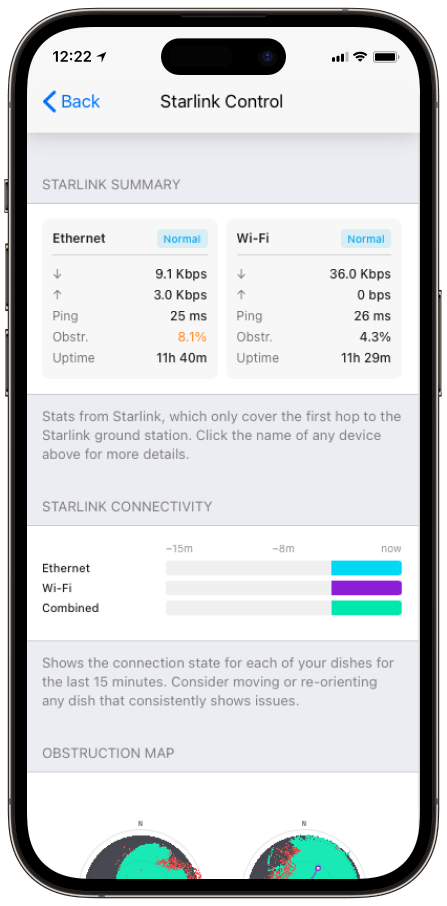
Speedify’s Starlink Control Center gets around the shared address by talking to each Starlink dish separately. Both Starlink dishes show up at the same time, each in its own live Starlink Summary card with status, download and upload speed, ping, how much of the view is blocked, and how long it has stayed online. To see how each one has held up over the last 15 minutes, check the Connectivity card’s timeline.
Speedify shows each Starlink dish’s obstruction map side by side, so you can see at a glance whether your two Starlink dishes see the same sky or different parts of it. Speedify also shows Starlink dish alerts in the app, like a stuck motor, a pole that isn’t straight, or a Starlink dish that’s overheating. And Speedify’s Alignment Wizard, its step-by-step aiming tool, has a Bonding Alignment setting that gives each Starlink dish its own target direction, so each one covers a different part of the sky. The full walkthrough is in Speedify’s Starlink Control Center documentation, and there’s more in how to monitor Starlink stats with Speedify.
Speedify Also Uses Both Starlink Dishes Together for Faster Downloads and Uploads
Seeing both Starlink dishes is the first benefit. Using both is the second. Speedify sends your traffic over both Starlink dishes at the same time, so you get the speed of both instead of leaving the second one idle. If something blocks one Starlink dish, Speedify switches your traffic to the other one automatically, so you stay online. Both Starlink dishes switch satellites on the same 15-second schedule, so for those short drops add 4G/5G cellular as well. There’s more in how to manage two Starlink dishes at once with Speedify.
How to See Your Second Starlink Dish in Speedify
- Download Speedify for your device: Windows, macOS, iOS, Android, Linux or an OpenWrt router.
- Connect your device to both Starlink routers, for example one with an Ethernet cable and one over Wi-Fi, so each Starlink dish shows up in Speedify as its own internet connection. To cover your whole network, use a router that works with Speedify instead.
- Open the Starlink Control Center in Speedify. A Starlink Summary card appears for each Starlink dish.
- Compare the obstruction maps side by side, and run the Alignment Wizard if both Starlink dishes see the same sky.
- Set both internet connections to Primary, so Speedify uses both Starlink dishes at once.
See and Use Both of Your Starlink Dishes with Speedify
The Starlink app can’t show your second Starlink dish because every Starlink dish shares the same 192.168.100.1 address, and no simple setting changes that. Speedify talks to each Starlink dish separately, so you get a live view of both, side by side, and one internet connection that uses both of them.
Speedify
Get started with Speedify today.
Speedify combines Wi-Fi, 4G/5G cellular, Ethernet, Starlink and satellite into one faster, more reliable internet connection. Free to try: 5 GB a month with a free account. No credit card required.
🚀 Speed
Faster uploads and downloads, because Speedify uses all your internet connections at once.
📶 Stability
If one internet connection drops, Speedify moves your traffic to the others in milliseconds.
🔒 Security
AES-256 encryption on every internet connection, on any network you join.



15M+ downloads worldwide. 75K+ five-star reviews on iOS and Android.