
You Can Use Speedify to Combine Wi-Fi, Starlink, 4G / 5G Cellular and Other Connections Together at Once
To boost Wi-Fi signal on a laptop, move closer to the router, cut interference, change the Wi-Fi channel and update the Wi-Fi drivers; near the router, 5 GHz Wi-Fi also gives more speed. The 10 tips below cover each one. When the signal is still weak or keeps dropping, add a second internet connection, such as your phone’s 4G/5G cellular, and use both at the same time.
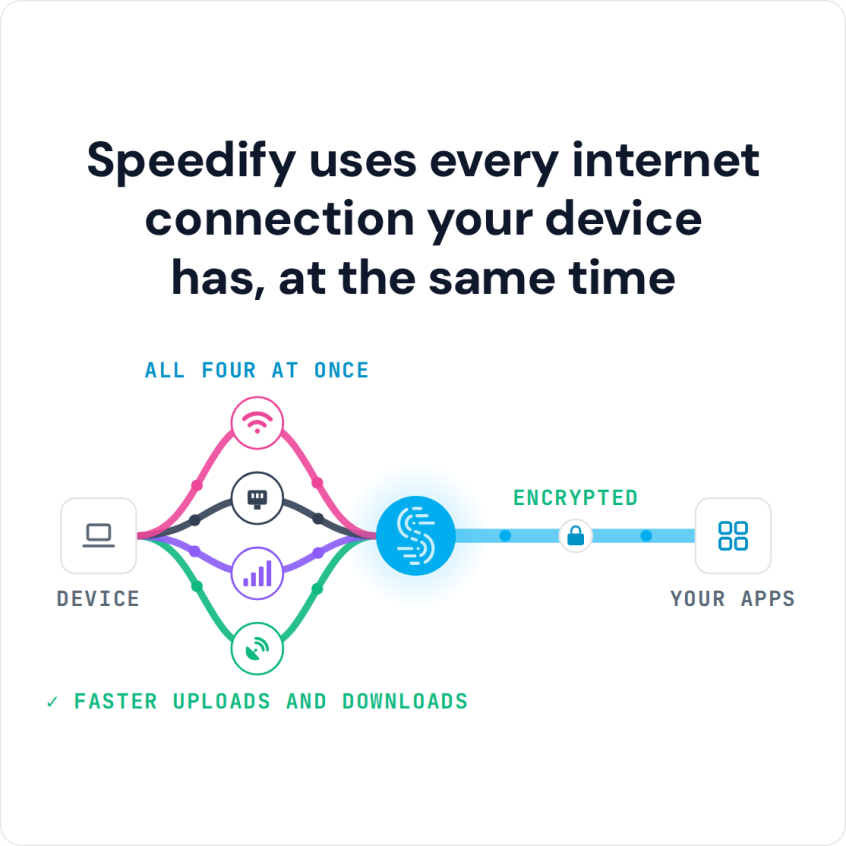
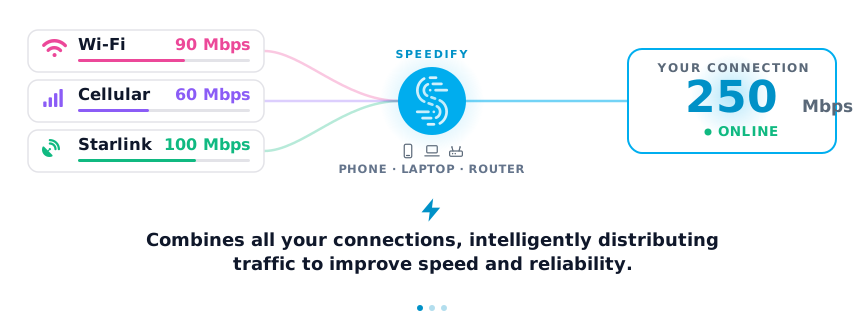
Speedify is an app that combines two or more internet connections at once, such as Wi-Fi and 4G/5G cellular, so you get faster uploads and downloads and stay online if one connection drops out. Speedify also encrypts your traffic like a VPN, and on Wi-Fi alone that is all it does: it cannot make a weak signal faster or stop it from dropping.
Speedify uses every internet connection your device has, at the same time
How do I use WiFi and 4G/5G cellular at the same time with Speedify?
Pick your two internet connections and your device below and we'll take you to the step-by-step setup guide.


Check Whether Your ISP Is Causing Slow Laptop Wi-Fi
The first step is to rule out problems that slow every device, not just the laptop. These come from your ISP or from the networking equipment in your home or office.
First, run an Internet speed test. If the result is much slower than the speed you pay for, contact your ISP and ask what they can do.
Another possibility you have to take into account: is your ISP throttling your connection? Here’s a guide to determine if your ISP is trying to conserve bandwidth.
Of course, there might also be some issues related to equipment that could lead to slow performance or even intermittent connectivity problems: defective devices (routers), bad wiring (cables) or too many appliances plugged in at one time on the same circuit as wireless access points.
ISP problems usually show up as reported outages or maintenance work in your area. If there is no reported outage, contact your provider and tell them something is wrong.
Once you have ruled out your ISP, the next step is getting a stronger Wi-Fi signal to the laptop.
10 Tips to Boost Wi-Fi Signal on a Laptop
Here are a few tips on how to boost the WiFi signal on your Windows laptop, MacBook or Linux laptop:
- Move closer to the WiFi hotspot. Your Internet should perform best when the WiFi signal is full. The better your connection, the more quickly and reliably you will be able to surf online on your laptop or tablet.
- Move your router to a more central part of your home, so the Wi-Fi range covers all the areas.
- If there are still areas with poor Wi-Fi coverage in your home or on the patio, use a Wi-Fi repeater (see how you can create one using your Windows PC).
- Make sure the WiFi signal from your router to your laptop is not obstructed. Adjust how close your router and laptop lie to walls, mirrors and other objects that may block the WiFi signal path.
- Eliminate wireless interference: here are some common sources. Keep those devices away from the router and the laptop to avoid Wi-Fi interference.
- Change the WiFi channel. Sometimes one channel can be stronger than others, and by simply switching channels from your router or laptop you’ll increase signal strength for better connectivity to the Internet.
- Update the drivers for your WiFi network adapter. Visit the manufacturer’s website or check the updates available in Windows, macOS or Linux.
- Update the firmware of your wireless router. Check the manufacturer’s website and make sure you get the right firmware for your router. The same router model can have different hardware versions, so be careful when flashing new firmware; the wrong file can brick the device.
- If you’re still having issues connecting to wireless networks, try using an external USB WiFi adapter instead of your built-in adapter. Make sure it’s compatible with 5 GHz WiFi networks. And, as in the case above, make sure you have the latest drivers for your operating system installed. On a MacBook, USB Wi-Fi adapters only work with an Intel processor and macOS 11 Big Sur or older.
- Switch to a 5 GHz Wi-Fi network when you are close to the router. Most routers also broadcast a 5 GHz Wi-Fi network next to the 2.4 GHz one. 5 GHz carries more data but reaches a shorter distance and passes through walls less well, so use it near the router and stay on 2.4 GHz in rooms farther away.
Keep a Laptop Online When Wi-Fi Drops by Adding a Second Internet Connection
Whether the tips above helped or didn’t help you improve your laptop’s WiFi connection, one thing is for sure: you will need to make sure you stay connected when WiFi fails.
Sure, you can switch to another Wi-Fi hotspot or even tether your smartphone to your laptop and use its 4G/5G cellular connection. But that takes time and those 20-30 seconds from when you realize the Internet is down until you connect another source will surely:
- disconnect you from any video call / online meeting you may be a part of;
- stop the live stream you’re broadcasting or watching;
- drop you from that game you’re playing online.
To avoid this, use all available Internet connections (at least two) at the same time. Speedify does this for you by combining them.
Speedify lets you use all of your Internet connections at once for faster downloads and uploads, a steadier connection and better security. As long as you’re connected to more than one ISP, a single outage will not take you offline, thanks to Speedify’s automatic failover protection. Speedify combines every available connection: Wi-Fi, 4G/5G cellular, Ethernet, Starlink and satellite.
The Speedify app is available on all major operating systems for laptops: Windows (PC), macOS (MacBook) and Linux. Download Speedify from speedify.com or the Mac App Store (for MacBooks).
Now you have more than 10 ways to improve a laptop’s Wi-Fi connection. For fixes beyond Wi-Fi, see how to improve your internet connection.
Speedify
Get started with Speedify today.
Speedify combines Wi-Fi, 4G/5G cellular, Ethernet, Starlink and satellite into one faster, more reliable internet connection. Free to try: 5 GB a month with a free account. No credit card required.
🚀 Speed
Faster uploads and downloads, because Speedify uses all your internet connections at once.
📶 Stability
If one internet connection drops, Speedify moves your traffic to the others in milliseconds.
🔒 Security
AES-256 encryption on every internet connection, on any network you join.



15M+ downloads worldwide. 75K+ five-star reviews on iOS and Android.