
Use Wi-Fi 7 and Mobile Data at Once on iPhone 16 with Speedify
The iPhone 16 Wi-Fi 7 integration promised revolutionary wireless performance, but early adopters are experiencing frustrating connectivity challenges. If you’re dealing with sluggish internet speeds or unexpected disconnections on your new iPhone 16, you’re not alone.
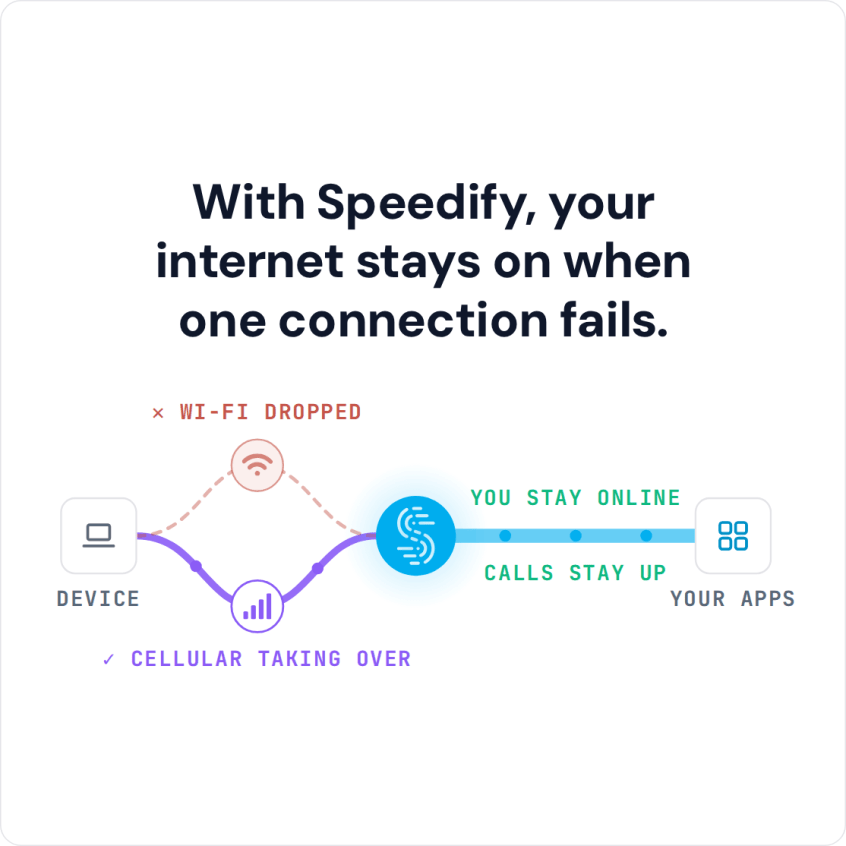
This article covers the slow internet and unreliable connectivity issues on the iPhone 16 and how Speedify can help with them. Speedify is an app that combines Wi-Fi and 4G/5G cellular on the iPhone, so a dropping Wi-Fi 7 connection does not take you offline. On Wi-Fi alone, Speedify works as an encrypted VPN and cannot stop that connection from dropping.
With Speedify, your internet stays on when one connection fails.
iPhone 16 WiFi 7: What It Actually Delivers
Apple’s iPhone 16 Wi-Fi 7 implementation brings multi-link operation (MLO), allowing data to be sent over the 2.4GHz, 5GHz and 6GHz bands simultaneously. This should theoretically provide faster speeds and more reliable connections than previous Wi-Fi generations.
Wi-Fi 7 can deliver theoretical speeds up to 46 Gbps, about 4.8 times faster than Wi-Fi 6’s maximum of 9.6 Gbps. However, real-world testing reveals a different story for iPhone 16 users.
Despite the promising specifications, iPhone 16 WiFi 7 performance hasn’t met expectations. Users report that they don’t see any difference on the 16 ProMax as compared to their previous 15 ProMax, with phones struggling to connect on the 6 GHz band unless they create a dedicated 6 GHz WiFi network.
Independent testing confirms these concerns. Users with high-speed internet connections (5 Gbit/s) report getting only 1.4 Gbit/s download speeds on their iPhone 16 Pro, with devices struggling with performance despite Apple’s promises of up to five times better speeds than WiFi 6E.
Even more concerning, some users report their iPhone 16 devices are crashing home routers repeatedly until they disable WiFi on their phones.
Common iPhone 16 Wi-Fi 7 Issues
Slow Download Speeds: Despite WiFi 7 capabilities, many users experience speeds comparable to older devices.
Connection Instability: Frequent disconnections from networks, particularly on 6GHz bands.
Router Compatibility Problems: Some iPhone 16 models cause router crashes or instability.
Band Switching Issues: Difficulty maintaining optimal band connections automatically.
How to Fix Slow Internet on iPhone 16
Basic Troubleshooting Steps
Start with these Apple-recommended solutions:
- Restart Your iPhone: Press and hold the Side and Volume buttons until the power-off slider appears to clear software glitches and refresh network settings.
- Reset Network Settings: Navigate to Settings > General > Transfer or Reset iPhone > Reset > Reset Network Settings. This clears saved Wi-Fi passwords but often resolves persistent connectivity issues.
- Update iOS: Ensure you’re running the latest iOS version, as Apple frequently releases patches addressing Wi-Fi performance.


Advanced Optimization Techniques
Router Configuration: Create dedicated 6 GHz networks if your router supports it, as iPhone 16 devices often struggle with automatic band selection.
Position Optimization: Place your iPhone closer to your router when possible, as higher frequency bands (like 6 GHz) have shorter range. Here is more on Wi-Fi 7 range drops on 6 GHz.
Background App Management: Close bandwidth-intensive apps running in the background that may interfere with Wi-Fi performance.
How to Avoid iPhone 16 Wi-Fi 7 Disconnections
Monitor your network environment for interference from other devices.
Network congestion can cause slow performance, requiring you to wait, try a different location, or switch between Wi-Fi and 4G/5G cellular.
Consider upgrading older routers that may struggle with iPhone 16 WiFi 7 demands. Modern WiFi 7 routers are specifically designed to handle the new protocol’s requirements.
Enhance Your iPhone 16 Connectivity with Speedify
For iPhone 16 users seeking reliable internet performance beyond standard troubleshooting, Speedify uses Wi-Fi 7 and 4G/5G cellular on the iPhone at the same time for faster, more reliable internet.
Speedify combines both connections and automatically manages traffic between them, reducing the impact of Wi-Fi 7 compatibility issues while maximizing your iPhone 16’s connectivity potential. The service is particularly valuable when dealing with unstable Wi-Fi 7 implementations or router compatibility problems.
Plus, if one cellular connection is not enough, Speedify’s cellular sharing feature lets nearby phones running Speedify share their 4G/5G cellular with each other over the same local network, so you can use several phones’ cellular connections at the same time.
Speedify
Get started with Speedify today.
Speedify combines Wi-Fi, 4G/5G cellular, Ethernet, Starlink and satellite into one faster, more reliable internet connection. Free to try: 5 GB a month with a free account. No credit card required.
🚀 Speed
Faster uploads and downloads, because Speedify uses all your internet connections at once.
📶 Stability
If one internet connection drops, Speedify moves your traffic to the others in milliseconds.
🔒 Security
AES-256 encryption on every internet connection, on any network you join.



15M+ downloads worldwide. 75K+ five-star reviews on iOS and Android.