

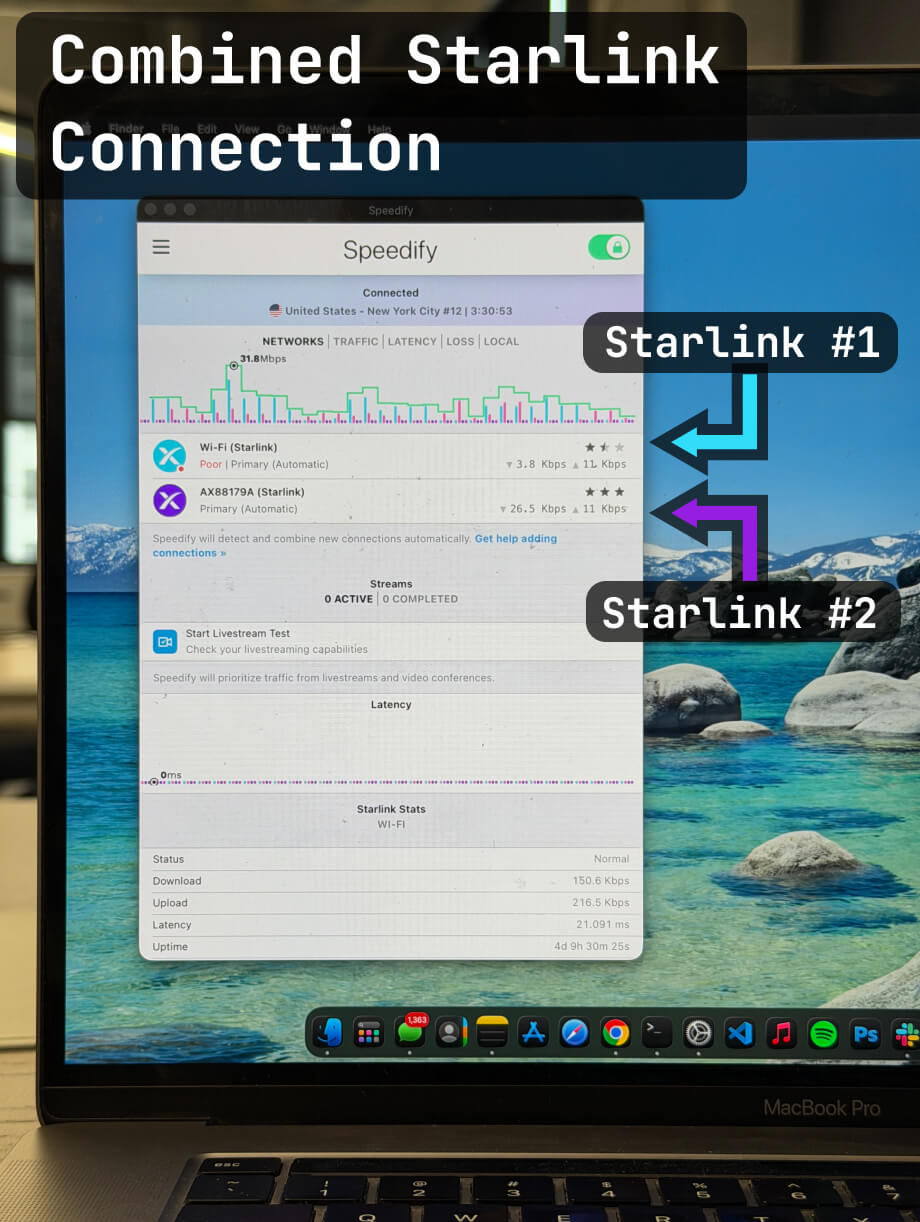

Speedify Fixes Slow Upload Speeds on Starlink
Starlink has revolutionized satellite internet, delivering impressive download speeds that rival traditional broadband.
If you're dealing with sluggish upload performance despite solid download speeds, you're not alone—and there are proven solutions, like using Speedify to combine Starlink with another connection - 4G / 5G cellular, and old DSL line or another Starlink - for faster, more reliable Internet.
Quick answer
Should you get a backup connection for Starlink?
Yes. Starlink goes down every day — an always-on dish averages about 34 minutes of downtime daily from routine satellite handoffs. A second connection keeps you online when Starlink drops.
What’s the best backup connection for Starlink?
A 4G/5G cellular hotspot or SIM is the most practical backup for most Starlink users — it works anywhere Starlink works, requires no installation, and uses a different network so outages rarely overlap. Cable or DSL broadband is a strong option if you have it at a fixed location. A second Starlink dish is also possible if you need maximum throughput.
How do you use two internet connections at once with Starlink?
Speedify combines Starlink with any other connection — cellular, cable, Wi-Fi, or a second dish — into one bonded connection. Speedify runs on your phone, laptop, or router. When Starlink drops, Speedify moves your traffic to the backup instantly, so calls don’t cut out and downloads don’t stall. Speedify is free to try.
71% of Speedify’s Starlink users already run a second connection. The data below shows why.
Try Speedify free →Speedify Starlink Index — real-world performance from 6,209 Starlink users: 2.4% downtime, about 34 minutes a day for always-on connections
Starlink goes down every day.
Here’s what that actually looks like.
Speedify passively monitors every connection it bonds. These figures come from 6,209 Starlink users over 14 days — compared in real time against the other connections on the same devices. No speed tests, no lab conditions.
Daily downtime
~34 min
2.4% of connected time unreachable
Median latency
60 ms
p90 spikes to 257 ms
Avg packet loss
0.17%
vs 0.08% on T-Mobile
71% ran at least one other connection simultaneously — 4,381 of 6,209 users. Cellular is the most common backup.
Use Speedify to stay online during satellite handoffs every 15 seconds
Research confirms Starlink switches between satellites every 15 seconds on a fixed schedule. Each satellite handoff is a potential dropout, and on a congested network or with any obstruction, those Starlink dropouts become real interruptions.
Speedify fixes Starlink connection drops by combining your Starlink internet connection with another satellite dish, Wi-Fi, 4G/5G cellular, or wired Ethernet at the same time. When Starlink drops, Speedify keeps your traffic moving on the backup internet connection instantly.

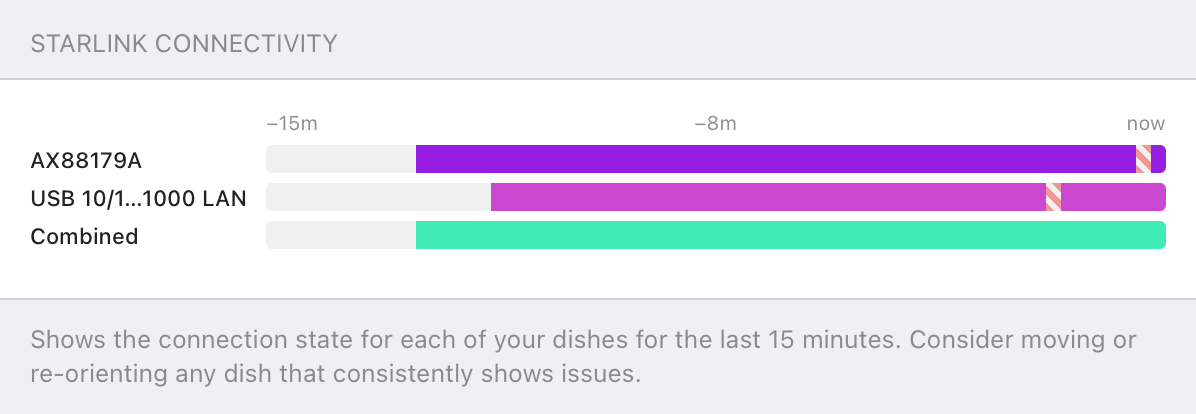
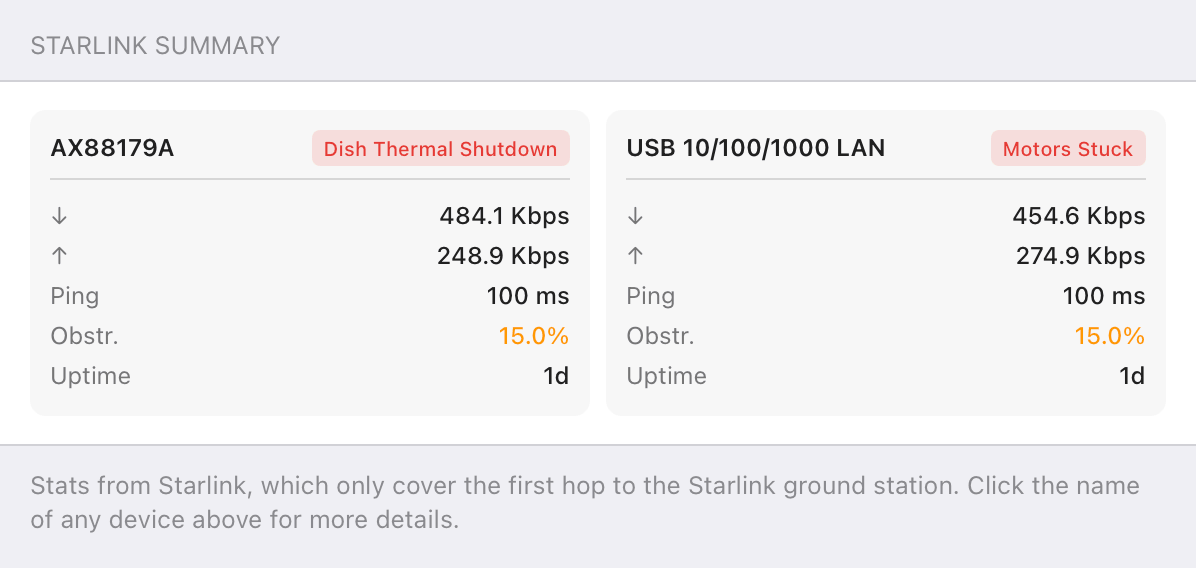
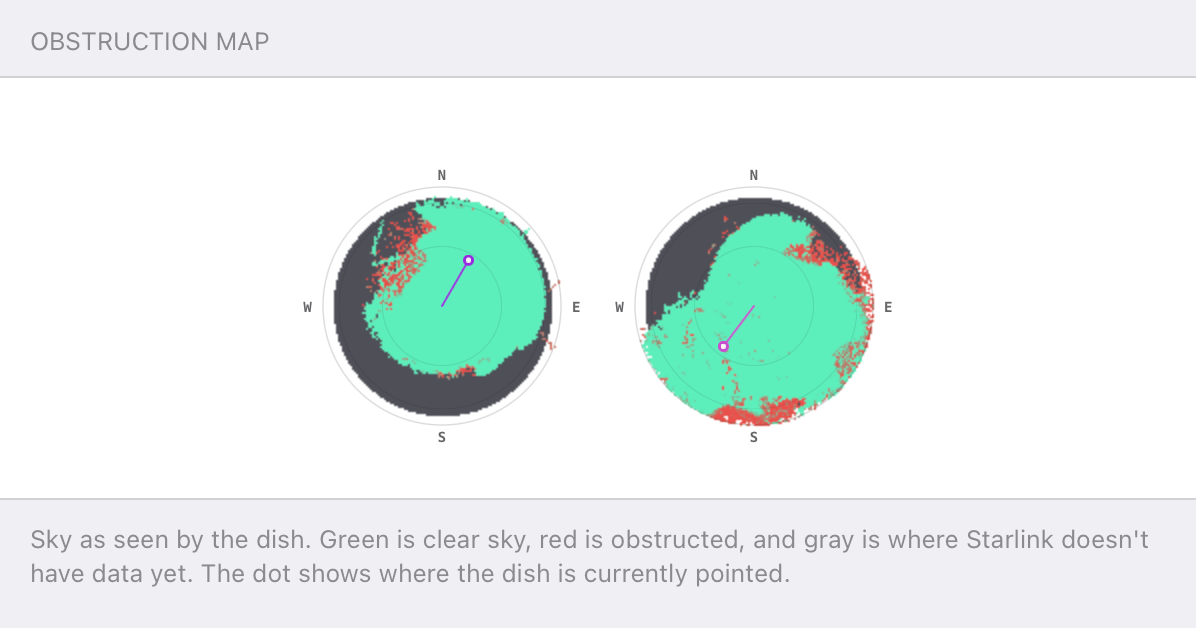
Speedify alerts you about your Starlink dish status
Speedify software alerts you about your Starlink dish status as soon as your dish experiences an issue - e.g. when your actuator motor is stuck, the mast is not vertical or there's a thermal throttle.
Speedify's Starlink Control Center helps you monitor all your Starlink dishes, read obstruction maps, and align multiple dishes all in the Speedify app. Get a real-time view of each dish's health and optimize the position of each Starlink dish, so you get the best possible performance out of your Starlink connections.
Speedify
Speedify gives you faster, steadier internet by combining Wi-Fi, cellular, and Starlink
Speedify bonds Wi-Fi, 4G/5G cellular, Ethernet, and Starlink into one connection at the same time, giving you more speed, automatic failover when one drops, and AES-256 encryption on every link.
Download Speedify ›More speed
Upload and download speeds combine across every active connection on your device.
Automatic failover
If a connection drops, Speedify moves your traffic to another in milliseconds. Calls stay connected.
Always encrypted
Every link runs through an encrypted tunnel, including public Wi-Fi, cellular, and Starlink.

Speedify Feature · Pair & Share
Speedify Pair & Share: share cellular between your devices, both ways
Most hotspots give. Speedify's Pair & Share gives and takes. Two devices running Speedify pair up and each uses the other's cellular connection simultaneously, so you both get faster uploads, faster downloads, and a steadier connection. No extra hardware, no new data plans, no setup beyond a tap.
Learn how Speedify's Pair & Share works ›More speed
Every device you pair with adds its cellular to yours, and yours to theirs.
Stays connected
If a paired device drops out, Speedify keeps you online on the remaining links.
Always private
Every shared connection runs through AES-256 encryption. Your traffic is yours.
No new gear
Runs on devices already running Speedify, over your local network. Pair once, reconnects automatically.


Why Starlink Upload Speeds Are Sometimes Slow
Unlike terrestrial internet connections, satellite internet faces unique challenges that affect upload performance. Slow uploads on Starlink typically stem from several technical factors:
Asymmetric Bandwidth Allocation: Starlink prioritizes download traffic over upload traffic, similar to traditional cable internet. While download speeds can reach 100+ Mbps, upload speeds often plateau around 10-20 Mbps under optimal conditions.
Satellite Positioning and Handoffs: As Starlink satellites move across the sky, your terminal constantly switches between satellites. These handoffs can cause temporary upload interruptions and speed degradations, particularly affecting sustained upload sessions.
Network Congestion: During peak usage hours, Starlink's ground stations and satellites experience higher traffic loads. Upload channels, being more limited, become bottlenecked faster than download channels.
Weather Interference: Rain fade and atmospheric conditions impact upload signals more severely than downloads due to the higher power requirements for uplink transmission.
Common Troubleshooting Steps for Slow Uploads on Starlink
Before exploring advanced solutions, try these basic fixes:

Place Your Starlink Dish in a Better Spot: Ensure your Starlink dish has an unobstructed 360-degree view of the sky. Even minor obstructions can significantly impact upload performance. Use the Starlink app's obstruction checker to identify and eliminate interference sources.
Update the Firmware: Starlink regularly releases firmware updates that improve performance. Check your terminal's firmware version through the app and allow automatic updates.

Network Configuration: Connect directly to the Starlink router via Ethernet when possible. Wi-Fi introduces additional latency and potential interference that can worsen upload speeds.
Quality of Service (QoS) Settings: If using a third-party router, configure QoS rules to prioritize upload traffic for critical applications like video conferencing or cloud backups.
Monitor Peak Usage: Test your upload speeds at different times of day. If you consistently experience better performance during off-peak hours, network congestion is likely the culprit.
The Proven Solution: Speedify's Channel Bonding Technology
While basic troubleshooting helps, the most effective solution for slow uploads on Starlink is Speedify's advanced channel bonding technology. Unlike simple load balancing, Speedify intelligently combines multiple internet connections at the packet level, dramatically improving upload performance and reliability.
How Speedify Solves Starlink Upload Issues
Speedify bonds your Starlink connection with secondary connections (another Starlink, 4G / 5G cellular, DSL, cable) to create a single, faster, more reliable internet pipe. This approach addresses the core limitations causing slow uploads on Starlink.
Seamless Handoffs: When Starlink satellites switch approximately every 15 seconds, Speedify seamlessly maintains your upload sessions through backup connections, eliminating interruptions.
Aggregated Bandwidth: By combining upload channels from multiple sources, Speedify can double or triple your effective upload speed, particularly beneficial for large file transfers and live streaming.
Intelligent Traffic Management: Speedify's algorithms automatically route upload traffic through the fastest available path, adapting in real-time to changing network conditions.
Enhanced Reliability: Critical upload sessions remain stable even when individual connections experience temporary issues.
Real-World Performance Improvements when Using Speedify with Starlink
Users report significant improvements when using Speedify with Starlink:
- Upload speeds increased by 150-300% when bonding Starlink with 4G LTE connections
- Eliminated upload failures during video conferences
- Consistent performance for cloud backups and file synchronization
- Reduced latency spikes during satellite handoffs
Setting up Speedify requires minimal technical expertise. The software automatically detects available connections and optimizes bonding configurations. For maximum benefit with slow uploads on Starlink, configure Speedify use Starlink as the main connection with your other internet sources set as secondary.

Slow uploads on Starlink don't have to limit your productivity or streaming capabilities. While Starlink continues improving its infrastructure, Speedify provides an immediate, proven solution that transforms upload performance through intelligent connection bonding. For users demanding reliable, fast upload speeds, Speedify represents the current gold standard for optimizing satellite internet performance.
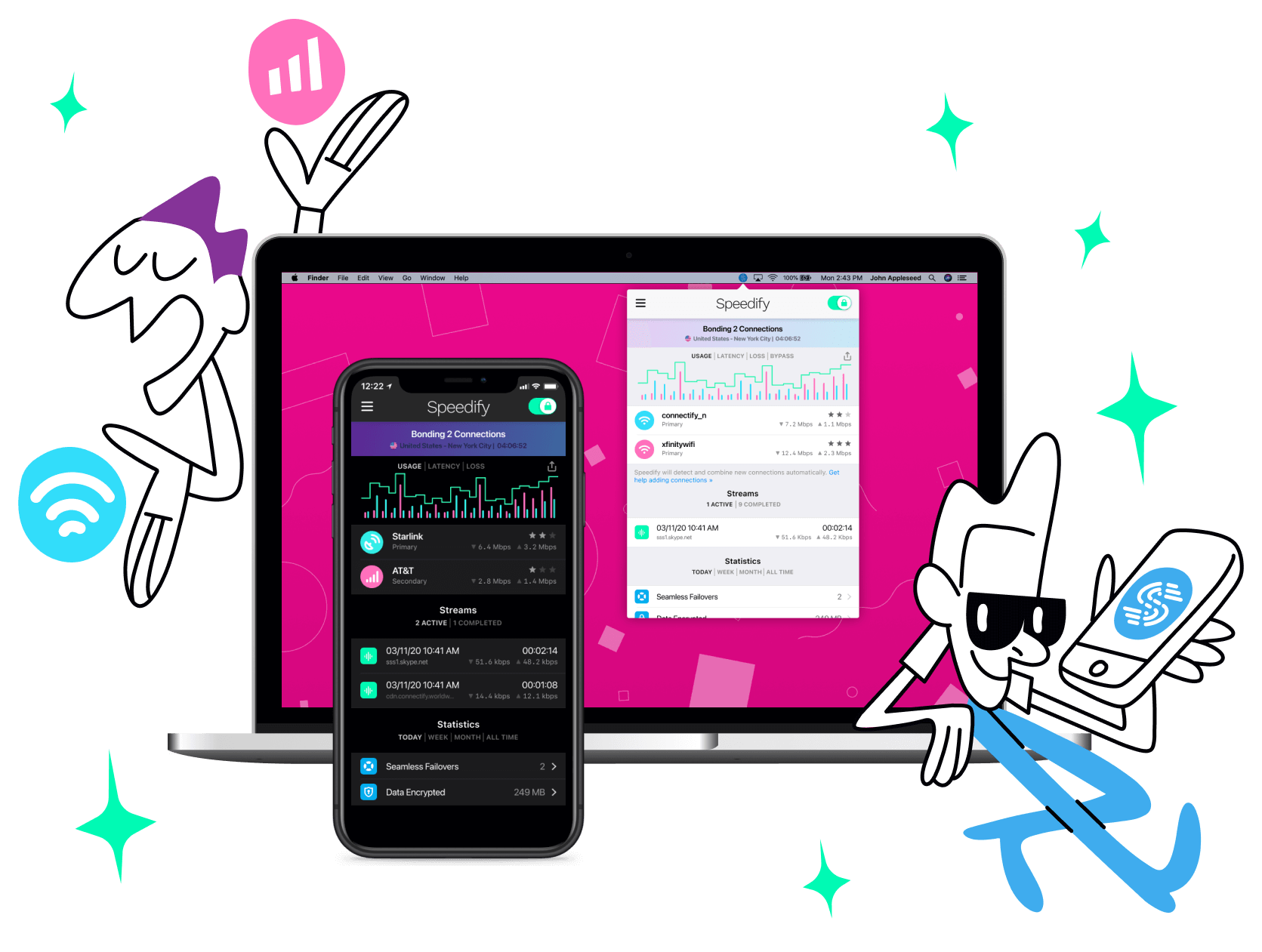
Get started with Speedify today!
With Speedify you can combine Wi-Fi, 4G / 5G cellular, Ethernet, Starlink and other satellites into one bonded super-connection to improve livestreaming, video calling, gaming, web browsing, and everything else you do online.




Speed
Stability
Security
Speedify engineers love talking tech on YouTube, Tiktok, and Instagram!
Alex Gizis and the Speedify engineers discuss and explain technology including Starlink satellites, Wi-Fi 7 routers, Apple networking features, fiber optics, broadband internet, 5G mobile networks, AI, networking protocols, and much more. Follow Speedify on YouTube, TikTok, Instagram, and LinkedIn!
Alex and the Speedify team are always exploring the latest in networking and security technology—like 5G, 6G, WiFi 7, laser and satellite internet—and sharing it in new discussion content across YouTube, TikTok, Instagram, and LinkedIn every week.
Got a tech question? Let's go deeper! Pop into Speedify Office Hours live every Wednesday at 10 AM Eastern. Speedify CEO Alex Gizis and our network engineers are standing by to break down your questions about networks, tech updates, and Speedify features.
