
Use Speedify as Your Starlink Companion
Starlink “Obstructed” means something, like a tree, a building or part of your roof, blocks part of your Starlink dish’s view of the sky. Every time a satellite moves behind that obstruction, your Starlink internet connection drops for a moment, which freezes video calls and games. “Partially obstructed” means only a small part of the view is blocked, but you still get those short drops.
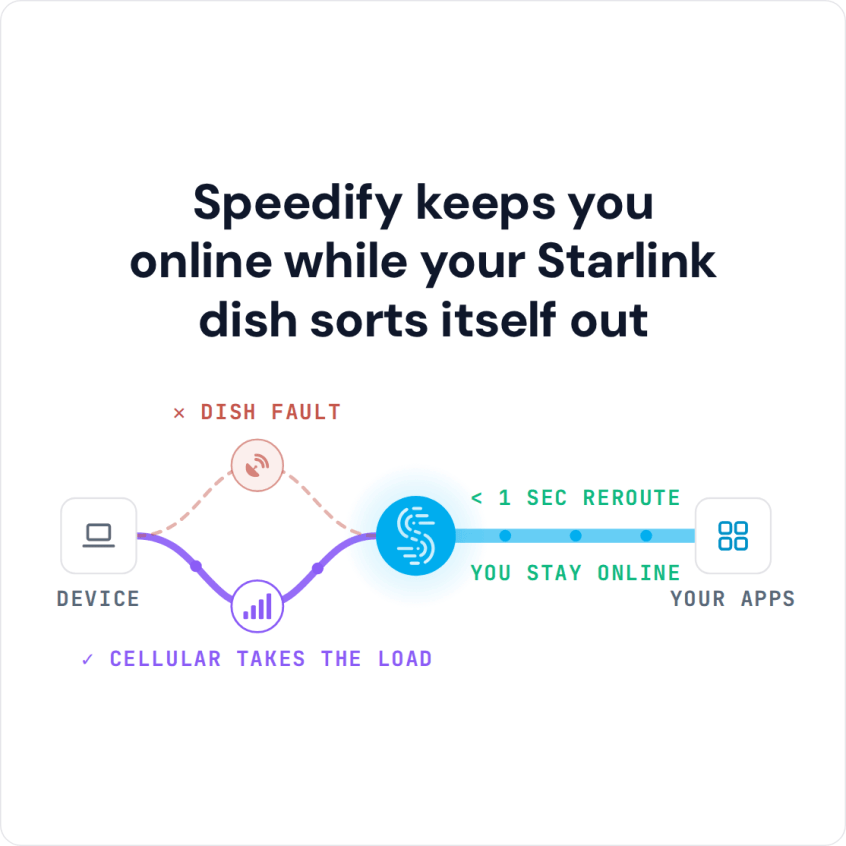
Speedify is an app that uses your Starlink internet connection together with a second internet connection, like your phone’s 4G/5G cellular connection, so you stay online even while your Starlink dish is obstructed.
Speedify keeps you online while your Starlink dish sorts itself out
Starlink Internet Connection Dropouts Happen to Everyone
Speedify measures thousands of Starlink users in more than 150 countries. From 29 September to 12 October 2026, fixed Starlink dishes went offline for about 37 minutes a day on average, and Starlink dishes on RVs and boats for about 61 minutes a day.
Starlink also switches each dish to a new satellite every 15 seconds, and a switch can cause a short dropout. Even a perfectly installed Starlink dish goes offline, and about 7 in 10 Starlink users on Speedify use Starlink together with a second internet connection, like 4G/5G cellular.
Why Starlink Dish Obstructions Happen
A Starlink dish obstruction happens when trees, buildings or anything else stand between your Starlink dish and the satellites. Even a small obstruction can cause:
- Video meetings that keep disconnecting
- Videos that buffer while you stream
- Online games that drop out
- Important downloads that stop halfway
How to See What Is Blocking Your Starlink Dish
The Starlink app shows an obstruction map: a picture of the sky above your Starlink dish, with the blocked parts marked. Look at where the blocked parts are, then look at what stands in that direction from your Starlink dish. Across thousands of Starlink dishes on Speedify, about 7 in 10 have less than 1% of the sky blocked, and about one in ten has more than 10% blocked. Starlink obstruction percentages compared across 4,263 dishes shows where your Starlink dish stands.
Right after you set up or move your Starlink dish, the Starlink app says it is still calibrating and gathering data on obstructions. That means it hasn’t collected enough data yet to draw the map. Leave your Starlink dish where it is, and check the map again later.
What to Check When Starlink Says Obstructed but Nothing Is Blocking It
If the Starlink app says your Starlink dish is obstructed but you can’t see anything in the way, look at the obstruction map again. The blocked part can be something small or low in the sky, like the edge of your roof, a chimney or a single branch. It can also be snow on top of your Starlink dish, which clears once the Starlink dish heats itself up to melt it. If the app reports a weak signal or low SNR instead, see fixes for a weak Starlink signal.
And not every short drop comes from an obstruction. Your Starlink dish switches to a new satellite about every 15 seconds, and each switch can cause a short drop, even with a clear view of the sky. If your drops keep coming every couple of minutes and the obstruction map looks clear, read how Speedify prevents disconnections from Starlink satellite switches.
How to Fix Starlink Obstructions
The usual fixes are moving your Starlink dish higher, for example onto the roof or a taller pole, moving it to a spot with a clearer view of the sky, or trimming the branches in the way. These fixes work, but they aren’t always practical or possible, and trees grow back. Obstructions are one reason a small share of Starlink dishes causes most of the dropouts Speedify measures across thousands of Starlink users, as the report on whether Starlink is down or only your dish is down shows.
Why a Second Internet Connection Keeps You Online When Starlink Is Obstructed
You can’t move your Starlink dish or trim a tree in the middle of a video call, a live stream or an online game, at the exact moment your Starlink dish gets obstructed. That’s why you need a second internet connection that takes over on its own.
Speedify uses your Starlink internet connection together with any other internet connection you have:
- 4G/5G cellular
- A DSL or cable line
- Public Wi-Fi in range
- A mobile hotspot
When an obstruction cuts your Starlink internet connection for a moment, Speedify moves your internet traffic to your other internet connection right away, so you stay online without a break.
How to Stay Online When Your Starlink Dish Is Obstructed, with Speedify
- Get the Speedify app on your devices. It runs on Windows, Mac, Linux, Android, iOS and even on OpenWrt routers.
- Connect your computer or phone to Starlink and to your second internet connection at the same time. On a phone, stay on your Starlink Wi-Fi and keep the phone’s cellular connection turned on. On a computer, use your Starlink Wi-Fi plus an Ethernet cable to your other internet line, or your phone plugged in with a USB cable to share its cellular connection.
- Turn Speedify on. It uses both internet connections at the same time on its own, with no settings to change.
- Stay online, whatever stands between your Starlink dish and the sky.


You also get nearly the full speed of both internet connections combined, not only failover when Starlink drops.
Growing trees, new buildings and snow don’t have to take you offline. Speedify needs that second internet connection: if both are down at once, you are offline either way.
Download Speedify now and stay online, obstructed or not.
Speedify
Get started with Speedify today.
Combine Wi-Fi, 4G/5G cellular, Ethernet, Starlink, and more into one faster, steadier connection. Free to try — no credit card required.
🚀 Speed
Faster uploads and downloads by bonding all your connections at once.
📶 Stability
Automatic failover in under a second when any connection drops.
🔒 Security
AES-256 encryption on every connection, on every network you join.



15M+ downloads worldwide. 75K+ five-star reviews on iOS and Android.