

Here’s the gear and software we’re going to use to explore the ancient castle, live in front of an internet audience.
Bran Castle in Transylvania is a stone medieval fortress with walls several feet thick and rooms far out of cell tower range – and we broadcast a live guided tour from inside it. Wi-Fi barely reaches in there, and the cellular signal comes and goes room by room.
Speedify is an app that carries a live stream over Wi-Fi, 4G/5G cellular data, wired Ethernet, Starlink and other internet connections at once, so when one falls to nothing the others keep the video moving. This post lists the gear and streaming software we carried in, the problems we expected, and how the broadcast held together using Speedify.
Speedify gives you the upload headroom a clean stream needs
What are we doing?
Since it’s Halloween season, what better way to celebrate this than visiting a centuries old vampire’s fortress in the mountains? That’s right – on Thursday, October 28, 2021, starting 11:20 am EDT / 15:20 GMT we’re going on a private tour of Dracula’s Castle in Transylvania, Romania. And we’re taking you with us through the power of livestreaming.
But there’s a catch – It’s a stone walled medieval fortress, where neither Wi-Fi nor cellular work all that well. As with any medieval fortress, Bran Castle has very thick walls, small windows and rooms that are definitely out of direct cellular Internet range.
The Equipment We’re Using to Stream IRL from Dracula’s Castle
We are using a typical IRL setup; the only difference is that instead of having a backup connection to switch to should anything go wrong, we will be using both connections at the same time with the help of Speedify – the connection bonding app that can combine multiple internet sources into one bonded connection for more stable and secure livestreaming, video calling, and web browsing.
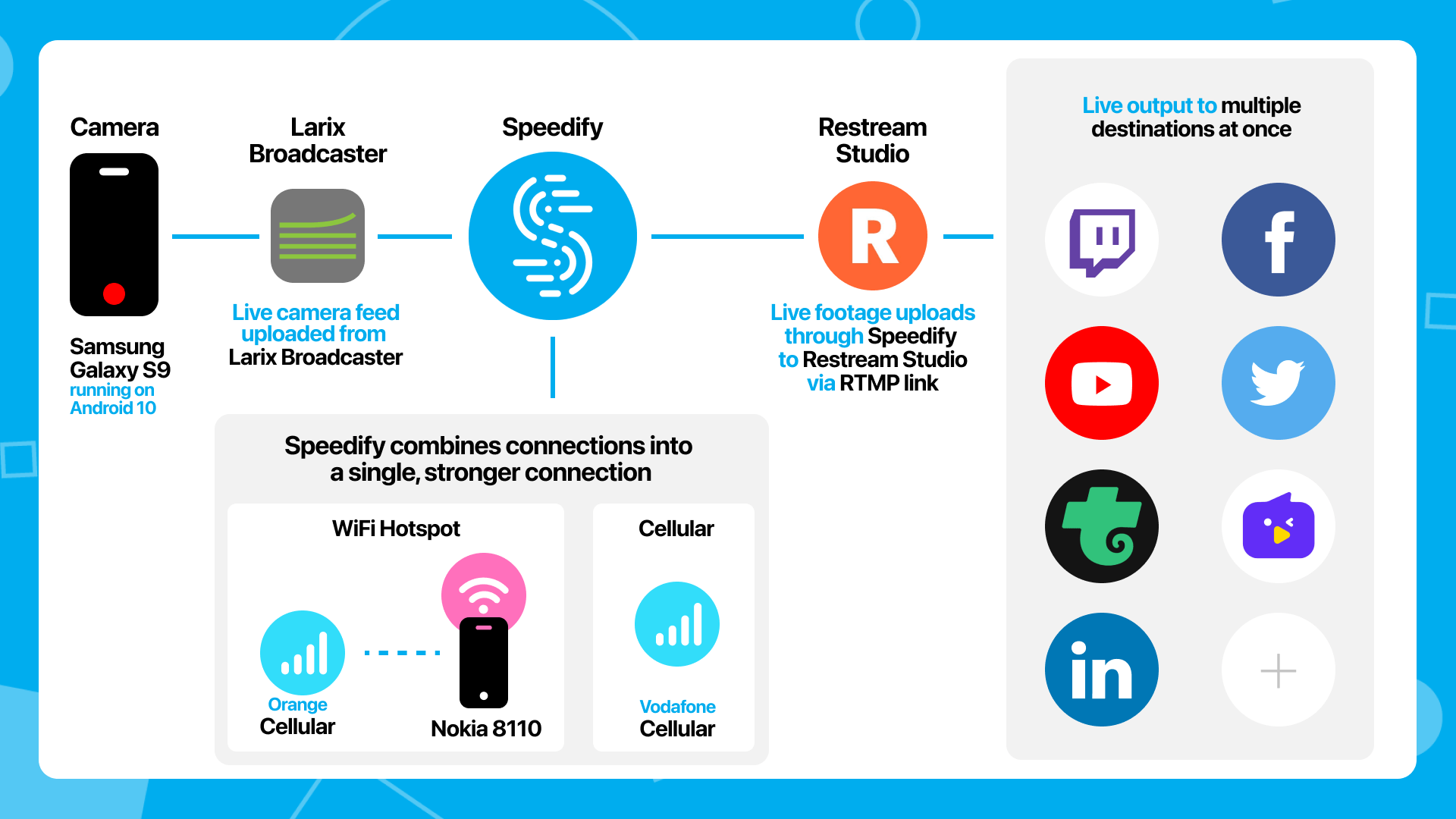
Here’s our gear:
- Streaming device: Samsung Galaxy S9 phone running Android 10, connected to the Vodafone Romania network
- Streaming software: Larix Broadcaster on the phone, streaming via RTMP
- Streaming platform in the cloud: Restream
- Connectivity:
- cellular data from Vodafone Romania on the streaming device,
- cellular data from Orange Romania via Wi-Fi tethering from a Nokia 8110 4G phone.
- Connection Bonding software: Speedify will combine the two cellular connections, packet-by-packet, into a single more reliable internet connection.
- Accessories: selfie stick, external battery pack (10,000 mAh), additional lighting via flashlight
- Audio for communication with the Restream studio: via local number dial-in on a Google Meet.
A handy diagram of this setup is below.
Challenges
We looked at a couple alternatives that initially sounded like good ideas but just didn’t work out for various reasons.
The way that guests work on most cloud based video studios is that the guests join a WebRTC session in the browser. But WebRTC in the browser on a phone has very poor image quality. It often appears to be 320×240 for no reason that we could ascertain. The difference between what the web clients send on the same hardware vs what a native app like Larix, streaming RTMP, can send is shocking.
That really limited our choices on the cloud based video software. Restream Studio is really the only one that we know of that takes in an RTMP stream as a live guest.
Alex Gizis, our host of Speedify Live, actually broke his ankle while fumbling with a laptop while getting ready to stream this summer. So laptops and complicated equipment are frowned upon while trying to navigate medieval castles around here. We really wanted to stick to mobile phones for safety and mobility reasons.
How We’ll Be Livestreaming
As mentioned above, we will be livestreaming using a dedicated app from a smartphone, while combining the two Internet sources. Since we’re talking about a fairly remote area, we are aiming to livestream in HD quality – 720p at 30 fps. The plan is to be there a couple of hours ahead of the tour start time in order to further test cellular coverage and make sure everything will be good.
When you’re livestreaming IRL, you certainly recognize the benefit of “mapping” out the area you want to stream from in terms of connectivity when you’re doing this from remote or rural areas. Your audience deserves the best when it comes to live video quality, so this is just a small effort to make in order to avoid issues like no signal areas which might lead to you dropping out from the stream.
Join Us on a Private Tour of Dracula’s Castle
When: October 28, 2021 – 15:20 GMT; tour begins at 15:30.
Where: Twitch, YouTube, Facebook
Speedify
Get started with Speedify today.
Combine Wi-Fi, 4G/5G cellular, Ethernet, Starlink, and more into one faster, steadier connection. Free to try — no credit card required.
🚀 Speed
Faster uploads and downloads by bonding all your connections at once.
📶 Stability
Automatic failover in under a second when any connection drops.
🔒 Security
AES-256 encryption on every connection, on every network you join.



15M+ downloads worldwide. 75K+ five-star reviews on iOS and Android.