
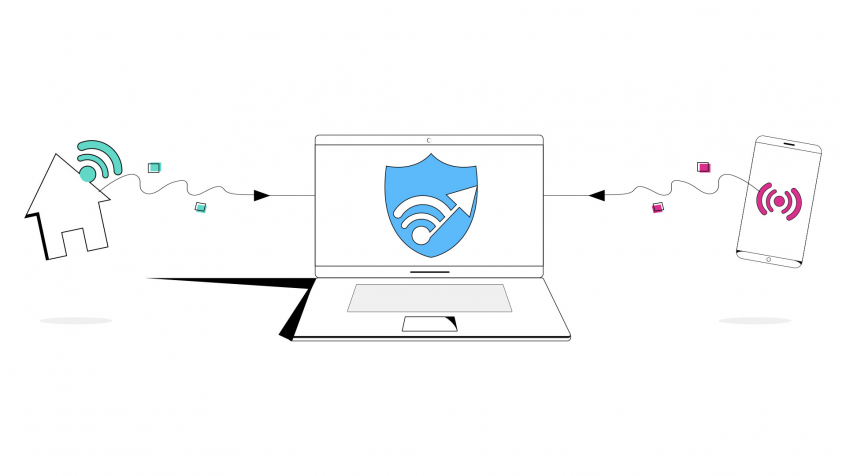
Speedify Helps You Assist Your Wi-Fi Connection on Your iPhone / iPad with 4G/5G Mobile Data
Apple’s WiFi Assist feature was supposed to be a breakthrough for Internet connectivity, but unfortunately it isn’t very smart and it uses too much data, according to user reports. It also prevents you from knowing how much data you are actually using.
In order to avoid using too much data you may want to disable WiFi Assist on your iPhone. However, if you still want to find a way to stay connected to the web at all times, without running up big data costs, there is an easy alternative. The Speedify app does more than what WiFi Assist claims to do, and does it well. It also gives you much more control over your data usage and comes with other helpful features.
<1 sec
With Speedify, your internet stays on when one connection fails.
When one of your internet connections drops, Speedify shifts your traffic to your remaining connections in under a second — so calls don’t cut out and downloads don’t stall.
Should you have a backup 4G, 5G, Starlink, or cable internet connection?
Yes — every internet connection goes down, including Starlink, which drops for ~34 minutes a day on average. A backup connection from a different provider means one outage never takes you fully offline. The most common options are a 4G/5G cellular hotspot, a cable or DSL line, or a second satellite dish.
4G/5G cellular
Works anywhere. Just a SIM or hotspot — no installation needed.
Learn more →Cable / DSL
Best for fixed locations. Different network, so outages rarely overlap.
Learn more →Second Starlink
Adds redundancy and throughput for remote sites or heavy usage.
Learn more →Speedify bonds any two connections into one — automatic failover, more speed, no dropped calls.
Try Speedify free →

Speedify Feature · Pair & Share
Cellular sharing that works better than a mobile hotspot.
Speedify Pair & Share: share cellular between your devices, both ways
Most hotspots give. Speedify's Pair & Share gives and takes. Two devices running Speedify pair up and each uses the other's cellular connection simultaneously, so you both get faster uploads, faster downloads, and a steadier connection. No extra hardware, no new data plans, no setup beyond a tap.
Learn how Speedify's Pair & Share works ›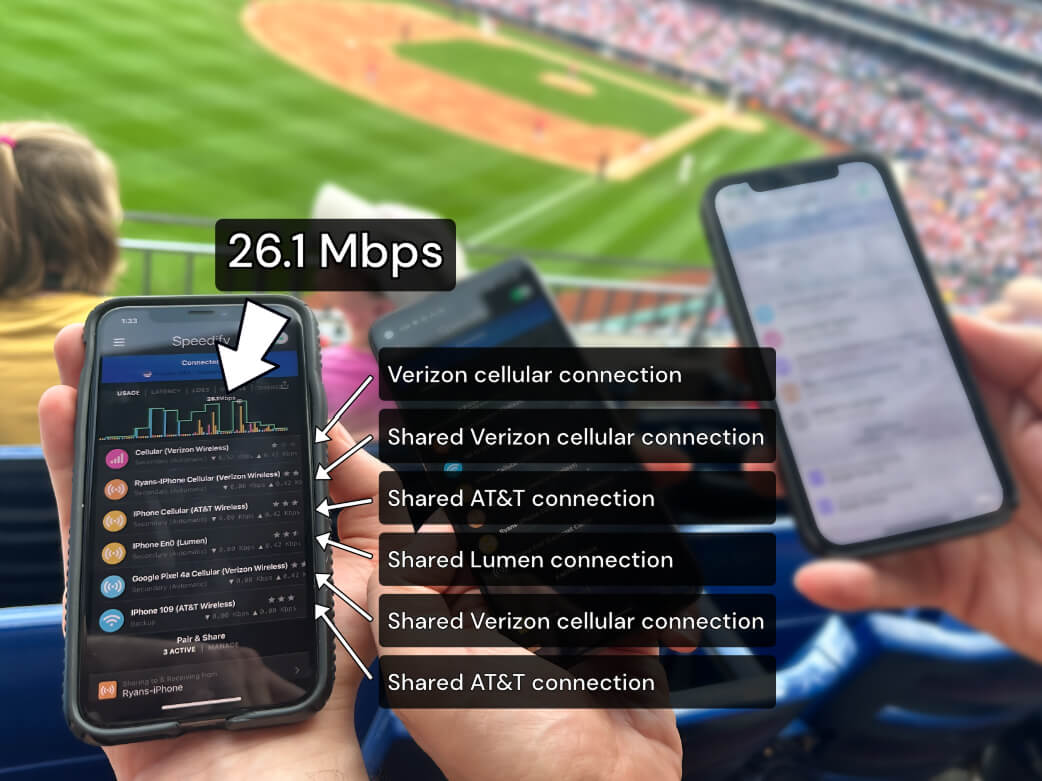
More speed
Every device you pair with adds its cellular to yours, and yours to theirs.
Stays connected
If a paired device drops out, Speedify keeps you online on the remaining links.
Always private
Every shared connection runs through AES-256 encryption. Your traffic is yours.
No new gear
Runs on devices already running Speedify, over your local network. Pair once, reconnects automatically.
How Wi-Fi Assist Works
While connected to a WiFi network, if the performance becomes poor, WiFi Assist will activate and automatically switch to cellular. As Apple clearly states, because you’ll stay connected to the Internet over cellular when you have a poor WiFi connection, you might use more cellular data.
Why Wi-Fi Assist Uses Too Much Data
The WiFi Assist isn’t smart enough. It only focuses on giving you a faster Internet connection at any given moment. It does not take into considerations your data caps, how data intensive your current Internet use is, or any other factors. You also have little control over WiFi Assist settings.
This means that you end up using a lot more data than is necessary to deliver the same Internet experience. If there is a heavy load on the WiFi you could be using your data for 100% of the time you thought you were on WiFi.
How to Disable Wi-Fi Assist on Your iPhone
Fortunately, disabling WiFi Assist can be done directly from your iOS device. It is on by default, so, to disable that:
- Go to Settings – Cellular. Then scroll down to the WiFi Assist slider.
- Tap the slider to disable WiFi Assist.
If you want to re-enable this functionality at a later date, just tap the slider again.
Use Speedify to Manage Wi-Fi and 4G/5G Mobile Data on Your iPhone
The idea behind WiFi Assit is a good one. It is nice to not have your Internet connection interrupted or performing poorly just because of a brief WiFi issue. But, the WiFi Assist just isn’t smart enough. What you need is the Speedify app.
Speedify can be downloaded on Android and iOS devices. It works in the background of your phone constantly monitoring the quality of your connections. It uses channel bonding technology to create a unified connection with your cell signal and your WiFi. But, you can tell Speedify to prioritize WiFi. Speedify will then use WiFi as much as possible, keeping your data costs low. It will only use data as a bridge or backup to keep you connected when WiFi fails or you are changing WiFi networks. When a WiFi network does fail, Speedify automatically reconnects as soon as it is back online.
Speedify is the smart way to stay connected and manage your data use. Download Speedify today and experience a safer, faster, and less data-intensive way to stay connected to the internet.
Alex and the Speedify team are always exploring the latest in networking and security technology—like 5G, 6G, WiFi 7, laser and satellite internet—and sharing it in new discussion content across YouTube, TikTok, Instagram, and LinkedIn every week.
Got a tech question? Let's go deeper! Pop into Speedify Office Hours live every Wednesday at 10 AM Eastern. Speedify CEO Alex Gizis and our network engineers are standing by to break down your questions about networks, tech updates, and Speedify features.

Speedify
Get started with Speedify today.
Combine Wi-Fi, 4G/5G cellular, Ethernet, Starlink, and more into one faster, steadier connection. Free to try — no credit card required.
🚀 Speed
Faster uploads and downloads by bonding all your connections at once.
📶 Stability
Automatic failover in under a second when any connection drops.
🔒 Security
AES-256 encryption on every connection, on every network you join.



15M+ downloads worldwide. 75K+ five-star reviews on iOS and Android.