

Video conferencing from home needs an internet connection that holds up through back-to-back meetings, and one shaky connection is enough to drop you out of all of them. Everything in the house shares that single connection, so it sags at exactly the moment you start talking.
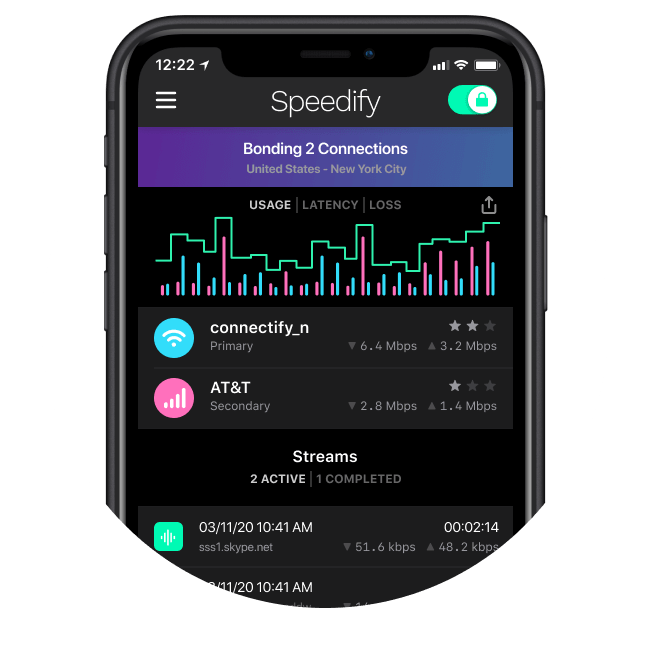
Speedify is an app that combines Wi-Fi, 4G/5G cellular, Ethernet and other internet connections into one steadier internet connection, so Zoom, Google Meet and Microsoft Teams stay up when the home connection dips. That needs two or more internet connections; on a single connection Speedify works as an encrypted VPN and cannot stop that connection from dropping.
This guide covers the basics of a solid home meeting setup, what each of the main video call apps is good at, and how a workday with Speedify running keeps you in the room.
Speedify keeps the call running when the internet connection fails
Work from Home Video Conferencing: Start with the Basics
Home internet often falls short. Between cellular and Wi-Fi dead zones and subpar home broadband speeds, finding a reliable connection and staying connected can be challenging.
Before you pick a video conferencing provider when WFH, it is mission critical to sort out your internet connectivity. If you don’t, no solution will work well. Luckily, there are a few simple steps to improve your internet for a video conference:
- To improve video quality, use a wired Ethernet connection if available. It will provide faster speeds than Wi-Fi, although you don’t always have that as a choice. The 7 Secrets of Remote Work Connectivity article provides more tips on how you can optimize your connection.
- If your connection is imperfect due to having a less-than-reliable provider, shop around providers in your area to find one that offers better service or faster speeds. Just changing providers or going up a tier is often enough to make a big difference. Or at least it does when you have reliable ISPs in your area, which isn’t always the case.
- The last major improvement is software. Not video conferencing software, but software that helps your internet connection: an app that lets you combine all of your available connections at once. Speedify does this: you can combine your home internet and 4G/5G cellular to keep your connection stable if one connection drops out. Under the hood, Speedify makes sure your video or other live streaming data is prioritized over other types of internet traffic.
Enter Zoom: the Most Popular Tool for Video Conferencing
Zoom became the default name for video calls during the pandemic, and it is still one of the most widely used meeting apps.
Many people now say “let’s set up a Zoom” to mean any video call, the way “Google it” means any web search.
And it’s popular for a reason. It has obsessively focused on its customers and it has tried to give them the best product possible, which has pushed the video conferencing industry forward.
It often provides the highest quality video, particularly when paired with a connectivity tool like Speedify that improves your internet connection.
One useful and unique feature is information about the connectivity of each participant on the call, which makes it quick for you to gauge whether your connection is unstable or if it’s someone else.
To join a meeting, you don’t need to create an account, but you’ll need to create one to invite others to a meeting. Downloading Zoom is optional because you can connect via a web app, but it strongly encourages you to join a meeting from an app to unlock a superior experience. Like Speedify, it offers apps for Android, Apple iOS, Linux, Microsoft Windows, and MacOS, to make it accessible for the majority of users.
Zoom’s focus on an easy app is still its strength, but Google Meet and Microsoft Teams now offer much the same meeting features.
The free version (Zoom Workplace Basic) allows meetings of up to 40 minutes with up to 100 participants. Paid plans remove the 40 minute limit and allow meetings of up to 30 hours; check Zoom’s pricing page for current prices.

Google Meet: Top Video Conferencing Player
Google Meet has many of the same features as Zoom. If you have an existing Google account, it can be easier for novices to use because it’s entirely cloud-based.
You can easily use it in your browser without downloading anything, as long as you’re signed into your Google account. Or alternatively, you can download apps for iOS and Android.
Because the cloud is front-and-center, it’s easier to record a video conference and save it directly to Google Drive compared to Zoom. It takes a few minutes to process, but then it’s easily shareable.
It has a number of security features to protect video conferences, and its encryption is fully compliant with Datagram Transport Layer Security (DTLS) and Secure Real-time Transport Protocol (SRTP), meaning that conferences are encrypted between you and Google’s servers.
One drawback compared to Zoom is that hosts have less control. Participants can unmute themselves, anyone can show their screen and you can’t manage the chat feature. That could work well if you’re replicating an in-person team meeting, but less so if you’re presenting to a group or hosting an online class via video.
Google Meet’s free version, for anyone with a Google account, allows one-on-one meetings of up to 24 hours and meetings with three or more people of up to 60 minutes, with up to 100 participants.
Longer group meetings and bigger meetings need a paid Google Workspace plan: Google lists 100 participants on its entry plan, 150 on the next one and 500 on the plan above that.
Microsoft Teams Video Conferencing: Also in the Top
Microsoft Teams is similar to Zoom, with comparable features and controls, but it adds the ability to easily share files and meeting notes without leaving the app. Great for a work from home video conferencing solution, right?
It is essentially Microsoft’s answer to Slack and Zoom combined into one, a single place for team chat, shared files and meetings.
Microsoft Teams Free allows group meetings of up to 60 minutes with up to 100 participants. The paid Teams Essentials plan raises that to 300 participants and meetings of up to 30 hours. If you are a paying user, you can also record your meetings.
For security, Microsoft Teams encrypts your data in transit and stores data in Microsoft’s secure network of datacenters using the Secure Real-time Transport Protocol (SRTP).
If your organization uses Microsoft 365 or is tied into the Microsoft ecosystem, it may be more seamless to use compared to other video conference solutions. It not only tightly integrates with Teams for broader collaboration outside of video, but with other Office apps and additional features from Microsoft like 24/7 support, and business-grade tools for admin and security.
The integration with the rest of Teams does make it slightly trickier to navigate to its video conference functionality. Its “Meet now” option is a small button under the chat window, which isn’t quite as obvious as Zoom or Google Meet’s UI.
If your organization already pays for Microsoft 365, check whether Teams is included in your plan before you buy a separate meeting app.
WFH Video Conferencing: Other Contenders to Consider
WebEx
Cisco’s WebEx platform has its roots in the enterprise market, so it was built with large businesses in mind since its inception. While costly, it was created as a unified communications platform that can provide chat, video and phone capsules to entire organizations. If your company already uses Cisco for its infrastructure, it may make sense to use WebEx. It’s feature-rich and excellent for virtual events and webinars but may be overkill for most users. If you do use it, here is how to keep Webex calls from dropping.
Webex Free allows meetings of up to 40 minutes with up to 100 attendees, the same limits as Zoom’s free plan. Paid plans lift those limits, and its calling (VoIP) options are a reason to consider it if you also need business phone features.
GoToMeeting
GoTo Meeting, from GoTo (the company formerly called LogMeIn), is more of a competitor to Webex than Zoom. It is a standalone video conference app with screen sharing and the usual meeting features, and it has mobile apps for Android and iOS.
After the free trial, its free plan only covers small, short meetings, and the paid Professional plan allows up to 150 participants. If you need video calls bundled with GoTo’s phone or remote access tools, check it out.
Jitsi
Jitsi is an open source alternative for video conferencing. If you need total control, want to use software that is absolutely free and don’t need to interact with more than a handful of people, then it may be the video conferencing solution for you.
You can run Jitsi for free on your own hardware or use the free public service at meet.jit.si. Jitsi Meet runs directly in your browser with no download required, and it also has Android and iOS apps. You can do everything you’d expect, from having everyone on video to sharing your screen and even collaboratively editing a document in Etherpad
It’s stellar for a community effort, but isn’t quite as robust as the other solutions on the list and video quality has been mixed given the limitations of individual hardware.
Know the Capabilities of Your Video Conferencing Software
Regardless of which work from home video conferencing provider you choose, you should consider whether:
- The number of participants supported meets your needs;
- The plans are within your budget;
- Its apps support the devices that you and attendees will be using;
- It offers recording capabilities if you need them;
- It supports collaboration beyond video conferencing if you plan to do anything interactive during a meeting;
- Phone conferencing is an option if any participants may need it;
- It offers the right level of security and the latest encryption to keep your meetings protected.
Test out the providers you’re considering with your internet connection to see which has the highest video quality on your devices and networks. Make sure you’re doing everything you can to get the best possible internet connection to keep your video and audio high-quality. And try out Speedify to see the difference it can make.
Connectivity is the key to productive remote work
If you want to be more productive, start with a fast, reliable internet connection, and find the right devices, equipment and tools that will help you collaborate, video conference and take work anywhere.
Speedify’s Next Normal series covers the tips, tricks and technologies that help you optimize your remote work experience.
Speedify
Get started with Speedify today.
Speedify combines Wi-Fi, 4G/5G cellular, Ethernet, Starlink and satellite into one faster, more reliable internet connection. Free to try: 5 GB a month with a free account. No credit card required.
🚀 Speed
Faster uploads and downloads, because Speedify uses all your internet connections at once.
📶 Stability
If one internet connection drops, Speedify moves your traffic to the others in milliseconds.
🔒 Security
AES-256 encryption on every internet connection, on any network you join.



15M+ downloads worldwide. 75K+ five-star reviews on iOS and Android.