
How Much Speed Do You Need for Live Streaming?
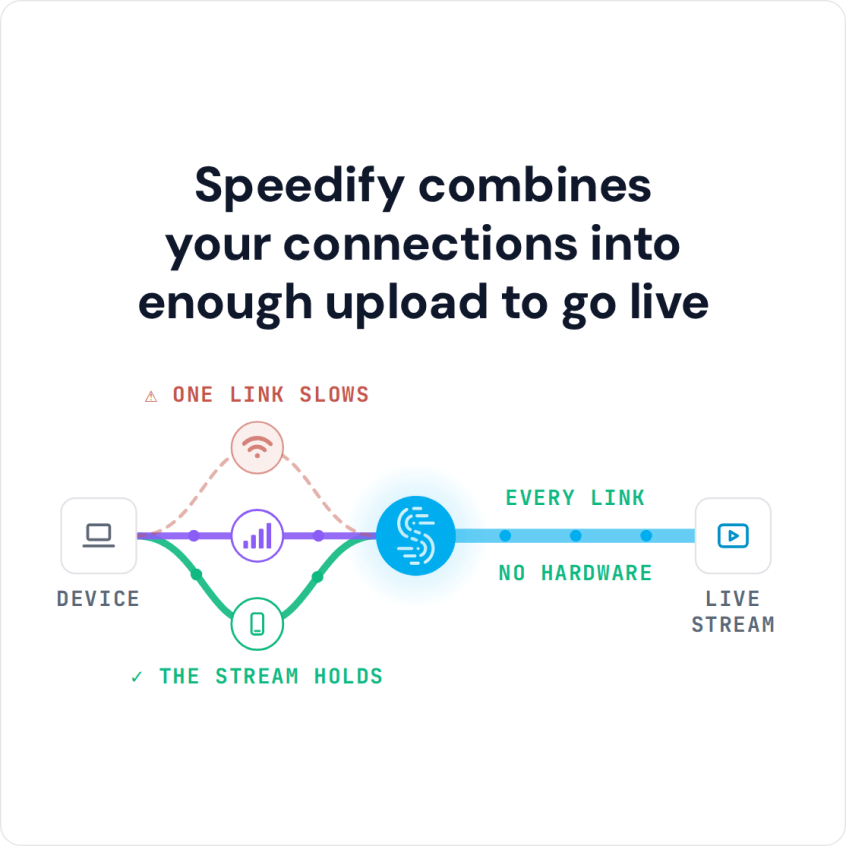
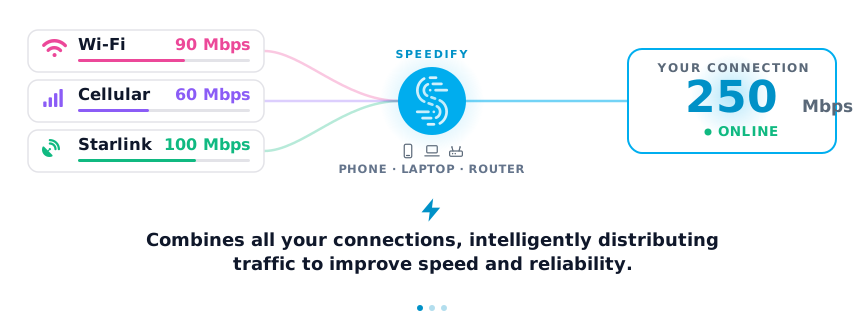
The internet speed for live streaming that matters is upload speed: up to 6 Mbps for 1080p at 30 fps on Twitch, YouTube and Facebook Live, and 13 to 51 Mbps for 4K on YouTube, plus about 50% extra for everything else on the connection. Speedify is an app that combines Wi-Fi, 4G/5G cellular, Ethernet, Starlink and satellite internet connections into one faster, more reliable connection, so a stream keeps its bitrate when one connection weakens.
If your upload falls short of these numbers, you are not the only one: internet plans are advertised by download speed, and the upload is usually lower. This article lists the upload speed each platform needs and shows how to increase upload speed for streaming from home, a studio or on the go.
Speedify combines your connections into enough upload to go live
How do I use WiFi and 4G/5G cellular at the same time with Speedify?
Pick your two internet connections and your device below and we'll take you to the step-by-step setup guide.


Upload Speed Required for Live Streaming on Twitch, YouTube and Facebook Live
Internet speed has two numbers: download and upload. Internet providers usually advertise the download speed, which matters for activities such as:
- web browsing
- watching videos online, including streaming videos on platforms such as Netflix, Hulu, BBC, etc.
- file transfers.
For live streaming, the number that matters is the upload speed your internet provider delivers. Here are the recommended Internet upload speeds for live streaming on major platforms:
|
Resolution |
Twitch | YouTube | Facebook Live |
| HD 720p 30fps | 3 Mbps | 1.5 – 4 Mbps | 0.4 – 1 Mbps |
| HD 720p 60fps | 4.5 Mbps | 2.25 – 6 Mbps | 2.25 – 6 Mbps |
| FHD 1080p 30fps | 4.5 Mbps | 3 – 6 Mbps | 3 – 6 Mbps |
| FHD 1080p 60fps | 6 Mbps | 4.5 – 9 Mbps | 4.5 – 9 Mbps |
| QHD 1440p 30fps | 6 – 13 Mbps | ||
| QHD 1440p 60fps | 9 – 18 Mbps | ||
| 4k 2160p 30fps | 13 – 34 Mbps | ||
| 4k 2160p 60fps | 20 – 51 Mbps |
These speeds cover the live stream only. During a stream you also use the same internet connection for chat, browsing and other apps, so add at least 50% to the recommended upload speed. For example, 1080p at 60 fps on Twitch needs 6 Mbps, so plan for 9 Mbps of upload.
10 Mbps and 4.5 Mbps Upload: What Each Covers for Live Streaming
A 10 Mbps upload covers 1080p at 30 fps on Twitch, YouTube and Facebook Live with the 50% headroom included, and 1080p at 60 fps on Twitch. A 4.5 Mbps upload is exactly Twitch’s figure for 720p at 60 fps and 1080p at 30 fps with nothing to spare, so with headroom it suits 720p at 30 fps on Twitch. 4K on YouTube needs 13 to 51 Mbps, more than a 10 Mbps upload can carry.
Live Streaming Latency: How Much Lag Is Normal
Speed is not the only Internet performance measurement that has requirements when live streaming. In this context, latency (or lag) is the delay between when a video frame is captured and when that frame is displayed to the viewer. Latency happens as any live video broadcast requires processing, sending video over the Internet and viewing devices decoding and displaying the video.
Aim for the lowest latency, so you can interact with your viewers closer to real time. Professional live streaming latencies can range from 30 seconds to over one minute (source), depending on how much video is buffered. Low latency live streaming, now offered by major platforms such as Twitch and YouTube, delivers the video within 3 to 10 seconds.
For real-time video streaming (auctions, AR/VR, day trading, live events, gaming, sports, trivia), you can even get latencies of under 1 second, typically 100 to 500 ms.
To minimize live streaming latency:
- Choose a platform and streaming software that support low latency streaming.
- Keep your own internet connection’s latency low, so it adds little to the overall delay. Under 100 ms between you and the live streaming server is fine, and lower is better.
Typical Upload Speed and Latency by Connection Type: Fiber, Cable, DSL, Cellular, Satellite
A good internet speed for live streaming depends on where you stream from and which connections are available there. The table below gives typical upload speeds and latency by connection type, so you know what to aim for to get the best internet for live streaming. Confirm the available upload speed and typical latency with the internet providers in your area.
| Connection type | Typical upload speed | Typical latency | Recommended resolution for live streaming |
| Fiber Optic | 250 to 1,000 Mbps | Lowest | Up to 4k @ 60 fps |
| Cable | 5 to 50 Mbps | Low | Up to 4k @ 30 fps |
| DSL | 1 to 10 Mbps | Low | Up to 1080p @ 30 fps |
| Cellular (4G / LTE) | Variable, up to 20 Mbps | Low | Up to 1440p @ 30 fps |
| Satellite | Variable, up to 38 Mbps | Highest | Up to 1440p @ 60 fps |
Learn more about Fiber vs. cable vs. DSL, and see typical cellular upload speeds.
How to Increase Upload Speed for Streaming: 7 Tips
If your upload speed falls short of what full HD or 4K streaming needs, try these steps:
- Test your connection speed and check the upload number against the table above for the video quality you want.
If the upload speed is lower than your contract promises (read the fine print), contact your internet provider; if the plan itself is too slow, upgrade to a plan with a higher upload speed. - Make sure your ISP doesn’t throttle your upload traffic / streaming traffic.
- Check your contract for data caps. A 6 Mbps stream uploads about 2.7 GB per hour, and once you hit a cap your provider may slow your download and upload speeds.
- If possible, use wired connections when live streaming. A cable avoids wireless interference and the packet loss it causes.
- Make sure no other devices on your network use the upload bandwidth while you stream, such as computers or phones running cloud backups or video calls.
- Use up-to-date network equipment (routers, cellular adapters, etc.) and drivers, if you’re live streaming from your computer. An old router or outdated firmware can cause low upload speeds and high latency.
- Use all your available internet connections at once. Besides your home or studio connection, you can tether a phone, use mobile hotspots or get a second internet connection installed: these are all options you can take into account. On the go, use several 4G/5G cellular connections. To use them together, you need an app that combines internet connections, such as Speedify.
Speedify Helps You Achieve the Internet Speed Required for Live Streaming
Speedify is an app that can combine multiple internet sources into one faster, more reliable connection for live streaming, video calls and web browsing. Speedify’s technology for combining internet connections splits traffic per packet across every connection, and advanced encryption protects it like a VPN.
Here’s how Speedify helps streamers everywhere get the best connectivity:
- evaluates your Internet connection and recommends a supported video quality for your live stream.
- prioritizes live streaming over other types of traffic.
- aggregates the upload speeds of the combined connections, so you can stream at higher quality and higher frame rates.
- delivers the lowest latency out of the combined connections.
- minimizes packet loss by automatically resending lost network packets, which helps on wireless connections such as Wi-Fi and 4G/5G cellular.
Speedify is cost-aware, prioritizing wired and Wi-Fi connections over cellular and other metered ones. If one of your connections drops, Speedify will move the live streaming traffic to the other working connections, so the stream keeps going without dropouts.
Planning a live stream? Run Speedify with every internet connection you have, so the stream gets the combined upload speed of all of them and failover if one drops.
Speedify
Get started with Speedify today.
Speedify combines Wi-Fi, 4G/5G cellular, Ethernet, Starlink and satellite into one faster, more reliable internet connection. Free to try: 5 GB a month with a free account. No credit card required.
🚀 Speed
Faster uploads and downloads, because Speedify uses all your internet connections at once.
📶 Stability
If one internet connection drops, Speedify moves your traffic to the others in milliseconds.
🔒 Security
AES-256 encryption on every internet connection, on any network you join.



15M+ downloads worldwide. 75K+ five-star reviews on iOS and Android.