

Got one Starlink dish but wondering if two (or more) might be better? You're not alone. Whether you need rock-solid internet for work, want blazing-fast speeds for the whole family, or just need backup internet that actually works, setting up multiple Starlink dishes might be exactly what you need.
This guide breaks down everything you need to know about running multiple dishes with the help of Speedify - from why you'd want to do it to exactly how to set it up, plus answers to all those burning questions everyone's asking.
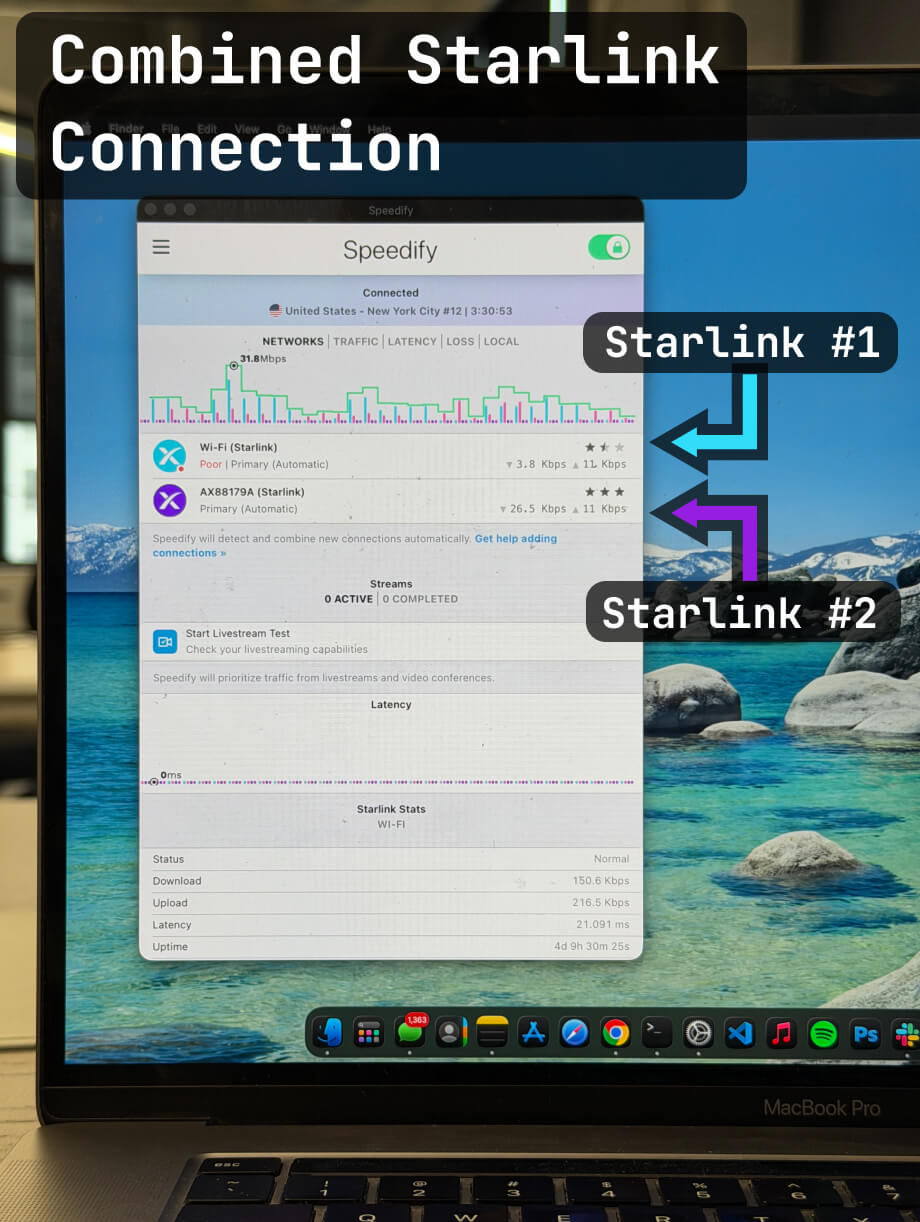
Use Speedify to Combine Speeds and Coverage from 2 or More Starlink Dishes: Setup Guide, Benefits, Best Practices
Quick answer
Should you get a backup connection for Starlink?
Yes. Starlink goes down every day — an always-on dish averages about 34 minutes of downtime daily from routine satellite handoffs. A second connection keeps you online when Starlink drops.
What’s the best backup connection for Starlink?
A 4G/5G cellular hotspot or SIM is the most practical backup for most Starlink users — it works anywhere Starlink works, requires no installation, and uses a different network so outages rarely overlap. Cable or DSL broadband is a strong option if you have it at a fixed location. A second Starlink dish is also possible if you need maximum throughput.
How do you use two internet connections at once with Starlink?
Speedify combines Starlink with any other connection — cellular, cable, Wi-Fi, or a second dish — into one bonded connection. Speedify runs on your phone, laptop, or router. When Starlink drops, Speedify moves your traffic to the backup instantly, so calls don’t cut out and downloads don’t stall. Speedify is free to try.
71% of Speedify’s Starlink users already run a second connection. The data below shows why.
Try Speedify free →Speedify Starlink Index — real-world performance from 6,209 Starlink users: 2.4% downtime, about 34 minutes a day for always-on connections
Starlink goes down every day.
Here’s what that actually looks like.
Speedify passively monitors every connection it bonds. These figures come from 6,209 Starlink users over 14 days — compared in real time against the other connections on the same devices. No speed tests, no lab conditions.
Daily downtime
~34 min
2.4% of connected time unreachable
Median latency
60 ms
p90 spikes to 257 ms
Avg packet loss
0.17%
vs 0.08% on T-Mobile
71% ran at least one other connection simultaneously — 4,381 of 6,209 users. Cellular is the most common backup.
Use Speedify to stay online during satellite handoffs every 15 seconds
Research confirms Starlink switches between satellites every 15 seconds on a fixed schedule. Each satellite handoff is a potential dropout, and on a congested network or with any obstruction, those Starlink dropouts become real interruptions.
Speedify fixes Starlink connection drops by combining your Starlink internet connection with another satellite dish, Wi-Fi, 4G/5G cellular, or wired Ethernet at the same time. When Starlink drops, Speedify keeps your traffic moving on the backup internet connection instantly.

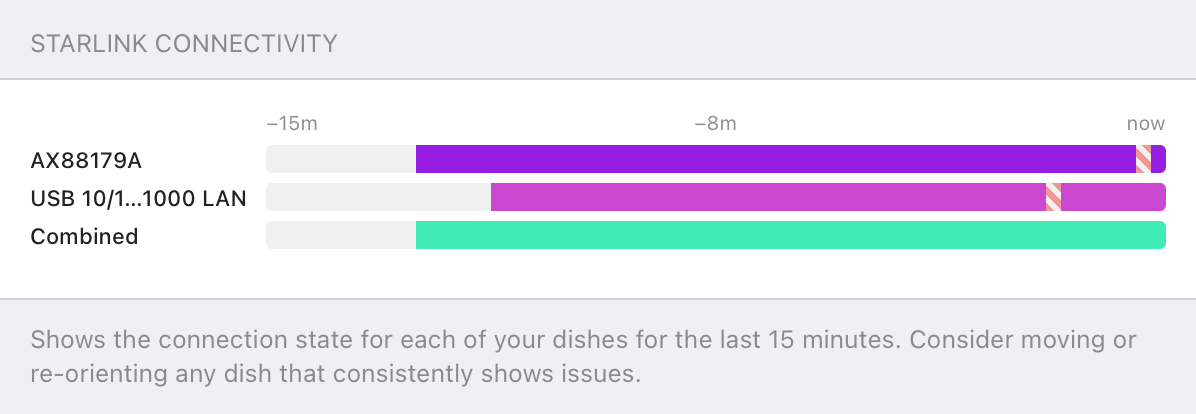
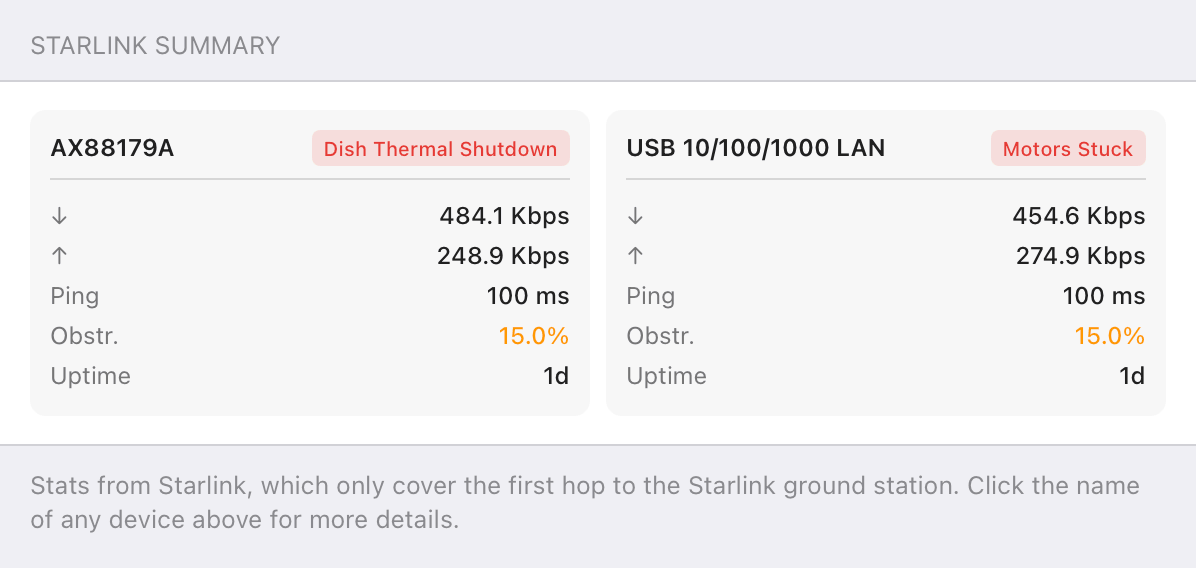
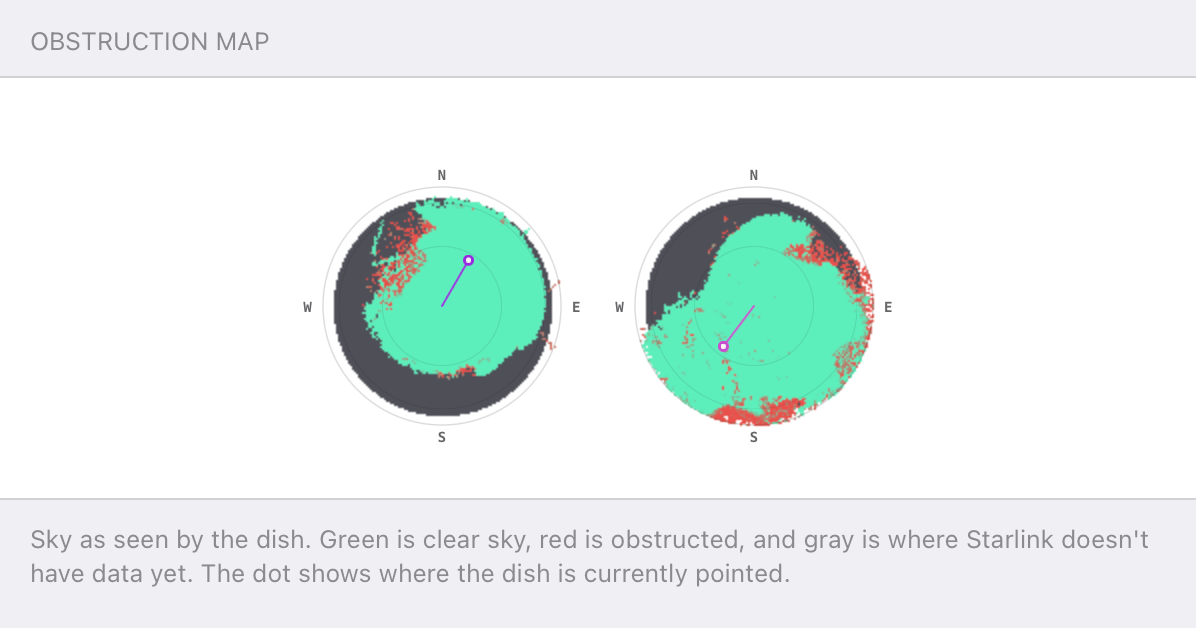
Speedify alerts you about your Starlink dish status
Speedify software alerts you about your Starlink dish status as soon as your dish experiences an issue - e.g. when your actuator motor is stuck, the mast is not vertical or there's a thermal throttle.
Speedify's Starlink Control Center helps you monitor all your Starlink dishes, read obstruction maps, and align multiple dishes all in the Speedify app. Get a real-time view of each dish's health and optimize the position of each Starlink dish, so you get the best possible performance out of your Starlink connections.
Speedify
Speedify gives you faster, steadier internet by combining Wi-Fi, cellular, and Starlink
Speedify bonds Wi-Fi, 4G/5G cellular, Ethernet, and Starlink into one connection at the same time, giving you more speed, automatic failover when one drops, and AES-256 encryption on every link.
Download Speedify ›More speed
Upload and download speeds combine across every active connection on your device.
Automatic failover
If a connection drops, Speedify moves your traffic to another in milliseconds. Calls stay connected.
Always encrypted
Every link runs through an encrypted tunnel, including public Wi-Fi, cellular, and Starlink.

Speedify Feature · Pair & Share
Speedify Pair & Share: share cellular between your devices, both ways
Most hotspots give. Speedify's Pair & Share gives and takes. Two devices running Speedify pair up and each uses the other's cellular connection simultaneously, so you both get faster uploads, faster downloads, and a steadier connection. No extra hardware, no new data plans, no setup beyond a tap.
Learn how Speedify's Pair & Share works ›More speed
Every device you pair with adds its cellular to yours, and yours to theirs.
Stays connected
If a paired device drops out, Speedify keeps you online on the remaining links.
Always private
Every shared connection runs through AES-256 encryption. Your traffic is yours.
No new gear
Runs on devices already running Speedify, over your local network. Pair once, reconnects automatically.


Why Use Multiple Starlink Dishes?
Let's be honest - one Starlink dish is great already. But there are some solid reasons why people go for multiple dishes:
Your Internet Can't Go Down
If you work from home, run a business, or just can't afford to lose internet when you're streaming your favorite shows, redundancy is your friend. When one dish has issues - maybe it's snowing, maybe there's satellite maintenance, etc. - the other dish can keep you online, especially if you use them both at the same time (bonding) - more on that later in the article.
You Want Fast Internet
One Starlink dish gives you great speeds. Two dishes bonded together? Now we're talking serious bandwidth. Think downloading massive files while the kids stream 4K videos and you're on a work video call - all without anyone complaining about slow internet.
You've Got a Big Property
Maybe your house is huge, or you've got outbuildings, or your property has weird dead zones. Multiple dishes spread around can give you solid coverage everywhere instead of fighting with Wi-Fi extenders that barely work.
Business Owners Who Need Reliability
If your business depends on internet, having backup internet isn't luxury, it's necessity. Point-of-sale systems, security cameras, phones - everything needs to keep working even if one of your dishes is out.
The Different Starlink Dish Types and Which Ones Work Together
Before you start buying dishes, you need to know what's available and what works best for multiple Starlink dishes setups. As of July 2025, the cost of these dishes starts at $349 for the Residential plan.
Residential Dish
This is your basic, reliable Starlink dish for homes. It's what most people have, and it works great for multiple dish setups. Not the fastest, but solid and affordable when you need more than one.
Mini Dish
The portable option that's smaller and uses less power. Great if you're doing RV life or need dishes you can move around, but not the powerhouse option.
Performance Dish
The new hotness as of 2025. This thing is built like a tank, uses less power than the older high-performance dishes, and SpaceX is planning to offer Gigabit speeds with it starting in 2026. If you're serious about performance and don't mind spending the money, this is your dish.
Business Dishes
These come with business plans and get priority on the Starlink network. If you're running a business with multiple dishes, the extra cost might be worth it for the priority access and better support.
Can I Use Multiple Starlink Dishes with One Starllink Subscription?
Multiple devices are only available for Starlink business accounts for simultaneous use. Here's how it really works:
For moving between locations: If you've got a house and an RV, or a main home and a cabin, you can buy extra dishes but move your single subscription between them. You can only use one at a time though.
For using multiple dishes at once: You need separate subscriptions. Period. Each dish that's actively connected needs its own plan.
Business vs. Residential: Business plans make multi-dish setups easier to manage and give you priority on the network. They cost more, but if you're depending on this for income, it's usually worth it.
How to Set Up Multiple Starlink Dishes
Let's talk about actually making this work.
Running multiple Starlink dishes separately
This is the easiest approach. Each one gets its own router, creates its own Wi-Fi network, and you connect devices to whichever network you want. It's simple, gives you backup if one fails, but doesn't combine the speeds and neither does it failover instantly to the other.
Bonding multiple Starlink dishes for combined speed and reliability
This is where things get interesting. You can use special multi-WAN bonding network routers to combine multiple Starlink connections into one super-fast connection.
Several manufacturers make multi-WAN bonding network routers that can work with Starlink. There are also bonding software apps you can use to combine the multiple Starlink dishes on your computers and mobile devices. Just make sure whatever you buy can handle the specific requirements of satellite internet.
What You'll Need
Here's your shopping list for a typical dual-dish setup:
- Second Starlink dish and subscription
- Bonding software app or bonding network router
- Ethernet cables to connect everything
Do Multiple Starlink Dishes Interfere with Each Other?
Before installing multiple Starlink antennas at a location, please review the following considerations for proper spacing. Generally, if you space them properly (at least 1 meter / 3 feet apart is recommended), interference shouldn't be a problem.
Can I Use Different Types of Starlink Dishes Together?
Yes, you can mix and match dish types. For example, you could have a Standard dish for basic backup and a Performance dish for your main connection. The bonding software or router should be able to optimize the usage and handle the differences.
Will Multiple Starlink Dishes Give Me Faster Internet?
With proper bonding, yes. Instead of getting the speed of one dish, you get more than that - somewhere towards the combined speed of all. So if you have two dishes and each dish gives you 100 Mbps, bonded together you might see 180-200 Mbps (there's always some overhead).
Can I Combine Starlink with Other Internet Sources Like 4G, 5G, Cable, DSL?
Many people bond Starlink with lower-cost 4G / 5G cellular, cable, or DSL connections. This way, you'll get the benefit of using different internet service providers, which will provide even better reliability. Use the same bonding software apps or multi-WAN network routers for this.
What Happens If One Starlink Dish Goes Down?
Can You Run 2 Starlink Dishes at the Same Time?
Yes, but you need separate subscriptions for each dish if you want to use them simultaneously. Multiple devices are only available for Starlink business accounts, though anyone can have multiple residential subscriptions.
Troubleshooting Multiple Starlink Dishes Setups
Common Issues
Starlink Dishes Too Close Together: If your dishes are too close, they can interfere with each other. Keep them at least 1 meter / 3 feet apart if possible.
Starlink Power Problems: Multiple dishes use more power. Make sure your electrical system can handle it, especially if you're running this setup in an RV or off-grid.
Complex Networking Problems: Bonding setups can be tricky. Things like different latencies between dishes or one dish being slower than the other can cause issues. Make sure you choose you test the bonding solution you're going to get before committing to spending large amounts of money on that.
Pro Tips
Use the Starlink App: Check each dish's performance individually using the Starlink app to make sure they're both optimized.
Monitor Your Starlink Setup: Invest in monitoring tools or bonding solutions that can tell you when one dish is having problems before it affects your internet.
Keep the Starlink Setup Simple at First: Start with a simple setup and get that working before adding complexity like bonding.
Is It Worth It to Use Multiple Starlinks Together?
Here's what you're looking at for a typical dual-dish setup:
Upfront Costs
- Second Starlink dish: $349+
- Bonding router: $500-$2,000
- Cables and other equipment: $100-$300
- Total: $950+
Monthly Costs
- Two residential subscriptions: ~$200-$240/month
- Bonding software subscription: $5+/month
Is It Worth It?
That depends on your situation:
- For businesses: If downtime costs you money, absolutely
- For heavy users: If your family uses tons of bandwidth, probably
- For reliability needs: If you can't afford outages, definitely
- For casual users: Probably overkill
Future-Proofing Your Starlink Setup
Starlink keeps getting better, and your multi-dish setup should too. Here's what's coming:
Upcoming Improvements
- The new Performance dish is getting gigabit speeds in 2026
- More satellites mean better coverage and speeds
- Better integration tools for multi-dish setups
Planning Ahead
- Choose equipment that can grow with you
- Consider business plans if your needs are expanding
- Keep an eye on new dish models that might work better for your setup
Getting Started with Using Multiple Starlink Dishes
Here's your action plan:
- Assess your needs: Figure out exactly why you want multiple dishes and what you need them to do
- Plan your budget: Factor in both upfront and monthly costs
- Choose your equipment: Decide on dish types and bonding equipment
- Plan installation: Figure out where dishes will go and how you'll connect everything
- Start simple: Get a basic setup working before adding complexity
- Test everything: Make sure each dish works individually before trying to bond them
The Bottom Line
Multiple Starlink dishes can be awesome if you need them, but they're definitely not a "more is always better" situation. If you need rock-solid reliability, have high bandwidth demands, or just want the peace of mind that comes with backup internet, a multi-dish setup might be perfect.
Just remember: start simple, plan carefully, and don't be afraid to ask for help or advice. The Starlink community is pretty helpful, and there are plenty of resources to guide you through the setup process.
Whether you're running a business, working from home, or just want the fastest internet possible, multiple Starlink dishes can give you capabilities that seemed impossible just a few years ago. The future of internet connectivity is pretty exciting, and you can be part of it right now.
Get started with Speedify today!
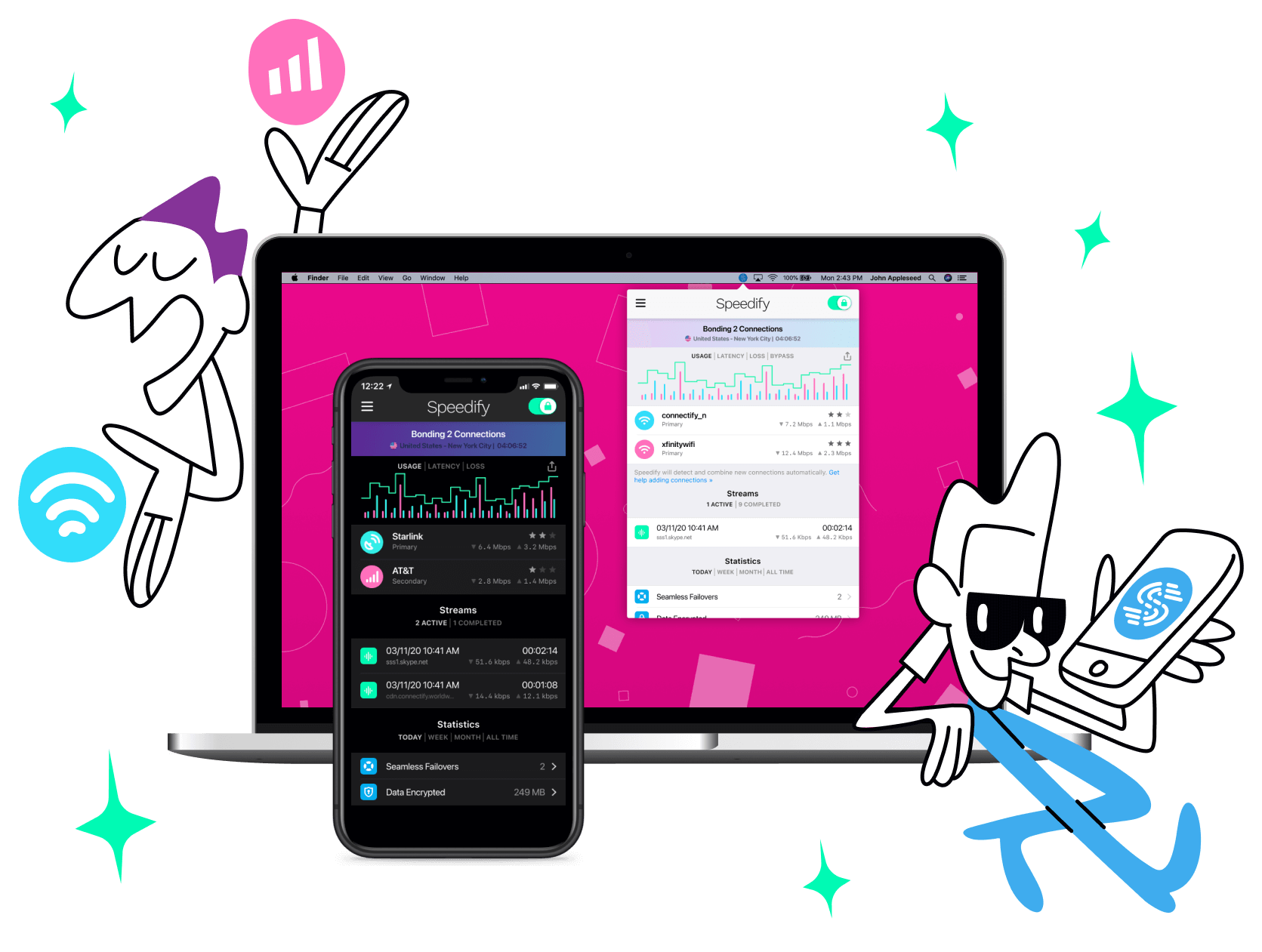
With Speedify you can combine Wi-Fi, 4G / 5G cellular, Ethernet, Starlink and other satellites into one bonded super-connection to improve livestreaming, video calling, gaming, web browsing, and everything else you do online.




Speed
Stability
Security
Speedify engineers love talking tech on YouTube, Tiktok, and Instagram!
Alex Gizis and the Speedify engineers discuss and explain technology including Starlink satellites, Wi-Fi 7 routers, Apple networking features, fiber optics, broadband internet, 5G mobile networks, AI, networking protocols, and much more. Follow Speedify on YouTube, TikTok, Instagram, and LinkedIn!
Alex and the Speedify team are always exploring the latest in networking and security technology—like 5G, 6G, WiFi 7, laser and satellite internet—and sharing it in new discussion content across YouTube, TikTok, Instagram, and LinkedIn every week.
Got a tech question? Let's go deeper! Pop into Speedify Office Hours live every Wednesday at 10 AM Eastern. Speedify CEO Alex Gizis and our network engineers are standing by to break down your questions about networks, tech updates, and Speedify features.
