

Speedify Stops an iPhone from Disconnecting from Wi-Fi by Combining Wi-Fi and 4G/5G Cellular at Once
An iPhone that drops Wi-Fi every few minutes is usually not broken. iOS watches the signal, and when it weakens at the edge of the router’s range the phone switches to mobile data and back, which looks just like a disconnection. Low Power Mode and stored network details that no longer match the router do the same. The switch is more noticeable on a phone that gets propped up rather than held, which is the case for the iPhone Duo and its hands-free display.
Speedify is an app for iPhone that runs your internet over Wi-Fi and 4G/5G cellular data at the same time, so a Wi-Fi dropout no longer takes the iPhone offline. This guide walks through the iOS and router fixes, plus what using Speedify gives you: calls and downloads that keep running while the Wi-Fi sorts itself out.
Speedify keeps your devices online when Wi-Fi drops.
Why Does My iPhone Keep Disconnecting from Wi-Fi? The Most Common Causes
Before applying fixes, understanding the actual cause of repeated Wi-Fi drops on an iPhone produces faster results. These are the most common causes:
- iOS Wi-Fi assist and automatic switching: iOS includes a feature called Wi-Fi Assist that automatically switches the iPhone to cellular data when Wi-Fi signal is weak. While designed to help, Wi-Fi Assist can cause the iPhone to appear to disconnect from Wi-Fi repeatedly when signal strength fluctuates near the threshold — producing the drop-reconnect loop many users experience.
- iOS Low Power Mode: When Low Power Mode is active, iOS reduces background network activity and can cause the iPhone’s Wi-Fi radio to become less aggressive about maintaining a stable connection — particularly when the screen is off or the phone is idle.
- Saved Wi-Fi network profile corruption: iOS stores Wi-Fi credentials and network settings for each saved network. After an iOS update, a router firmware change, or a router replacement, a saved network profile can become corrupted — causing the iPhone to connect, fail to authenticate fully, and drop the connection repeatedly.
- DHCP lease conflicts: A stale or conflicting DHCP lease causes the router to stop routing traffic to the iPhone’s assigned IP address, resulting in disconnections that appear as Wi-Fi drops even when the Wi-Fi signal is strong.
- Router-side issues: Routers running outdated firmware, handling too many simultaneous connections, or experiencing overheating can drop individual device connections intermittently. iPhones are often among the first devices to be dropped when a router is under load.
- Wi-Fi channel congestion: In apartments, offices, and dense residential areas, neighboring Wi-Fi networks competing for the same radio channels cause interference that drops iPhone connections — even when the router and iPhone are in the same room.
- 2.4 GHz band interference: The 2.4 GHz Wi-Fi band is shared with Bluetooth devices, microwave ovens, baby monitors, and other household electronics. An iPhone connected to the 2.4 GHz band in an environment with significant RF interference will disconnect more frequently than one on the 5 GHz or 6 GHz band.
- iOS software bugs: Major iOS updates occasionally introduce Wi-Fi regression bugs that cause widespread disconnection issues on specific iPhone models. These typically affect a subset of devices on the initial release of a new iOS version and are fixed in subsequent point releases.
- VPN or network extension conflicts: Third-party VPN apps and network extensions installed on an iPhone can conflict with iOS’s network stack and cause repeated Wi-Fi drops — particularly if the VPN app has a buggy implementation of iOS’s Network Extension framework.
How to Fix an iPhone That Keeps Disconnecting from Wi-Fi: iOS Settings Fixes
Fix 1: Forget and Rejoin the Wi-Fi Network
Removing the saved Wi-Fi network and rejoining from scratch forces iOS to create a fresh connection with new authentication and DHCP settings. This resolves corrupted network profiles that cause repeated disconnect-reconnect cycles.
- Open Settings → Wi-Fi.
- Tap the information icon (ⓘ) next to the Wi-Fi network the iPhone keeps dropping.
- Tap Forget This Network and confirm.
- Reconnect to the Wi-Fi network by tapping it in the list and entering the password.
Fix 2: Disable Wi-Fi Assist
Wi-Fi Assist causes iOS to switch from Wi-Fi to cellular data when Wi-Fi signal is weak — and to switch back when signal improves. This creates the appearance of repeated Wi-Fi disconnections. Disabling Wi-Fi Assist stops iOS from switching automatically, keeping the iPhone on Wi-Fi unless the user manually switches.
- Open Settings → Cellular (or Mobile Data).
- Scroll to the very bottom of the screen.
- Toggle Wi-Fi Assist off.
Fix 3: Disable Low Power Mode
Low Power Mode reduces background network activity to conserve battery, which can cause the iPhone’s Wi-Fi connection to become unstable — particularly when the screen is off. Disabling Low Power Mode allows iOS to maintain a more consistent Wi-Fi connection.
- Open Settings → Battery.
- Toggle Low Power Mode off.
Fix 4: Renew the DHCP Lease
A stale DHCP lease causes routing failures that appear as Wi-Fi disconnections even when the iPhone is connected to the network. Renewing the lease forces the router to assign a fresh IP address and routing configuration to the iPhone.
- Open Settings → Wi-Fi.
- Tap the information icon (ⓘ) next to the connected Wi-Fi network.
- Tap Renew Lease and confirm.
Fix 5: Reset Network Settings
Resetting network settings on an iPhone clears all saved Wi-Fi passwords, cellular settings, VPN configurations, and Bluetooth pairings — and removes any corrupted network configuration that is causing the Wi-Fi disconnections. This is a more thorough fix than forgetting and rejoining a single network.
- Open Settings → General → Transfer or Reset iPhone → Reset.
- Tap Reset Network Settings and enter the iPhone passcode when prompted.
- Confirm the reset. The iPhone will restart.
- After restart, reconnect to Wi-Fi networks and re-enter passwords.
Fix 6: Update iOS
If the iPhone started disconnecting from Wi-Fi after an iOS update, check for a subsequent point release that addresses the Wi-Fi regression. Apple regularly releases iOS updates that fix Wi-Fi bugs introduced in earlier versions. Open Settings → General → Software Update and install any available updates. The same check applies when an iPad keeps dropping its Wi-Fi.
Fix 7: Disable and Re-enable Wi-Fi
Toggling Wi-Fi off and back on from Settings (not from Control Center) forces iOS to fully restart the Wi-Fi radio and reconnect. This resolves transient software-layer issues that cause the iPhone to appear connected but fail to route traffic correctly.
- Open Settings → Wi-Fi.
- Toggle Wi-Fi off. Wait 10 seconds.
- Toggle Wi-Fi back on and allow the iPhone to reconnect.
Fix 8: Remove Conflicting VPN or Network Extension Apps
If a VPN app or network extension was installed around the time the iPhone started disconnecting from Wi-Fi, that app is a likely cause. Go to Settings → VPN & Device Management and disable any active VPN configurations. Temporarily delete the VPN app and test Wi-Fi stability. If disconnections stop, the VPN app is the cause — look for an updated version or switch to a more iOS-compatible alternative.
How to Fix an iPhone That Keeps Disconnecting from Wi-Fi: Router Fixes
Fix 9: Restart the Router
A router that has been running without a restart for weeks or months accumulates stale connection tables and memory errors that cause individual devices to drop intermittently. Unplug the router’s power cable, wait 30 seconds, and plug it back in. Allow the router two minutes to fully restart before reconnecting the iPhone.
Fix 10: Move the iPhone Closer to the Router
Wi-Fi signal weakens with distance and physical obstructions. An iPhone near the edge of a router’s effective range connects intermittently and drops frequently. Moving the iPhone closer to the router — or moving the router to a more central, elevated location — reduces signal degradation and stabilizes the connection.
Fix 11: Switch the iPhone to the 5 GHz Band
If the router broadcasts separate network names for the 2.4 GHz and 5 GHz bands, connect the iPhone explicitly to the 5 GHz network. The 5 GHz band is faster, less congested, and less susceptible to household interference than the 2.4 GHz band — resulting in significantly fewer disconnections for iPhones within range.
Fix 12: Change the Router’s Wi-Fi Channel
Channel congestion from neighboring networks causes interference that drops iPhone connections even when signal strength is strong. Log into the router’s admin interface and manually select a less congested channel. For 2.4 GHz, use channels 1, 6, or 11. For 5 GHz, a wider range of non-overlapping channels is available with significantly less interference in most environments.
Fix 13: Update Router Firmware
Router manufacturers release firmware updates that fix Wi-Fi stability bugs, improve compatibility with iOS Wi-Fi updates, and patch security vulnerabilities. Check the router’s admin interface or the manufacturer’s website for available firmware updates and apply them.
Common iPhone Wi-Fi Disconnection Scenarios and Their Causes
| Symptom | Most Likely Cause | Recommended Fix |
|---|---|---|
| iPhone drops Wi-Fi every few minutes and reconnects automatically | Corrupted network profile or DHCP lease conflict | Forget and rejoin network; renew DHCP lease |
| iPhone switches from Wi-Fi to cellular repeatedly | Wi-Fi Assist switching on weak signal | Disable Wi-Fi Assist (Fix 2) |
| iPhone loses Wi-Fi when screen turns off or phone is idle | Low Power Mode reducing Wi-Fi radio activity | Disable Low Power Mode (Fix 3) |
| iPhone drops Wi-Fi after an iOS update | iOS Wi-Fi regression bug | Install latest iOS point release; reset network settings |
| iPhone loses Wi-Fi while other devices stay connected | iPhone-specific network config issue or VPN conflict | Reset network settings; remove conflicting VPN app |
| iPhone drops Wi-Fi in a specific room or location | Weak signal due to distance or physical obstructions | Move closer to router; switch to 5 GHz band |
| iPhone disconnects from Wi-Fi during FaceTime or video calls | Sustained bandwidth usage exposing connection instability | Switch to 5 GHz band; use Speedify to bond Wi-Fi with 4G/5G cellular |
| iPhone drops Wi-Fi with no clear pattern | Wi-Fi channel congestion from neighboring networks | Change router Wi-Fi channel; restart router |
The Most Effective Fix: Use Speedify to Keep an iPhone Connected Even When Wi-Fi Drops
All of the fixes above address specific causes of Wi-Fi disconnections on an iPhone. None of them eliminate the fundamental problem: an iPhone running on Wi-Fi alone has no fallback when that connection drops. When Wi-Fi fails — for any reason — every app on the iPhone loses connectivity simultaneously with no alternative path for traffic.
Speedify solves this by combining Wi-Fi and 4G/5G cellular simultaneously on an iPhone using channel bonding technology. Both connections carry active traffic at all times — so the iPhone gets the combined throughput of both, and if Wi-Fi drops for any reason, Speedify’s automatic failover technology routes all traffic through the 4G/5G cellular connection instantly — without dropping a FaceTime call, interrupting a message, or stalling a download.
Speedify Keeps the iPhone Connected When Wi-Fi Drops: When the iPhone’s Wi-Fi disconnects — whether due to a router reboot, a weak signal zone, a Wi-Fi Assist switch, or any other cause — Speedify automatically moves all traffic to the 4G/5G cellular connection in milliseconds. No manual switching. No dropped call. No failed upload. The transition is invisible to every app running on the iPhone. You no longer need to keep turning your iPhone Wi-Fi off and on.
Speedify Combines Wi-Fi and 4G/5G Cellular for Higher Speeds: An iPhone running Speedify with a 75 Mbps Wi-Fi connection and a 40 Mbps 4G/5G cellular connection active simultaneously gets close to 115 Mbps of combined throughput using Speedify’s proprietary protocol. Wi-Fi and 4G/5G cellular are used together — not switched between — so the iPhone always has more bandwidth available than either connection alone provides.
Speedify Intelligently Distributes Traffic Across Both Connections: Speedify continuously monitors the speed and latency of both the Wi-Fi and 4G/5G cellular connections and distributes traffic in real time. When Wi-Fi is performing well, Speedify uses more of it to preserve cellular data. When Wi-Fi slows down or is about to drop, Speedify automatically shifts traffic to the 4G/5G cellular connection before the disconnect is even noticeable.
Speedify Encrypts All iPhone Traffic Across Both Connections: Speedify is also a VPN that encrypts all traffic on both the Wi-Fi and 4G/5G cellular connections simultaneously — protecting passwords, banking sessions, messages, and personal data on every network the iPhone connects to, including public Wi-Fi at airports, hotels, and cafés.
How to Set Up Speedify to Stop an iPhone from Disconnecting from Wi-Fi
- Connect the iPhone to Wi-Fi as normal.
- Make sure cellular data is enabled on the iPhone — open Settings → Cellular and confirm that cellular data is turned on. Speedify uses the 4G/5G cellular connection as the second bonded connection alongside Wi-Fi.
- Download and install Speedify from the App Store (available for iOS, Android, macOS, Windows, Linux, and OpenWrt).
- Open Speedify and tap Connect. Speedify automatically detects the Wi-Fi connection and the 4G/5G cellular connection, and begins bonding both. Both connections appear in the Speedify dashboard with real-time download speed, upload speed, and latency data for each.
- Optionally, enable Streaming Mode in Speedify settings to optimize packet delivery for FaceTime, video calls, and live streaming, or set a cellular data limit to manage 4G/5G data usage independently.
Speedify vs. iOS Wi-Fi Fixes: What Each Approach Actually Solves
| Approach | Stops Wi-Fi Disconnections? | Keeps iPhone Connected When Wi-Fi Fails? | Automatic Failover? | Faster Downloads and Uploads? | Encrypted Traffic? |
|---|---|---|---|---|---|
| Speedify (Wi-Fi + 4G/5G Cellular Bonded) | ✅ Yes — failover is instant | ✅ Yes — traffic moves to 4G/5G cellular | ✅ Yes | ✅ Yes — combined throughput | ✅ Yes |
| Forget and rejoin Wi-Fi network | ⚠️ Partial — fixes profile corruption only | ❌ No | ❌ No | ❌ No | ❌ No |
| Disable Wi-Fi Assist | ⚠️ Partial — stops auto-switching only | ❌ No | ❌ No | ❌ No | ❌ No |
| Reset network settings | ⚠️ Partial — fixes config corruption only | ❌ No | ❌ No | ❌ No | ❌ No |
| Switch to 5 GHz band | ⚠️ Partial — reduces interference-related drops | ❌ No | ❌ No | ✅ Yes — within Wi-Fi range | ❌ No |
| Update iOS | ⚠️ Partial — fixes OS-level bugs only | ❌ No | ❌ No | ❌ No | ❌ No |
| Other VPNs | ❌ No — often worsens Wi-Fi stability | ❌ No | ❌ No | ❌ No (often slower) | ✅ Yes |
Frequently Asked Questions About iPhone Wi-Fi Disconnecting
Why does my iPhone keep disconnecting from Wi-Fi but my other devices don’t?
If the iPhone disconnects from Wi-Fi while other devices stay connected, the issue is iPhone-specific — most likely a corrupted network profile, a stale DHCP lease, Wi-Fi Assist switching, or a VPN app conflict. Start with Fix 1 (forget and rejoin the network), Fix 2 (disable Wi-Fi Assist), and Fix 4 (renew the DHCP lease).
Why does my iPhone lose Wi-Fi when the screen turns off?
This is almost always caused by Low Power Mode or an aggressive battery management setting that reduces Wi-Fi radio activity when the screen dims. Disabling Low Power Mode (Fix 3) resolves most cases. If the issue persists, check Settings → Display & Brightness → Auto-Lock and ensure the iPhone is not set to a very short lock interval that triggers power management before reconnection can complete.
Why does my iPhone keep switching between Wi-Fi and cellular data?
This is the expected behavior of Wi-Fi Assist — iOS detects weak Wi-Fi signal and routes traffic through cellular instead. Disabling Wi-Fi Assist (Fix 2) stops the switching. Speedify provides a better alternative: rather than switching between Wi-Fi and cellular, Speedify uses both simultaneously so the iPhone has reliable connectivity regardless of which individual connection is performing poorly.
Why does my iPhone disconnect from Wi-Fi during FaceTime calls?
FaceTime sustains continuous high-bandwidth usage that exposes connection instability invisible during normal browsing. If the iPhone disconnects from Wi-Fi specifically during FaceTime or video calls, the connection cannot sustain the load — either due to signal weakness, channel congestion, or router-side limitations. Speedify resolves this by bonding Wi-Fi with 4G/5G cellular, providing additional bandwidth and instant failover if either connection drops during the call.
Does Speedify work on iPhone without a Wi-Fi connection?
Yes. Speedify can operate on cellular data alone if Wi-Fi is unavailable. However, channel bonding and the speed and reliability benefits of combining connections require at least two active connections. With both Wi-Fi and 4G/5G cellular active, Speedify bonds both for maximum speed and automatic failover.
Does Speedify drain iPhone battery?
Speedify uses both the Wi-Fi and cellular radios simultaneously, which uses more battery than using only one. In practice, the additional battery use is minimal during normal use. When the iPhone is plugged in or charging, battery impact is not a concern. Speedify’s cellular data limit feature also helps manage both data and battery use by controlling how much traffic is routed through the cellular connection.
Does Speedify work on all iPhone models?
Yes. Speedify runs on all iPhones running iOS 15 or later, including iPhone SE (2nd and 3rd generation), iPhone 12, 13, 14, 15, and 16 series. On an iPhone 16, Wi-Fi 7 can bring its own problems.
The iOS settings fixes in this guide address specific causes of Wi-Fi disconnections on an iPhone. Speedify eliminates the consequence of those disconnections entirely — keeping every FaceTime call, message, download, and app running uninterrupted even when the Wi-Fi connection drops.
Download Speedify and stop your iPhone from disconnecting from Wi-Fi today.
Here’s the Ping
Let’s explore using the free Ping Lite application on an iPhone. Here we ping the address 8.8.8.8, which is a special “Anycast” address and takes you to the closest Google DNS server. Since Google has servers all over the world, this is an easy way to test your connection’s latency no matter where you are.
In order to get a baseline for what things look like when you have a good connection, I went and stood next to our Wi-Fi router with the iPhone in-hand. The Speedify office router is connected to a Comcast Xfinity 75 Mbps Business Internet connection. While running, Ping Lite is sending one message each second, and timing how long it takes to get a response.
This is what I see:
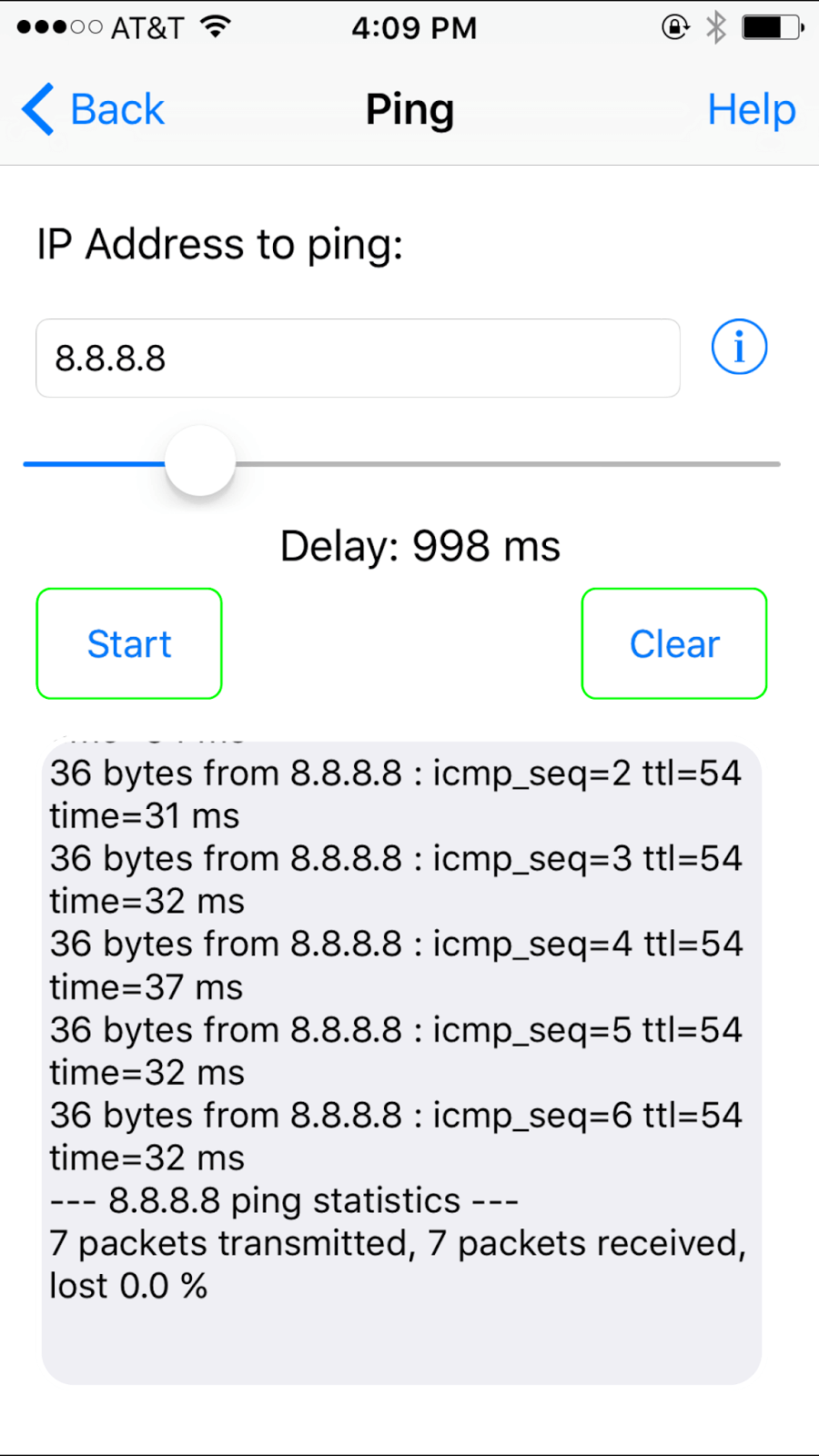
Every packet that gets sent is received, and response times are in the 30-40 ms range (that’s pretty good).
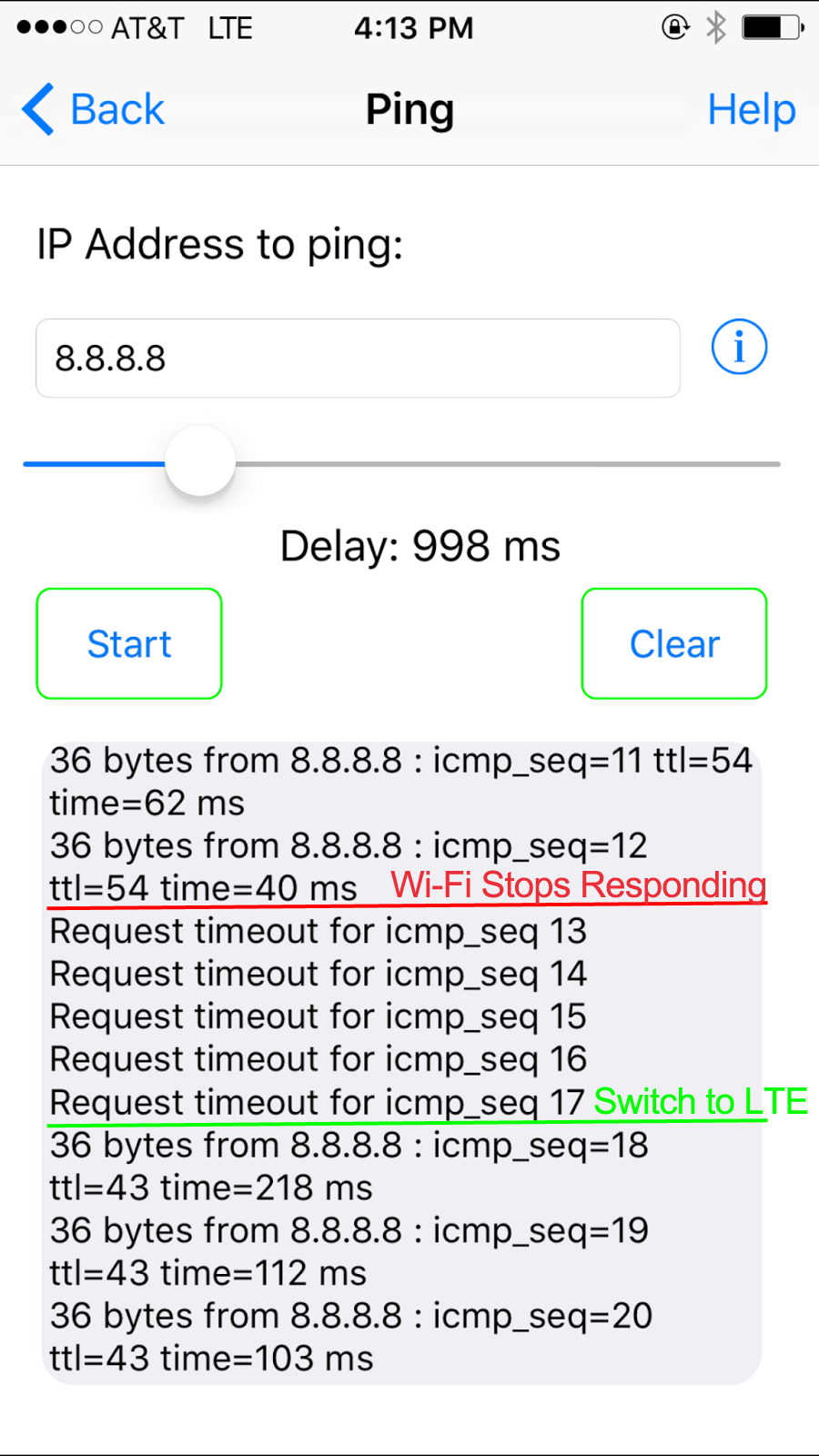
Now we know what a decent Wi-Fi connection looks like on the iPhone. To see what happens when smartphones move out of Wi-Fi range, I simply started walking away from the router and out of our office (while Ping Lite continued to fire off packets).
The Not-So-Pretty Results
Taking a look at the results above, we can see exactly how the iPhone fails to keep us online when switching from Wi-Fi to 4G:
- Take a look at the first couple pings. Wi-Fi is taking longer and longer to respond, showing times like 62 ms and 40 ms. That may not sound so terrible, but then I take one more step, and…
- For 5 messages in a row, none of the pings on Wi-Fi get any response. That’s 5 full seconds without Internet. What’s worse is that many of my apps will not automatically revive themselves, so Internet radio drops off, my Meerkat viewers see the video stream completely disappear, YouTube goes to buffering until I restart the video… you get the idea, I’m off the Internet.
- Finally, the phone gives up on Wi-Fi and switches to mobile broadband. 4G LTE has much higher latencies than Wi-Fi, but at least I’m back online. But, here’s the rub: I still have to manually restart streaming apps, uploads, and downloads to get them to recognize and work over the 4G connection.
When you hit the end of your home or office Wi-Fi, your phone takes 5 or more seconds to realize what’s happened, before giving up. For anyone trying to stream to-or-from their iPhone and Android devices, manage app updates or other downloads/uploads, this is enough to break everything and leave you having to reinitiate apps manually. I think you’ll agree, this is not how your smartphone should work.
Speedify
Get started with Speedify today.
Combine Wi-Fi, 4G/5G cellular, Ethernet, Starlink, and more into one faster, steadier connection. Free to try — no credit card required.
🚀 Speed
Faster uploads and downloads by bonding all your connections at once.
📶 Stability
Automatic failover in under a second when any connection drops.
🔒 Security
AES-256 encryption on every connection, on every network you join.



15M+ downloads worldwide. 75K+ five-star reviews on iOS and Android.