
When Waze Is Slow, Use Speedify to Combine Wi-Fi and 4G/5G Cellular on Your Phone and Never Lose Directions
Waze sticks on searching for network, shows “No network” or says it is offline while you are already driving. Restarting the phone and clearing the Waze cache sometimes help, but the usual cause is the drive itself: you pass through patches where your carrier’s signal is weak or missing, and every gap leaves Waze seconds without data.
Speedify is an app that lets your phone use two internet connections together: Wi-Fi and 4G/5G cellular, or on the road, your own 4G/5G cellular plus a passenger’s phone on a different carrier. The protection needs both connections: on cellular alone, Speedify works as an encrypted VPN and cannot stop that signal from dropping.
Read what follows for the fixes worth trying, and for what using Speedify delivers on a long drive: traffic and hazard alerts that keep arriving when one of your connections fades.
How Waze Helps You When Driving
- Sends regular alerts about the presence of hazards, traffic congestion, and police on your way
- Provides you an estimated time of arrival
- Allows you to open your favorite music app while staying on Waze
- Shows instant change of routes to help you reach the destination in the shortest time
- Lets you change the voice that guides you as you drive
With all these features, you can rest assured that you’ll reach your destination faster than usual. All you need is a stable and fast internet connection to ensure that Waze runs smoothly.
Waze No Network Connection Issues
As with all the apps, Waze can sometimes face issues. Some users have reported network problems with the error message, “unable to connect to a network” or “no network connection.” Some users have reported that the app gets stuck on “searching network” but never really connects.
There might be two reasons behind this. Either the app isn’t working right or there is no strong network in your area.
To fix the Waze app no network connection problems, you can try these options:
- Restart the phone
- Clear the Waze cache
- Delete the app and install it again
If these fixes don’t work, the issue is probably the network. While you drive, your phone hands over from one cell tower to the next and passes through areas where your carrier’s signal is weak, so the speed and the connection come and go.
Since map and location guiding apps need fast internet to work properly, slow connections won’t be able to fully utilize their features. In the worst case, you might even get lost because you were unable to connect the app due to network loss.
What to Do in Case of Waze Network Issues
Still getting the Waze no network connection issue? Have you tried reinstalling the app and nothing worked? The next thing to do is to fix your network:
- Keep driving until the signal improves; Waze reconnects on its own once your phone has data again.
- If a passenger’s phone is on a different carrier, use it as a second connection: where one carrier’s signal is weak, the other’s may be fine. The section below shows how.
When you’re driving, there is no guarantee of a stable connection. Your phone might connect to random Wi-Fi networks as you drive. The problem is, some of them can be unreliable both in terms of the connection speed and security. A hacker on the network could be able to see your phone activity. They might also be able to inject malware into your device.
So you need a way to make the connection on your phone stable and secure: an app that combines two internet connections and encrypts the traffic.
Keep Waze Connected When the Signal Fades with Speedify
Speedify combines multiple networks (Wi-Fi and 4G/5G cellular on a phone) into one more stable connection and encrypts your traffic, so it stays private when the phone joins a random Wi-Fi hotspot on the road.
On its own, a phone uses one connection at a time: when your carrier’s signal fades, Waze waits until the signal comes back.
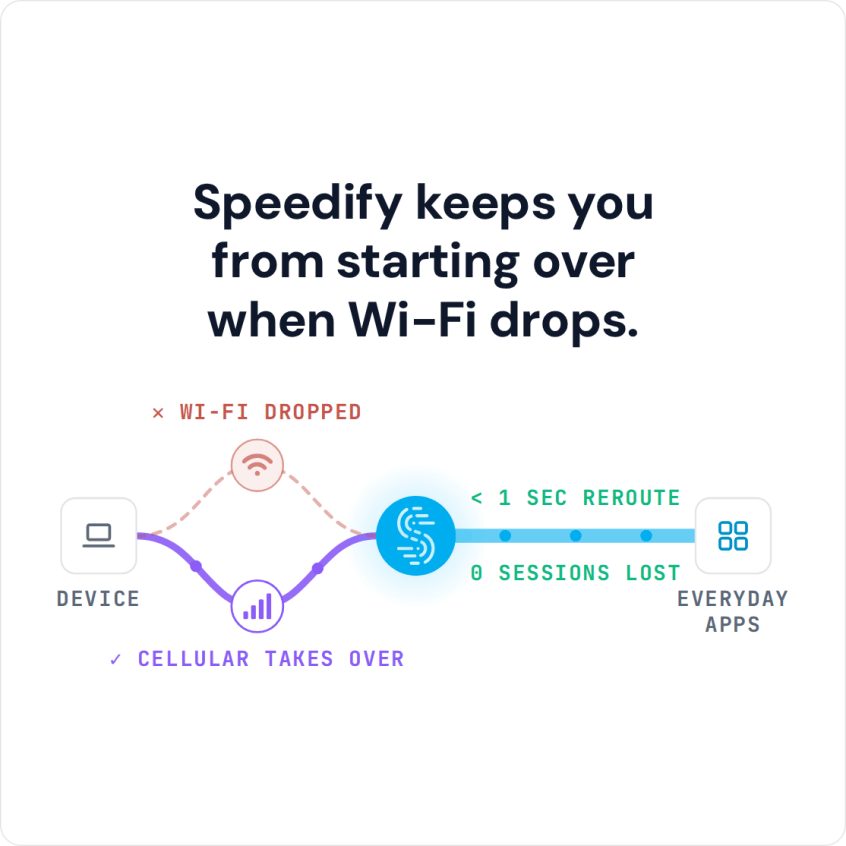
With Speedify, you can combine your Wi-Fi with your 4G/5G cellular connection, so Waze keeps its data when one of them drops. If Google Maps shows the same no network message, see fixing the Google Maps no network connection error.
Keep Waze Online While Driving with a Passenger’s Phone
In a car there is rarely Wi-Fi, so the second connection has to be another phone. With Speedify’s cellular sharing, your phone uses a passenger’s 4G/5G cellular on a different carrier alongside your own, so Waze keeps its data where your carrier drops out. Set it up before you set off:
- Install Speedify on both phones (iPhone or Android).
- Turn on Personal Hotspot on one phone and join it from the other, so both phones are on the same local network. One hotspot is enough.
- In Speedify, go to Settings > Pair & Share. Turn on Sharing on the passenger’s phone and Receiving on the driver’s phone.
- Tap Start by Pairing a Device, pick the other phone under Discovered Devices, and accept the request on the other phone.
- Start the route in Waze. When one carrier drops, Waze keeps its data over the other.
The passenger’s plan has to allow tethering, and shared data counts as hotspot data. Where neither carrier has a signal, no app gets data: for a route with no coverage at all, download the area in Google Maps before you leave. Offline maps guide you as long as the whole route is inside the downloaded area, without live traffic.
Speedify takes a few minutes to set up on iPhone or Android. Try it now!
Speedify
Get started with Speedify today.
Speedify combines Wi-Fi, 4G/5G cellular, Ethernet, Starlink and satellite into one faster, more reliable internet connection. Free to try: 5 GB a month with a free account. No credit card required.
🚀 Speed
Faster uploads and downloads, because Speedify uses all your internet connections at once.
📶 Stability
If one internet connection drops, Speedify moves your traffic to the others in milliseconds.
🔒 Security
AES-256 encryption on every internet connection, on any network you join.



15M+ downloads worldwide. 75K+ five-star reviews on iOS and Android.