
Start IRL Live Streaming on YouTube with Streamlabs
Your Streamlabs overlays and alerts look perfect right up to the second the picture freezes and YouTube chat starts asking whether you are still there. Streamlabs is only as good as the internet connection underneath it, and one cellular signal loses ground every time you round a corner.
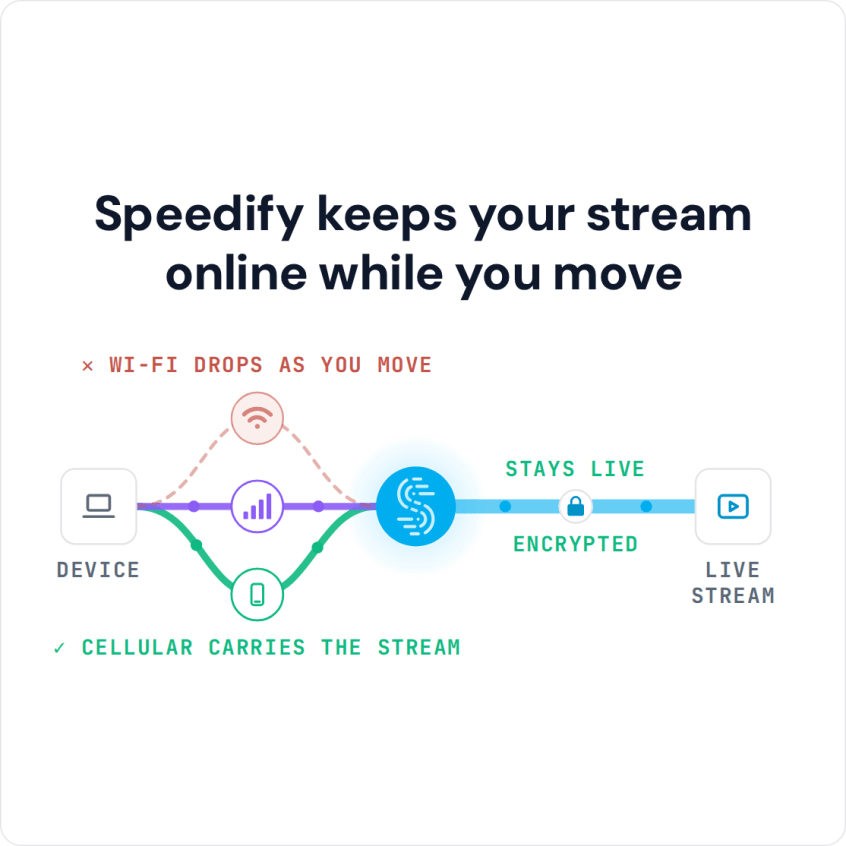
Speedify is an app that carries your traffic over Wi-Fi, 4G/5G cellular, Ethernet, Starlink and satellite internet connections at the same time. Speedify needs at least two connections for that; with one, Speedify works as an encrypted VPN and cannot stop that connection from dropping. What follows is the Streamlabs requirement list and the steps for going live on YouTube, plus the reason to use Speedify with them: an upload that survives a weak cell instead of stalling the stream.
Speedify keeps your stream online while you move
What You Need to Stream Live with Streamlabs to YouTube
Here’s a checklist to live stream IRL to YouTube using Streamlabs:
- camera: a dedicated camera (like a GoPro), the computer webcam or your smartphone’s camera.
- streaming device: Streamlabs runs on Windows and macOS computers and on iOS and Android phones and tablets.
- Streamlabs Desktop or the Streamlabs mobile apps
- stable internet connection: you should have at least 2 connections available from different providers. For example, your home internet / public Wi-Fi and an additional smartphone with a cellular data plan. The idea is to use two connections together at once with Speedify to hit your target bitrate and keep the stream going when one connection drops while live streaming IRL to YouTube using Streamlabs.
Additional accessories, such as external battery packs, dedicated microphones, extra lighting, etc. may be required depending on where you’ll be streaming from.
Step-by-Step Guide to Stream Live with Streamlabs on YouTube
STEP 1: CONNECT ALL AVAILABLE INTERNET SOURCES TO YOUR STREAMING DEVICE
Internet connectivity is what makes or breaks a successful IRL live stream. That’s why it’s important to get it right and use all available connections at once: it helps you avoid issues if one of your connections becomes unstable or drops.
Use one or multiple of the following on your streaming device you’ll be using with Streamlabs:
- wired Ethernet connection (desktop only)
- Wi-Fi
- tethered smartphone(s)
- external USB 5G / 4G LTE cellular adapter(s) (desktop only)
STEP 2: GET STABLE INTERNET BY COMBINING YOUR CONNECTIONS WITH SPEEDIFY
If you don’t have a Speedify subscription yet, you can get it from the Speedify website store, the Apple App Store or the Google Play Store. You can also start with a free Speedify account, which includes 5 GB per month.
Run Speedify and log into your account. All the active internet sources you connected at step 1 should be recognized by Speedify. All you have to do now is choose a server to connect to; the fastest server option usually works best.
STEP 3: CONFIGURE STREAMLABS
Follow the instructions on the Streamlabs website to get started for your IRL live streaming session to YouTube. Streaming to Twitch instead? See how to IRL stream on Twitch with Streamlabs.
STEP 4: FINAL CHECK, GO LIVE
Before going live with your stream, make sure:
- you are in Streamlabs and are able to see the video you want to broadcast in the preview window
- audio is working
- Speedify is running, and it combines the internet sources you’re connected to.
Whenever you’re ready, just start the IRL live stream and broadcast to your YouTube audience.
The good thing about Speedify is that it prioritizes your IRL live streams over other internet traffic, which cuts down on low quality and choppy video, buffering and, with two or more connections, disconnects from the streaming server.
Best Practice for Streamlabs Live Streaming to YouTube: Use Speedify for Fast and Stable Internet
Whenever you stream live with Streamlabs to YouTube, the attention should be on your content, not on the internet connection, your video quality or whether the stream is lagging, buffering or dropping.
This is where Speedify helps. Speedify can combine multiple internet sources into one connection for more stable and secure live streaming, video calling, online gaming and web browsing.
With Speedify, your IRL live streams will be prioritized over other types of traffic on your streaming device. Your YouTube live stream gets bandwidth first, even if your computer or phone decides it’s time to update its apps or run a backup job.
Share your experiences with live streaming IRL on YouTube using Streamlabs with Speedify on Twitter, Facebook or Instagram!
Speedify
Get started with Speedify today.
Speedify combines Wi-Fi, 4G/5G cellular, Ethernet, Starlink and satellite into one faster, more reliable internet connection. Free to try: 5 GB a month with a free account. No credit card required.
🚀 Speed
Faster uploads and downloads, because Speedify uses all your internet connections at once.
📶 Stability
If one internet connection drops, Speedify moves your traffic to the others in milliseconds.
🔒 Security
AES-256 encryption on every internet connection, on any network you join.



15M+ downloads worldwide. 75K+ five-star reviews on iOS and Android.