
Lessons Learned on Running a Reliable Live Stream with Starlink
SpaceX’s Starlink Internet is powering more and more households around the world. Its main selling point: the ability to get fast broadband Internet connectivity in remote areas that are underserved by traditional ISPs. You can get a Starlink to have Internet available on the move, in your RV, boat or whatever you may call “home.”
Since it’s a satellite based system, there are some inherent issues that will come up upon using Starlink:
- Significantly higher latency than fiber optics, cable or even DSL;
- Variable connectivity and Internet disconnects.
A good Internet connection should not only be fast, but also reliable - especially if you’re engaging in activities that require a steady connection - like live streaming, remote work, online gaming or big file uploads / downloads. You don’t want to be disconnected from the Internet if there’s a storm or if Starlink is just experiencing an outage.
Here at Speedify we’re all about reliable Internet, and as we’ve seen a growing number of people using our app to help with their Starlink Internet, we needed to own one for ourselves, to understand how it works compared to other types of connections. And also, to test and tweak the Speedify app so it’s optimized for Starlink users.
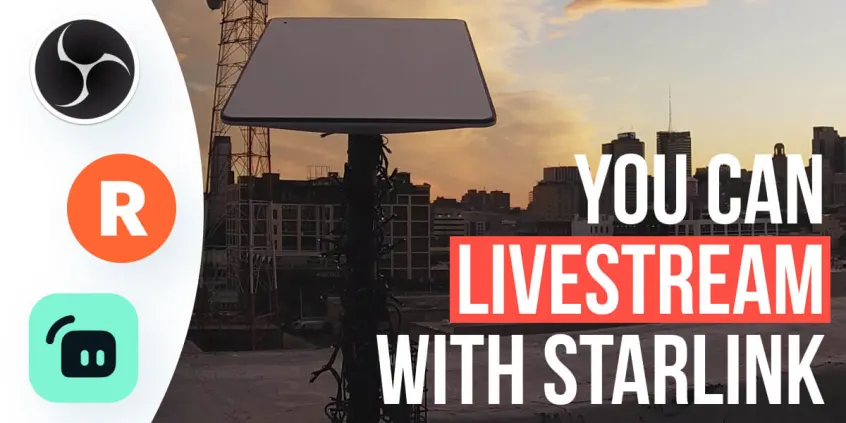
We are currently using the Starlink for RV which we mounted on our office roof in Philadelphia. We then started running a 24/7 live stream using our Starlink Internet and another connection, so we can test how Speedify handles the various conditions.
Should you get a second Starlink?
Is Starlink giving you great download speeds but weak uploads and random dropouts? Even with 100+ Mbps Starlink download speeds, many users get stuck with under 25 Mbps uploads, unstable connection issues.
A powerful way to upgrade your Starlink speed and stability is to run two Starlink dishes. But to actually combine both Starlink connections into one faster, stronger internet link, you need connection bonding software like Speedify.
Speedify bonds your Starlink dishes for more upload and download bandwidth, smoother Zoom and Teams calls, and far more reliable livestreams. And when one dish drops, as Starlink often does, the other instantly takes over without lag or interruptions.
If you want more reliable, faster Starlink uploads and downloads, bonding multiple Starlink connections with Speedify is the most effective way to level up your satellite internet.
Get instant Speedify alerts about Starlink interruptions and updates

Use Speedify to increase your upload and download speeds: combine internet connection sources like Wi-Fi, 4G, 5G, Starlink and wired broadband

Combine Wi-Fi, 4G, 5G, Starlink and wired broadband to fix slow upload and download speeds
Speedify is the only app that seamlessly combines all of your connections, including Wi-Fi, 4G, 5G, Ethernet, and Starlink, into one stronger connection to keep you online and secure.
In most cases, Speedify will automatically detect and start using any available Internet connections on your device while intelligently distributing your online traffic between them for optimal performance. If you need help we have quick start guides available for most common set ups.

Combine personal hotspots for better upload and download speeds
Speedify's Pair & Share feature enables you to connect to multiple hotspots at the same time and wirelessly share LTE, 4G, and 5G cellular connections back and forth between multiple Speedify users on the same local network to create a faster, more reliable connection for everyone.
For the first time, it's possible to share cellular data between multiple devices, including PCs, Macs, iPhones and Androids. Use multiple phones as hotspots for internet access and get increased bandwidth and mobile failover for all paired devices.
Use Speedify to combine...
Combine these connections on:



What We Learned Running a 24/7 Starlink Live Stream
- We started running a live stream - read more about our setup here - using Starlink to test streaming connectivity with our office Comcast connection. We used Speedify on the live streaming PC to combine these two. This helped us make Speedify better handle latency and packet loss for Starlink Internet.
- After 3 months, to better simulate a realistic user experience, as not everybody has a secondary connection like Comcast, we switched to a weaker network that maxes out at 1.5 Mbps upload bandwidth, to simulate an old DSL connection or a low signal strength cellular data connection.
- In order to have a reliable live stream that doesn’t disconnect, we had to lower the streaming resolution, bitrate and a few other settings - read below for more details.
Lessons Learned - Stream Settings for a Reliable Starlink Live Stream
Starlink is highly variable in terms of bandwidth and latency. Some of the time it’s capable of a high quality 1080p live stream, but other times it can’t support more than 1-2 Mb upload. And intermittently it disconnects entirely - our testing shows that we’d have Starlink Internet issues on average about 10-15 minutes per hour. That’s why it’s important to have a second connection available and combine it with Starlink.
But even with 2 connections, the stream can go down a lot if your secondary connection isn’t strong enough to power the live stream on its own when Starlink inevitably goes out. Here’s what we tried in order to solve this:
- Lowering the bitrate setting from 5000 Kbps down to 1500 Kbps
- Lowering the streaming resolution from 1080p to 720p
- On OBS auto-reconnect setting, attempt 200 times with minimum delay
- Trying OBS’s dynamic bitrate setting, which is still in beta
- Twitch Disconnect Protection setting - compatible with OBS when streaming directly to Twitch, but not while we’re using Restream (so we can also broadcast to YouTube).
With the above, we have managed to run a fairly stable 720p livestream powered by Starlink and our 1-2 Mbps secondary connection - you can check out more tech details related to bandwidth, latency, jitter and connection MOS scores in our Starlink Streaming Performance Google spreadsheet, which we update regularly.

Lessons Learned - Hardware and Software Tweaks for Better Starlink Live Streaming Performance
Apart from the Internet connectivity related issues you might be facing when running a 24/7 live stream on your Starlink, we’ve been facing other challenges as well - high memory and CPU usage on the streaming computer, as well as OBS UI crashes. These mainly stem from our live stream setup, as we’re trying to do a lot at once:
- interactive commands for changing scenes and playing animations,
- running Python scripts to take photos for time lapses and
- sending real-time Speedify data.
To fix this, we simplified the stream setup - having fewer moving parts helps it be more manageable and reliable. We cut down some of the interactive commands, OBS scenes, and animations, as well as tweaking our Python scripts.
There’s also another issue we’ve been seeing: power outages. When the power goes down, the stream goes down. So, do plan for a backup power source if you want to remain live until the power is back.
Conclusion: Be Prepared with a Secondary Connection When You’re Live Streaming with Starlink
Running a 1080p live stream using Starlink Internet is possible. But it will inevitably disconnect. The question is: when?
Given the variability of Starlink when it comes to bandwidth, latency and packet loss, it is a must that you use a secondary connection along with Starlink when you’re live streaming, video calling, uploading or downloading files, or working remotely. You just can’t predict when the Internet will go down, so, it’s better to be prepared. Speedify can help to combine your Starlink and a secondary connection together so you and your viewers won’t even know it happened.
One final thing: take into account that your secondary connection must be able to sustain your live stream on its own for a while, until Starlink’s performance is back to normal. So, depending on the bandwidth you have available, make sure to tweak the bitrate and stream resolution, so your viewers won’t see a poor video quality.


Speed
Stability
Security
Speedify devs love talking tech on YouTube, Tiktok, and Instagram!
Alex Gizis and the Speedify devs discuss and explain technology including Starlink satellites, Wi-Fi 7 routers, Apple networking features, fiber optics, broadband internet, 5G mobile networks, AI, networking protocols, and much more. Follow Speedify on YouTube, TikTok, Instagram, and LinkedIn!
Alex and the Speedify team are always exploring the latest in networking and security technology—like 5G, 6G, WiFi 7, laser and satellite internet—and sharing it in new discussion content across YouTube, TikTok, Instagram, and LinkedIn every week.
Got a tech question? Let's go deeper! Pop into Speedify Office Hours live every Wednesday at 10 AM Eastern. Speedify CEO Alex Gizis and our network engineers are standing by to break down your questions about networks, tech updates, and Speedify features.
