
Speedify Lets You Use 2 Personal Hotspots on a Windows PC for Faster Uploads and Downloads
Want faster upload and download speeds from two phones at once on your Windows PC? Run both personal hotspots at the same time. If you have Wi-Fi and only one phone, see using Wi-Fi and 5G together on Windows.
Speedify is an app that combines two or more internet connections at once, such as the 4G/5G cellular from two different phones, so you get faster uploads and downloads and stay online if one hotspot drops out.
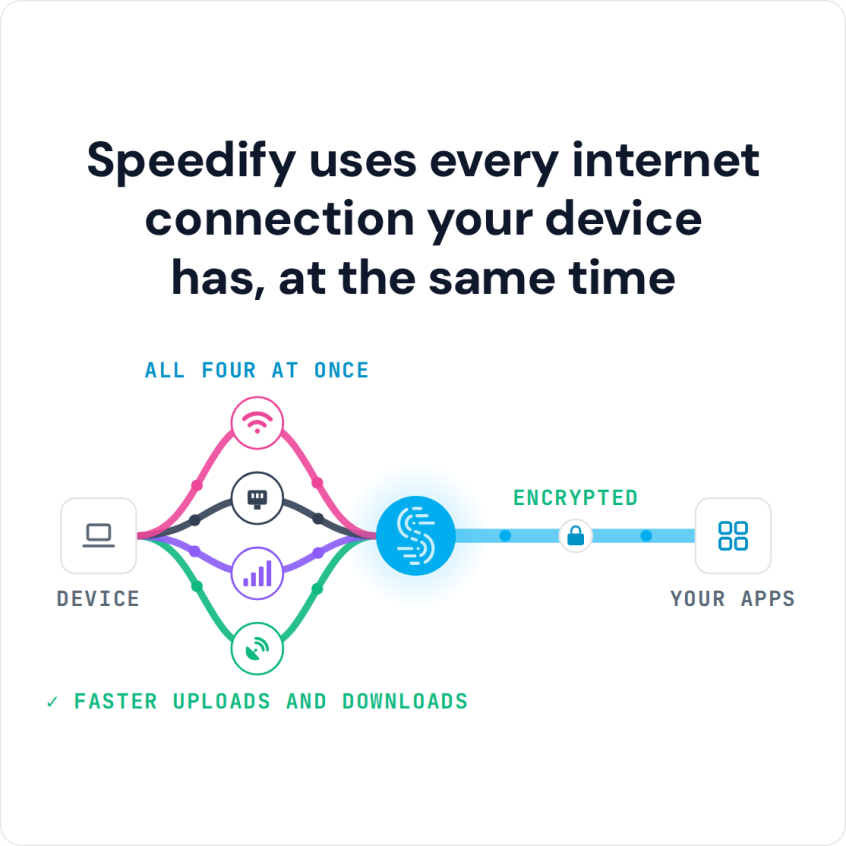
Speedify uses every internet connection your device has, at the same time
How do I use WiFi and 4G/5G cellular at the same time with Speedify?

Pick your two internet connections and your device below and we'll take you to the step-by-step setup guide.


Why You Need Speedify: Windows Cannot Use Two Personal Hotspots at Once
Windows manages multiple network interfaces through adapter metric priority in Control Panel → Network and Internet → Network Connections. When two personal hotspots are both active and visible to a Windows PC, Windows connects to one and ignores the other. The second hotspot carries zero traffic until the first one fails or is manually switched.
The limit is built into how Windows handles routing. Windows was not designed to split traffic across two separate connections with different IP addresses at the same time, so a Windows PC with two phones tethered is no faster than a PC with one.
Common workarounds that also fall short:
- Switching between hotspots manually: Requires disconnecting from one network and connecting to another, which causes a full connection drop every time. Not a solution for active video calls or uploads.
- Using one hotspot via Wi-Fi and one via USB tethering: Windows still routes all traffic through whichever interface has higher priority (lower metric). The second interface sits idle.
- Windows Network Adapter Metric: Sets a preference for which connection Windows uses first, but does not combine two connections. Windows only switches between them when one fails.
How Speedify Combines Two Personal Hotspots on a Windows PC
Speedify combines two personal hotspots (or any mix of personal hotspots, Wi-Fi, Starlink, and wired Ethernet) into a single faster and more reliable connection on a Windows PC. Speedify’s technology for combining internet connections distributes traffic across both hotspots at the packet level, so both phones are actively carrying data at the same time.
Speedify Combines the Download and Upload Speeds of Both Personal Hotspots: Instead of being capped by one phone’s 4G/5G connection, a Windows PC running Speedify gets the combined throughput of both hotspots. A 40 Mbps hotspot from one carrier and a 50 Mbps hotspot from a second carrier can deliver close to 90 Mbps of usable download speed. Upload speeds, the bottleneck for video calls, live streaming, and large file transfers, see the same improvement.
Speedify Provides Automatic Failover Between Two Personal Hotspots: Cellular coverage varies by location. One carrier may have strong signal while another drops to one bar. With two hotspots combined by Speedify, if one personal hotspot loses signal or drops out, Speedify’s automatic failover technology shifts all traffic to the second hotspot instantly, without dropping a Zoom call, interrupting a file upload, or pausing a download.
Speedify Balances Traffic Across Carriers in Real Time: Speedify continuously monitors the speed and latency of each personal hotspot and distributes traffic accordingly. If one carrier slows down during peak hours, Speedify automatically sends more traffic through the faster hotspot. Speedify’s proprietary protocol handles this dynamically, with no manual configuration required.
Speedify Encrypts All Traffic Across Both Personal Hotspots: Speedify also encrypts all traffic flowing across both personal hotspot connections, like a VPN. Public and shared cellular networks carry risks, and encrypting all traffic protects passwords, banking sessions, and sensitive communications regardless of which carrier is active.
Real-World Download and Upload Speeds: What to Expect with Two Personal Hotspots on a Windows PC
Speed improvements depend on each carrier’s local coverage, but here are realistic scenarios for Windows PC users:
| Scenario | Without Speedify | With Speedify (Two Hotspots Combined) |
|---|---|---|
| iPhone 5G hotspot (80 Mbps) + Android 5G hotspot (60 Mbps) | 80 Mbps max (one hotspot active) | ~130 to 140 Mbps combined |
| Two 4G LTE hotspots (30 Mbps up each) | 30 Mbps upload max | ~55 to 60 Mbps upload combined |
| One hotspot loses cellular signal mid-video call | Call drops or freezes | Call continues on the second hotspot without interruption |
| Two hotspots from different carriers in a low-coverage area | Dependent on whichever carrier has better signal | Combined speed of both carriers simultaneously |
How to Use Two Personal Hotspots on a Windows PC with Speedify
Setting up Speedify to combine two personal hotspots on a Windows PC takes less than five minutes:
- Enable Personal Hotspot on the first phone: on an iPhone, go to Settings → Personal Hotspot; on Android, go to Settings → Hotspot & Tethering.
- Connect the first hotspot to the PC via Wi-Fi as normal.
- Connect the second phone to the PC via USB tethering: plug the second iPhone or Android phone into the PC with a USB cable. Windows recognizes the tethered connection as a separate network interface. iPhone USB tethering on Windows requires iTunes (or the Apple Devices app) to be installed for the driver to load automatically. For one iPhone plus one Android, see tethering both phone types at once on Windows.
- Download and install Speedify on the PC (available for Windows, macOS, iOS, Android, Linux, and OpenWrt).
- Open Speedify and connect. Speedify automatically detects both active hotspot connections and begins combining them. Both connections appear in the Speedify dashboard with real-time speed and status for each. A USB-tethered phone starts at the Secondary priority; set it to Primary in Speedify to use both hotspots all the time.
When to Use Two Personal Hotspots Together on a Windows PC
Remote Workers and Freelancers Without Fixed Broadband: Some Windows PC users work only on cellular, with no office and no home broadband. Combining two personal hotspots from different carriers with Speedify gives remote workers a fast, redundant connection for Zoom, Teams, Google Meet, and cloud applications without depending on any single carrier.
Content Creators Uploading Large Files: Upload speed is the limiting factor when sending 4K video files, raw photo libraries, or large project files to cloud storage or clients. Combining two personal hotspots adds the second phone’s upload bandwidth to the first. Speedify’s Streaming Mode, the default mode, prioritizes live video broadcasting.
Windows PC Users in Areas with Weak Single-Carrier Coverage: In rural areas, stadiums, conference venues, or anywhere one carrier has weak signal, combining two hotspots from different carriers gives a Windows PC the bandwidth of both. Speedify routes more traffic through whichever carrier is performing better at any given moment.
Digital Nomads and Frequent Travelers: Travelers who carry multiple SIM cards or international data eSIMs can combine two hotspots from local carriers for fast, reliable connectivity in hotels, airports, cafés, and co-working spaces, without relying on shared Wi-Fi networks that may be slow or insecure.
Live Event Coverage and Field Journalism: Reporters, photographers, and video teams covering events from the field need reliable upload connections. Combining two personal hotspots on a Windows PC with Speedify provides the upload bandwidth and carrier redundancy needed to send high-resolution photos and live video from the field.
Speedify vs. Other Options for Using Two Personal Hotspots on a Windows PC
| Solution | Combines Two Personal Hotspots? | Works on Windows Natively? | Automatic Failover? | Faster Downloads and Uploads? | Encrypted Traffic? |
|---|---|---|---|---|---|
| Speedify | ✅ Yes | ✅ Yes | ✅ Yes | ✅ Yes | ✅ Yes |
| Windows Network Adapter Priority | ❌ No (switches only) | ✅ Yes | ❌ No (manual) | ❌ No | ❌ No |
| Manual hotspot switching | ❌ No | ✅ Yes | ❌ No | ❌ No | ❌ No |
| Other VPNs | ❌ No | ✅ Yes | ❌ No | ❌ No (often slower) | ✅ Yes |
Frequently Asked Questions About Using Two Personal Hotspots on a Windows PC
Can a Windows PC connect to two personal hotspots at the same time without Speedify?
No. Windows connects to one hotspot at a time based on adapter metric priority. Without Speedify, a second hotspot connected via USB tethering or a second network adapter sits idle and carries no active traffic.
Does combining two personal hotspots on a Windows PC require special hardware?
Two phones with active hotspot data plans are required. Connecting both to a Windows PC at the same time requires two separate network interfaces, for example Wi-Fi for the first hotspot and USB tethering for the second. No additional hardware beyond a standard USB cable is needed.
Can two hotspots from the same carrier be combined with Speedify?
Yes. Speedify combines any two available connections regardless of carrier. Using two hotspots from the same carrier still provides faster download and upload speeds, though using two different carriers also adds coverage redundancy.
Can Speedify combine a personal hotspot with Wi-Fi or Starlink at the same time?
Yes. Speedify combines any mix of available connections on a Windows PC: two personal hotspots, one hotspot and one Wi-Fi network, a hotspot and a Starlink connection, or any other combination. Speedify combines them the same way whatever the connection type.
Does iPhone USB tethering work on Windows without extra software?
iPhone USB tethering on Windows requires the Apple Devices app (or iTunes) to be installed so that Windows can load the correct driver. Android USB tethering works out of the box on Windows 10 and Windows 11 without additional software.
Two phones, two carriers, one Windows PC: Speedify combines both personal hotspots into a single faster and more reliable connection with encrypted traffic and automatic failover, running quietly in the background.
Download Speedify and start using two personal hotspots on a Windows PC today.
Speedify
Get started with Speedify today.
Speedify combines Wi-Fi, 4G/5G cellular, Ethernet, Starlink and satellite into one faster, more reliable internet connection. Free to try: 5 GB a month with a free account. No credit card required.
🚀 Speed
Faster uploads and downloads, because Speedify uses all your internet connections at once.
📶 Stability
If one internet connection drops, Speedify moves your traffic to the others in milliseconds.
🔒 Security
AES-256 encryption on every internet connection, on any network you join.



15M+ downloads worldwide. 75K+ five-star reviews on iOS and Android.