
VPN Connection Issues with Private Internet Access? Get an Unbreakable VPN Connection by Combining Starlink, Wi-Fi, 4G, 5G, and DSL with Speedify
Nothing loads, even though Private Internet Access (PIA) says it is connected, or PIA VPN is not connecting at all. On school or coffee shop Wi-Fi, the network’s sign-in page and the Private Internet Access app get in each other’s way, and the shared hotspot is usually overloaded on top of that. Speedify, an app that combines internet connections and encrypts your traffic like a VPN, puts that hotspot and your phone’s 4G/5G cellular to work at the same time, so a struggling public network does not leave you offline. If PIA never gets past the connecting screen, see why Private Internet Access gets stuck on connecting.
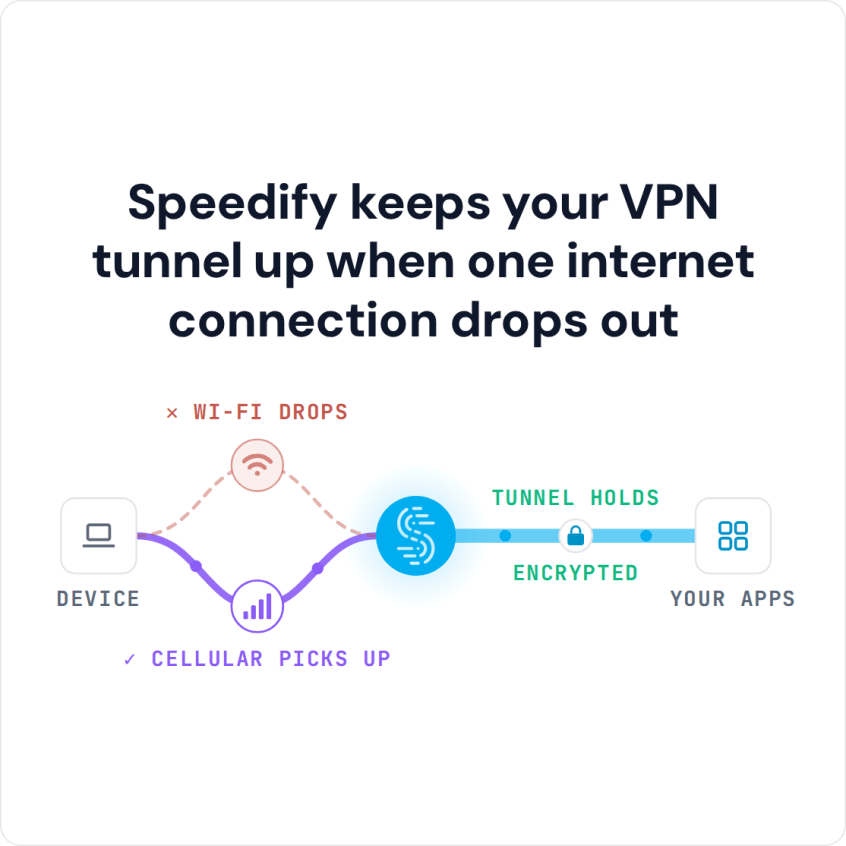
Speedify keeps your VPN tunnel up when one internet connection drops out
You will see why Private Internet Access fails on public Wi-Fi and how Speedify keeps you online. Speedify’s failover needs a second internet connection, such as your phone’s 4G/5G cellular next to the Wi-Fi; on the public Wi-Fi alone, Speedify works as an encrypted VPN and can be a little slower.
Why PIA VPN Doesn’t Connect to Public Wi-Fi
PIA VPN users report connection issues on public Wi-Fi networks, such as school networks or Starbucks: the device seems connected, but nothing loads when you open a website.
The usual fix is to turn PIA VPN off, which leaves your traffic unencrypted on public Wi-Fi networks, where it is easier for others to snoop.
This happens because of the way VPNs and captive portals (Wi-Fi sign-in pages) work. A VPN sends all of your traffic through an encrypted tunnel to a server in the cloud and blocks traffic outside that tunnel. The network will not let the tunnel through until you sign in, and the sign-in page cannot load inside the tunnel, so you end up with neither.
Troubleshooting PIA VPN Connection Problems when on Public Wi-Fi
There are different types of captive portal setups. A few captive portals accept connections on specific ports, so an advanced user who knows the port can reach the login page while PIA VPN is running.
But most login pages have rules that block outside connections, like the one from your PIA VPN server. In that case, if you are an advanced user, you can try some of the solutions suggested here. Also, check out this interesting thread on the OpenWRT forum.
PIA Not Connecting on iPhone, Android or Mobile Data
On an iPhone, iPad or Android phone, PIA needs the VPN configuration you allowed when you installed it, and it cannot share the phone with another VPN app: two VPN apps on one device each try to route all traffic, so turn the other one off, Speedify included. If PIA fails on Wi-Fi but connects on 4G/5G cellular, the Wi-Fi network is the cause, usually its sign-in page, as explained above.
Remember to Stay Safe when Using Public Wi-Fi: Use a VPN
The best way to keep your information safe while accessing a public Wi-Fi is by using a VPN. A VPN encrypts your data so if there is someone monitoring the network, they won’t be able to read the information you’re sending.
But what if your VPN (such as PIA VPN) is not working on public Wi-Fi? Here are a number of ways in which you can minimize public Wi-Fi security risks:
- Don’t allow your device to auto-connect to open Wi-Fi networks
- Don’t access http websites. Only access https websites as they are more secure
- Log out of your accounts when you are done using them
On public Wi-Fi, PIA VPN runs into two problems:
- you may have to disconnect it while accessing the captive portals (Wi-Fi login pages), otherwise you won’t be able to access them.
- Like any VPN, PIA VPN can make the connection slower, and public Wi-Fi is often slow to begin with, so using PIA VPN on it becomes difficult.
Try Another VPN to Stay Safe when PIA VPN Doesn’t Connect on Public Wi-Fi
Speedify can tell a direct internet connection from one that requires a login page. When you join a Wi-Fi hotspot with a login page, Speedify’s captive portal assist takes over:
- Speedify will show you a notification asking you if you want to login.
- In the meantime, your other online activities (like Microsoft Teams or Slack calls, streaming and gaming) keep working over the cellular connection, protected by Speedify.
- If you click the notification (or the message in the app), Speedify will pop up the login screen in a window.
- After you sign in, Speedify starts using the Wi-Fi connection right away.
Speedify uses its own technology to combine multiple Internet connections at once. In the example above, it uses both Wi-Fi and 4G/5G cellular on your phone or computer, so while the Wi-Fi login page is open, Speedify moves traffic to the other connections until you sign in.
If the Wi-Fi asks you to sign in again every hour or so, Speedify’s failover protection moves your traffic to the other working connections, so gaming, streaming and calls are not interrupted.
If Private Internet Access keeps failing on public Wi-Fi, try Speedify for free: a free account includes 5 GB per month on Windows, macOS, iOS and Android.
Speedify
Get started with Speedify today.
Speedify combines Wi-Fi, 4G/5G cellular, Ethernet, Starlink and satellite into one faster, more reliable internet connection. Free to try: 5 GB a month with a free account. No credit card required.
🚀 Speed
Faster uploads and downloads, because Speedify uses all your internet connections at once.
📶 Stability
If one internet connection drops, Speedify moves your traffic to the others in milliseconds.
🔒 Security
AES-256 encryption on every internet connection, on any network you join.



15M+ downloads worldwide. 75K+ five-star reviews on iOS and Android.