
Is Counter-Strike Down or Is It Your Connection?
When Counter-Strike 2 sits on “Connecting to the Counter-Strike network…”, keeps disconnecting you in the middle of a match or lags, the cause is usually one of five things: a Steam or Valve server problem, your router or Wi-Fi, packet loss on the route to the game server, a firewall or antivirus blocking Steam, or a matchmaking setting that sends you to distant servers. Counter-Strike: Global Offensive (CS:GO) became Counter-Strike 2 (CS2) in September 2023, so the fixes for the old “Connecting to the CS:GO network” message now apply to CS2.
Speedify is an app that carries your internet traffic over Wi-Fi, 4G/5G cellular, Ethernet, Starlink and satellite internet connections simultaneously, so one slow path cannot decide the round. Speedify can only keep you online through a drop when it has two or more internet connections to work with, for example Wi-Fi plus your phone’s 4G/5G cellular. On a single connection, Speedify works as an encrypted VPN and cannot stop that connection from dropping. Speedify cannot shorten the route to the game server, but with two or more connections in Redundant Mode your ping follows whichever connection is faster at that moment. Read on for the checks to run first, then how Speedify keeps a CS2 match connected.
Why CS2 Is Not Connecting to the Network or Keeps Disconnecting
Counter-Strike players regularly report being disconnected from the game in the middle of a match, or not getting into one at all. While CS2 signs in to Valve’s matchmaking service, it shows “Connecting to the Counter-Strike network…”. That message normally clears within seconds. When it stays, or matches keep dropping, the fault is either on Valve’s side or on yours.
Start with Valve’s side. Check Steam’s server status for CS2 on steamstat.us, an unofficial tracker that shows whether the Counter-Strike game coordinator and Steam sign-in are up. If they are down, wait: nothing on your computer fixes a Valve outage.
If Steam is up, the problem is most likely your own internet connection. Online games react to every drop in an unreliable internet connection. Even though the contract with your ISP states that you should have a certain speed and uptime, things are not always like that. A short outage on the ISP’s side, Wi-Fi interference or packet loss on the line is enough to make CS2 lag or drop you from a match.
How to Fix CS2 Connection Problems, Lag Spikes and Packet Loss
- Restart CS2 and Steam properly: quit the game, then choose Steam > Exit (closing the Steam window only minimizes it), sign back in and check that you show as Online. A disconnect with the reason “No Steam logon” usually points to a lost Steam session, and a fresh sign-in is the first fix.
- Verify the game files: in your Steam Library, right click Counter-Strike 2, choose Properties, open the Installed Files tab and click Verify integrity of game files.
- Plug the PC into the router with an Ethernet cable. Wi-Fi interference and distance from the router are common causes of packet loss and lag spikes at home.
- Restart the router and modem: unplug them for a minute, plug them back in, and pause big downloads, cloud backups and video streams on the same internet connection while you play.
- Check the firewall and antivirus: allow Steam and Counter-Strike 2 through Windows Firewall and any security suite. Steam needs specific ports open, and Valve’s support page warns that many university and business networks block them.
- Check the matchmaking ping limit: in CS2, Settings > Game > Max Acceptable Matchmaking Ping limits which data centers the matchmaker can place you in. Lower it if your ping is high. If CS2 says it failed to locate official game servers with acceptable ping, the limit is too low for your location, so raise it.
- Watch the telemetry HUD: the net_graph command from CS:GO does not work in CS2. Turn on Settings > Game > Telemetry to see your ping and a Network Problems readout, which tells a network problem apart from a slow PC. Settings > Game > Buffering to smooth over packet loss / jitter can hide small losses, at the cost of extra latency.
Keep a CS2 Match Connected with a Second Internet Connection
When you play Counter-Strike on your computer, Speedify helps when the problem is an unreliable internet connection.
By default, computers only connect to the internet through one connection at a time. You are either connected through a cellular signal, through Wi-Fi, or through Ethernet. Speedify allows your device to connect to the internet using multiple internet connections simultaneously, so packet loss or a drop on one of them does not have to stall the game.
CS2 runs on a PC, so the second internet connection can be a second Wi-Fi network, your phone’s 4G/5G cellular shared over USB or Personal Hotspot, or a 4G/5G USB modem.
Speedify also has auto failover. When one of your connections becomes weak or spotty, Speedify moves all the data to the working connection in milliseconds and keeps the same public IP address, so the game server does not see a new address. Once the other connection is available again, Speedify automatically adds it back into the mix.
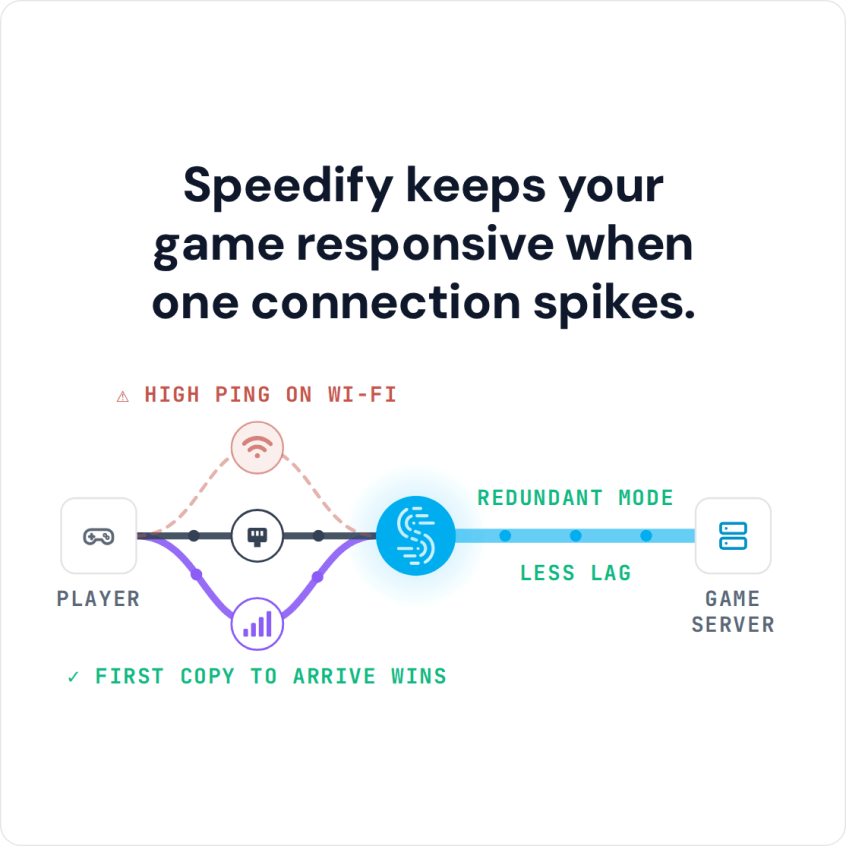
Speedify also detects lost packets and resends them, and with two internet connections it can send them over the other one. If packet loss is still the problem, set Speedify to Redundant Mode: it sends every packet over both internet connections at once and uses the copy that arrives first, so your ping follows the faster connection and the game stays steady while one connection is losing packets. Redundant Mode uses more data.
Fix CS2 Connection Problems at School or at Work
Many university and business networks block the ports Steam needs, according to Valve’s support page. Speedify encrypts all traffic from your device, like a VPN. On a restricted network such as a school or workplace, the network then sees only an encrypted connection to a Speedify server, not the game, so you may be able to play Counter-Strike 2 while running Speedify. Check your school’s or employer’s rules first; some networks block VPN connections too.
To keep CS2 connected when one internet connection drops or loses packets, download Speedify and give it a second internet connection.
Speedify
Get started with Speedify today.
Speedify combines Wi-Fi, 4G/5G cellular, Ethernet, Starlink and satellite into one faster, more reliable internet connection. Free to try: 5 GB a month with a free account. No credit card required.
🚀 Speed
Faster uploads and downloads, because Speedify uses all your internet connections at once.
📶 Stability
If one internet connection drops, Speedify moves your traffic to the others in milliseconds.
🔒 Security
AES-256 encryption on every internet connection, on any network you join.



15M+ downloads worldwide. 75K+ five-star reviews on iOS and Android.