
Make Sure You’ve Got a Stable Internet Connection for Google Maps
Google Maps flashes a no network connection error halfway to somewhere you have never been, and the blue route disappears. On back roads and in parking garages the signal thins out, and Google Maps needs live data for turn-by-turn directions, so the moment your internet connection drops the guidance stops too.
Speedify is an app that keeps a phone on Wi-Fi and 4G/5G cellular data at the same time, and a computer on wired Ethernet, Starlink and other internet connections too.
What follows walks through clearing the no network connection error, and what using Speedify means on the road: directions that keep updating instead of vanishing mid-journey.
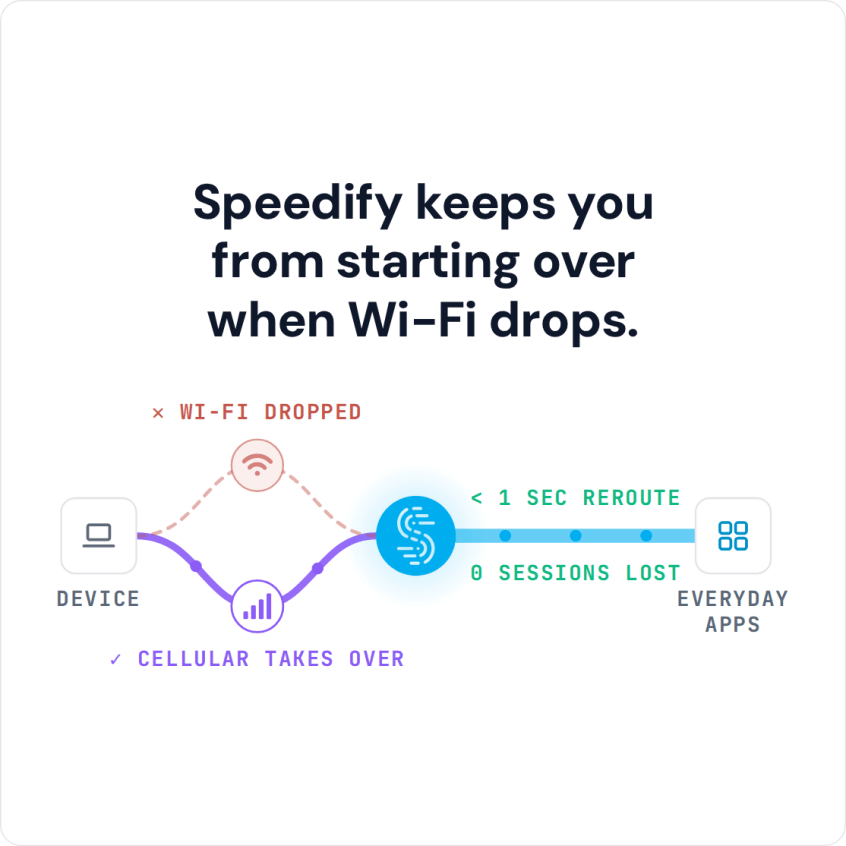
Speedify keeps you from starting over when Wi-Fi drops.
- give you real-time traffic information
- help you find the best route to your destination
- guide you using turn-by-turn navigation so you will never miss that turn!
- offer food suggestions, places to go, and the best spots in town!
All good and dandy. But have you seen what happens when you travel to a place where internet signal isn’t too great? Google Maps is convenient if there’s a stable internet connection! In this article, we’ll help you find solutions to avoid the Google Maps “No Network Connection” problems.
Google Maps Not Working? Staying Online Is a Must!
If you’re traveling off the grid, sometimes the cell signal isn’t so good. Would you rather go back to the old-school map system rather than finding a solution to get back online? Everything runs through an internet connection nowadays, even Google Maps!
Imagine this: you’re going for a hike. The sight is surreal, the air is fresh, the trek is good, but your cell signal is down. Yes, we’ve all read stories of people getting lost, so you wouldn’t want that! Did you know that approximately 160 visitors per year get lost while visiting national parks?
So how can we make our travels safer? Most important is not to get lost in the first place! Did you know that Google Maps almost completely plotted the places in the world? Google Maps helps you avoid getting lost in the woods or burning more gas than needed by making the right turns!
Maps Not Working? How to Solve the Google Maps No Network Connection Error
When things go wrong, here’s what you need to do to fix the “no network connection” situation:
- If you’re connecting to the Internet using a slow or non-working WiFi, try to connect to another hotspot. Smartphones are not good in letting go of a bad WiFi connection.
- Before getting to a remote area, check your network operator’s coverage. See Cellular Tower and Signal Map to see if the place you’re going to has good cell signal.
- Download areas and navigate offline on Google Maps. If you’re driving, this will not show you the traffic levels.
- Always be ready when going to remote areas. See this helpful How to Go Off-Grid Checklist guide.
- Bring an extra phone with a different sim card from your main phone! This is a life saver in case your primary phones cell signal isn’t great.
- Always bring an extra battery to give your phone more juice!
- Combine WiFi and cellular on your smartphone simultaneously. You can bond these internet connections as one using Speedify. It’s the perfect solution when you want to fix Google Maps “No Network Connection” issues!
Fix Google Maps No Network Connection Problems. Use Speedify!
Speedify is a bonding VPN service that allows you to combine multiple Internet connections at once. Unlike regular VPNs that rely on a single connection to encrypt data, Speedify uses channel bonding technology. This uses both your WiFi and cellular connection simultaneously. Speedify won’t slow down your Internet connection, like other VPN services do.
Speedify is able to encrypt all of the data going to and from your mobile device and mask your IP address while making your connection more stable. This makes Speedify the perfect choice for anyone who wants a stable, fast and secure Internet connection.
Speedify delivers the kind of high-performance Internet experience that was previously only available to big companies right to your personal mobile device. If the Internet is an important part of your regular routine, you need Speedify. Ultimately, this can solve Google Maps “No Network Connection” errors while driving, visiting a city or in a remote area.
Speedify
Get started with Speedify today.
Combine Wi-Fi, 4G/5G cellular, Ethernet, Starlink, and more into one faster, steadier connection. Free to try — no credit card required.
🚀 Speed
Faster uploads and downloads by bonding all your connections at once.
📶 Stability
Automatic failover in under a second when any connection drops.
🔒 Security
AES-256 encryption on every connection, on every network you join.



15M+ downloads worldwide. 75K+ five-star reviews on iOS and Android.