
Fix Internet Issues on Android with Speedify by Combining Wi-Fi with 4G / 5G Cellular
Android phones often say Connected while nothing loads. Battery saving is the common reason: to stretch the charge, Android shuts background data down and lets the Wi-Fi radio idle, so the phone holds the network but moves no data. Wrong carrier settings after a system update stop mobile data in the same silent way.
Speedify is an app for Android that runs the phone’s internet over Wi-Fi and 4G/5G cellular data at once rather than one at a time. Everything below covers the Android settings behind this and how to correct each one, plus what using Speedify buys you – a phone that stays usable when either internet connection drops out.
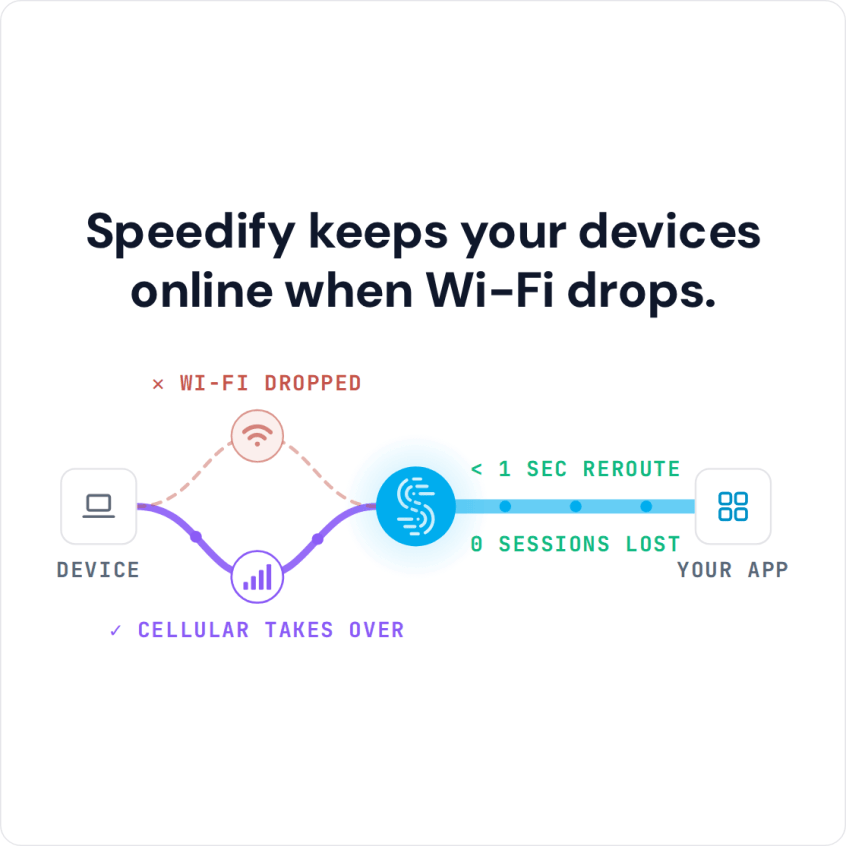
Speedify keeps your devices online when Wi-Fi drops.
Why Internet on Your Android Phone Keeps Dropping
Losing internet connectivity on Android devices like smartphones and tablets involves different mechanics than iOS, making Android-specific troubleshooting essential. Android’s open architecture gives you more control over network settings but also creates more variables that can fail. When your phone appears connected but data won’t flow, the issue usually is caused by one of several predictable technical problems.
The most common culprits when internet is not working on Android phones involve Wi-Fi state management, incorrect APN configurations, Android’s aggressive background data restrictions, and firmware-level driver issues. Each requires a targeted fix rather than generic restart approaches.
Common Reasons an Android Phone Has No Internet Connection
Wi-Fi Radio State and Driver Issues
Android manages Wi-Fi through a radio driver that sometimes enters a dormant state without properly reconnecting. This differs from Wi-Fi being disabled in Settings; the radio physically exists but isn’t communicating with your router. You’ll see “Connected” status without actual data flow. Android versions 9 through 12 experienced this issue more frequently due to power management changes.
Incorrect APN Configuration
Your Android phone stores Access Point Name settings that tell it how to connect to your carrier’s network. These settings can become corrupted during system updates or when switching carriers. Without correct APN credentials, LTE and 5G connections appear active in the status bar but won’t transmit data. Each carrier has specific APN values that must match exactly.
Aggressive Data Saver and Background Restrictions
Android includes Battery Saver and Data Saver modes that restrict background data access. If enabled, these modes can block foreground applications from accessing data unexpectedly, particularly if triggered automatically at low battery levels. The connection itself remains valid; the operating system simply prevents data transmission.


Dual Network Stack Conflicts
Android manages both IPv4 and IPv6 simultaneously. If your router only supports one protocol but your Android device expects both, connection negotiation fails silently. The device remains connected to the network but can’t complete the TCP/IP handshake for actual communication.
Bluetooth Interference and Tethering Conflicts
Active Bluetooth connections can interfere with Wi-Fi signals since both use the 2.4GHz spectrum. Additionally, if Bluetooth tethering was recently active, Android sometimes maintains phantom tethering rules that prevent normal Wi-Fi operation even after disconnecting the tethered device.
ROM and Firmware Degradation
Custom ROMs or incomplete system updates can leave networking drivers in an inconsistent state. Unlike iOS’s unified ecosystem, Android device manufacturers implement proprietary networking code that sometimes conflicts with AOSP (Android Open Source Project) standard libraries.
How People Usually Fix Internet Connection Problems on Android Phones
Toggle Airplane Mode On and Off / Restart Your Android Phone
Open Settings > Network & Internet > Airplane Mode, enable it for 10 seconds, then disable it. This forces Android to reinitialize all radio connections simultaneously: Wi-Fi, 4G/5G cellular, and Bluetooth. The restart is more thorough than toggling Wi-Fi alone. You can also try restarting your Android device altogether.
Forget and Reconnect to Wi-Fi Networks
Navigate to Settings > Wi-Fi, long-press your network, and select “Forget”. Reconnect by selecting the network and entering the password. This clears cached credentials and connection profiles that may have become corrupted.
Reset Network Settings on Your Android Phone
Go to Settings > System > Reset Options > Reset Wi-Fi, Mobile & Bluetooth. This removes all saved networks, paired Bluetooth devices, and cellular configurations. Android will require you to reconfigure everything, but this clears persistent driver state issues that survive reboots.
Check and Correct APN Settings
Access Settings > Network & Internet > Mobile Network > Advanced > Access Point Names. Verify your carrier’s APN matches your provider’s documented settings. A single incorrect digit prevents all cellular data. Contact your carrier for correct APN values if unsure.
Disable Data Saver and Battery Saver
Check Settings > Battery > Battery Saver and Settings > Network & Internet > Data Saver. Disable both to eliminate software-level data restrictions. These modes sometimes activate unexpectedly and block all background and foreground data transmission.
Update Android System and Apps
Navigate to Settings > About Phone > System Update to check for available updates. Network driver improvements and connectivity bug fixes ship regularly. Staying current prevents known connectivity issues affecting your specific device model.
Clear System Cache Partition
Power off your device, then boot into Recovery Mode (usually Power + Volume Down, depending on manufacturer). Select “Wipe Cache Partition” and confirm. This removes temporary system files that sometimes corrupt network driver initialization.
Getting Uninterrupted Internet with Faster Upload and Download Speeds on Android Using Speedify
These fixes address individual outages but don’t prevent future disconnections caused by network switching or coverage gaps. Speedify solves this differently by combining multiple internet connections (Wi-Fi, 4G / 5G cellular, wired Ethernet) on your Android phone to improve internet stability, speed and security on your device.
How Speedify Fixes Internet Not Working on Android Phones
Speedify combines your Wi-Fi and 4G / 5G cellular connections into one stable pipeline. Instead of switching between internet connections, Speedify uses both simultaneously, splitting data traffic across both Wi-Fi and mobile data. If Wi-Fi drops during a video call, 4G / 5G cellular data continues the stream seamlessly. Your Android phone never loses internet.
Speedify Technical Implementation
Speedify monitors signal strength, latency, and packet loss on both connections in real-time. Speedify automatically routes traffic through whichever path offers better performance and reliability. If your Wi-Fi signal weakens, cellular compensation increases without dropping active connections. The entire process occurs in milliseconds so you won’t skip a beat on your phone.
Speedify Installation and Configuration
Download Speedify from the Google Play Store and create an account. Open the app and slide the switch to connect. The interface shows real-time speeds on both connections, allowing you to monitor network performance instantly. Configure your preferences in settings, such as which network to prioritize when both are available.
Real-World Benefits of Speedify
Android users report maintaining HD video calls while switching locations, uninterrupted streaming during commutes, and faster download speeds by utilizing both network paths simultaneously. For both individuals and professionals requiring reliable connectivity, Speedify is a much needed tool for better internet.
Extending Reliability with Speedify’s Pair & Share Feature
Beyond personal device bonding, Speedify’s Pair & Share feature extends connection stability to other devices. This feature lets you combine multiple personal hotspots together to increase bandwidth and signal strength for everyone.
How Speedify’s Pair & Share Feature Works
Speedify’s Pair & Share works almost like a turbocharged personal hotspot. Instead of just one device sharing its connection with others, once paired, all devices can share and receive each other’s connections simultaneously. It’s possible to share cellular data between multiple devices, including PCs, Macs, iPhones and Androids. Use multiple phones as hotspots for internet access and get increased bandwidth and mobile failover.
Who Can Benefit the Most from Speedify’s Pair & Share Feature
For teams traveling together, Speedify’s Pair & Share feature eliminates the need for multiple devices to maintain separate reliable connections. A journalist can use their bonded Android smartphone to share internet with a photographer’s camera uploading images, or a consultant can maintain stable video conferencing on a laptop through their phone’s connection. Everyone benefits from the same multi-network redundancy.
The feature proves particularly valuable in areas with inconsistent coverage, where no single network provides consistent throughput. Secondary devices no longer experience the dropouts that plague traditional personal hotspots.
Speedify
Get started with Speedify today.
Combine Wi-Fi, 4G/5G cellular, Ethernet, Starlink, and more into one faster, steadier connection. Free to try — no credit card required.
🚀 Speed
Faster uploads and downloads by bonding all your connections at once.
📶 Stability
Automatic failover in under a second when any connection drops.
🔒 Security
AES-256 encryption on every connection, on every network you join.



15M+ downloads worldwide. 75K+ five-star reviews on iOS and Android.