
Fix Internet Issues on Windows with Speedify by Combining Starlink, Wi-Fi, Ethernet, 4G / 5G Cellular
A PC not connecting to the internet often still reports a healthy network while no website opens. Two causes dominate: a network adapter driver that stopped talking properly to Windows after an update, and a router that hands the PC a bad address, or none at all, because it has run out of addresses to give.
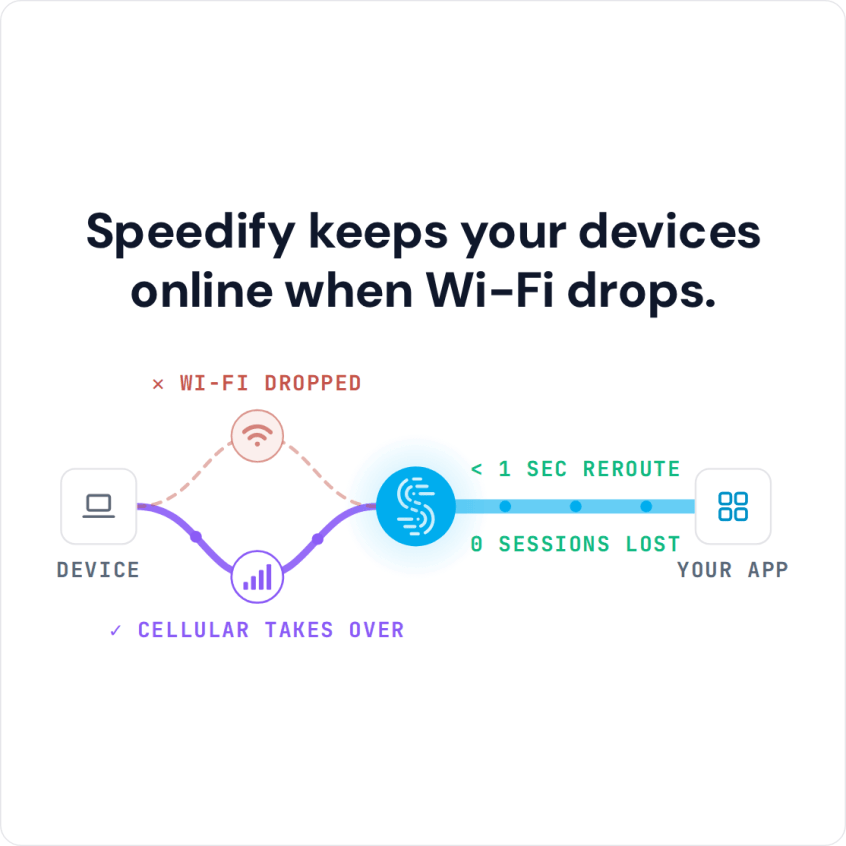
Speedify is an app for Windows that uses Wi-Fi, Ethernet, a tethered phone’s 4G/5G cellular, Starlink and satellite internet connections at the same time. The sections below list the Windows repairs in order, then show what Speedify does differently: your PC stays online because a second internet connection is already carrying the traffic. With a single connection, Speedify works as an encrypted VPN and cannot keep that connection from dropping.
How to Keep a PC Online with a Second Connection
- Download Speedify on your Windows PC (Windows 10 or later).
- Open Speedify and create a free account (the free tier includes 5 GB per month), or sign in.
- Give it a second internet connection next to the one you have: on Wi-Fi, add Ethernet or a phone connected by USB with tethering turned on (Personal Hotspot on an iPhone); on Ethernet, the phone’s Personal Hotspot over Wi-Fi also works.
- Connect. Speedify uses both connections at once and moves your traffic to the working one when one drops.
- Keep working as usual.
Why a PC Is Not Connecting to the Internet or Wi-Fi
A Windows PC manages its network connection through several layers: the hardware, the device drivers, the TCP/IP stack and the apps on top. Each can fail on its own, so when your PC looks connected but cannot reach the internet, finding the layer that failed tells you the fix.
The most common culprits involve outdated network drivers, router DHCP exhaustion, DNS resolution failures, and Windows network configuration corruption. Each requires different troubleshooting approaches rather than generic restart solutions.
Common Reasons a PC Has No Internet Connection
Outdated or Corrupted Windows Network Drivers
Your network adapter requires updated drivers to communicate properly with Windows and your router. Corrupted drivers cause the adapter to appear active while failing to establish valid TCP/IP connections. Windows may not automatically update network drivers, leaving you vulnerable to compatibility issues after OS updates. Driver conflicts between chipset manufacturers (Realtek, Intel, Qualcomm) and your motherboard can create silent failures.
DHCP Server Exhaustion or Misconfiguration
Your router’s DHCP server assigns IP addresses to connected devices. When the DHCP pool becomes exhausted or the server malfunctions, new devices connecting receive invalid addresses like 169.254.x.x (automatic private IP). Your PC appears connected but has no valid gateway to access external networks.
DNS Server Failures and Configuration Issues
Your PC translates website URLs into IP addresses through DNS servers specified by your router or ISP. If these servers become unreachable or misconfigured, website loading fails despite valid network connectivity. DNS failures often appear as complete internet outages when they’re actually resolver-level problems.


Windows Network Stack Corruption
Windows manages network communications through the TCP/IP stack, which can become corrupted through incomplete updates, conflicting software installations, or malware. This corruption prevents proper packet routing even when physical connections exist. The issue persists across reboots because it affects core Windows files.
Damaged Ethernet Cable and Port Issues
Wired Ethernet cables degrade over time, developing micro-fractures that interrupt signal transmission intermittently. Similarly, motherboard Ethernet ports can develop corrosion or loose solder connections that fail under certain data loads. These hardware issues produce consistent but unreliable connectivity.
Router Firmware Bugs and Configuration Faults
Routers require periodic firmware updates that occasionally introduce connectivity regressions. Additionally, misconfigured router settings, such as incorrect subnet masks, disabled DHCP, or restrictive firewall rules, prevent specific devices from accessing the internet while allowing others to connect normally.
Windows Firewall and Third-Party Firewall Conflicts
Windows Firewall blocks legitimate applications from network access when rules become misconfigured. Third-party firewalls can create conflicting rules that supersede Windows settings, resulting in unpredictable connectivity. These issues often affect specific applications rather than producing complete outages.
How to Fix a PC Not Connecting to the Internet
Restart Your Router / Modem
Power off your router / modem completely, wait 30 seconds, then power on the modem first. After the modem fully initializes (all lights stabilized), power on the router. This reinitializes all network hardware and clears temporary state corruption that survives standard reboots.
Update or Reinstall Windows Network Drivers
Visit Device Manager (Win + X > Device Manager), locate your network adapter under “Network Adapters”, right-click, and select “Update Driver”. Choose “Search automatically for updated driver software”. If that fails, uninstall the driver completely, restart Windows, and let it auto-detect and reinstall the adapter.
Flush DNS Cache and Reset TCP/IP Stack
In Windows, open Command Prompt as Administrator and execute: ipconfig /flushdns and ipconfig /release followed by ipconfig /renew. For deeper issues, run netsh int ip reset resetlog.txt which rebuilds the entire TCP/IP stack. Restart your PC after these commands.
Change DNS Servers to Public Alternatives
In Windows 11, go to Settings > Network & internet > Wi-Fi (or Ethernet) > Hardware properties, then select Edit next to DNS server assignment. Set DNS to 8.8.8.8 and 8.8.4.4 (Google DNS) or 1.1.1.1 and 1.0.0.1 (Cloudflare DNS). This gets around broken or slow ISP DNS servers.
Disable and Re-enable Network Adapter
Open Device Manager, find your network adapter, right-click, and select “Disable Device.” Wait 10 seconds, then right-click again and select “Enable Device.” This forces Windows to reinitialize all network driver communications without a full system restart.
Run Windows Network Diagnostics
Right-click the network icon in the taskbar and choose Diagnose network problems (Troubleshoot problems on Windows 10). Windows checks your adapter, drivers and connection settings and fixes what it can.
Reset Network Settings Completely
In Settings > Network & Internet > Advanced Network Settings > Network Reset, select “Reset Now.” This removes all VPN profiles, wireless network profiles, and network adapters, forcing Windows to reconfigure from scratch. You’ll need to reconnect to Wi-Fi and reconfigure any VPN settings afterward.
Staying Online on a PC with Speedify
These fixes address one outage at a time but do not stop the next one from a hardware failure, a network change or a coverage gap. Speedify takes a different approach: instead of waiting for the connection to come back, it keeps your PC online over a second internet connection.
How Speedify Keeps a PC Online When One Connection Drops
Speedify combines your Wi-Fi, Ethernet, a tethered phone’s 4G/5G cellular, Starlink and satellite connections into one connection. Instead of switching between internet connections, Speedify uses them all simultaneously, splitting traffic across them. If one drops during a video call, the others carry the call on, with the same public IP address. If every connection fails at once, Speedify cannot keep you online.
How Speedify Works
Speedify runs on the computer and creates an encrypted tunnel to a Speedify server that spreads packets across your connections. Speedify monitors latency, jitter, packet loss and available bandwidth on each active connection and sends each packet over the connection that performs best at that moment. If your Wi-Fi hits interference, for example, your tethered phone takes over more of the traffic without dropping active connections.
Speedify Installation and Configuration
If Speedify is not installed yet, follow the setup steps at the top of this page. Then open the app to see real-time speeds on all connections; in settings you can choose which connection to prioritize when all are available.
Real-World Benefits of Speedify for Windows Users
With connections combined, a video conference can carry on through a temporary network fault, and a large download keeps going when one connection drops and can use the combined speed of both.
Extending Reliability with Speedify’s Cellular Sharing Feature
Beyond combining your PC’s connections, Speedify’s cellular sharing feature lets nearby phones share their 4G/5G cellular connections with each other and with computers running Speedify, so one device can combine several phones’ connections.
How Speedify’s Cellular Sharing Feature Works
Instead of one phone sharing its connection as a personal hotspot, devices paired with cellular sharing can share and receive each other’s cellular connections at the same time. Sharing works between PCs, Macs, iPhones and Android phones that run Speedify and are on the same local network (the same Wi-Fi network; with no Wi-Fi, one phone’s Personal Hotspot). A receiving device combines the shared connections with its own for more bandwidth and failover.
Who Benefits Most from Speedify’s Cellular Sharing Feature
For teams traveling together, cellular sharing means each device does not need its own reliable connection. A journalist’s laptop can combine the phones of everyone on the team, or a consultant can keep a video call steady on a laptop using two phones on different carriers.
Cellular sharing helps most where coverage is inconsistent and no single carrier gives steady speeds, because the devices draw on several networks at once.
Speedify
Get started with Speedify today.
Speedify combines Wi-Fi, 4G/5G cellular, Ethernet, Starlink and satellite into one faster, more reliable internet connection. Free to try: 5 GB a month with a free account. No credit card required.
🚀 Speed
Faster uploads and downloads, because Speedify uses all your internet connections at once.
📶 Stability
If one internet connection drops, Speedify moves your traffic to the others in milliseconds.
🔒 Security
AES-256 encryption on every internet connection, on any network you join.



15M+ downloads worldwide. 75K+ five-star reviews on iOS and Android.