
Fix Wi-Fi Issues on MacOS with Speedify by Combining Wi-Fi, Starlink, Ethernet, 4G / 5G Cellular
When Mac Wi-Fi is not working even though the menu bar shows full bars, the stored network settings are often the culprit: macOS keeps old credentials that no longer match the router, so the Mac joins the network, fails the password check and quietly gives up. A Wi-Fi chip waking from sleep behaves the same way.
Speedify is an app for macOS (macOS 11.5 or later) that uses Wi-Fi, Ethernet, an iPhone’s 4G/5G cellular over USB, Starlink and satellite internet connections all at once. Read on for the Mac fixes people actually use, and for what Speedify changes: your Mac keeps working while its Wi-Fi is failing, as long as a second internet connection is connected. With Wi-Fi alone, Speedify works as an encrypted VPN and cannot keep the Wi-Fi from dropping.
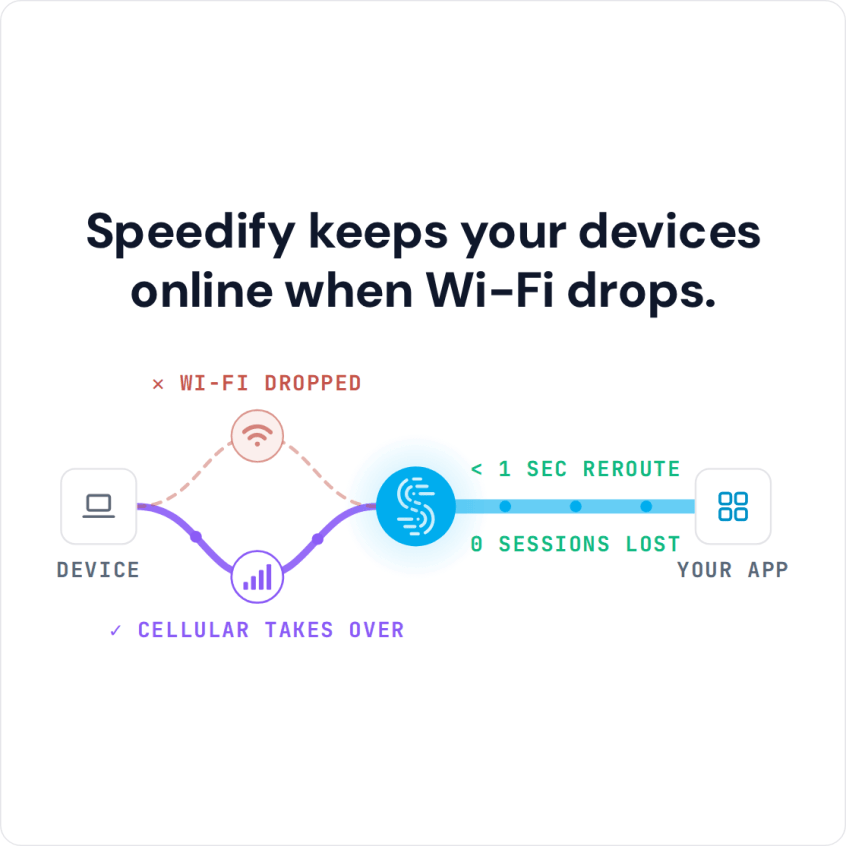
Speedify keeps your devices online when Wi-Fi drops.
How to Keep a Mac Online When Wi-Fi Fails
- Download Speedify on your Mac (macOS 11.5 or later).
- Open Speedify and create a free account (the free tier includes 5 GB per month), or sign in.
- Give it a second internet connection next to Wi-Fi: Ethernet through an adapter, or an iPhone connected by USB with Personal Hotspot turned on. Android USB tethering does not work on a Mac with Speedify.
- Connect. Speedify uses both connections at once and moves your traffic to the working one when one drops.
- Keep working as usual; when the Wi-Fi drops, Speedify carries on over the other connection.
Why a Mac or MacBook Won’t Connect to Wi-Fi
Losing Wi-Fi on a Mac involves hardware, firmware and macOS factors. Your Mac manages wireless connections through several systems (the Wi-Fi chip, its driver, macOS network services and network settings), and each can fail on its own.
When your Mac shows a Wi-Fi signal but can’t access the internet, identifying which layer failed determines your resolution. The most common culprits involve corrupted network preferences, outdated firmware, kernel panics in the Wi-Fi driver, and interference from Bluetooth or AirDrop services. Each requires targeted troubleshooting rather than generic restart solutions.
Common Reasons for Mac Wi-Fi Not Working
Corrupted Wi-Fi Preferences and Plist Files in macOS
macOS stores Wi-Fi configuration data in preference files (plist) in /Library/Preferences/SystemConfiguration/. These files occasionally become corrupted during system updates or forced shutdowns, causing your Mac to maintain cached network credentials that no longer authenticate properly. The Wi-Fi menu shows your network, but connection attempts fail silently.
Wi-Fi Firmware Desynchronization
Your Mac’s Wi-Fi chipset runs proprietary firmware that occasionally becomes desynchronized with macOS. This happens after major system updates or when the chipset enters sleep states improperly. The firmware doesn’t reinitialize correctly, resulting in a module that appears to function but fails to establish actual connections.
Bluetooth Interference and Coexistence Issues
Your Mac’s Wi-Fi and Bluetooth radios share the 2.4 GHz spectrum and have to take turns. When that coordination fails, Bluetooth can crowd out Wi-Fi on 2.4 GHz, and active Bluetooth connections can slow Wi-Fi down. Moving the Mac to a 5 GHz network avoids the clash.


Wi-Fi Driver Kernel Panics
A fault in the macOS Wi-Fi driver can crash the whole Mac (a kernel panic) or leave Wi-Fi dead until a restart. If it happens again and again, install the latest macOS update and contact Apple Support, since a recurring driver crash points to a software or hardware fault.
Aggressive Power Management Settings
macOS implements aggressive power management that sometimes puts the Wi-Fi module into sleep states from which it doesn’t properly wake. Advanced Energy Saver settings can disable Wi-Fi connectivity when the display sleeps, and these settings occasionally remain active even after being “disabled” in System Preferences.
DHCP Server Lease Expiration and Renewal Failures
Your Mac caches DHCP lease information that occasionally expires without proper renewal. If the DHCP renewal process fails, your Mac retains an expired IP address configuration, resulting in a “connected but no internet” state. This differs from complete disconnection and requires forcing lease renewal.
DNS Configuration Inheritance from Router
macOS inherits DNS settings from your router’s DHCP server. If the router broadcasts incorrect or unreachable DNS servers, your Mac resolves them during initial connection but connectivity fails when you attempt to access websites. The connection layer functions perfectly; the DNS layer fails silently.
How to Fix Mac Wi-Fi Not Working
Restart Your Mac’s Wi-Fi Module
Hold Option key and click the Wi-Fi icon in the menu bar, then click “Turn Wi-Fi Off.” Wait 10 seconds, then click the Wi-Fi icon again and select your network. This forces macOS to completely reinitialize the Wi-Fi driver without restarting the entire system.
Remove and Rejoin Wi-Fi Networks on macOS
In macOS Ventura or later, go to System Settings > Wi-Fi, click the More button (three dots) next to your network and choose Forget This Network. On older macOS, go to System Preferences > Network > Wi-Fi > Advanced, select the network and click the minus button. Then join the network again from the Wi-Fi menu.
Reset SMC and NVRAM on Your Mac
On an Intel Mac, follow Apple’s SMC reset steps for your model (they differ between Macs with and without a T2 chip), then reset NVRAM: shut down, turn the Mac on and immediately hold Option, Command, P and R for about 20 seconds. Apple silicon Macs have no separate SMC reset and reset NVRAM on their own when needed: shut down, wait 30 seconds and start up again.
Delete Corrupted Network Preference Files
Open Finder, press Command + Shift + G to open Go to Folder, and navigate to /Library/Preferences/SystemConfiguration/ (the Library folder at the top level of the startup disk, not the one in your home folder). Move these files to the desktop as a backup: com.apple.airport.preferences.plist, NetworkInterfaces.plist and preferences.plist. Restart your Mac and join your Wi-Fi networks again.
Disable Bluetooth Temporarily
Go to System Settings > Bluetooth (System Preferences on older macOS) and turn Bluetooth off. If Wi-Fi stabilizes, Bluetooth interference was the culprit: use a 5 GHz network, or keep Bluetooth off during important tasks.
Renew DHCP Lease and Flush DNS
In System Settings > Network > Wi-Fi > Details > TCP/IP, click Renew DHCP Lease. To flush the DNS cache, open Terminal and run: sudo dscacheutil -flushcache; sudo killall -HUP mDNSResponder
Update macOS to Latest Version
Go to System Settings > General > Software Update (System Preferences > Software Update on older macOS) and install available updates. Apple ships Wi-Fi driver and firmware fixes in macOS updates.
Staying Online on a Mac with Speedify
These fixes address one outage at a time but do not stop the next one from interference, firmware issues or network changes. Speedify works differently: Speedify combines multiple internet connections (Wi-Fi, an iPhone’s 4G/5G cellular over USB, Ethernet, Starlink and satellite) on your Mac for more stability, speed and security.
How Speedify Keeps a Mac Online When Wi-Fi Fails
Speedify combines your Wi-Fi, Ethernet, an iPhone’s 4G/5G cellular over USB, Starlink and satellite connections into one connection. Instead of switching between internet connections, Speedify uses them all simultaneously, splitting traffic across them. If one drops during a video call, the others carry the call on, with the same public IP address. If every connection fails at once, Speedify cannot keep you online.
How Speedify Works
Speedify runs on the computer and creates an encrypted tunnel to a Speedify server that spreads packets across your connections. Speedify monitors latency, jitter, packet loss and available bandwidth on each active connection and sends each packet over the connection that performs best at that moment. If your Wi-Fi hits interference, for example, your iPhone connected by USB takes over more of the traffic without dropping active connections.
Speedify Installation and Configuration
If Speedify is not installed yet, follow the setup steps at the top of this page. Then open the app to see real-time speeds on all connections; in settings you can choose which connection to prioritize when all are available.
Real-World Benefits of Speedify for Mac Users
With connections combined, a video conference can carry on through a temporary network fault, a download keeps going when one connection drops, and downloads can use the combined speed of both connections.
Extending Reliability with Speedify’s Cellular Sharing Feature
Beyond combining your Mac’s connections, Speedify’s cellular sharing feature lets nearby phones share their 4G/5G cellular connections with each other and with computers running Speedify, so one device can combine several phones’ connections.
How Speedify’s Cellular Sharing Feature Works
Instead of one phone sharing its connection as a personal hotspot, devices paired with cellular sharing can share and receive each other’s cellular connections at the same time. Sharing works between PCs, Macs, iPhones and Android phones that run Speedify and are on the same local network (the same Wi-Fi network; with no Wi-Fi, one phone’s Personal Hotspot). A receiving device combines the shared connections with its own for more bandwidth and failover.
Who Benefits Most from Speedify’s Cellular Sharing Feature
For teams traveling together, cellular sharing means each device does not need its own reliable connection. A journalist’s laptop can combine the phones of everyone on the team, or a consultant can keep a video call steady on a laptop using two phones on different carriers.
Cellular sharing helps most where coverage is inconsistent and no single carrier gives steady speeds, because the devices draw on several networks at once.
Speedify
Get started with Speedify today.
Speedify combines Wi-Fi, 4G/5G cellular, Ethernet, Starlink and satellite into one faster, more reliable internet connection. Free to try: 5 GB a month with a free account. No credit card required.
🚀 Speed
Faster uploads and downloads, because Speedify uses all your internet connections at once.
📶 Stability
If one internet connection drops, Speedify moves your traffic to the others in milliseconds.
🔒 Security
AES-256 encryption on every internet connection, on any network you join.



15M+ downloads worldwide. 75K+ five-star reviews on iOS and Android.