
Combine Starlink with Wi-Fi, 4G/5G Cellular or DSL in Speedify to Fix YouTube Buffering on Starlink
YouTube keeps buffering on Starlink when your Starlink internet connection slows down or has short dropouts: when something blocks your Starlink dish’s view of the sky, when your TV, phone or computer has a weak Wi-Fi signal, or when your Starlink dish switches satellites.
You can fix most of these yourself. For the rest, use Starlink together with a second internet connection that doesn’t depend on satellites, like 4G/5G cellular or a DSL line, and Speedify keeps YouTube playing when Starlink dips.
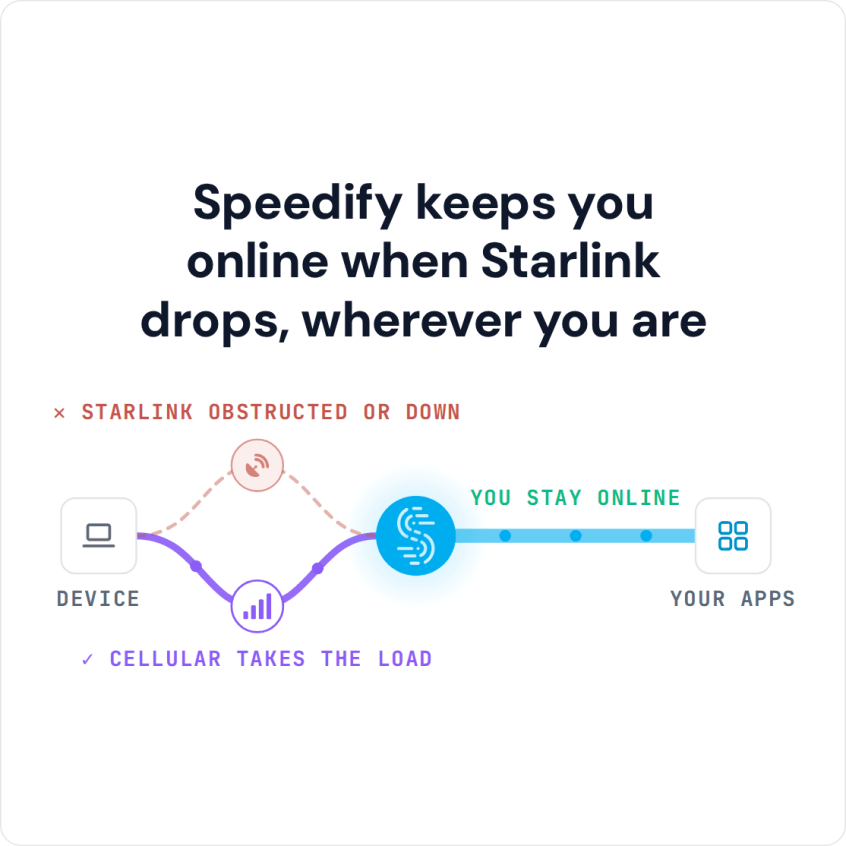
Speedify keeps you online when Starlink drops, wherever you are
Starlink Internet Connection Dropouts Happen to Everyone
Speedify measures thousands of Starlink users in more than 150 countries. From 29 September to 12 October 2026, fixed Starlink dishes went offline for about 37 minutes a day on average, and Starlink dishes on RVs and boats for about 61 minutes a day.
Starlink also switches each dish to a new satellite every 15 seconds, and a switch can cause a short dropout. Even a perfectly installed Starlink dish goes offline, and about 7 in 10 Starlink users on Speedify use Starlink together with a second internet connection, like 4G/5G cellular.
Check Whether Starlink or Your Wi-Fi Is Making YouTube Buffer
Open the Starlink app. If it shows your Starlink dish offline or obstructed, the problem is the Starlink dish or its view of the sky (check your Starlink status). If the Starlink app shows Online, check what YouTube is getting: on a computer, right-click the video and choose Stats for nerds. Connection Speed shows the speed YouTube gets right now. If it keeps falling to near zero while the Starlink app shows Online, the cause is short dropouts or a weak Wi-Fi signal.
Fix YouTube Buffering on Starlink
- Clear what blocks your Starlink dish’s view of the sky. Even if nothing covers the Starlink dish itself, a tree or part of your roof off to the side can block the view as the satellites move overhead. The obstruction map in the Starlink app shows where.
- Strengthen a weak Wi-Fi signal at your TV, phone or computer. Walls and floors weaken Wi-Fi quickly. If your TV or streaming box and your Starlink router both have an Ethernet port, connect them with an Ethernet cable.
- Let YouTube pick the quality. Tap the gear icon on the video, choose Quality, then Auto. Auto lowers the picture for a moment when the speed dips, while a fixed 4K setting stops and buffers instead.
- Know which dropouts you can’t fix. Your Starlink dish switches satellites about every 15 seconds, and a dropout at the wrong moment starts YouTube buffering.
For every other fix for a slow Starlink internet connection, see why is my Starlink so slow.
YouTube TV Works with Starlink: How to Fix a Wrong Location
YouTube TV works on Starlink, and the fixes above help with YouTube TV buffering too. What Starlink adds is location trouble. YouTube TV checks your current playback area, the place you’re watching from, and Starlink’s help page says the location tied to your Starlink IP address can be several states away from you, with only the country guaranteed. YouTube TV may then ask you to confirm your location, or some local channels won’t play.
To fix it, open YouTube TV on your TV and select your profile photo, then Location, then Current Playback Area. On your phone, go to tv.youtube.com/verify and allow the site to use your location. Turn off any VPN first. Don’t change your home area for this: YouTube TV allows only two home area changes in 12 months.
Stop YouTube Buffering on Starlink with a Second Internet Connection and Speedify
For the short dropouts, use a second internet connection at the same time as Starlink: your phone’s 4G/5G cellular connection or an old DSL line, whatever you have. A second Starlink dish switches satellites on the same 15-second schedule as the first, so it doesn’t cover these dropouts.
Speedify is an app that sends your internet traffic over all of your internet connections at the same time, even a single YouTube video, so you get the speed of all of them combined and less buffering. If Starlink drops, Speedify switches your traffic to the other internet connection automatically. Speedify needs that second internet connection: with Starlink alone, it can’t add speed or prevent the dropouts.
Download Speedify on your computer or phone. For YouTube on a smart TV, Speedify has no TV app: it runs on a router that works with Speedify, and the TV uses it through your Wi-Fi. On a phone, Speedify uses your Starlink Wi-Fi and your phone’s cellular connection together. To save cellular data, set cellular to Backup in the Speedify app: Speedify then uses it only when Starlink drops. A tablet with no cellular plan can use your phone’s cellular connection through Speedify’s cellular sharing.
YouTube TV blocks connections that come through a VPN server, and Speedify sends your traffic through a Speedify server. To watch YouTube TV with Speedify on, turn on Bypass for YouTube TV in the Speedify menu under Privacy, then Bypass. YouTube TV then connects directly over Starlink, so Speedify can’t add your second internet connection to it.
Speedify
Get started with Speedify today.
Combine Wi-Fi, 4G/5G cellular, Ethernet, Starlink, and more into one faster, steadier connection. Free to try — no credit card required.
🚀 Speed
Faster uploads and downloads by bonding all your connections at once.
📶 Stability
Automatic failover in under a second when any connection drops.
🔒 Security
AES-256 encryption on every connection, on every network you join.



15M+ downloads worldwide. 75K+ five-star reviews on iOS and Android.