

Windows 11 Slow Internet? Combine Multiple Connections
Windows 11 users frequently face internet speed issues that significantly impact productivity, streaming quality, and overall user experience. While Microsoft’s latest operating system offers many improvements, network connectivity problems persist in Windows 11 across various hardware configurations and internet service providers.
A proven solution is to combine multiple connections at once using the Speedify app – Satellite, Wi-Fi, 4G / 5G cellular, wired Ethernet and through cellular sharing. Alternatively, you can proceed to the troubleshooting steps.

Quick answer
Should you have a backup 4G, 5G, Starlink, or cable internet connection?
Yes — every internet connection goes down, including Starlink, which drops for ~34 minutes a day on average. A backup connection from a different provider means one outage never takes you fully offline. The most common options are a 4G/5G cellular hotspot, a cable or DSL line, or a second satellite dish.
4G/5G cellular
Works anywhere. Just a SIM or hotspot — no installation needed.
Learn more →Cable / DSL
Best for fixed locations. Different network, so outages rarely overlap.
Learn more →Second Starlink
Adds redundancy and throughput for remote sites or heavy usage.
Learn more →Speedify bonds any two connections into one — automatic failover, more speed, no dropped calls.
Try free →
Speedify Feature · Pair & Share
Speedify Pair & Share: share cellular between your devices, both ways
Most hotspots give. Speedify's Pair & Share gives and takes. Two devices running Speedify pair up and each uses the other's cellular connection simultaneously, so you both get faster uploads, faster downloads, and a steadier connection. No extra hardware, no new data plans, no setup beyond a tap.
Learn how Speedify's Pair & Share works ›More speed
Every device you pair with adds its cellular to yours, and yours to theirs.
Stays connected
If a paired device drops out, Speedify keeps you online on the remaining links.
Always private
Every shared connection runs through AES-256 encryption. Your traffic is yours.
No new gear
Runs on devices already running Speedify, over your local network. Pair once, reconnects automatically.


Quick answer
Should you have a backup 4G, 5G, Starlink, or cable internet connection?
Yes — every internet connection goes down, including Starlink, which drops for ~34 minutes a day on average. A backup connection from a different provider means one outage never takes you fully offline. The most common options are a 4G/5G cellular hotspot, a cable or DSL line, or a second satellite dish.
4G/5G cellular
Works anywhere. Just a SIM or hotspot — no installation needed.
Learn more →Cable / DSL
Best for fixed locations. Different network, so outages rarely overlap.
Learn more →Second Starlink
Adds redundancy and throughput for remote sites or heavy usage.
Learn more →Speedify bonds any two connections into one — automatic failover, more speed, no dropped calls.
Try free →
Speedify Feature · Pair & Share
Speedify Pair & Share: share cellular between your devices, both ways
Most hotspots give. Speedify's Pair & Share gives and takes. Two devices running Speedify pair up and each uses the other's cellular connection simultaneously, so you both get faster uploads, faster downloads, and a steadier connection. No extra hardware, no new data plans, no setup beyond a tap.
Learn how Speedify's Pair & Share works ›More speed
Every device you pair with adds its cellular to yours, and yours to theirs.
Stays connected
If a paired device drops out, Speedify keeps you online on the remaining links.
Always private
Every shared connection runs through AES-256 encryption. Your traffic is yours.
No new gear
Runs on devices already running Speedify, over your local network. Pair once, reconnects automatically.
Reasons for Windows 11 Slow Internet
Several factors contribute to poor internet performance on Windows 11 systems. Background application updates often consume substantial bandwidth without user awareness, particularly Windows Update processes and Microsoft Store app installations that run automatically.
Network adapter driver incompatibilities represent another frequent culprit. Windows 11’s hardware requirements and driver architecture changes can create conflicts with older network adapters, resulting in suboptimal performance even with high-speed internet connections.
DNS resolution issues also impact perceived internet speed. Windows 11 defaults to automatic DNS server selection, which may not provide optimal routing for your geographic location or internet service provider infrastructure.
Windows 11 Internet Optimization Methods
Begin troubleshooting by updating network adapter drivers through Device Manager or manufacturer websites. Outdated drivers frequently cause speed limitations and connection stability issues that updating resolves immediately.
Configure DNS servers manually using faster alternatives like Cloudflare (1.1.1.1) or Google DNS (8.8.8.8). Access these settings through Network & Internet settings, then Advanced network settings, and modify DNS server assignments for your active connection.


Disable background apps consuming bandwidth through Settings > Apps > Startup apps, and review which applications have network access permissions. Many pre-installed Windows 11 applications continuously sync data, impacting available bandwidth for primary activities.
Reset network settings using the built-in Network Reset feature under Settings > Network & Internet > Advanced network settings. This process removes and reinstalls network adapters while resetting networking components to default configurations.
Advanced Troubleshooting for Windows 11 Slow Internet
Windows 11’s power management features can throttle network adapter performance to conserve battery life. Disable power saving mode for network adapters through Device Manager > Network adapters > Properties > Power Management, unchecking “Allow the computer to turn off this device to save power.”
Quality of Service (QoS) packet scheduler may limit bandwidth allocation on some systems. Disable this feature through Device Manager > Network adapters > Properties > Networking tab, unchecking “QoS Packet Scheduler” if present.
Configure Windows Update delivery optimization to prevent excessive bandwidth consumption during peak usage hours. Access these settings through Settings > Windows Update > Advanced options > Delivery Optimization, and set active hours or bandwidth limits.
Speedify: Advanced Connection Optimization Solution for Windows 11
When standard troubleshooting methods fail to resolve persistent slow internet issues on Windows 11, Speedify offers a comprehensive solution that addresses connectivity problems through channel bonding technology.
Speedify is the only app that can simultaneously combine multiple internet connections—Wi-Fi, Satellite, Ethernet, and cellular—to increase overall bandwidth and improve connection reliability. This approach proves particularly valuable for Windows 11 users experiencing inconsistent internet performance from single connection sources.
With its channel bonding technology, Speedify enables users to integrate smartphone data connections seamlessly with primary internet sources. When Wi-Fi networks become congested or unreliable, Speedify automatically incorporates cellular bandwidth to maintain consistent speeds and prevent connection drops.
Unlike traditional VPN solutions that often reduce connection speeds, Speedify’s channel bonding technology actually increases effective bandwidth by utilizing multiple pathways simultaneously. The software intelligently distributes data packets across available connections, optimizing routing based on real-time performance metrics.
For Windows 11 users in areas with limited broadband infrastructure or those requiring guaranteed connection reliability, Speedify’s ability to combine any type of connections, including DSL, cable, and cellular 4G / 5G provides redundancy that single-connection solutions cannot match.
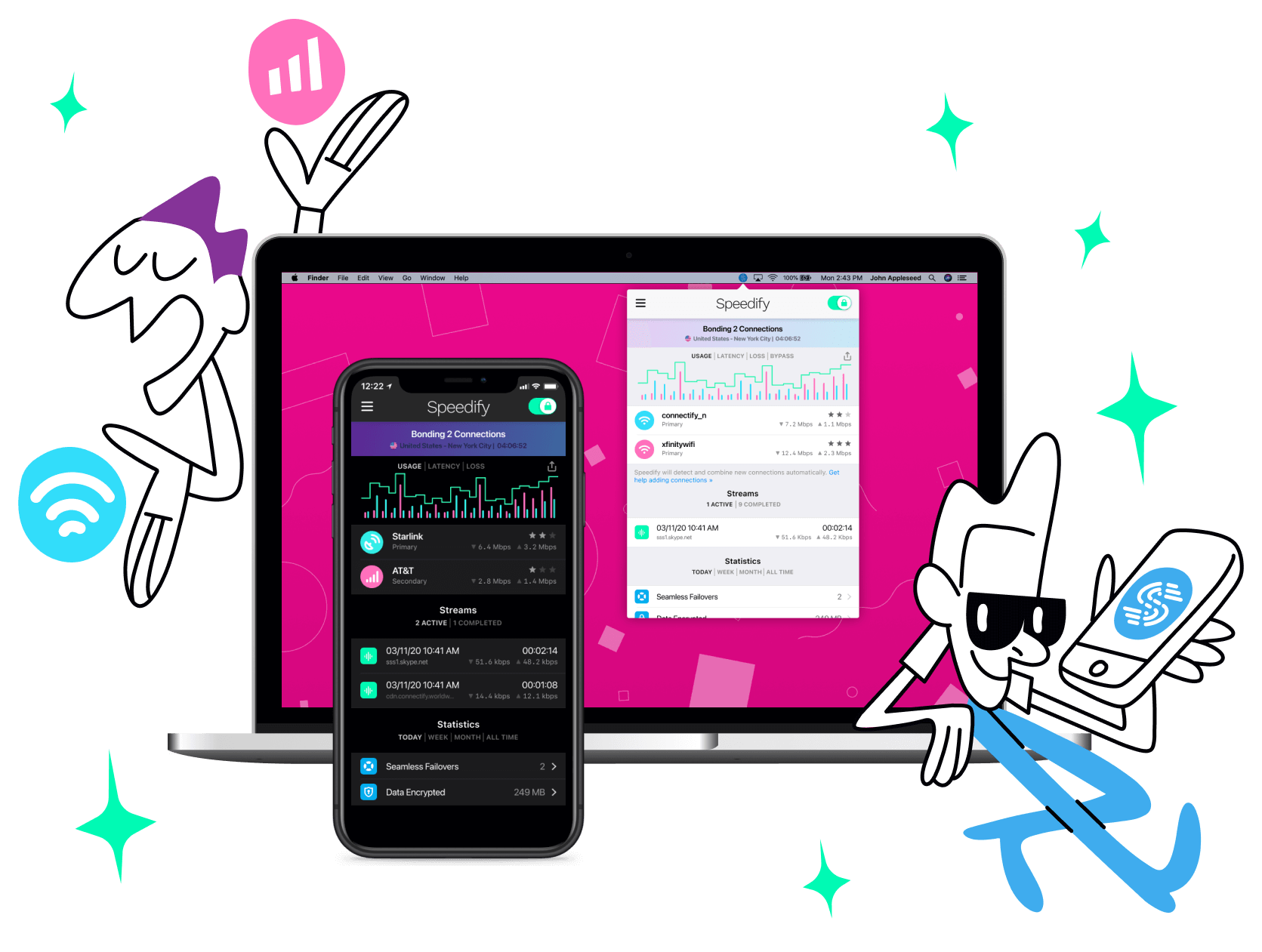
Get started with Speedify today!
With Speedify you can combine Wi-Fi, 4G / 5G cellular, Ethernet, Starlink and other satellites into one bonded super-connection to improve livestreaming, video calling, gaming, web browsing, and everything else you do online.




Speed
Stability
Security
Speedify engineers love talking tech on YouTube, Tiktok, and Instagram!
Alex Gizis and the Speedify engineers discuss and explain technology including Starlink satellites, Wi-Fi 7 routers, Apple networking features, fiber optics, broadband internet, 5G mobile networks, AI, networking protocols, and much more. Follow Speedify on YouTube, TikTok, Instagram, and LinkedIn!
Alex and the Speedify team are always exploring the latest in networking and security technology—like 5G, 6G, WiFi 7, laser and satellite internet—and sharing it in new discussion content across YouTube, TikTok, Instagram, and LinkedIn every week.
Got a tech question? Let's go deeper! Pop into Speedify Office Hours live every Wednesday at 10 AM Eastern. Speedify CEO Alex Gizis and our network engineers are standing by to break down your questions about networks, tech updates, and Speedify features.
