

Step-by-Step Guide on How to Combine 10 Internet Connections
Use Speedify to increase your upload and download speeds: combine internet connection sources like Wi-Fi, 4G, 5G, Starlink and wired broadband

Combine Wi-Fi, 4G, 5G, Starlink and wired broadband to fix slow upload and download speeds
Speedify is the only app that seamlessly combines all of your connections, including Wi-Fi, 4G, 5G, Ethernet, and Starlink, into one stronger connection to keep you online and secure.
In most cases, Speedify will automatically detect and start using any available Internet connections on your device while intelligently distributing your online traffic between them for optimal performance. If you need help we have quick start guides available for most common set ups.

Combine personal hotspots for better upload and download speeds
Speedify's Pair & Share feature enables you to connect to multiple hotspots at the same time and wirelessly share LTE, 4G, and 5G cellular connections back and forth between multiple Speedify users on the same local network to create a faster, more reliable connection for everyone.
For the first time, it's possible to share cellular data between multiple devices, including PCs, Macs, iPhones and Androids. Use multiple phones as hotspots for internet access and get increased bandwidth and mobile failover for all paired devices.
Use Speedify to combine...
Combine these connections on:



Bond 10 Connections at Once Essentials: Speedify App, 1 x Windows PC, 10 x Smartphones
First, let’s do a quick overview of the must-have hardware we used to combine the 10 connections:
- a laptop running Windows 10,
- 6 iPhones (6S to X),
- 4 Android smartphones.
The thing that makes it all possible is Speedify, the fast bonding VPN. Speedify uses patent-pending channel bonding technology to combine multiple Internet connections at the same time. It shouldn’t be confused with a load balancer; Speedify is a true bonding software app, the only one of its kind.
Speedify intelligently splits and encrypts the online traffic into network packets. Then, it sends them in parallel using all available internet connections. Speedify works with speed servers in the cloud all over the world to do this. When you use 2 or more connections with Speedify, you will get their combined bandwidth throughput. Also, if one of the connections drops, Speedify will automatically route the traffic to the active ones until the connection is restored, so you’ll always be connected.
Combining 10 Internet Connections Shopping List
Want your own 10 connections rig? Here is all the hardware we used in our video:
- 10 Port USB Hub
- 10 Phone Holders
- 10 Lightning Cables (Or Mini/Micro USB Cables for Android Devices)
- 8’ (approx. 2.5 m) Length of 3/4” (approx. 19 mm) PVC for the Frame
Building the 10 Connections Rig for Combining Them
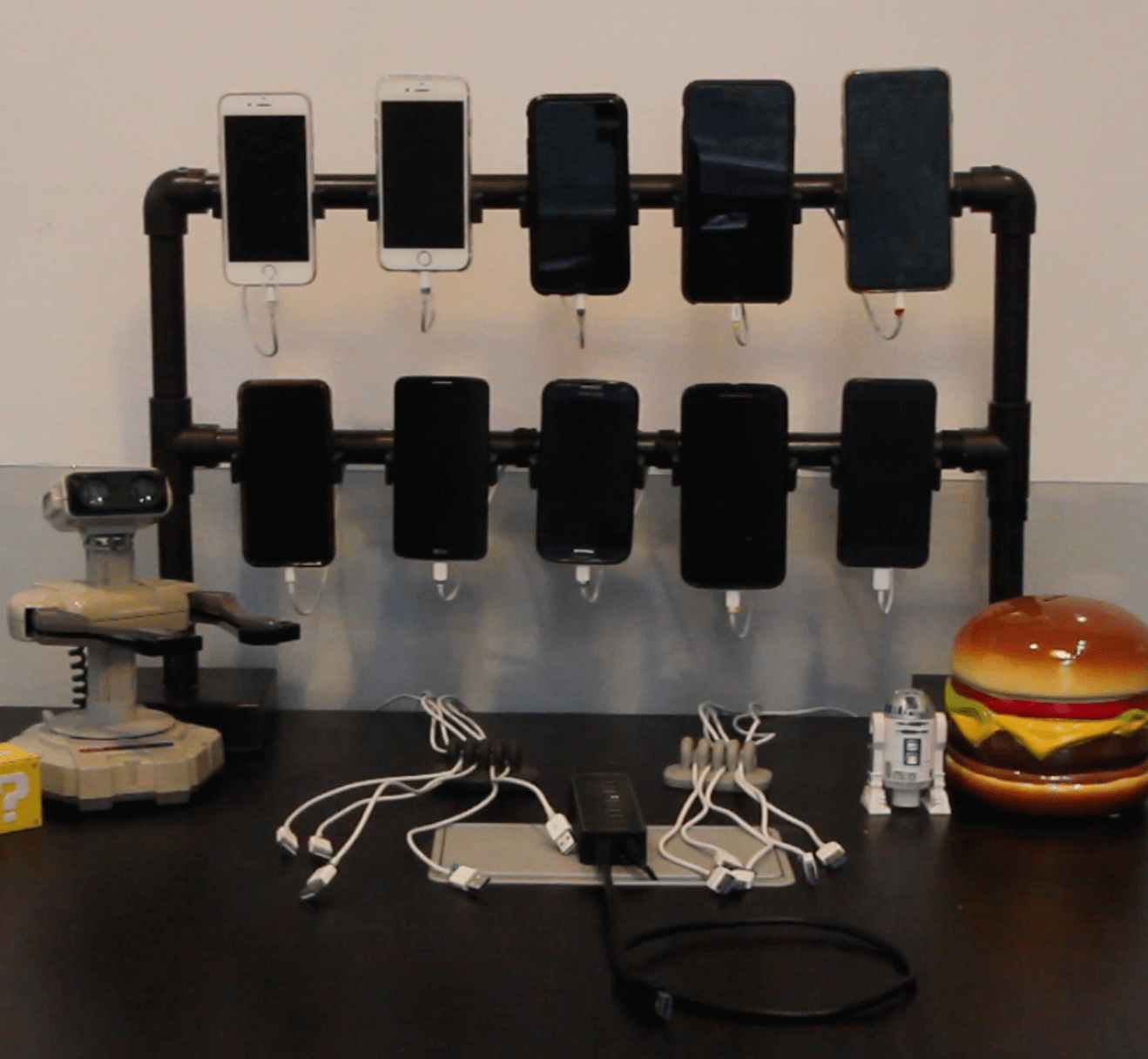
Here’s a photo of how we used the above materials to create our 10 connections stand. You are free to use any design you want – here are some things to consider:
- make sure you have easy access to the smartphones
- arrange the USB cables neatly
- for troubleshooting purposes (should it be necessary), make sure to label each USB cable on both ends with a colored tape
Steps for Combining 10 Internet Connections
Once you’ve got the frame of your rig in place, here’s what we did:
- Connected the USB hub to the PC
- Put each smartphone into a holder
- Connected the USB cable to the phone
- Connected the other end of the USB cable into the USB hub
- Tethered the smartphone to the PC – read important notes section below.
- After we connected all 10 smartphones (repeat steps 2-5), we started the Speedify app on the PC
- Speedify identified all connections successfully and we were able to enjoy a 40 Mbps Internet connection made out of ten 3-4 Mbps individual connections.
Of course, you can set data caps for your connections from the Speedify app on your PC. This will make sure you will not pay extra if you go over your data caps.
Important notes when tethering iOS devices via USB
To a Windows PC
- On Windows, iTunes is required to wired tether an iPhone (it contains necessary device specific drivers)
- When connecting an iPhone to your computer, you’ll be asked if you “Trust this Computer” – Be sure to tap “Trust”

To a macOS computer
- As mentioned above, when connecting an iOS device to your computer, you’ll be asked if you “Trust this Computer” – Be sure to tap “Trust”
- On macOS you’ll only be able to wired tether one iOS device at a time
- In the Network Settings pane of your System Preferences, Select your connected iOS device – in this example ‘iPhone USB” and uncheck the “Disable unless needed” option. This will allow Speedify to use the tethered connection even if you are already connected to a wifi network.



Speed
Stability
Security
Speedify devs love talking tech on YouTube, Tiktok, and Instagram!
Alex Gizis and the Speedify devs discuss and explain technology including Starlink satellites, Wi-Fi 7 routers, Apple networking features, fiber optics, broadband internet, 5G mobile networks, AI, networking protocols, and much more. Follow Speedify on YouTube, TikTok, Instagram, and LinkedIn!
Alex and the Speedify team are always exploring the latest in networking and security technology—like 5G, 6G, WiFi 7, laser and satellite internet—and sharing it in new discussion content across YouTube, TikTok, Instagram, and LinkedIn every week.
Got a tech question? Let's go deeper! Pop into Speedify Office Hours live every Wednesday at 10 AM Eastern. Speedify CEO Alex Gizis and our network engineers are standing by to break down your questions about networks, tech updates, and Speedify features.
