
Combine Starlink with Wi-Fi, 4G/5G Cellular or DSL in Speedify to Fix Gaming Lag Spikes
Starlink’s ping is usually between 25 and 60 milliseconds on land, Starlink says, which is fine for most online games. The problem is lag spikes: sudden jumps in ping, or a short dropout, when your Starlink dish switches satellites, something blocks its view of the sky, or your Wi-Fi is weak.
Below: what Starlink ping is normal for games, how to check it while you play, 4 fixes you can make yourself, and how Speedify, an app that uses Starlink and a second internet connection like 4G/5G cellular at the same time, keeps your game going through the spikes no setting removes.
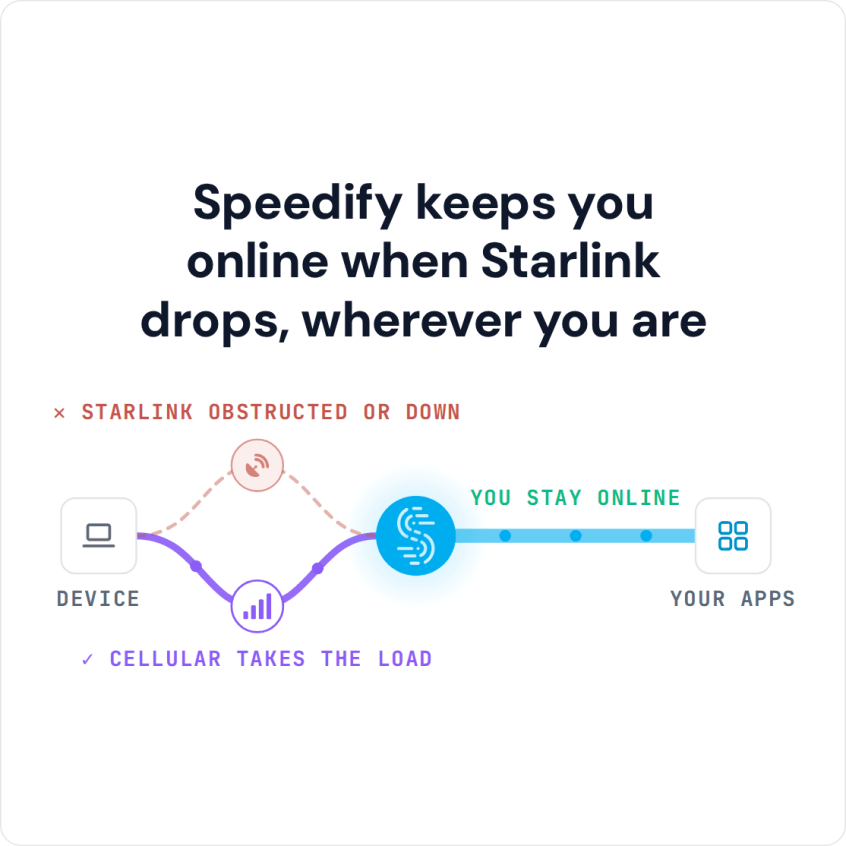
Speedify keeps you online when Starlink drops, wherever you are
Starlink Internet Connection Dropouts Happen to Everyone
Speedify measures thousands of Starlink users in more than 150 countries. From 29 September to 12 October 2026, fixed Starlink dishes went offline for about 37 minutes a day on average, and Starlink dishes on RVs and boats for about 61 minutes a day.
Starlink also switches each dish to a new satellite every 15 seconds, and a switch can cause a short dropout. Even a perfectly installed Starlink dish goes offline, and about 7 in 10 Starlink users on Speedify use Starlink together with a second internet connection, like 4G/5G cellular.
What Starlink Ping Is Normal for Online Games
Ping is the time your game’s data takes to reach the game server and come back, in milliseconds (ms). Lower is better. Starlink’s 25 to 60 ms is higher than fiber or cable internet, but most online games play fine in that range. The ping a Starlink dish reports covers only the trip to the Starlink ground station, so the ping in a game is usually higher. How Speedify measures Starlink latency explains the difference. Counting each Starlink user once, the Speedify Starlink Index puts the typical Starlink user at 85 ms; Starlink ping explained compares the 85 ms with the dish’s own 23 ms.
What you feel as lag is usually a spike: for a second or two, your ping jumps far above its normal number, or some of your game’s data doesn’t arrive at all. If your ping stays high for hours instead, usually in the evening, the Starlink network near you is busy. For which games feel the spikes most, see is Starlink good for gaming.
How to Check Your Starlink Ping While You Play
Most online games can show your ping on screen: look for a network or performance option in the game’s settings. Watch it for a few minutes. A ping that sits near its normal number and jumps every so often means lag spikes. A ping that stays high means a busy Starlink network or a weak Wi-Fi signal.
If you use Speedify, the Starlink Control Center (the Starlink screen in the Speedify app) shows your Starlink dish’s ping live, along with its status and whether anything blocks its view of the sky.
What Causes Starlink Lag Spikes and High Ping in Games
- Satellite switches. Your Starlink dish switches satellites about every 15 seconds. Each switch can cause a short dropout, and in a game it shows up as a lag spike. Every Starlink dish has them.
- A partly blocked view of the sky. A tree or a roof edge off to the side can block the view for a moment as the satellites move overhead, even if nothing covers the Starlink dish itself.
- Weak or crowded Wi-Fi. A gaming device far from the Starlink router, or neighbors’ Wi-Fi on the same channels, adds delay and spikes of its own.
- A busy Starlink network in the evening. When many people near you use Starlink at the same time, your ping climbs and stays up.
- An old or faulty Starlink dish.
How to Fix Starlink Lag Spikes in Online Games
Step 1: Check the Obstruction Map in the Starlink App for Anything Blocking Your Starlink Dish. Clear what’s in the way, or move the Starlink dish until the view is clear.
Step 2: Connect Your Gaming PC or Console to the Starlink Router with an Ethernet Cable. A cable takes Wi-Fi off the list of causes. If you have to use Wi-Fi, play closer to the Starlink router, on its 5 GHz Wi-Fi network if your Wi-Fi list shows one, since it is usually less crowded by neighbors’ Wi-Fi.
Step 3: Pause Downloads and Updates on Your Other Devices While You Play. A console update or a cloud backup running on the same Starlink internet connection pushes your ping up.
Step 4: Contact Starlink Support If the Lag Spikes Started Suddenly. An old or faulty Starlink dish can cause them, and Starlink support can check it.
The spikes from satellite switches stay, whatever you change. For those, you need a second internet connection.
Cut Starlink Lag Spikes in Games with a Second Internet Connection and Speedify
Use a second internet connection together with Starlink: 4G/5G cellular or an old DSL line, whatever you have. A second Starlink dish switches satellites on the same 15-second schedule as the first, so it doesn’t cover these dropouts.
Speedify is an app that sends your game over all of your internet connections at the same time, so when Starlink has a short dropout, your game keeps going on the others. You get fewer lag spikes and a steadier game. Speedify needs that second internet connection: it can’t lower Starlink’s own ping, and with Starlink alone it can’t cover the dropouts. If you play Apex Legends, here is how to stop Starlink dropouts in Apex Legends.
Speedify’s Streaming mode puts calls, streams and games first. If one internet connection drops completely, Speedify switches your game to the others on its own.
To add more cellular connections without extra adapters, use Speedify’s cellular sharing: put your phones and your computer on the same Wi-Fi or hotspot, install Speedify on each one, and pair the phones in the Speedify app so they share their cellular connections.
Get Speedify for Windows, macOS, iOS, Android or Linux. Game consoles can’t run the Speedify app, so for a PlayStation or Xbox, run Speedify on a router that works with Speedify and connect the console to that router.
Speedify
Get started with Speedify today.
Speedify combines Wi-Fi, 4G/5G cellular, Ethernet, Starlink and satellite into one faster, more reliable internet connection. Free to try: 5 GB a month with a free account. No credit card required.
🚀 Speed
Faster uploads and downloads, because Speedify uses all your internet connections at once.
📶 Stability
If one internet connection drops, Speedify moves your traffic to the others in milliseconds.
🔒 Security
AES-256 encryption on every internet connection, on any network you join.



15M+ downloads worldwide. 75K+ five-star reviews on iOS and Android.