
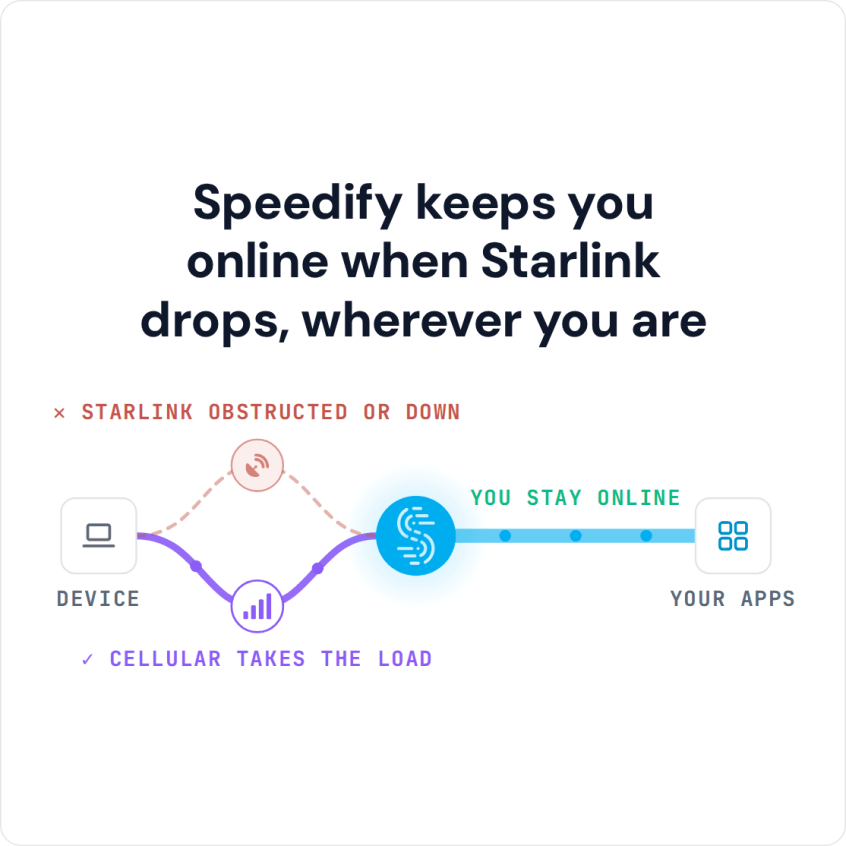
Discord works on Starlink, but voice and video can cut out, or your voice can sound choppy to everyone else, when your Starlink internet connection has short drops: when something blocks your Starlink dish’s view of the sky, when your computer or phone has a weak Wi-Fi signal, or when your Starlink dish switches satellites.
You can fix the first two yourself. For the satellite switches, use Starlink together with a second internet connection, like 4G/5G cellular or a DSL line, and Speedify keeps your Discord voice chat going when Starlink dips. With no second internet connection, Speedify has nothing to switch to and your voice still cuts out. For work calls, see how to keep Teams calls going on Starlink.
Starlink Internet Connection Dropouts Happen to Everyone
Speedify measures thousands of Starlink users in more than 150 countries. From 29 September to 12 October 2026, fixed Starlink dishes went offline for about 37 minutes a day on average, and Starlink dishes on RVs and boats for about 61 minutes a day.
Starlink also switches each dish to a new satellite every 15 seconds, and a switch can cause a short dropout. Even a perfectly installed Starlink dish goes offline, and about 7 in 10 Starlink users on Speedify use Starlink together with a second internet connection, like 4G/5G cellular.
Check Whether Starlink or Discord Is Causing the Choppy Voice
Open the Starlink app first. If it shows your Starlink dish offline or obstructed, the problem is the Starlink dish or its view of the sky (check your Starlink status). If the Starlink app shows Online, look at Discord: while you’re in a voice channel, click Voice Connected at the bottom left of Discord to see your ping. A ping that jumps every few seconds while the Starlink app stays online points to short Starlink drops or a weak Wi-Fi signal.
Fix Discord Voice Cutting Out on Starlink
- Plug your computer into the Starlink router with an Ethernet cable. A cable takes the Wi-Fi signal out of the picture. If your Starlink router has no Ethernet port, sit where the Wi-Fi signal is strong.
- Clear what blocks your Starlink dish’s view of the sky. Even if nothing covers the Starlink dish itself, a tree or part of your roof off to the side can block the view as the satellites move overhead. The obstruction map in the Starlink app shows where.
- Turn off your camera or screen share when the call gets choppy. Video and screen sharing use far more upload than your voice does, and uploads are Starlink’s slow side: Starlink says 10 to 30 Mbps up, against 45 to 280 Mbps down.
- Know which drops you can’t fix. Your Starlink dish switches satellites about every 15 seconds, and a drop in the middle of a voice chat cuts your voice out for a moment. Nothing in Discord’s settings prevents it.
If you play games while you talk, see is Starlink good for gaming. For every other fix for a slow Starlink internet connection, see why is my Starlink so slow.
Keep Discord Voice Chat Going on Starlink with a Second Internet Connection and Speedify
The satellite switches are the part you can’t fix on Starlink alone. What fixes them is a second internet connection used at the same time: your phone’s 4G/5G cellular connection or a DSL line, whatever you have. A second Starlink dish switches satellites on the same 15-second schedule as the first, so it doesn’t cover these drops.
Speedify is an app that combines Starlink with your other internet connections, like 4G/5G cellular, into one connection. Speedify sends your Discord call over all of your internet connections at the same time. When Starlink drops, Speedify switches your traffic to the other internet connection and your voice keeps going. Speedify’s Streaming mode puts calls like Discord voice first. For voice chat that must not cut out, switch Speedify to Redundant Mode: Speedify then sends the same data over two internet connections at once and uses whichever copy arrives first. Speedify needs that second internet connection: with Starlink alone, it can’t fill the gaps.
Download Speedify on the computer or phone you use Discord on. On a computer, connect your phone with a USB cable to use its cellular connection, or use Speedify’s cellular sharing: put the phone on the same Wi-Fi, install Speedify on both, and pair them in the Speedify app. To save cellular data, set cellular to Backup in the Speedify app: Speedify then uses it only when Starlink drops.
Speedify
Get started with Speedify today.
Speedify combines Wi-Fi, 4G/5G cellular, Ethernet, Starlink and satellite into one faster, more reliable internet connection. Free to try: 5 GB a month with a free account. No credit card required.
🚀 Speed
Faster uploads and downloads, because Speedify uses all your internet connections at once.
📶 Stability
If one internet connection drops, Speedify moves your traffic to the others in milliseconds.
🔒 Security
AES-256 encryption on every internet connection, on any network you join.



15M+ downloads worldwide. 75K+ five-star reviews on iOS and Android.