
Starlink is good for streaming on Twitch: Starlink uploads run 10 to 30 Mbps, and Twitch recommends 3 to 6 Mbps for a stream. The catch is the short drops. Your Twitch stream freezes, or Twitch keeps buffering while you watch, when something blocks your Starlink dish’s view of the sky, when your computer has a weak Wi-Fi signal, or when your Starlink dish switches satellites.
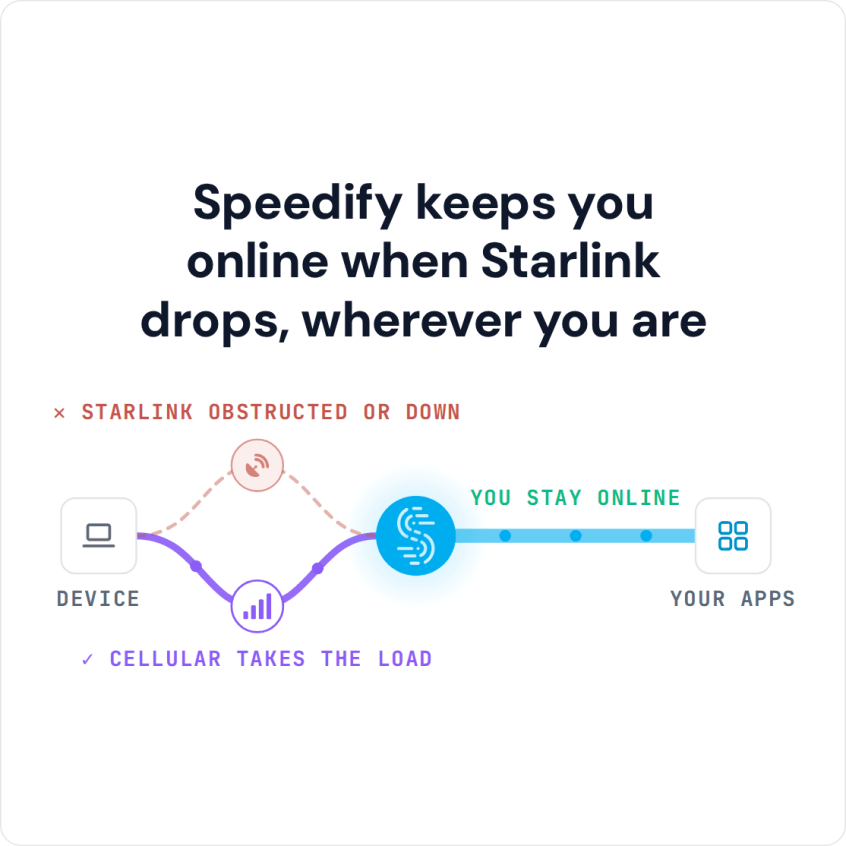
You can fix the first two yourself. For the satellite switches, use Starlink together with a second internet connection that doesn’t depend on satellites, like 4G/5G cellular or a DSL line, and Speedify keeps your Twitch stream live when Starlink dips.
Speedify keeps you online when Starlink drops, wherever you are
Starlink Internet Connection Dropouts Happen to Everyone
Speedify measures thousands of Starlink users in more than 150 countries. From 29 September to 12 October 2026, fixed Starlink dishes went offline for about 37 minutes a day on average, and Starlink dishes on RVs and boats for about 61 minutes a day.
Starlink also switches each dish to a new satellite every 15 seconds, and a switch can cause a short dropout. Even a perfectly installed Starlink dish goes offline, and about 7 in 10 Starlink users on Speedify use Starlink together with a second internet connection, like 4G/5G cellular.
Why Your Twitch Stream Freezes or Buffers on Starlink
- Something blocks your Starlink dish’s view of the sky. Even if nothing covers the Starlink dish itself, a tree or part of your roof off to the side can block the view as the satellites move overhead. The obstruction map in the Starlink app shows what to clear.
- Your streaming computer is on Wi-Fi. A weak Wi-Fi signal drops frames even when Starlink is fine. Plug the computer into the Starlink router with an Ethernet cable if your Starlink router has an Ethernet port, or stream from next to the router.
- Your Starlink dish switches satellites about every 15 seconds. Each switch can cause a short drop, and a drop during a live stream freezes it for your viewers.
Watching, not streaming? If Twitch buffers while you watch, pick a lower quality from the gear icon in the Twitch player until the picture steadies. For every other fix for a slow Starlink internet connection, see why is my Starlink so slow, and to see what your Starlink dish is doing right now, check your Starlink status.
Starlink Is Good for Streaming on Twitch: Upload Speeds and OBS Settings
Starlink handles most Twitch streams. Twitch recommends 3,000 kbps (3 Mbps) for 720p at 30 frames per second, 4,500 kbps for 720p at 60 or 1080p at 30, and 6,000 kbps for 1080p at 60. Even 1080p at 60 fits inside the upload Starlink gives you. What breaks a Twitch stream on Starlink is not the average speed but the short drops: when your upload stops for a moment, your viewers see the stream freeze. Your viewers’ players buffer a few seconds of video, but the stream you send keeps only a small buffer, which is why a Starlink dropout hurts a live stream more than a video you watch.
Two settings in OBS Studio help. Set your bitrate below what your Starlink upload gives you at its slowest, not its fastest. Then turn on Dynamically change bitrate to manage congestion (in Settings, Advanced, Network), so OBS lowers the bitrate for a moment instead of dropping frames. Twitch Inspector (inspector.twitch.tv) shows how steady your bitrate stays during a stream. None of this stops the drops when your Starlink dish switches satellites, which is why a second internet connection matters more for streamers than a faster Starlink plan.
Keep Your Twitch Stream Live on Starlink with a Second Internet Connection and Speedify
Use a second internet connection at the same time as Starlink: 4G/5G cellular or an old DSL line, whatever you have. A second Starlink dish switches satellites on the same 15-second schedule as the first, so it doesn’t cover these drops.
Speedify is an app that combines Starlink with your other internet connections, like 4G/5G cellular, into one connection. Speedify sends your internet traffic over all of your internet connections at the same time, even a single Twitch stream, so you get the upload speed of all of them combined. When Starlink drops, Speedify switches your traffic to the others and your stream stays live. Speedify’s Streaming mode puts live streams and calls first. Speedify needs that second internet connection: with Starlink alone, it can’t add speed or stop the drops.
Download Speedify on your streaming computer (Windows, macOS or Linux). Connect your phone with a USB cable to add its cellular connection, or use Speedify’s cellular sharing: put the phone on the same Wi-Fi, install Speedify on both, and pair them in the Speedify app. Streaming IRL from your phone? Speedify runs on iPhone and Android too. If cellular data is your limit, see how to make IRL streaming data last longer.
Speedify
Get started with Speedify today.
Speedify combines Wi-Fi, 4G/5G cellular, Ethernet, Starlink and satellite into one faster, more reliable internet connection. Free to try: 5 GB a month with a free account. No credit card required.
🚀 Speed
Faster uploads and downloads, because Speedify uses all your internet connections at once.
📶 Stability
If one internet connection drops, Speedify moves your traffic to the others in milliseconds.
🔒 Security
AES-256 encryption on every internet connection, on any network you join.



15M+ downloads worldwide. 75K+ five-star reviews on iOS and Android.